 To post a new comment:
Comments on Text in Word: To post comments on text in a Word-based report package, in the review instance, select the text to comment on, and in the Performance Reporting ribbon, click Add New Comment.

Comments on Text in PowerPoint: To post comments on text in a PowerPoint-based report package, place your cursor in the slide you want to comment on, and in the Performance Reporting ribbon, click Add New Comment.
A pin is placed in the top left corner of the slide. Click the pin and drag it to position it on or near the text to comment on. Then, double-click the pin to open the EPRCS Comments text box.
Note:
If text was selected before clicking Add New Comment, the pin will be placed at the top left corner of the selection.
Comments on Graphics in Word: To post comments on graphics in a Word-based report package, in the review instance, select the graphic to comment on, and in the Performance Reporting ribbon, click Add New Comment.
A pin is placed in the top left corner of the page that contains the graphic. Click the pin, and drag and drop it on the desired location within the graphic. Then double-click the pin to open the EPRCS Comments text box.
Select only the graphic. Do not select any paragraph markers, text, or empty spaces around the graphic.
Comments on Graphics in PowerPoint: To post comments on graphics in a PowerPoint-based report package, in the review instance, select the graphic to comment on, and in the Performance Reporting ribbon, click Add New Comment.
A pin is placed in the top left corner of the graphic. Click the pin, and drag and drop it on the desired location within the graphic. Then double-click the pin to open the EPRCS Comments text box.
Select only the graphic. Do not select any paragraph markers, text, or empty spaces around the graphic.
Tip:
The selection area for comments cannot be empty. Select a graphic or at least one word or number when adding comments.
In EPRCS Comments, enter a comment.
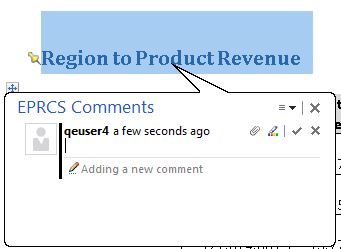
Figure 103, EPRCS Comment Text Box in Word with Text Selected shows an example of an EPRCS Comments text box with text selected for commenting.
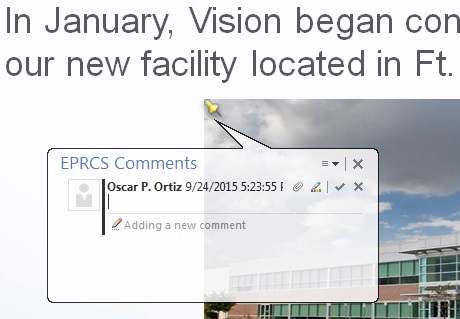
Figure 104, EPRCS Comment Text Box in PowerPoint with Graphic Selected shows an example of an EPRCS Comments text box with a graphic selected for commenting in PowerPoint. Notice that the pin was placed in the upper left corner of the graphic.
Note:
You can add URLs, text formatting, and attachments to comments. See Editing and Deleting Comments and Attaching Supporting Files and Customizing Comment Text.
Click Enter,
 , to post your comment.
Note:
A comment must contain text, an attachment, or both.
Your comment is added to the list of comments in the comments pane in the Smart View Panel, and an anchor icon,
 , is added to the review instance to indicate that there is a comment.
In the top right corner of the EPRCS Comments text box, click Close,
 , to exit.
To post a reply to a comment:
In the Smart View Panel, double-click a comment in the list to launch the EPRCS Comments text box.
In the EPRCS Comments text box, click the Reply button,
 , and enter your reply.
Note:
You can add text formatting and attachments to comment replies. See Attaching Supporting Files and Customizing Comment Text for more information.