| Oracle® Retail Sales Audit Operational Insights Reports User Guide Release 14.1 E58945-01 |
|

 Previous |
 Next |
| Oracle® Retail Sales Audit Operational Insights Reports User Guide Release 14.1 E58945-01 |
|
Previous |
Next |
ReSA operational insights reports can be divided into the Dashboard Reports and Contextual BI Reports. There reports are embedded within the ReSA ADF application. Ad-hoc creation of reports and dashboards in a standalone OBIEE environment is not an out of box feature.
The dashboard surfaces information in a manner that will help users - Sales auditors - prioritize their day-to-day activities as well as quickly identify areas of concern. The dashboard allows a user to look at a consolidated view of their 'to-dos' and then directly and contextually launch into the corresponding ReSA screens to take an action. The Dashboard Reports show data across the user assigned stores i.e the stores assigned to the logged in user.
Via the dashboard, a Sales Auditor can at a glance identify store days that are still open due to errors or late polling by stores and can resolve or escalate the issues.
A view of all open transactional errors across his stores for the last seven days is available that helps him see error patterns and helps estimate his workload in fixing them. The auditor can then start fixing the errors by launching the respective ReSA screens directly from the links provided in the dashboard reports.
The over short summary report helps the sales auditor in the important function of tracking the overages or shortages at his stores and identifying fraudulent behavior.
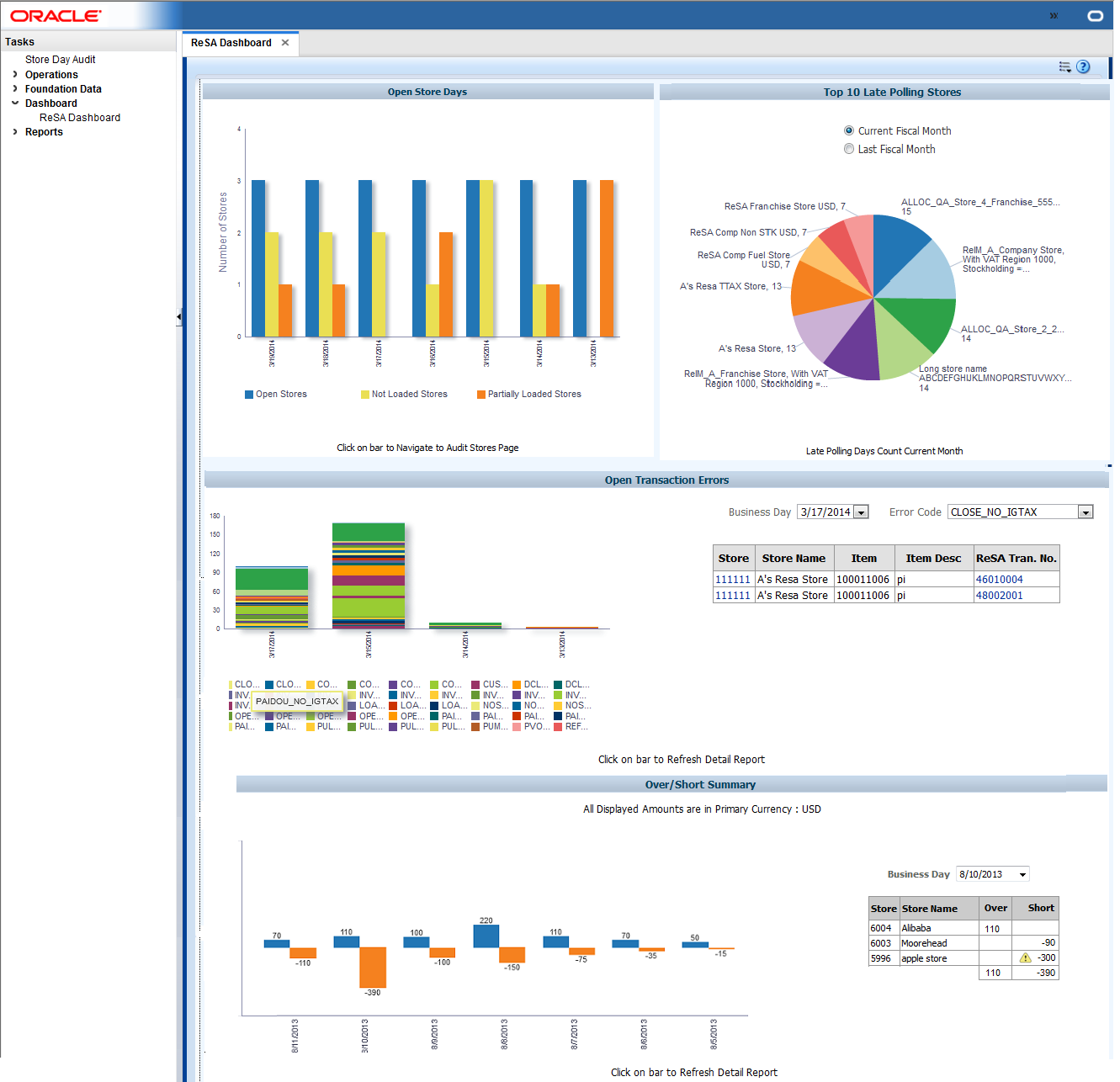
The dashboard reports can be viewed by navigating to Tasks > Dashboard > ReSA Dashboard in ReSA.
ReSA Sales auditor Dashboard Reports:
The open store days report indicates a sales auditor's open store days and color codes them by whether they have not been audited, not been loaded or only partially loaded for the last seven days. There are three different actions that can be taken from this report:
The user is able to click on an 'Open Stores' bar in the report and will be contextually launched into the ReSA Store Day Search screen. Therefore, the ReSA screen will be auto-populated for all the user's store-days with a status of 'Sales Audit In-Progress'.
The user is also able to click on a 'Not Loaded Stores' bar in the report and will be contextually launched into the ReSA Store Day Search screen. Therefore, the ReSA screen will be auto-populated for all the user's store-days with a status of 'Ready for Import.'
The user is able to click on a 'Partially Loaded Stores' bar in the report and will be contextually launched into the ReSA Store Day Search screen. Therefore, the ReSA screen will be auto-populated for all the user's store-days with a status of Partially Loaded.
|
Note: Only days for which data exists will be shown in the report. |
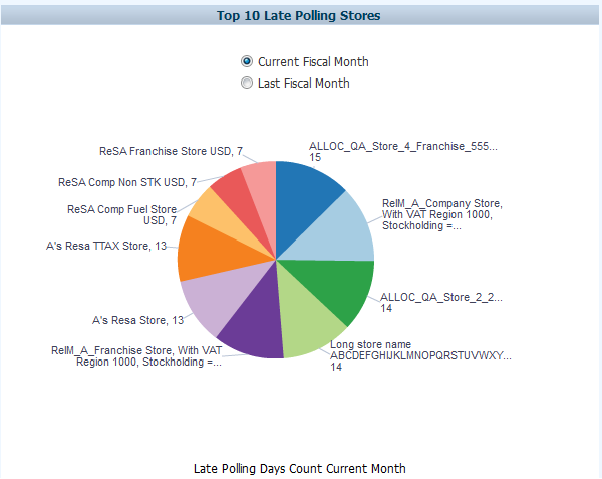
The top 10 late polling report gives the auditor a view of top 10 auditor stores that have the highest number of late polling days in a given fiscal month. This report shows the count of store days in status 'Ready to Import' or 'Partially loaded' per store for the Current Fiscal Month or Last Fiscal Month based on the user view selected. This will display the auditor stores that have the maximum number of data loading issues for a given time period. Based on this analysis the Auditor can contact these stores or escalate them as high issue stores to management.
The Open Transaction Errors report displays the number of open transactional errors across all auditor stores color coded by error code over the last seven days.
The user can hover over a section of the stacked bar to see the count of errors for a given error code on a given business date.
The user is able to click on the stacked bar for a specific error code and business day to refresh the tabular detail report on the right. The tabular report shows the store, item and transaction number details of all errors existing for the given business date and error code. The user can also view the appropriate detail data in the tabular report by choosing the business date or error code from the user prompts provided.
|
Note: Item details are displayed in the tabular report only for item level errors (i.e. errors with rec_type = TITEM, IDISC, IGTAX>). |
The user can click on the data in the Store column in the open transaction error detail table and will be contextually launched into the ReSA Transaction Search screen. The ReSA screen will be auto populated with all transactions for the given store and business date where transaction level errors exist.
The user can click on the data in the ReSA Tran. No. column in the open transaction error detail table and will be contextually launched into the ReSA Transaction Maintenance screen for the given transaction. The screen will be launched either in the 'View' mode or 'Edit' Mode based on the ReSA privileges that the user role has.
|
Note: Only days for which data exists will be shown in the report. |
The Over/Short Summary report displays the sum of overage amounts for all auditor stores that have an over amount and the sum of shortage amounts for all auditor stores that have a short amount per business day for the last seven days.
The user is able to click on the over or short bar for a given business day which refreshes the tabular detail report on the right. The tabular report shows the store and the corresponding over amount or short amount for the store and given business day. The user can also view over and short amounts across stores for a given business day in the detailed tabular report by choosing the Business Day in the prompt provided.
If the over amount or short amount at a store exceeds the configured threshold amount, a warning symbol is displayed against the given row.
|
Note: The threshold for over amount and short amount can be configured through the Oracle BI administration tool through two session variables; Ovr_Thres and Short_Thres>. |
If the auditor stores have varied local currencies, the amounts are displayed in primary currency only. If all auditor stores have the same common local currency, the amounts are displayed in local currency.
The user is able to click on the data in the Store column in the over/short detail report and will be contextually launched into the ReSA Store Day Audit screen with the Over/Short Totals tab highlighted for the selected store and business day. The screen will be launched either in the 'View' mode or 'Edit' Mode based on the ReSA privileges that the user role has.
|
Note: Only days for which data exists will be shown in the report. |
Contextual BI Reports are displayed in the contextual pane of some ReSA screens. Contextual BI reports provide additional in context insights to the data being viewed in the ReSA screen.
The BI reports embedded into the ReSA screens help the sales auditor grasp data displayed in a graphical format and also helps see pattern across last seven business days giving him an insight into the occurrence of similar kinds of issues in the past.
The following ReSA screens have contextual BI reports displayed in the right pane:
Store Day Search Screen
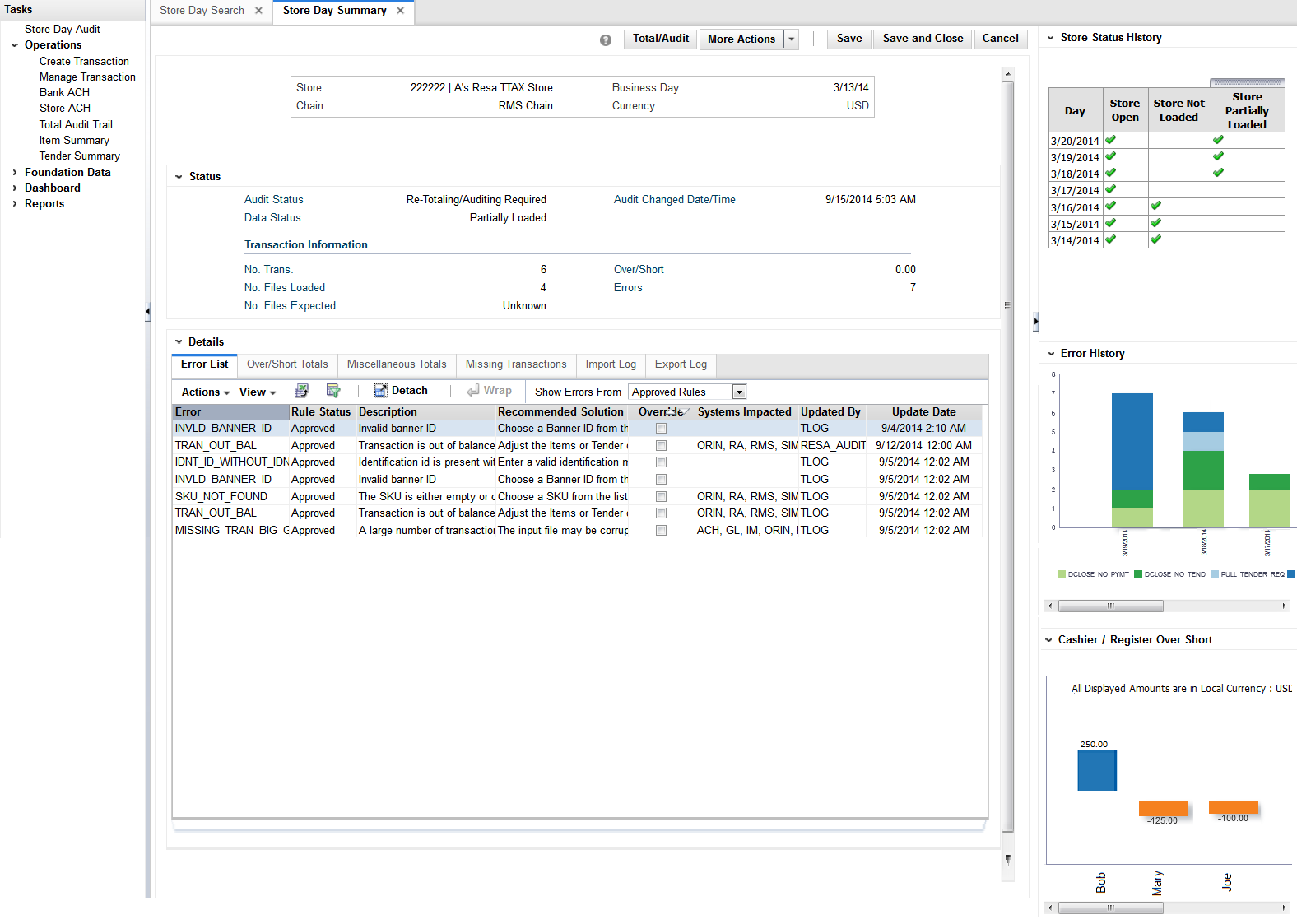
Store Day Summary Screen
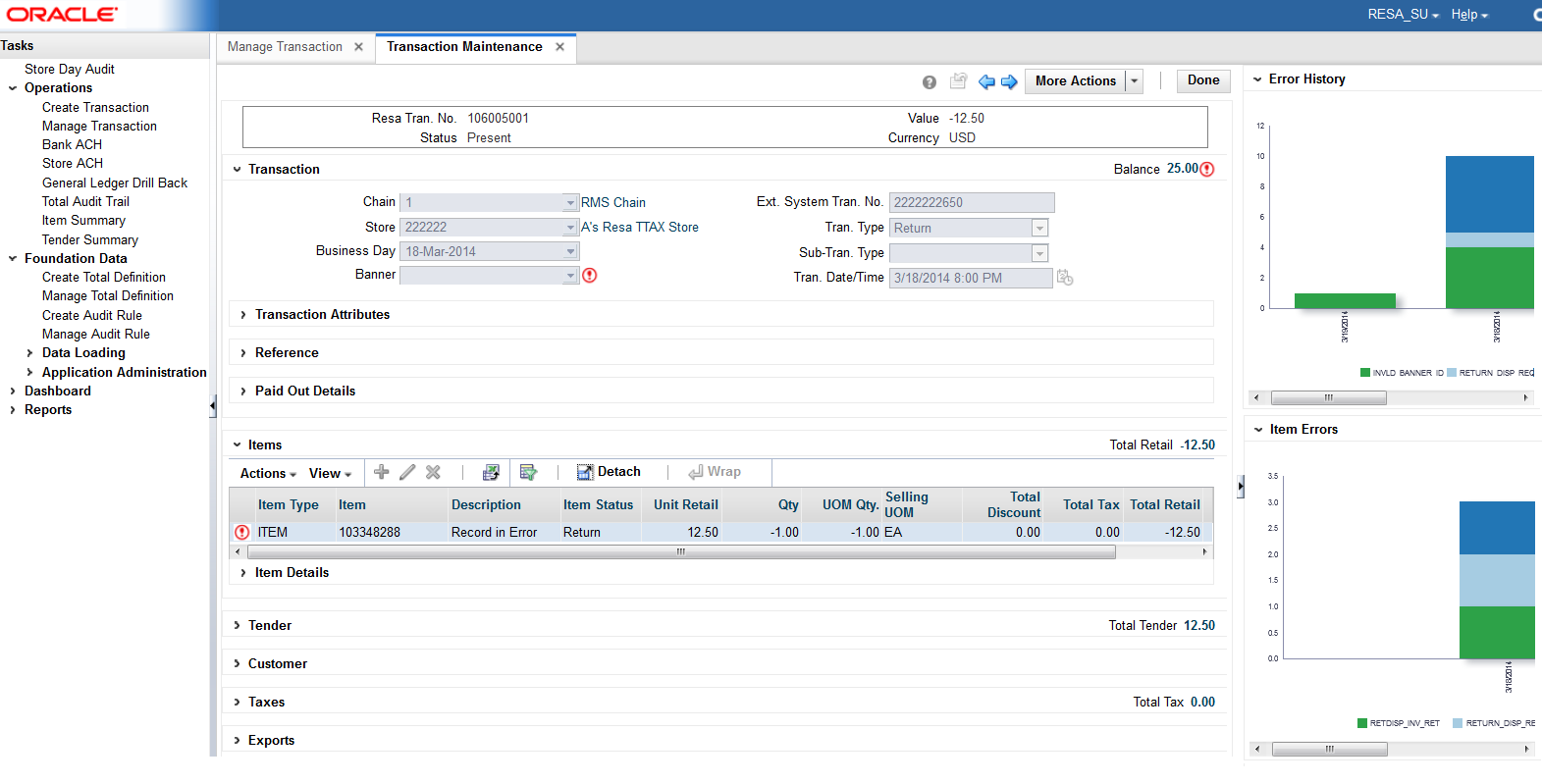
Transaction Maintenance Screen
Tender Summary Screen
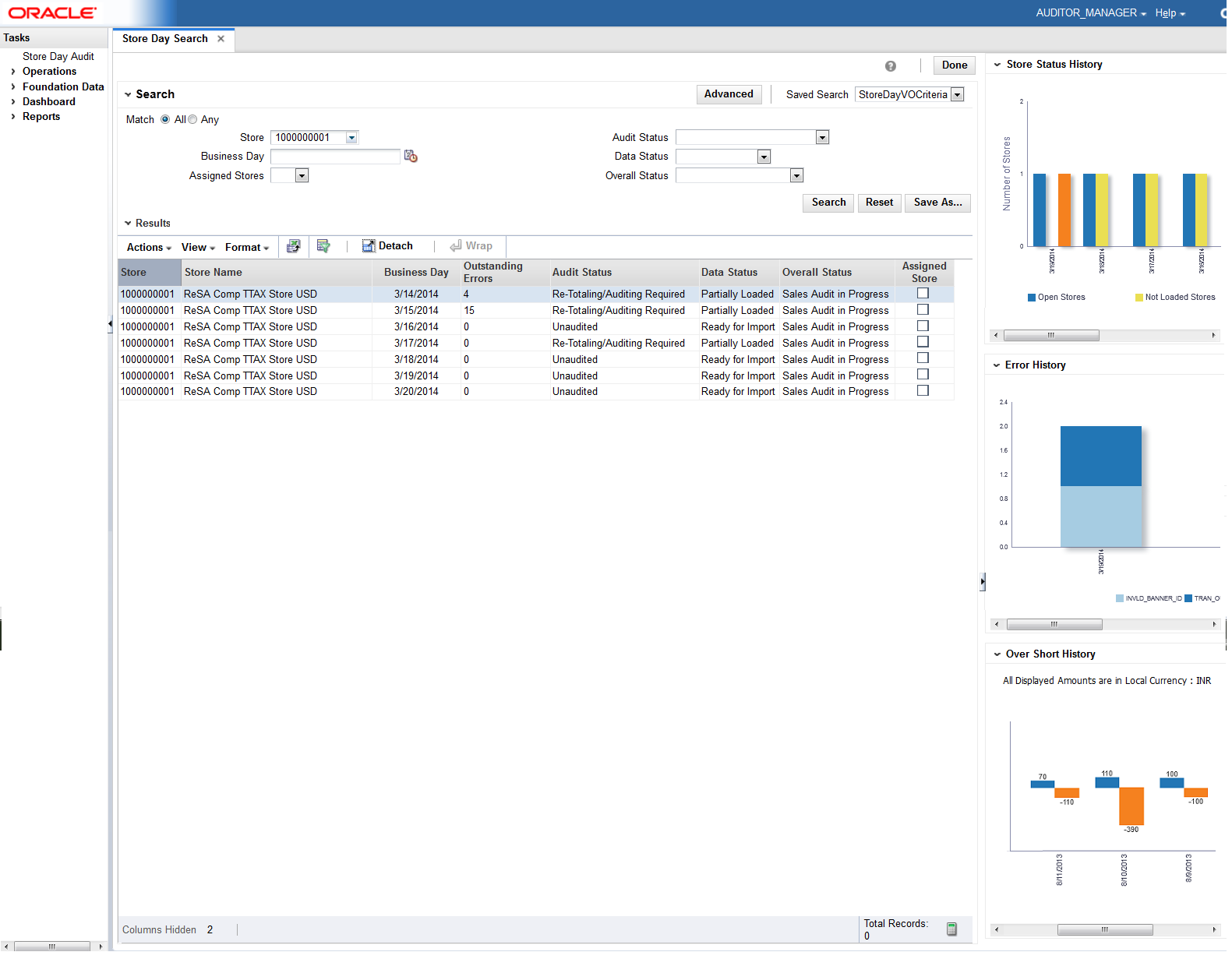
The following are the contextual BI reports displayed on the Store Day Search Screen of ReSA:
The store status history report on store day search screen indicates a sales auditor's open store days and color codes them by whether they have not been audited, not been loaded or only partially loaded for the last seven days. The user can also hover over the bar charts to view the count.
|
Note: Only days for which data exists will be shown in the report. |
The Error History report on store day search screen of ReSA indicates the total number of errors for all auditor stores per business day for the last seven days. The error count includes current open errors and errors that were resolved. This would give the auditor insight into the occurrence of similar kinds of errors in the past that were resolved or that are still open. The errors are color coded by error code.
The user can hover over the respective section of the chart to view the error count for the given error code.
|
Note: Only days for which data exists will be shown in the report. |
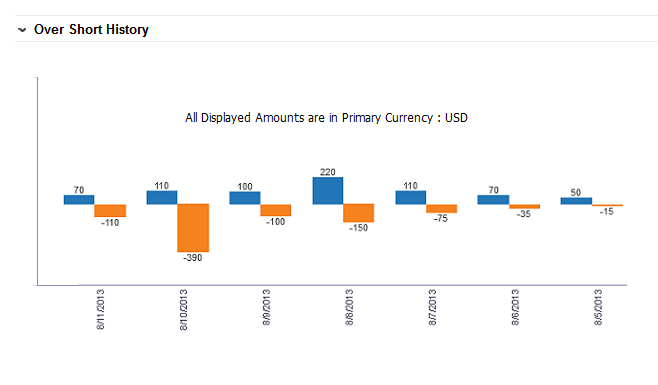
The Over/Short Summary report displays the sum of overage amounts for all auditor stores that have an over amount and the sum of shortage amounts for all auditor stores that have a short amount per business day for the last seven days.
If the auditor stores have varied local currencies, the amounts are displayed in primary currency only. If all auditor stores have the same common local currency, the amounts are displayed in local currency.
|
Note: Only days for which data exists will be shown in the report. |
The following are the contextual BI reports displayed on the Store Day Summary Screen of ReSA:
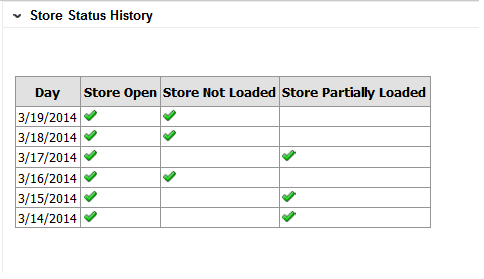
The store status history report on store day summary screen indicates the presence of not audited store days, not loaded store days, and partially loaded store days across the last seven days for the store that is being viewed in store day summary screen. An indicator signifies if the given store is not audited, is not loaded or is partially loaded for the last seven business days.
|
Note: Only days for which data exists will be shown in the report. |
The error history report on store day summary screen indicates the pattern of the errors existing for the store day being viewed in the store day summary screen of ReSA over that last seven days.
The report indicates the number of occurrences of errors similar to the errors open for the selected store day over the last seven days.
The error count includes both open errors and errors that were resolved for the store days. This would give the auditor insight into the occurrence of similar kinds of errors in the past that were resolved or that are still open. The errors are grouped and color coded by error code.
The user can hover over a section of the chart to view the error count for the given error code and business day.
|
Note: Only days for which data exists will be shown in the report. |
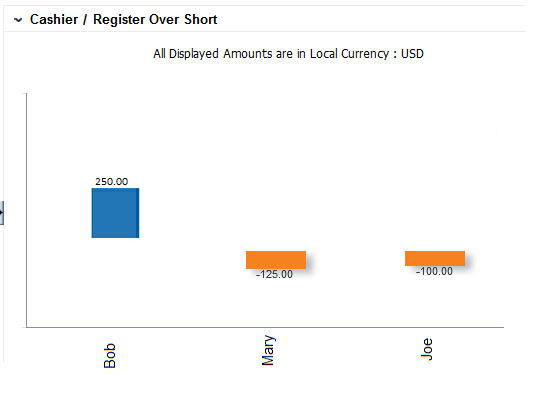
The cashier/register over short report on store day summary screen displays the overage or shortage amounts by cashier for the given store - business day being viewed in the store day summary screen of ReSA if the ReSA system option - Balance Level Indicator is set to cashier.
The report displays the overage or shortage amounts by register for the given store - business day being viewed in the store day summary screen of ReSA if the ReSA system option - Balance Level Indicator is set to register.
The amounts in the report are displayed in the RMS primary currency or the store's local currency based on the currency toggle in the store day summary screen.
|
Note: Only days for which data exists will be shown in the report. |
The following are the contextual BI reports displayed on the Transaction Maintenance screen of ReSA:
The error history report on transaction maintenance screen indicates the pattern of the errors existing for the transaction being viewed over the last seven business days. The report indicates the number of occurrences of errors similar to the errors open for the selected transaction for the given store over the last seven days.
The error count includes both open transactional errors and transactional errors that were resolved. This would give the auditor insight into the occurrence of similar kinds of errors in the past that were resolved or that are still open. The errors are grouped and color coded by error code.
The user can hover over a section of the chart to view the error count for the given error code and business day.
|
Note: Only days for which data exists will be shown in the report. |
This item errors report on transaction maintenance screen indicates the pattern of the errors existing for the item selected on the ReSA screen for the given store over the last seven business days. The report indicates the number of occurrences of errors similar to the errors open for the selected item for the given store over the last seven days.
The error count includes both open errors and errors that were resolved. The errors are grouped and color coded by error code.
The user can hover over a section of the chart to view the error count for the given error code and business day for the selected item.
|
Note: Only Item level errors (that is, errors with rec_type = TITEM, IDISC, IGTAX) are considered in this report. |
The report appears only when an item is selected in the Items panel of the Transaction Maintenance screen.
|
Note: Only days for which data exists will be shown in the report. |
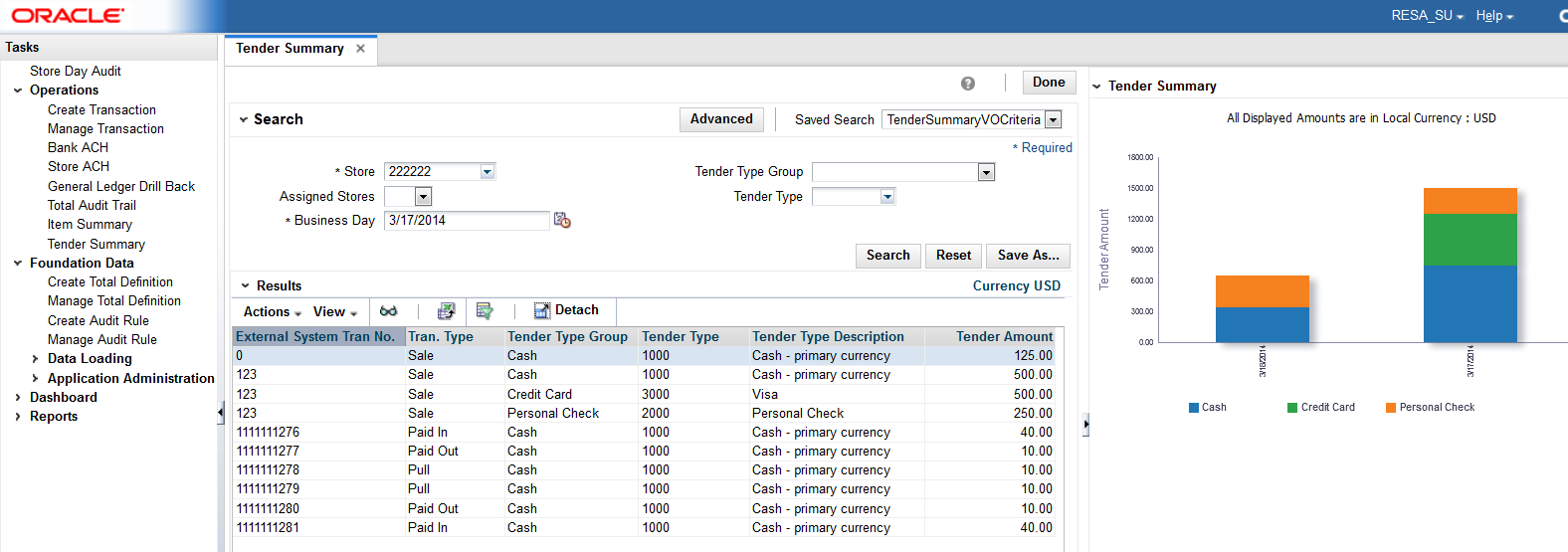
The following are the contextual BI reports displayed on the Tender Summary screen of ReSA:
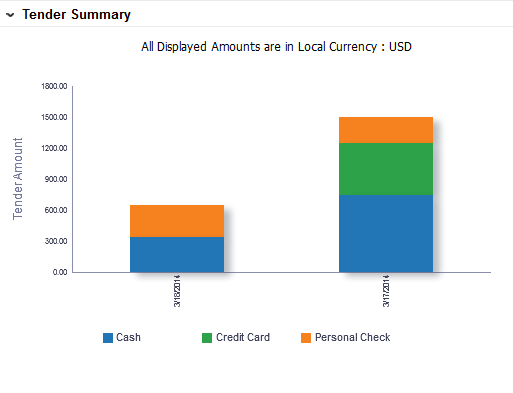
The tender summary report on tender summary screen displays the net tender amount by tender types -Cash, Credit Card and Check per business day over the last seven days for the store selected in tender summary screen.
The amounts in the report are displayed in the RMS primary currency or the store's local currency based on the currency toggle in the Tender Summary screen.
|
Note: The report appears only after the search has been executed. |
|
Note: Only days for which data exists will be shown in the report. |
ReSA supports viewing amounts both in RMS primary currency and in the store local currency. The Operational insights reports support this in the following way.
For the following reports where amounts are aggregated across stores, if the auditor has stores assigned that have varied local currencies, the amounts are displayed in primary currency only. If all auditor stores have the same common local currency, the amounts are displayed in local currency.
Over/Short Summary Report on Dashboard
Over/Short History Report on Store Day Search Screen
For the following reports where amounts are displayed for a single store selected in the ReSA screen, the values are displayed in the currency selected in the currency toggle of the corresponding ReSA screen (Primary or Local). On screen launch, Local Currency is the default.
Cashier/Register Over Short Report on Store Day Summary Screen
Tender Summary Report on Tender Summary Screen