 .
.Process Modelling Framework (PMF) is a process design and execution framework in OFSAA that facilitates the implementation of process sequences or pipelines. Use the framework to orchestrate Run Pipelines and Business Pipelines, alongside the objects that are a part of these pipelines.
This chapter provides information about the usage of the PMF in executing the OFSBCE processes.
NOTE:
For detailed information about the Process Modelling Framework (PMF) feature in OFSAA, see the Oracle Financial Services Analytical Applications Infrastructure Process Modelling Framework Orchestration Guide Release 8.1.1.0.0.
Topics:
· Overview
· Process Modelling Framework Roles
· Access the Process Modelling Framework in OFSBCE
· Use the Process Modelling Framework for OFSBCE Functions
The set of tasks required to carry out OFSBCE functions is managed through PMF. The following sections provide information about how this is facilitated.
Before you access PMF for the management of OFSBCE tasks, ensure to provision specific users with security or access rights. To grant access to the PMF functionality, assign the following PMF Roles to the user.
See the Oracle Financial Services Analytical Applications Infrastructure Process Modelling Framework Orchestration Guide Release 8.1.1.0.0 for details.
Role Code |
Role Name |
|---|---|
WFMWRITE |
Manage Workflow Monitor |
WFADMINACC |
Process Admin User |
WFDELACC |
Process Delegation User |
WFACC |
Workflow Access |
WFADV |
Workflow Advanced |
WFAUTH |
Workflow Authorize |
WFDELGADM |
Workflow Delegation Admin |
WFMACC |
Workflow Monitor Access |
WFREAD |
Workflow Read |
WFWRITE |
Workflow Write |
To access the PMF, follow these steps:
1. Log in to
the OFSBCE application and select the Administration
.
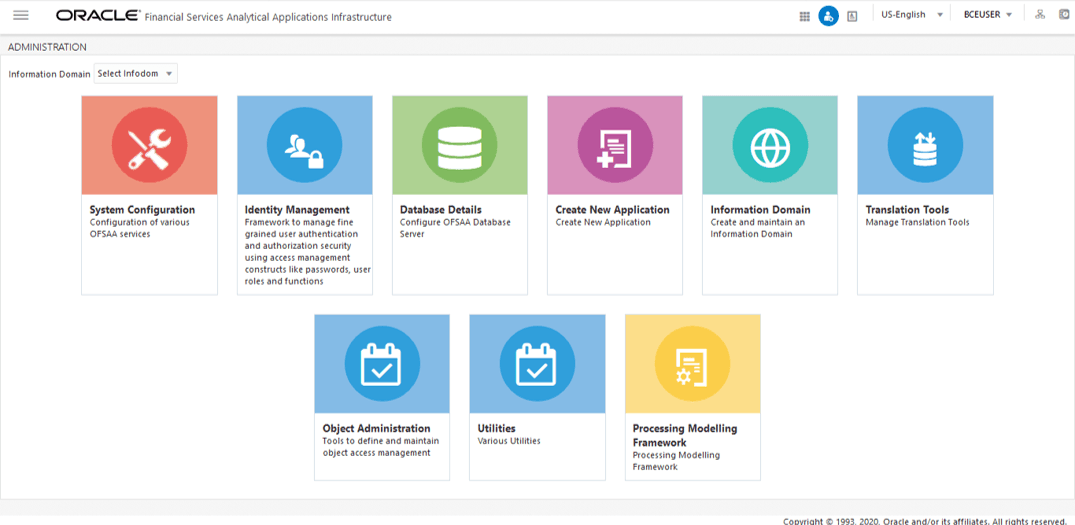
2. In the Information Domain list, select the information domain required for OFSBCE. Then click the Process Modelling Framework tile.
Figure 45: Administration Page - Process Modelling Framework Tile
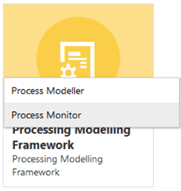
3. A submenu is displayed with the following menu items:
§ To access the Process Modeller, click Process Modeller.
§ To monitor currently running processes, click Process Monitor.
Figure 46: Select the Process Modeller or Process Monitor option in PMF submenu
You can use PMF in one of the following ways to perform OFSBCE functions or tasks:
· Use Standard OFSBCE Run Pipelines
· Configure and Manage Custom Pipelines for OFSBCE Functions
NOTE:
Ensure you have executed all the Runs and Batch IDs mentioned in the RUN_CHART_SUMMARY sheet of the Oracle Financial Services Balance Computation Engine Run Chart Release 8.1.1.0.0 to access the out of the box Run pipelines mentioned in the Use Standard OFSBCE Run Pipelines section.
Use the following Process Modelling Framework features to perform the OFSBCE functions either by using the standard pipelines (processes) or by creating custom pipelines:
The Process Modeller is used to create and modify types of Pipelines, test the Process Flow, and execute the Run.
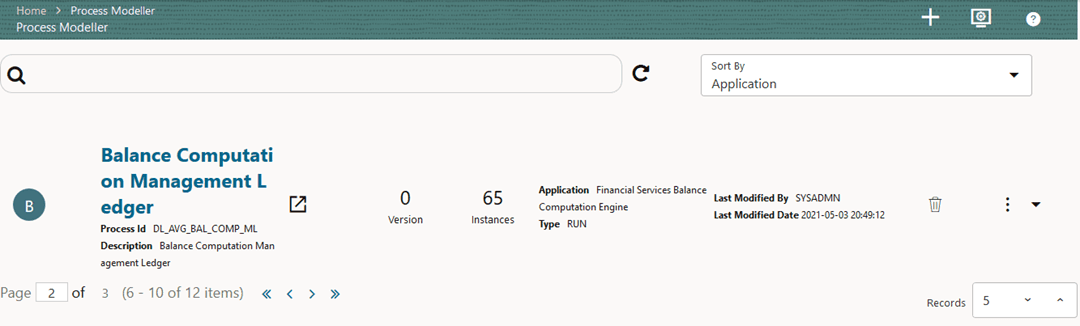
This is a sample of the Process Modeller page in PMF.
Figure 47: Sample Process Modeller page
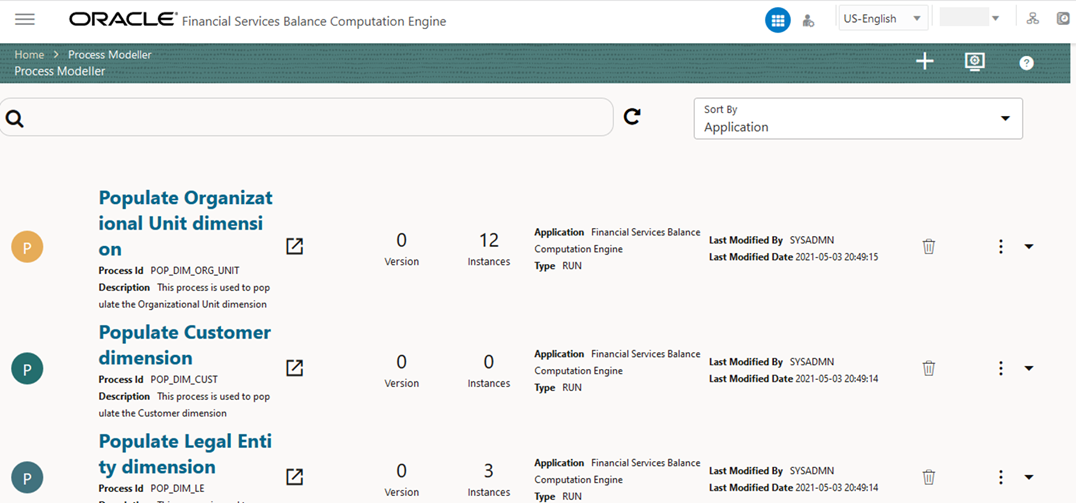
The Process Modeller page displays the existing Business Process Pipelines and Run Pipelines with the details such as Process ID, Process Name, Process Description, Version, Instance, Application, and Last Modified.
You can perform the following tasks from the Process Modeller page:
· Click  to create a new Pipeline.
· Click the Process Name link to launch and edit the Process Flow.
· Click  to delete a Pipeline.
· Click  to view the following
menu:
to view the following
menu:
Figure 48: Process Modeller Menu
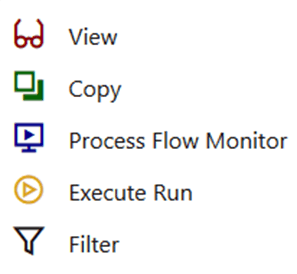
§ Click View to see the process flow.
§ Click Copy to create a new Pipeline with the same process flow.
§ Click Process Flow Monitor to monitor the Pipeline.
§ Click Execute Run to execute a Run Pipeline.
§ Click Filter to apply a filter condition to a Run Pipeline.
NOTE:
The export process is performed using the Object Migration feature.
· Use the
Search grid to search for a specific Pipeline by providing a keyword from
the Process ID, Process Name, or Process Description and then click Search . Click Reset
 to reset the Search fields.
· You can sort the Pipelines based on Process ID, Process Name, or Application. Click the Sort by drop-down and select the required attribute to sort.
· You can use the Filter Pipeline field to filter pipelines based on the pipeline type. For example, to view only the Run Pipelines, remove Process from the Filter Pipeline field.
· Click  to launch
Process in a new window.
to launch
Process in a new window.
· Click  to launch the Process
Monitor page.
to launch the Process
Monitor page.
The Process Monitor is used to supervise the current stage of the process for different instances. After integration with an application, you can invoke the workflow. After invoking, the workflow goes through all the stages defined. The Process Monitor displays all the completed stages, current stage, and future stages. Your user group must be mapped to the function role WFMACC (Workflow Monitor Access) to access the Process Monitor page. For the list of the PMF Roles, see the Process Modelling Framework Roles section.
This is a sample of the Process Monitor page in PMF.
Figure 49: Sample Process Monitor page
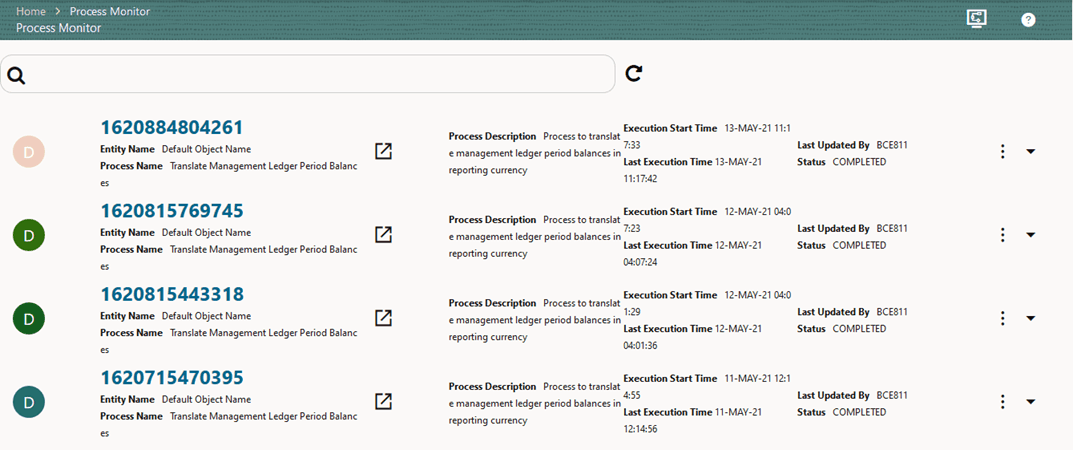
This page displays all the workflows, which are invoked from the application with details such as Entity Name, Process Name, Process Description, Execution Start Time, Last Execution Time, Last Updated By, and Status.
You can perform the following tasks on the Process Monitor page:
· Click  to view the
following submenu :
to view the
following submenu :
Figure 50: Process Monitor with Re-Run, Abort, and Resume options
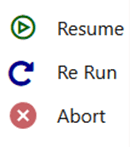
§ Abort: To abort an ongoing Run Pipeline process.
§ Resume: To resume a Run Pipeline process.
§ Re Run: To execute a Run Pipeline process again irrespective of the previous execution status.
· Use the
Search grid to search for a specific Pipeline
by providing a keyword from the Job ID, Process Name, or Process Description,
and then click Search. Click Reset
to reset the Search fields.
· You can sort the Pipelines based on Job ID, Process Name, or Application. Click the Sort by list and select the required attribute to sort.
· You can use the Filter Pipeline field to filter pipelines based on the pipeline type. For example, to view only the Run Pipelines, remove Process from the Filter Pipeline field.
· Click to launch
Process in a new window.
· Click  to open the Process
Modeller page.
to open the Process
Modeller page.
After OFSBCE is installed successfully, the following standard Run pipelines (pipelines are PMF processes) are available out of the box in the PMF:
· Balance Computation Management Ledger process
· Balance Revaluation Management Ledger process
· Translate Management Ledger Period Balances process
This is the Run pipeline (Process) to compute the daily movements, period-to-date, period-to-date, and backdated execution of average balances in OFSBCE.
To compute the daily movements, period-to-date, and period-to-date average balance processes using the Balance Computation Management Ledger process, follow these steps:
1. From OFSAA Home, select the
Financial Services Balance Computation Engine,
select the Administration. In the Information Domain
list, select the information domain required for OFSBCE. Then click the
Process Modelling Framework tile. A submenu
is displayed. To access the Process Modeller, click Process
Modeller. The Process Modeller page opens.
In the following illustration, the out of the box Balance Computation
Management Ledger Process is shown.
Figure 51: Process Modeller page with Balance Computation Management Ledger Process
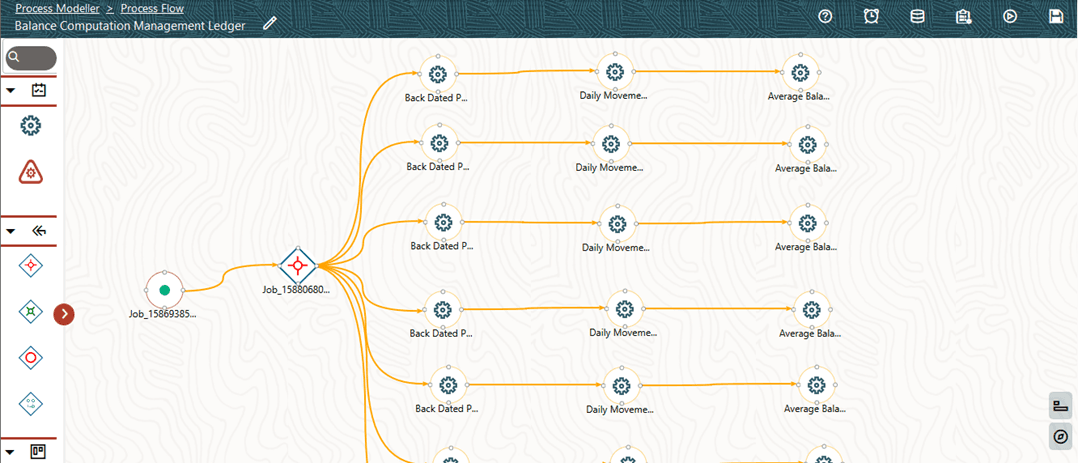
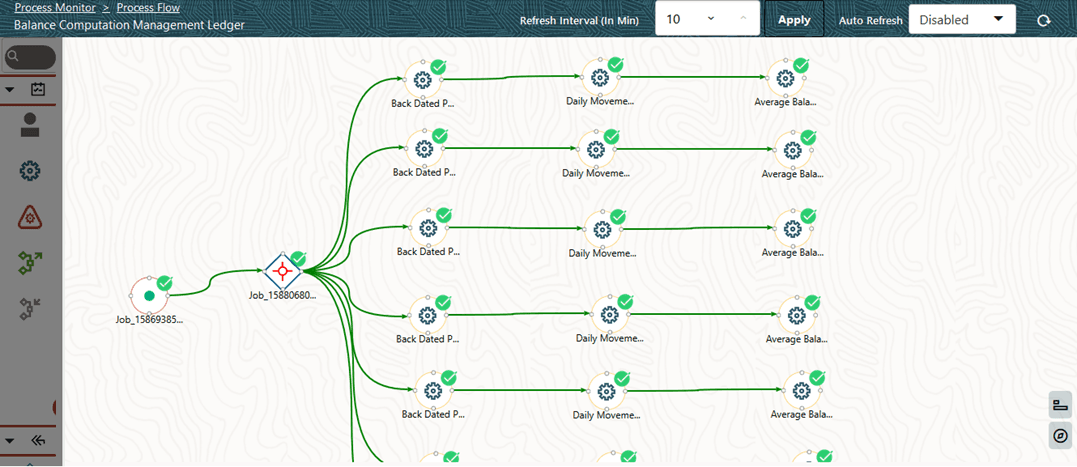
2. Select the Balance Computation Management Ledger process. The corresponding process flow is displayed in a page. This process flow is designed using the drawing canvas with the Transition, Activity, and Widgets components available in the toolbar and with Service Task as the base. Each Service Task represents GL type for Assets, Liabilities, Expenses, Revenue, Gains, Losses, Contra Asset, Contra Liability, and Owner’s Equity. The Service tasks are sequenced in the order of the Backdated process, Daily Balances process, and Average Balances process. The tasks are repeated in the Run for each General Ledger Type and are executed in parallel.
Figure 52: Balance Computation Management Ledger process flow
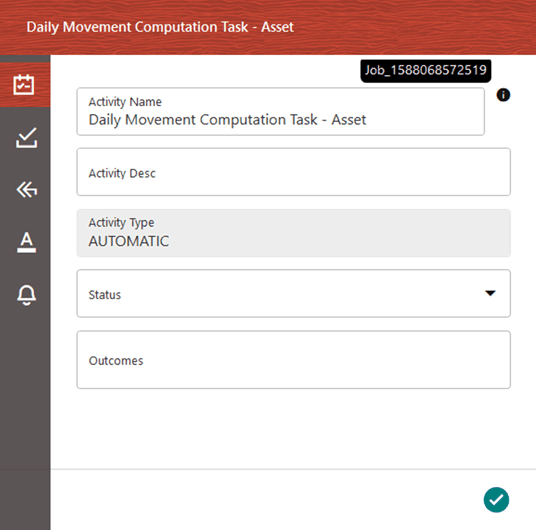
3. Double-click
a Service task to see the details related to its Activity,
Implementation, Transitions,
Actions, and Notifications
(represented by icons). To save the details, click .
.
Figure 53: Balance Computation Management Ledger process with Service Task details
4. On the drawing canvas, select the Definition, Application Rule, and Data Fields icons to see the respective details.
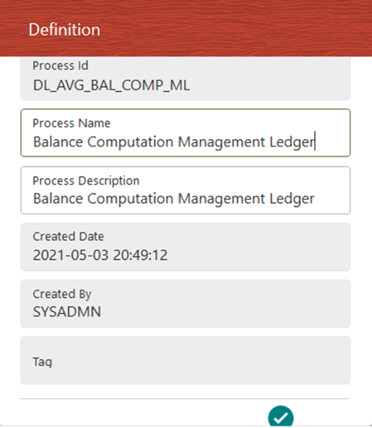
§ Click  to open the
Definition details. To save the details, click.
to open the
Definition details. To save the details, click.
Figure 54: Balance Computation Management Ledger process with Definition details
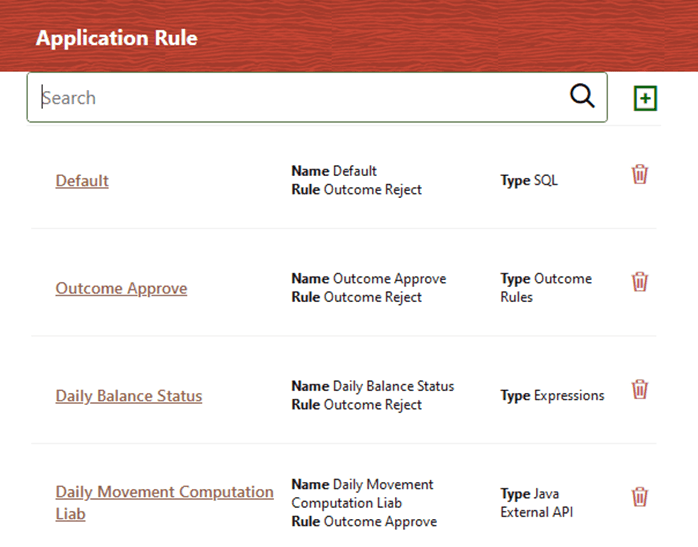
§ Click  to open the
Application Rule details. You can add or modify or delete the Rule details.
to open the
Application Rule details. You can add or modify or delete the Rule details.
Figure 55: Balance Computation Management Ledger process with Application Rule tab details
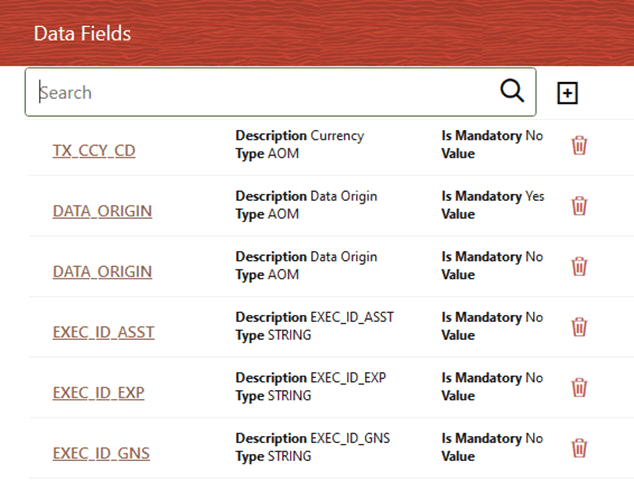
§ Click  to open the Data Fields
details. Add, modify, delete, or view the Data Fields details.
to open the Data Fields
details. Add, modify, delete, or view the Data Fields details.
Figure 56: Balance Computation Management Ledger process with Data Fields tab details
§ Click  to open the Execution
details. To save the details, click.
to open the Execution
details. To save the details, click.
Figure 57: Balance Computation Management Ledger process without Execution Parameters
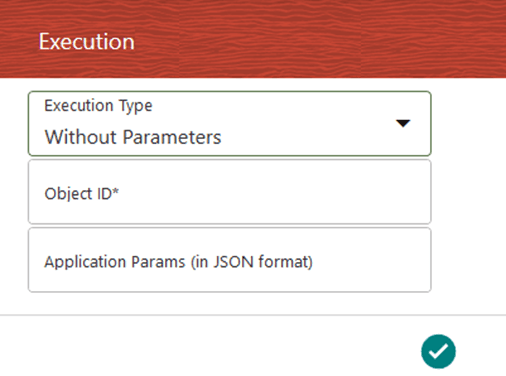
Enter and select the required details to execute the
Run without parameters. To execute with parameters, select With
Parameters in the Execution Type list.
To save the details, click.
Figure 58: Balance Computation Management Ledger Process with Execution Parameters
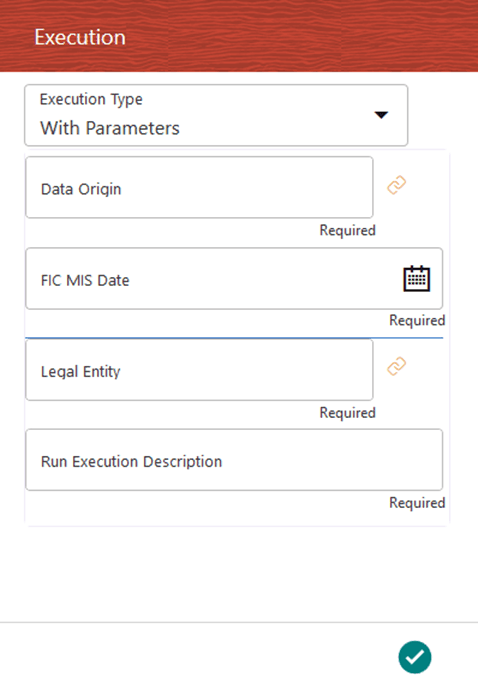
To save the details, click. In the Process Flow
canvas, click to save the process flow.
5. In the Process Modeller page, click  corresponding to the Balance Computation
Management Ledger Run process that must be executed. Click Execute
Run.
corresponding to the Balance Computation
Management Ledger Run process that must be executed. Click Execute
Run.
Figure 59: Balance Computation Management Ledger process - Select Execute Run
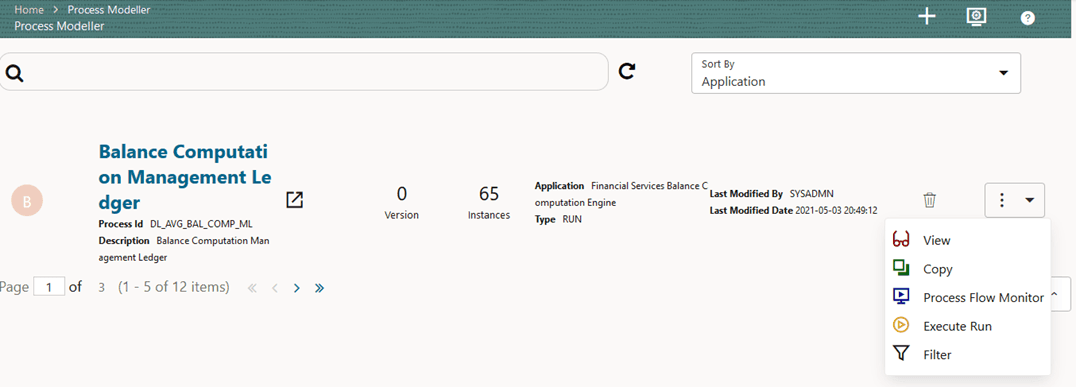
6. The Execution page is displayed. This page consists of the Run parameters specific to the Balance Computation Management Ledger process.
Figure 60: Balance Computation Management Ledger process without Execution Parameters
Enter and select the required details to execute the
Run without parameters. To execute with parameters, select With
Parameters in the Execution Type list.
To save the details, click.
Figure 61: Balance Computation Management Ledger Process with Execution Parameters
To save the details, click. In the Process Flow
canvas, click
to save the process flow.
Select or enter the required values for each field as follows.
Field Name |
Description or Instruction |
|---|---|
Legal Entity |
Use the |
FIC MIS Date |
Use
the calendar icon |
Run Execution Description |
Enter a longer description of the Run. |
Data Origin |
Use the |
7. To save the
details and execute the Run, click.
NOTE:
The execution of the Balance Computation Management Ledger Run process is triggered using the selected FIC MIS DATE. The Run SKey is generated and inserted into the DIM_RUN table. For the Run SKey generated, the corresponding user-selected Run parameters are inserted into the RUN_EXE_PARAMETERS table.
NOTE:
Processes that compute day, period and period-average accounting balance should be executed for every calendar date, chronologically. If process execution skips dates, the balance figures computed could be inconsistent or erroneous.
NOTE:
See the Oracle Financial Services Analytical Applications Infrastructure Process Modelling Framework Orchestration Guide Release 8.1.1.0.0 for information about the following topics:
· To abort, resume, or rerun the Run Pipeline Process, see the Abort Run Pipeline, Resume Run Pipeline, and Re-run Run Pipeline sections respectively.
· To verify the execution logs, see the Viewing Activity Execution Logs and Viewing Execution Log for Widgets sections.
8. To verify the Run execution status of the Balance Computation Management Ledger process, follow these steps:
a. To open the
Process Monitor page, in the Process
Modeller page, click or
select Process Flow Monitor from the Process
Modeller menu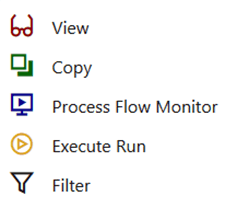 .
.
b. The Process Monitor page opens displaying all the Run instances corresponding to the Balance Computation Management Ledger process. In the Process Monitor page, for the required Run pipeline (process) that was executed, search the Run instance by Process ID, or by the Process Name Balance Computation Management Ledger, and select the process instance.
Figure 62: Balance Computation Management Ledger Process – Process Monitor Page – Select Job ID
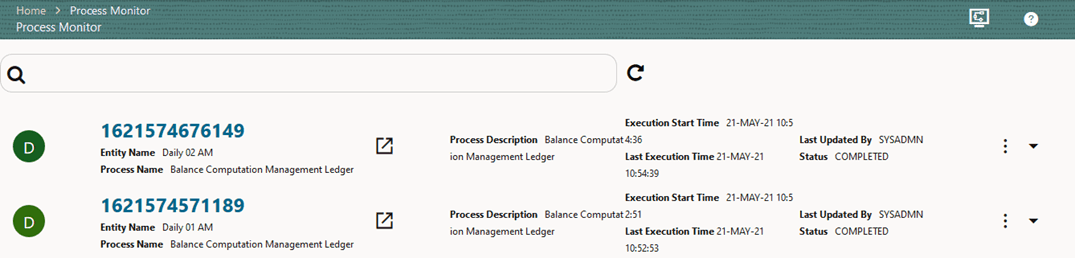
9. A status page opens, which displays the execution status of the executed Run instance for the Balance Computation Management Ledger process. In this illustration, the Run for the Daily and Average Balance Computation is successfully executed.
Figure 63: Balance Computation Management Ledger process – Run Execution status
For information about the complete functioning of the PMF, see the Oracle Financial Services Analytical Applications Infrastructure Process Modelling Framework Orchestration Guide Release 8.1.1.0.0.
You can also check the execution status details in the Execution Summary page.
To design and execute a custom Balance Computation Management Ledger process, see the Create and Execute a Custom Run Pipeline for Balance Computation Management Ledger Process section.
This is the Run pipeline (process) to compute the revaluation amounts based on the currency exchange rates and generate offsets for the period balances based on user-configured settings in OFSBCE.
To compute the revaluation amount using the Balance Revaluation Management Ledger process, follow these steps:
1. From OFSAA Home, select the
Financial Services Balance Computation Engine,
select the Administrator icon. In the Information Domain
list, select the information domain required for OFSBCE. Then click the
Process Modelling Framework tile. A submenu
is displayed. To access the Process Modeller, click Process
Modeller. The Process Modeller page opens.
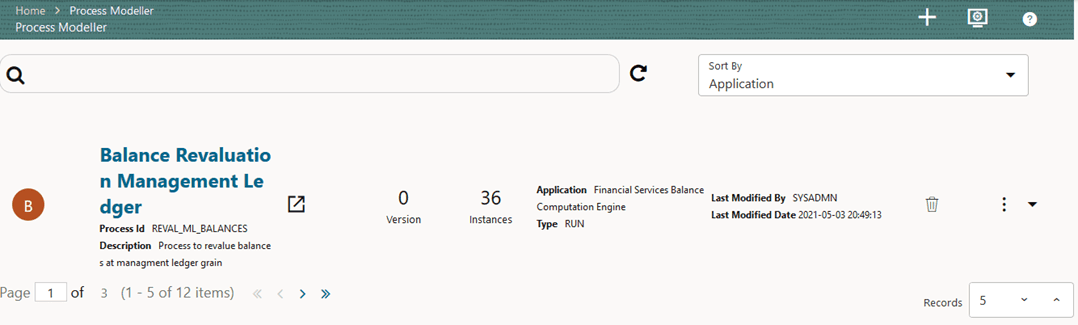
In the following illustration, the out of the box Balance Revaluation
Management Ledger Process is shown. Select the Balance
Revaluation Management Ledger process.
Figure 64: Process Modeller page with Balance Revaluation Management Ledger Process highlighted
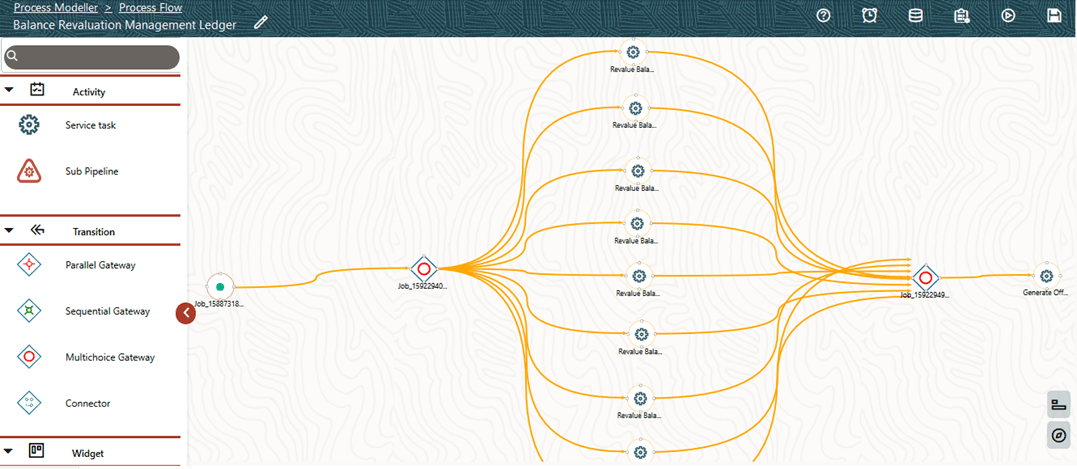
2. The corresponding process flow is displayed. This process flow is designed using the drawing canvas with the Transition, Activity, and Widgets components available in the floating toolbar and with Service Task as the base. Each Service Task represents GL type for Assets, Liabilities, Expenses, Revenue, Gains, Losses, Contra Asset, Contra Liability, and Owner’s Equity. The tasks are repeated in the Run for each General Ledger Type and are executed in parallel. You can set up which of these tasks must be executed in the Revaluation Settings section.
Figure 65: Balance Revaluation Management Ledger process flow
3. Double-click a Service task to see the details related to its Activity, Implementation, Transitions, Actions, and Notifications (represented by the icons).
Figure 66: Balance Revaluation Management Ledger process with Service Task details
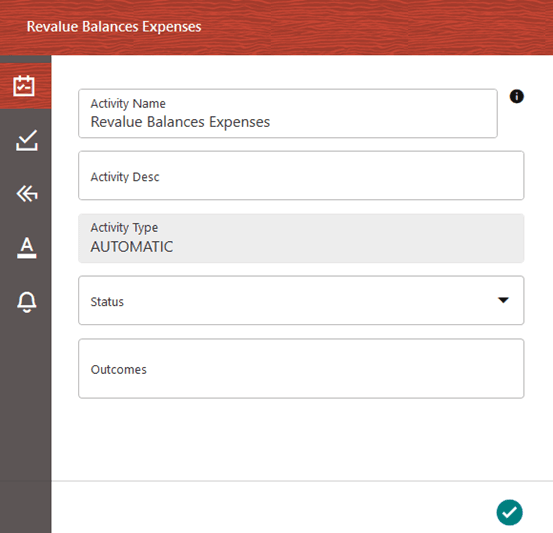
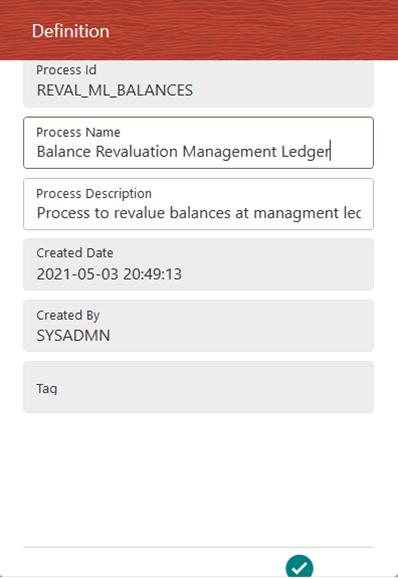
4. On the drawing canvas, select the Definition, Application Rule, and Data Fields icons to see the respective details.
§ Click to open the
Definition details. To save the details, click.
Figure 67: Balance Revaluation Management Ledger process with Definition details
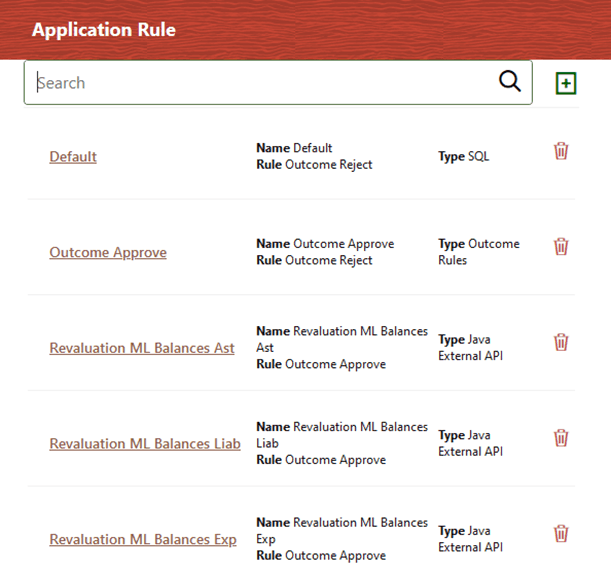
§ Click to open the
Application Rule details. You can add or modify or delete the Rule details.
Figure 68: Balance Revaluation Management Ledger process with Application Rule tab details
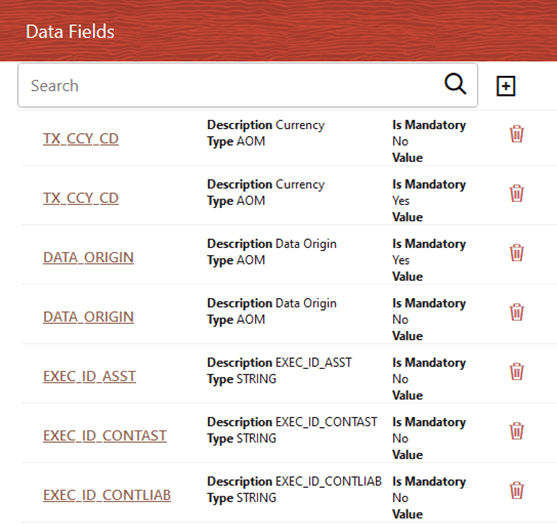
§ Click to open the Data Fields
details. Add, modify, delete, or view the Data Fields details.
Figure 69: Balance Revaluation Management Ledger process with Data Fields details
§ Click to save the Revaluation
Process Flow. Continue with the next steps or execute the Run on the Process Modeller page.
§ Click to open the Execution
details.
Figure 70: Balance Revaluation Management Ledger process without Execution Parameters
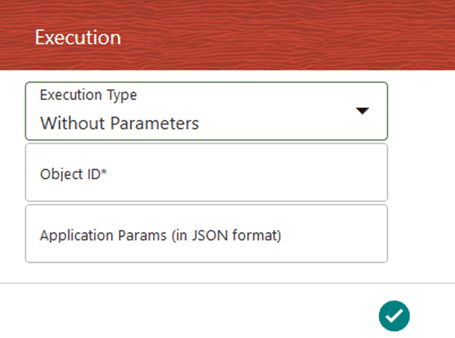
Enter and select the required details to execute the
Run without parameters. To save the details and execute the Run, click.
To execute with parameters, select With Parameters in the Execution Type list.
Figure 71: Balance Revaluation Management Ledger Process with Execution Parameters
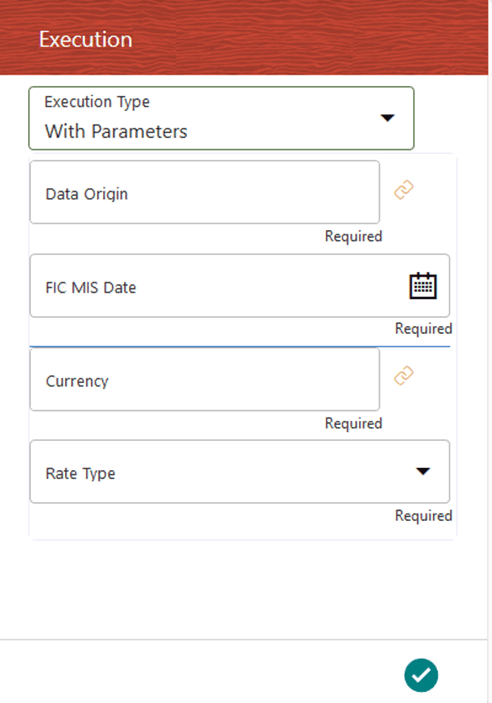
NOTE:
The values are fetched from the FSI_EXCG_RATES and SETUP_MASTER tables.
Select or enter the required values for each field as follows.
Field Name |
Description or Instruction |
|---|---|
FIC MIS Date |
Use the calendar icon |
Currency |
Use the icon |
Data Origin |
Use the |
Rate Type |
Select the Rate Type from the drop-down list. The options are as follows: · Average · Daily · End of Period |
To save the details and execute the Run, click.
5. In the Process Modeller page, click corresponding to the Balance Revaluation
Management Ledger Run process that needs to be executed. Click Execute
Run.
Figure 72: Balance Revaluation Management Ledger process - Select Execute Run
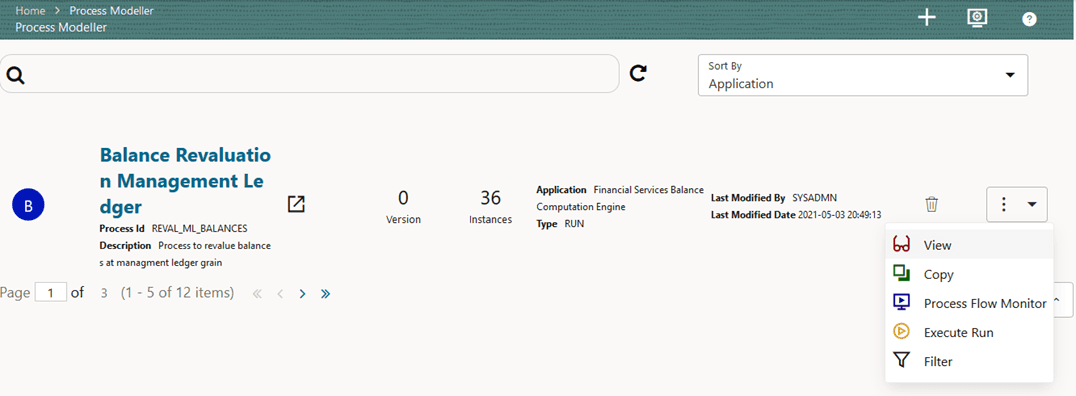
6. When you click Execute Run, the Execution page is displayed.
Figure 73: Balance Revaluation Management Ledger process - Execution Page Without Parameters
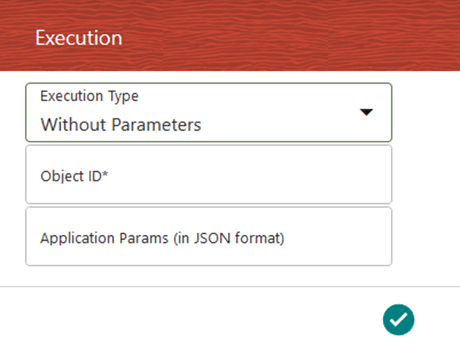
Enter and select the required details to execute the Run without parameters.
To execute with parameters, select With Parameters in the Execution Type list.
Figure 74: Balance Revaluation Management Ledger Process - Execution Page With Parameters

NOTE:
The values are fetched from the FSI_EXCG_RATES and SETUP_MASTER tables.
Select or enter the required values for each field as follows.
Field Name |
Description or Instruction |
|---|---|
FIC MIS Date |
Use the calendar icon |
Currency |
Use the icon |
Data Origin |
Use the |
Rate Type |
Select the Rate Type from the drop-down list. The options are as follows: · Average · Daily · End of Period |
7. To save the
details and execute the Run, click. The Run execution begins.
NOTE:
The execution of the Balance Revaluation Management Ledger Run process is triggered using the selected FIC MIS DATE. The Run SKey is generated and inserted into the DIM_RUN table. For the Run SKey generated, the corresponding user-selected Run parameters are inserted into the RUN_EXE_PARAMETERS table.
NOTE:
See the Oracle Financial Services Analytical Applications Infrastructure Process Modelling Framework Orchestration Guide Release 8.1.1.0.0 for information about the following topics:
· To abort, resume, or rerun the Run Pipeline Process, see the Abort Run Pipeline, Resume Run Pipeline, and Re-run Run Pipeline sections respectively.
· To verify the execution logs, see the Viewing Activity Execution Logs and Viewing Execution Log for Widgets sections.
8. To verify the Run execution of the Balance Revaluation Management Ledger process, follow these steps:
a. To open the
Process Monitor page, in the Process
Modeller page, click or select Process
Flow Monitor from the Process Modeller menu.
b. The Process Monitor page is displayed listing all the Run instances corresponding to the Balance Revaluation Management Ledger process. In the Process Monitor page, search by Job ID, or by the Process Name Balance Revaluation Management Ledger, and select the process instance for the required Run pipeline (process) that was executed.
Figure 75: Balance Revaluation Management Ledger Process – Process Monitor Page – Select Job ID
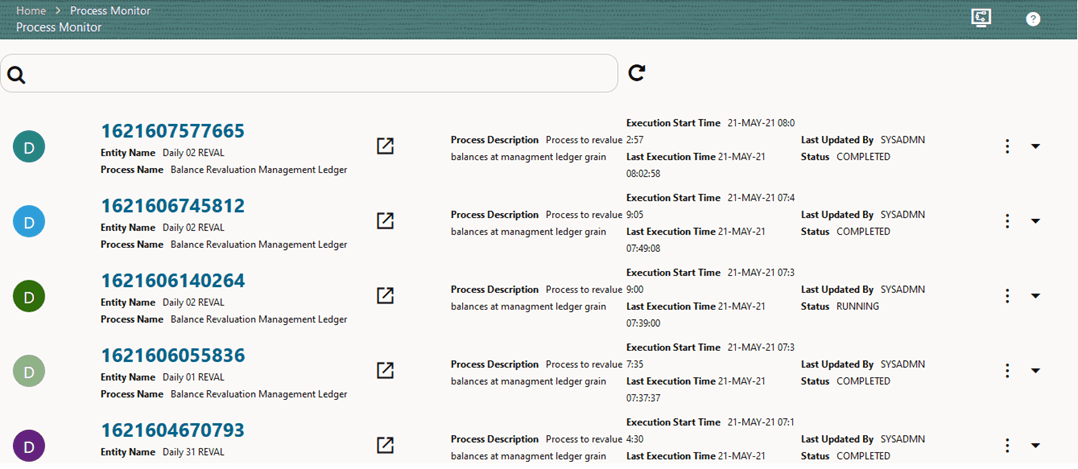
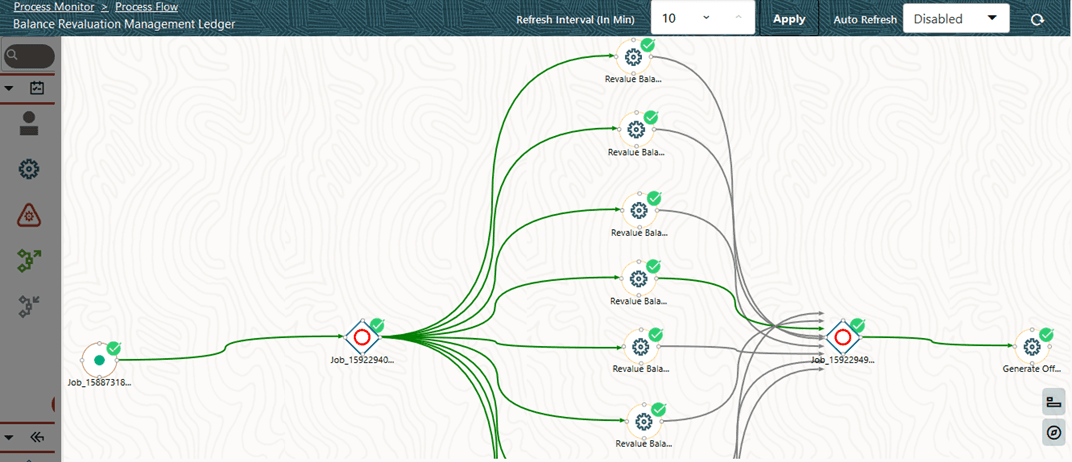
9. A status is displayed, which shows the execution status of the executed Run for the Balance Revaluation Management Ledger process. In this illustration, the Run for the Revaluation is successfully executed.
Figure 76: Balance Revaluation Management Ledger process – Run Execution status
For information about the complete functioning of the PMF, see the Oracle Financial Services Analytical Applications Infrastructure Process Modelling Framework Orchestration Guide Release 8.1.1.0.0.
You can also check the execution status details in the Execution Summary page.
To design and execute a custom Balance Revaluation Management Ledger process, see the Create and Execute a Custom Run Pipeline for Balance Revaluation Management Ledger Process section.
This is the Run pipeline (process) to compute all the period balance measures in the Reporting Currency associated with a Legal Entity. The rate types to be used for each General Ledger Type during computation is based on the user configuration in the Currency Conversion Settings.
To compute all the period balance measures in the Reporting Currency associated with a Legal Entity using the Translate Management Ledger Period Balances process, follow these steps:
1. From OFSAA Home, select the
Financial Services Balance Computation Engine,
select the Administrator . In the Information Domain
list, select the information domain required for OFSBCE. Then click the
Process Modelling Framework tile. A submenu
is displayed. To access the Process Modeller, click Process
Modeller. The Process Modeller page opens.
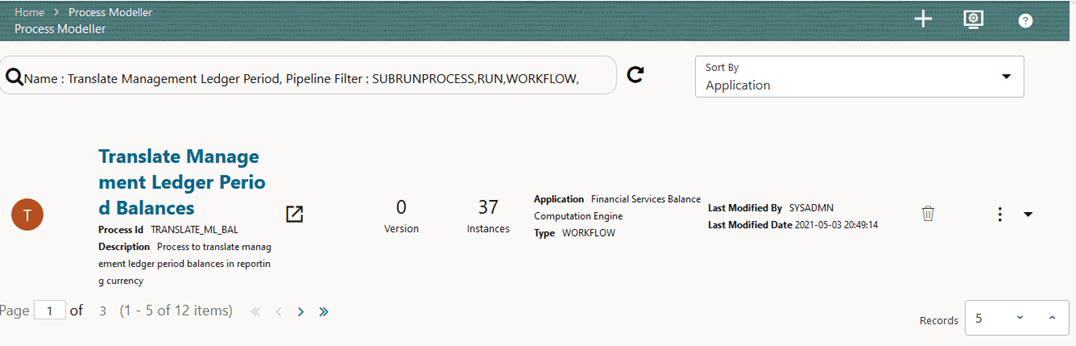
In the following illustration, the out of the box Translate Management
Ledger Period Balances is highlighted.
Figure 77: Process Modeller page with Translate Management Ledger Period Balances Process highlighted
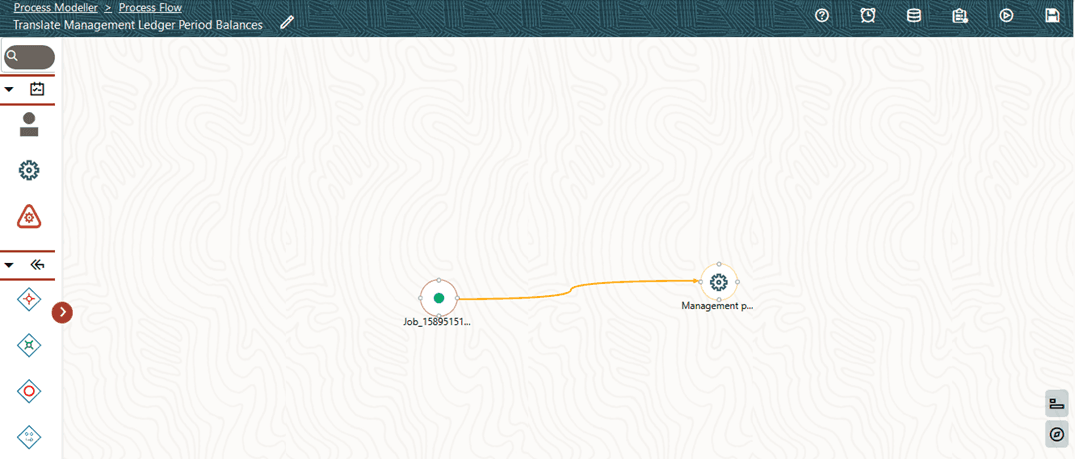
2. Select the Translate Management Ledger Period Balances process. The corresponding process flow is displayed. This process flow is designed using the drawing canvas with the Transition, Activity, and Widgets components available in the floating toolbar and with Service Task as the base. This process flow contains only one task, which is Management Ledger Period Balance Currency Conversion.
Figure 78: Translate Management Ledger Period Balances process flow
3. Double-click the Service task to see the details related to its Activity, Implementation, Transition, Action, and Notification (represented by the icons).
Figure 79: Translate Management Ledger Period Balances process with Service Task details
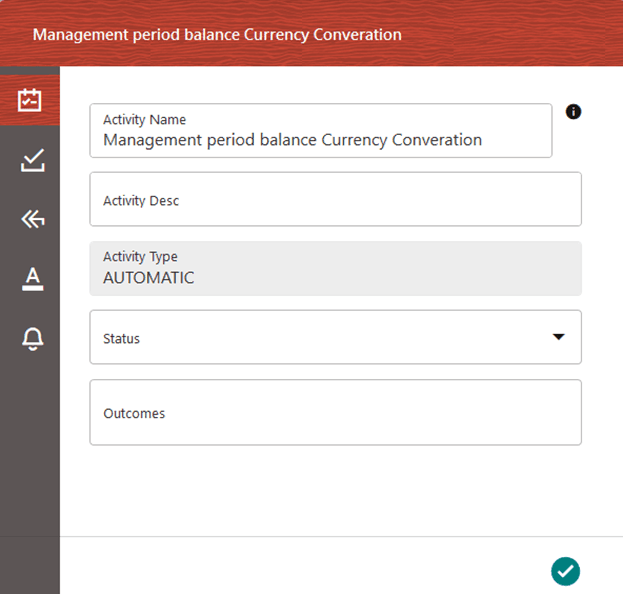
4. On the drawing canvas, select the Definition, Application Rule, and Data Fields tabs to see the respective details.
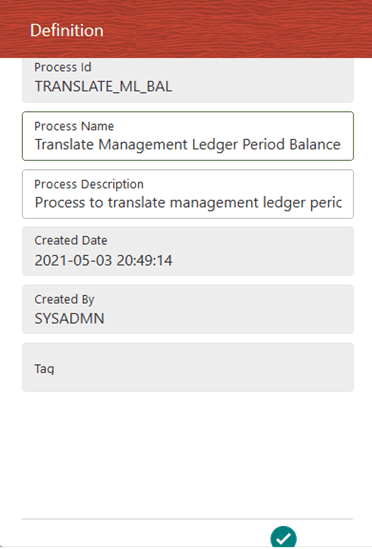
§ Click to open the
Definition details. To save the details, click.
Figure 80: Translate Management Ledger Period Balances process with Definition details
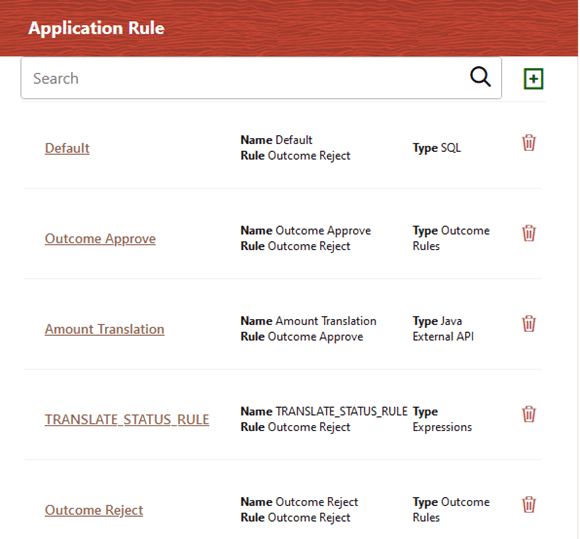
§ Click to open the
Application Rule details. You can add or modify or delete the Rule details.
Figure 81: Translate Management Ledger Period Balances process with Application Rule details
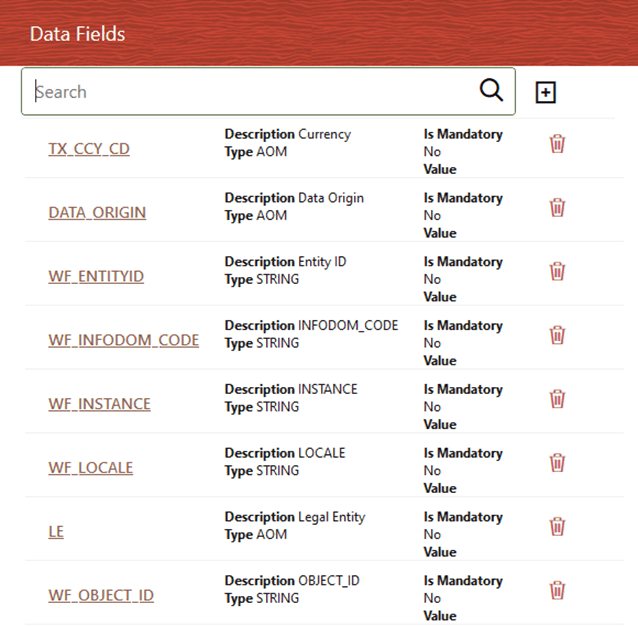
§ Click to open the Data Fields
details. Add, modify, delete, or view the Data Fields details.
Figure 82: Translate Management Ledger Period Balances process with Data Fields details
§ Click to save the Revaluation
Process Flow. Continue with the next steps or execute the Run on the Process Modeller page.
§ Click to open the Execution
details.
Figure 83: Translate Management Ledger Period Balances process without Execution Parameters
Enter and select the required details to execute the
Run without parameters. To save the details and execute the Run, click.
To execute with parameters, select With Parameters in the Execution Type list.
Figure 84: Translate Management Ledger Period Balances Process with Execution Parameters
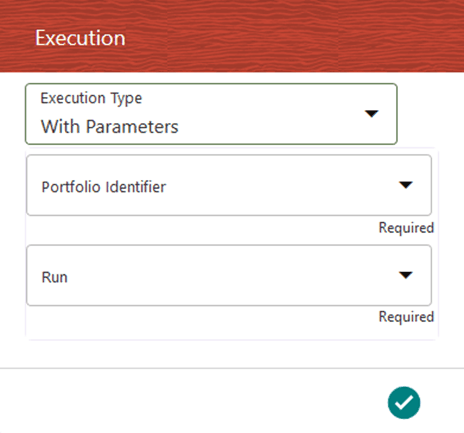
Field Name |
Description or Instruction |
|---|---|
Portfolio Identifier |
Select the reqiured Portfolio definition and the filter applies on the dataset with the members selected for this Portfolio. |
Run |
Select the defined Run. |
5. To save the
details, click.
The Run execution begins.
6. In the Process Modeller page, click corresponding to the Translate Management
Ledger Period Balances Run process that must be executed. Click Execute Run.
Figure 85: Translate Management Ledger Period Balances process - Select Execute Run
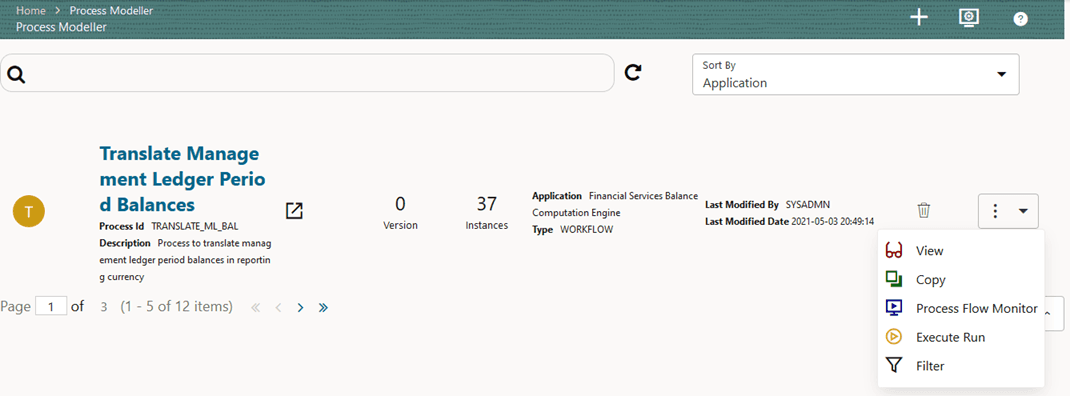
7. The Execution page is displayed. This page consists of the Run parameters specific to the Translate Management Ledger Period Balances process.
Figure 86: Translate Management Ledger Period Balances process without Execution Parameters
Enter and select the required details to execute the
Run without parameters. To save the details and execute the Run, click.
To execute with parameters, select With Parameters in the Execution Type list.
Figure 87: Translate Management Ledger Period Balances Process with Execution Parameters
NOTE:
The values are fetched from the FSI_EXCG_RATES and SETUP_MASTER tables.
Field Name |
Description or Instruction |
|---|---|
Portfolio Identifier |
Select the required Portfolio definition and the filter applies on the dataset with the members selected for this Portfolio. |
Run |
Select the Daily or Period Balances execution Run for which outputs must be translated. |
8. To save the
details and execute the Run, click. The Run execution begins.
NOTE:
The execution of the Translate Management Ledger Period Balances Run process is triggered using the selected FIC MIS DATE. The Run SKey is generated and inserted into the DIM_RUN table. For the Run SKey generated, the corresponding user-selected Run parameters are inserted into the RUN_EXE_PARAMETERS table.
NOTE:
See the Oracle Financial Services Analytical Applications Infrastructure Process Modelling Framework Orchestration Guide Release 8.1.1.0.0 for information about the following topics:
· To abort, resume, or rerun the Run Pipeline Process, see the Abort Run Pipeline, Resume Run Pipeline, and Re-run Run Pipeline sections respectively.
· To verify the execution logs, see the Viewing Activity Execution Logs and Viewing Execution Log for Widgets sections.
9. To verify the Run execution status of the Translate Management Ledger Period Balances process, follow these steps:
a. To open the
Process Monitor page, in the Process
Modeller page, click or select Process
Flow Monitor from the Process Modeller menu.
b. The Process Monitor page opens displaying all the Run instances corresponding to the Translate Management Ledger Period Balances process. In the Process Monitor page, for the required Run pipeline (process) that was executed, search the Run instance by Process ID, or by the Process Name Translate Management Ledger Period Balances, and select the process instance.
Figure 89: Translate Management Ledger Period Balances Process – Process Monitor Page – Select Job ID
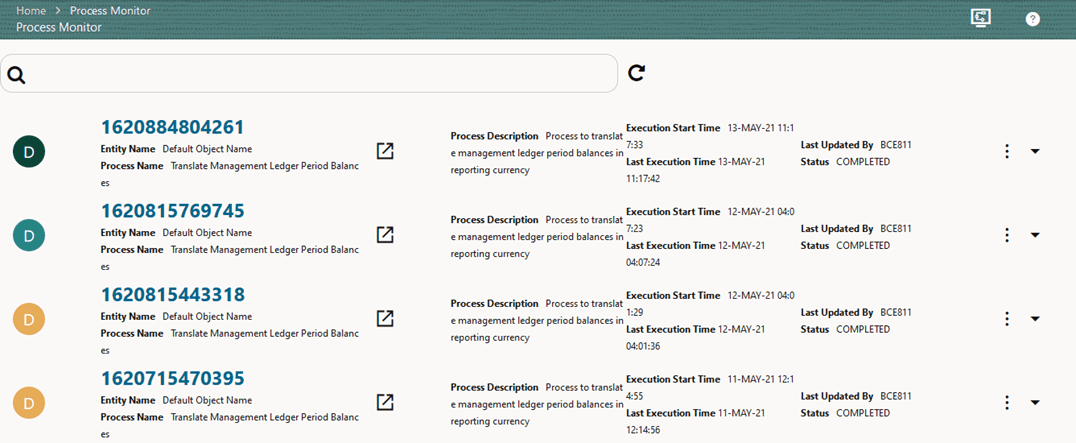
10. A status page opens, which displays the execution status of the executed Run for the Translate Management Ledger Period Balances process. In this illustration, the Run for the Currency Translation is successfully executed and all the balances selected for the Translation are converted into the set Reporting Currency.
Figure 90: Translate Management Ledger Period Balances process – Run Execution status
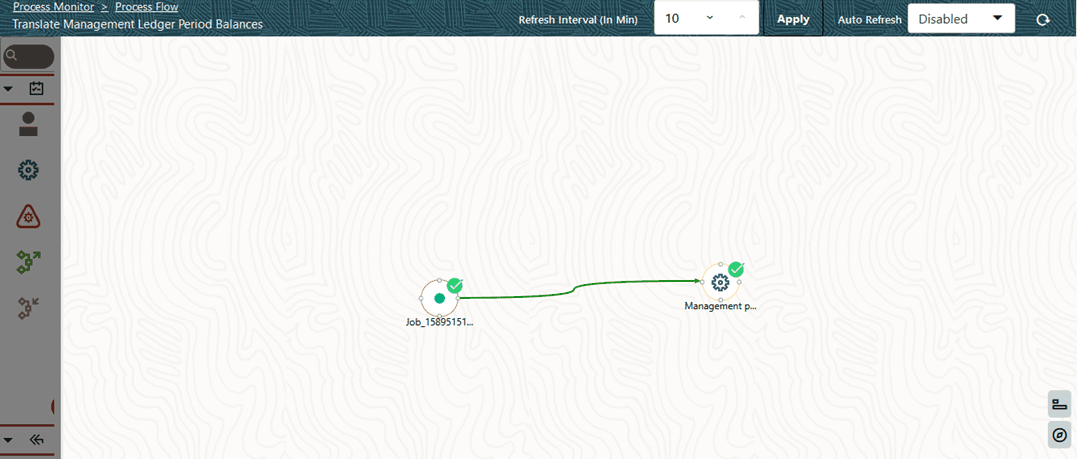
For information about the complete functioning of the PMF, see the Oracle Financial Services Analytical Applications Infrastructure Process Modelling Framework Orchestration Guide Release 8.1.1.0.0.
You can also check the execution status details in the Execution Summary page.
To design and execute a custom Translate Management Ledger Period Balances Process (Currency Translation process), see the Create and Execute a Custom Run Pipeline for Translate Management Ledger Period Balances Process section.
To configure and manage the custom pipelines (processes) for OFSBCE functions such as Daily and Average Balances, Revaluation, and Currency Translation, follow steps in these corresponding sections:
· Create and Execute a Custom Run Pipeline for Balance Computation Management Ledger Process
· Create and Execute a Custom Run Pipeline for Balance Revaluation Management Ledger Process
· Create and Execute a Custom Run Pipeline for Translate Management Ledger Period Balances Process
NOTE:
Ensure you have completed the required settings mentioned in the following sections:
Create a custom Run pipeline for Balance Computation Management Ledger Process to compute the Daily Balances and Average Balances. Follow these steps:
· Create a Process Flow for a Run Pipeline
· Select the Run Parameters and Execute the Run
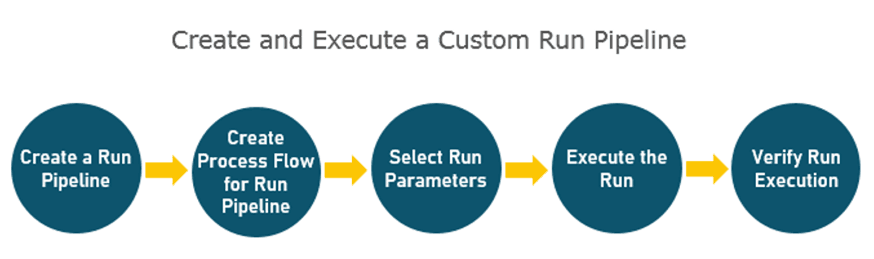
The visual representation of the preceding steps is depicted in the following illustration. This is also an illustration of creating and executing a Run pipleline (process) using PMF in OFSBCE, in general .
Figure 91: Create and Execute a Custom Run Pipeline
NOTE:
For information about designing a Business Pipeline, see the Orchestration of a Business Pipeline section in the Oracle Financial Services Analytical Applications Infrastructure Process Modelling Framework Orchestration Guide Release 8.1.1.0.0.
Use a Business Pipeline to design a Business Process, which consists of a sequence of internal or external tasks through well-defined interfaces. Using the designer, you can design the entire business flows consisting of various types of tasks or another business pipeline.
To use a standard out of the box Run pipeline for Balance Computation Management Ledger Process, see the Balance Computation Management Ledger process section in the Use Standard OFSBCE Run Pipelinessection.
Visual representation of the Run is enabled through PMF by the construction of a Run pipeline. Various OFSAA widgets that enable the construction of Run pipeline are available in the Component toolbar. For detailed information about the Components in PMF, see the Components for Designing Your Process Flow section in the Oracle Financial Services Analytical Applications Infrastructure Process Modelling Framework Orchestration Guide Release 8.1.1.0.0.
Figure 92: Create a Run Pipeline
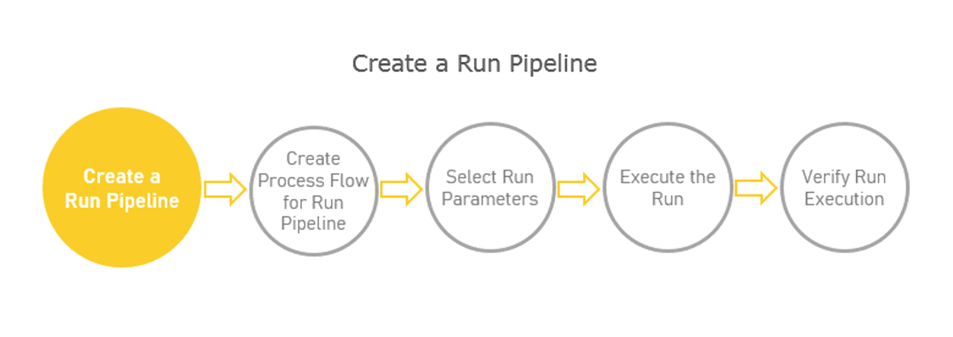
To create a new Run pipeline for Balance Computation Management Ledger process in the Process Modeller, follow these steps:
1. From OFSAA Home, select the
Financial Services Balance Computation Engine,
select the Administrator icon. In the Information Domain
list, select the information domain required for OFSBCE. Then click the
Process Modelling Framework tile. A submenu
is displayed. To access the Process Modeller, click Process
Modeller. The Process Modeller page is
displayed.
2. In the Process Modeller page, click the  .
.
3. The Process Details page is displayed.
Figure 93: Process Details page
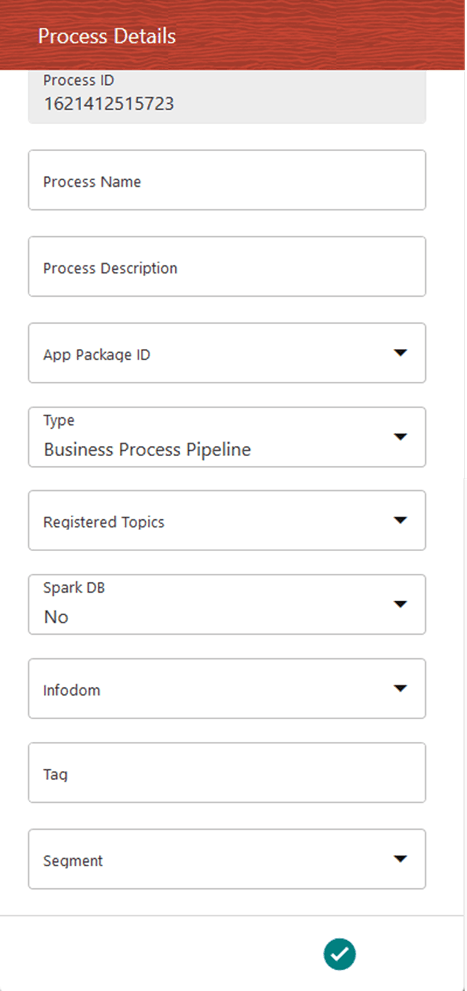
Enter or select the required values for each field.
Field Name |
Description and instruction |
|---|---|
Process ID |
This value is automatically generated. |
Process Name |
Enter a unique and easily recognizable value in the Process Name field. |
Process Description |
Enter a unique and easily recognizable value in the Process Description field. |
App Package ID |
Select the required application package in which the process must be created from the drop-down list. |
Type |
Select the required process type from the Type drop-down list. The options are as follows: · Sub Run Process · Run Pipeline · Workflow Pipeline |
Registered Topics |
Note: This functionality is currently not applicable to OFSBCE. |
Spark DB |
Enable the Spark DB option if you are executing the Run for Hive metadata. |
Infodom |
Select the information domain from the Infodom drop-down list in which the Run Pipeline must be created. The list displays all the infodoms mapped to the applications configured in your OFSAA instance. |
Tag |
Enter the text that can be used as search keywords or helpful in defining a relationship between two or more Pipelines. |
Segment |
Select the application segment. The options are as follows: · BCESEG: OFSBCE segment |
4. To save the
details, click.
The Process Flow canvas is displayed.
After you save the details and click, the Process Flow canvas
is displayed.
Figure 94: Process Flow Canvas Page
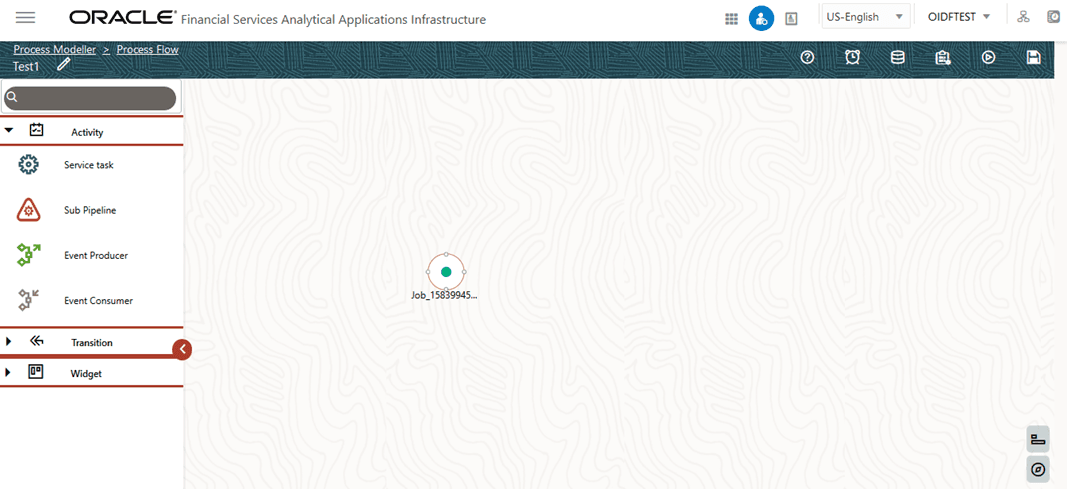
In the Process Flow canvas page,
design a Process flow Run pipeline. By default, START  from
the toolbar appears. This Start activity indicates the beginning of the
process. Use the drawing canvas to design the process flow with the Activity, Transition,
and Widget components available in the toolbar.
To design a process flow diagram for any Run Pipeline, see the Run
Pipeline section, and to use various components available in the
Process Flow tab, see the Components
for Designing Your Process Flow section in the Oracle
Financial Services Analytical Applications Infrastructure Process Modelling
Framework Orchestration Guide Release 8.1.1.0.0.
from
the toolbar appears. This Start activity indicates the beginning of the
process. Use the drawing canvas to design the process flow with the Activity, Transition,
and Widget components available in the toolbar.
To design a process flow diagram for any Run Pipeline, see the Run
Pipeline section, and to use various components available in the
Process Flow tab, see the Components
for Designing Your Process Flow section in the Oracle
Financial Services Analytical Applications Infrastructure Process Modelling
Framework Orchestration Guide Release 8.1.1.0.0.
Figure 95: Create Process Flow for Run Pipeline
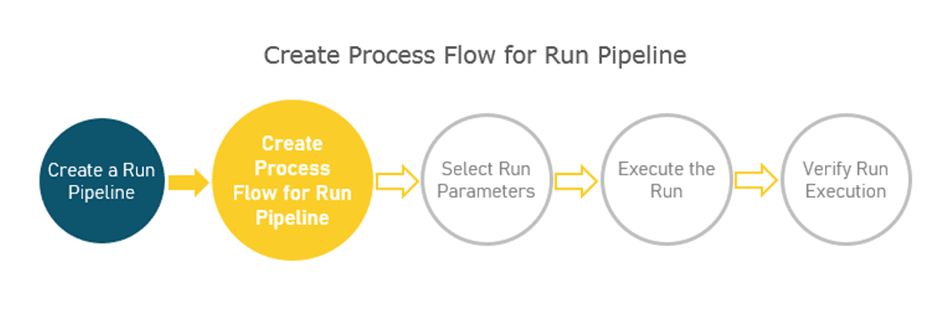
To create a process flow diagram for a Balance Computation Management Ledger Process (a Run Pipeline for Daily and Average Balance Computation) follow these steps:
1. Use the drawing canvas with Service Task as the base. In the illustration, each Service Task represents GL type for Assets, Liabilities, Expenses, Revenue, Gains, Losses, Contra Asset, Contra Liability, and Owner’s Equity.
NOTE:
The data from the balance sheet are categorized by the GL types. Within each of these GL types (Service Tasks), for execution, you can invoke multiple threads in the database, and this process is governed by the FSI_OPTIMIZATION_SETTINGS table. For more information, see the Appendix: FSI Optimization Settings section.
Figure 96: Balance Computation Management Ledger process flow
2. Double-click a Service task to configure the details related to its Activity, Implementation, Transition, Action, and Notification.
NOTE:
To create an Application Rule, see the Application Rules section, and to create a Data Field, see the Data Fields section in the Oracle Financial Services Analytical Applications Infrastructure Process Modelling Framework Orchestration Guide Release 8.1.1.0.0.
Figure 97: Balance Computation Management Ledger process with Service Task details
3. On the drawing canvas, select the Definition, Application Rule, and Data Fields icons to see the respective details.
§ Click to open the
Definition details. To save the details, click.
Figure 98: Balance Computation Management Ledger process with Definition details
§ Click to open the
Application Rule details. You can add or modify or delete the Rule details.
Figure 99: Balance Computation Management Ledger process with Application Rule tab details
§ Click to open the Data Fields
details. Add, modify, delete, or view the Data Fields details.
Figure 100: Balance Computation Management Ledger process with Data Fields tab details
§ Click to open the Execution
details. To save the details, click.
Figure 101: Balance Computation Management Ledger process without Execution Parameters
Enter and select the required details to execute the
Run without parameters. To execute with parameters, select With
Parameters in the Execution Type list.
To save the details, click.
Figure 102: Balance Computation Management Ledger Process with Execution Parameters
4. To save the
details, click.
In the Process Flow canvas, click to save the process flow
To execute the created Run pipeline (process), see the Select the Run Parameters and Execute the Run section.
After a Run pipeline (process) is designed and defined in the process flow diagram, you must assign values to the Run parameters, and execute the Run.
NOTE:
You can use PMF to invoke the PMF process through a PMF specific ESIC (External Scheduler Interface Component) option. You can execute a Run Pipeline on the UI or using a command-line utility called wfExecExternal.sh.
This shell script file wfExec.sh is available in the ficdb/bin directory. To execute the utility, navigate to the $FIC_DB_HOME/bin directory and execute wfExec.sh with parameters such as objectId, objectType, Infodom, segments, userID, locale, appParams, and secMap.
Figure 103: Select Run Parameters and Execute the Run
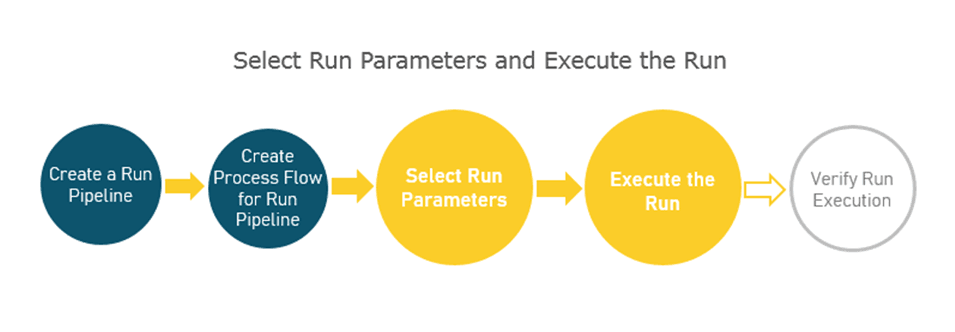
To select the Run parameters and execute the Run, follow these steps:
1. In the Process Modeller page, click corresponding to the Balance Computation
Management Ledger Run process that must be executed. Click Execute
Run.
Figure 104: Balance Computation Management Ledger process - Select Execute Run
2. The Execution page is displayed. This page consists of the Run parameters specific to the Balance Computation Management Ledger process.
Figure 105: Balance Computation Management Ledger process without Execution Parameters
Enter and select the required details to execute the
Run without parameters. To execute with parameters, select With
Parameters in the Execution Type list.
To save the details, click.
Figure 106: Balance Computation Management Ledger Process with Execution Parameters
To save the details, click. In the Process Flow
canvas, click
to save the process flow.
Select or enter the required values for each field as follows.
Field Name |
Description or Instruction |
|---|---|
Legal Entity |
Use the |
FIC MIS Date |
Use
the calendar icon |
Run Execution Description |
Enter a longer description of the Run. |
Data Origin |
Use the |
3. To save the
details and execute the Run, click.
NOTE:
The execution of the Balance Computation Management Ledger Run process is triggered using the selected FIC MIS DATE. The Run SKey is generated and inserted into the DIM_RUN table. For the Run SKey generated, the corresponding user-selected Run parameters are inserted into the RUN_EXE_PARAMETERS table.
NOTE:
Processes that compute day, period and period-average accounting balance should be executed for every calendar date, chronologically. If process execution skips dates, the balance figures computed could be inconsistent or erroneous.
NOTE:
See the Oracle Financial Services Analytical Applications Infrastructure Process Modelling Framework Orchestration Guide Release 8.1.1.0.0 for information about the following topics:
· To abort, resume, or rerun the Run Pipeline Process, see the Abort Run Pipeline, Resume Run Pipeline, and Re-run Run Pipeline sections respectively.
· To verify the execution logs, see the Viewing Activity Execution Logs and Viewing Execution Log for Widgets sections.
After the Run pipeline (process) execution, you can check the status of the execution.
Figure 107: Verify Run Execution
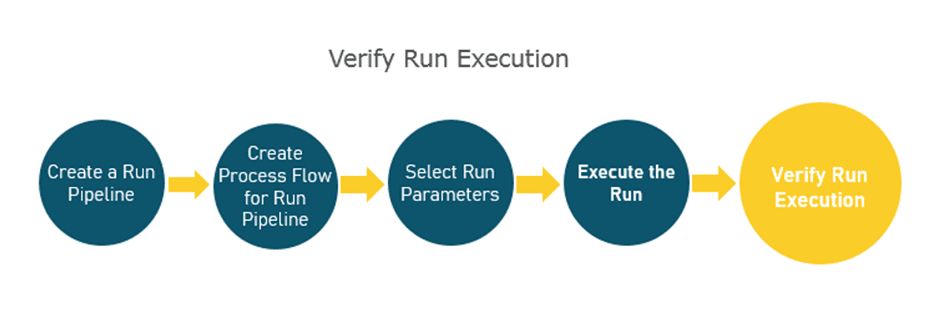
To verify the Run execution, follow these steps:
1. To verify the Run execution status of the Balance Computation Management Ledger process, follow these steps:
a. To open the
Process Monitor page, in the Process
Modeller page, click or
select Process Flow Monitor from the Process
Modeller menu.
b. The Process Monitor page opens displaying all the Run instances corresponding to the Balance Computation Management Ledger process. In the Process Monitor page, for the required Run pipeline (process) that was executed, search the Run instance by Process ID, or by the Process Name Balance Computation Management Ledger, and select the process instance.
Figure 108: Balance Computation Management Ledger process – Process Monitor Page – Select Job ID
2. A status page opens, which displays the execution status of the executed Run for the Balance Computation Management Ledger process. In this illustration, the Run for the Daily and Average Balance Computation is successfully executed.
Figure 109: Balance Computation Management Ledger process – Run Execution status
For information about the complete functioning of PMF, see the Oracle Financial Services Analytical Applications Infrastructure Process Modelling Framework Orchestration Guide Release 8.1.1.0.0.
You can also check the execution status details in the Execution Summary page.
To create and execute the custom Revaluation process using the custom Run pipeline for Balance Revaluation Management Ledger process, see the Create and Execute Revaluation Process section.
To use a standard out of the box Run pipeline for Balance Revaluation Management Ledger Process, see the Balance Revaluation Management Ledger process section in the Use Standard OFSBCE Run Pipelines section.
To create and execute the custom Currency Translation process using the custom Run pipeline for Translate Management Ledger Period Balances process, see the Currency Translation Process section.
To use a standard out of the box Run pipeline for Translate Management Ledger Period Balances Process, see the Translate Management Ledger Period Balances process section in the Use Standard OFSBCE Run Pipelines section.

