19 Recovery Scenario 1 (Complete Server Outage)
For a complete server outage, NOAM servers are recovered using recovery procedures for software and then executing a database restore to the active NOAM server. All other servers are recovered using recovery procedures for software.
Database replication from the active NOAM server will recover the database on these servers. The major activities are summarized in the list below. Use this list to understand the recovery procedure summary. Do not use this list to execute the procedure. The actual detailed steps are in Procedure 1. The major activities are summarized as follows.
Recover Base software for all VMs:
Recover the Standby NOAM server by recovering base software, for a Non-HA deployment this can be skipped.
- Reconfigure the DSR Application.
Recover all SOAM and MP servers by recovering software, In a Non-HA deployment the Standby/Spare SOAM servers can be skipped.
- Recover the SOAM database.
- Reconfigure the DSR Application.
- Reconfigure the signaling interface and routes on the MPs, the DSR software will automatically reconfigure the signaling interface from the recovered database.
Restart process and re-enable provisioning replication
Note:
Any other applications DR recovery actions (SDS and IDIH) may occur in parallel. These actions can/should be worked simultaneously; doing so would allow faster recovery of the complete solution (i.e. stale DB on DP servers will not receive updates until SDS-SOAM servers are recovered.This procedure performs recovery if both NOAM servers are failed and all SOAM servers are failed. This procedure also covers the C-Level Sever failure.
Check off () each step as it is completed. Boxes have been provided for this purpose under each step number.
If this procedure fails, contact My Oracle Support (MOS), and ask for assistance.
Table 19-1 Procedure 5
| Step # | Procedure | Description | |
|---|---|---|---|
| 1 | Workarounds |
Refer to Workarounds for Issues not fixed in this Release to understand/apply any workarounds required during this procedure. |
|
| 2 | Gather Required Materials |
Gather the documents and required materials listed in Section 3.1 Required Materials |
|
| 3 | Recover the Failed Software |
For VMWare based deployments:
Note: While executing Procedure 8, configure the required failed VMs only (NOAMs/SOAMs/MPs). |
|
| 4 | Obtain Latest Database Backup and Network Configuration Data. |
Obtain the most recent database backup file from external backup sources (ex. file servers) or tape backup sources. From required materials list in Section 3.1 Required Materials; use site survey documents and Network Element report (if available), to determine network configuration data. |
|
| 5 | Execute DSR Installation Procedure for the First NOAM |
Verify the networking data for Network Elements
Note: Use the backup copy of network configuration data and site surveys (Step 2).Execute installation procedures for the first NOAM server from reference [1]: Table 23-1“Configure the First NOAM NE and Server.” Table 24-1 “Configure the NOAM Server Group.” |
|
| 6 | NOAM GUI: Login | Login to the NOAM GUI as the guiadmin
user:
Figure 19-1 Oracle system login 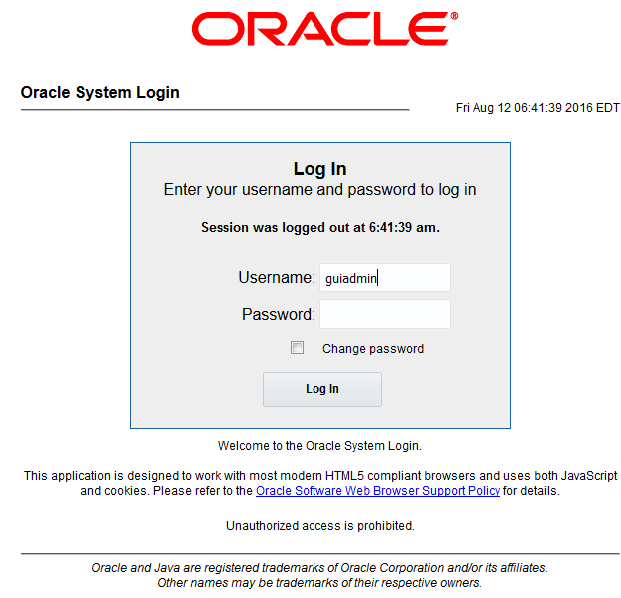 |
|
| 7 | : NOAM GUIUpload the Backed up Database File |
Browse to Main Menu->Status & Manage->Files Figure 19-2 Browser 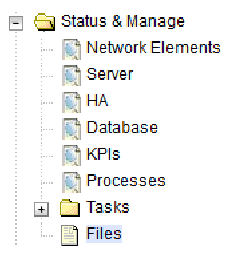 Select the Active NOAM server. The following screen will appear: Figure 19-3 Main menu 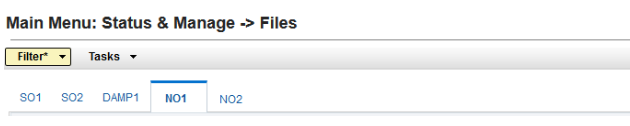 Click on Upload as shown below and select the file “NO Provisioning and Configuration:” file backed up after initial installation and provisioning. Figure 19-4 Upload 
Figure 19-5 Backup file box 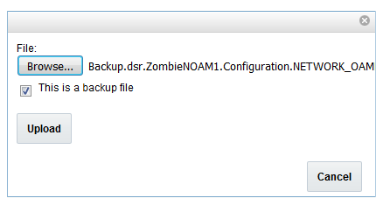 Click on the Upload button. The file will take a few seconds to upload depending on the size of the backup data. The file will be visible on the list of entries after the upload is complete. |
|
| 8 |
NOAM GUI: Disable Provisioning |
Click onMain Menu->Status & Manage->Database Figure 19-6 Database 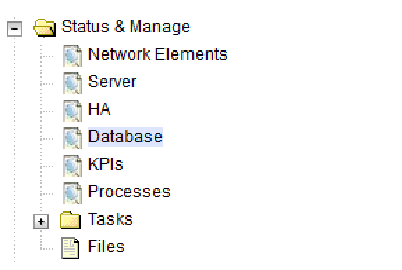 Disable Provisioning by clicking on Disable
Provisioning button at the bottom of the screen as shown
below.
Figure 19-7 Disable provisioning  A confirmation window will appear, press OK to disable Provisioning. Figure 19-8 Disable 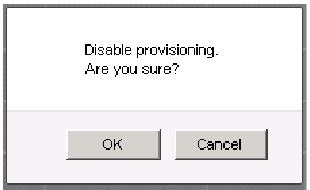 The message “Warning Code 002” will appear. |
|
| 9 |
NOAM GUI: Verify the Archive Contents and Database Compatibility |
Select the Active NOAM server and click on
the Compare.
Figure 19-9 Compare  The following screen is displayed; click the button for the restored database file that was uploaded as a part of Step 13 of this procedure. Figure 19-10 Database compare  Verify that the output window matches the screen below. Note: Note: You will get a database mismatch regarding the NodeIDs of the VMs. That is expected. If that is the only mismatch, proceed, otherwise stop and contact My Oracle Support (MOS).Figure 19-11 Database Archive Server 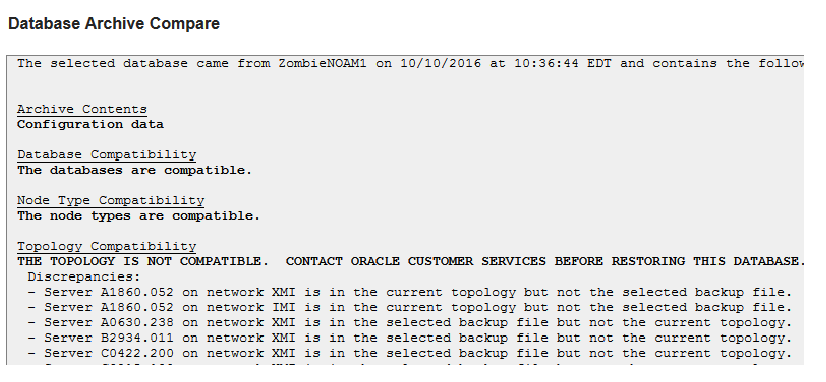 Note: Archive Contents and Database Compatibilities must be the following:Archive Contents: Configuration data Database Compatibility: The databases are compatible. Note: The following is expected Output for Topology Compatibility Check since we are restoring from existing backed up data base to database with just one NOAM:Topology Compatibility THE TOPOLOGY SHOULD BE COMPATIBLE MINUS THE NODEID. Note: We are trying to restore a backed up database onto an empty NOAM database. This is an expected text in Topology Compatibility.If the verification is successful, Click BACK button and continue tonext step in this procedure. |
|
| 10 |
ACTIVE NOAM: Restore the Database |
Click on Main Menu->Status & Manage->Database Select the Active NOAM server, and click on Restore as shown below. The following screen will be displayed. Select the proper back up provisioning and configuration file. Figure 19-12 Backup-provisioning 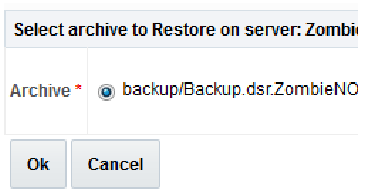 Click OK Button. The following confirmation
screen will be displayed.
Note: You will get a database mismatch regarding the NodeIDs of the servers. That is expected. If that is the only mismatch, proceed, otherwise stop and contact My Oracle Support (MOS).Select the Force checkbox as shown above and Click OK to proceed with the DB restore. Figure 19-13 Database Restore Confirm 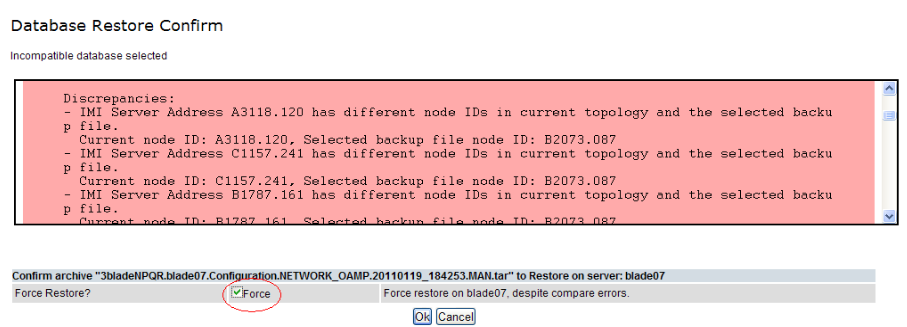 Note: Note: After the restore has started, the user will be logged out of XMI NO GUI since the restored Topology is old data. |
|
| 11 |
NOAM VIP GUI: Login |
Establish a GUI session on the NOAM server by using the VIP IP address of the NOAM server. Open the web browser and enter a URL of: Figure 19-14 NOAM VIP GUI Login 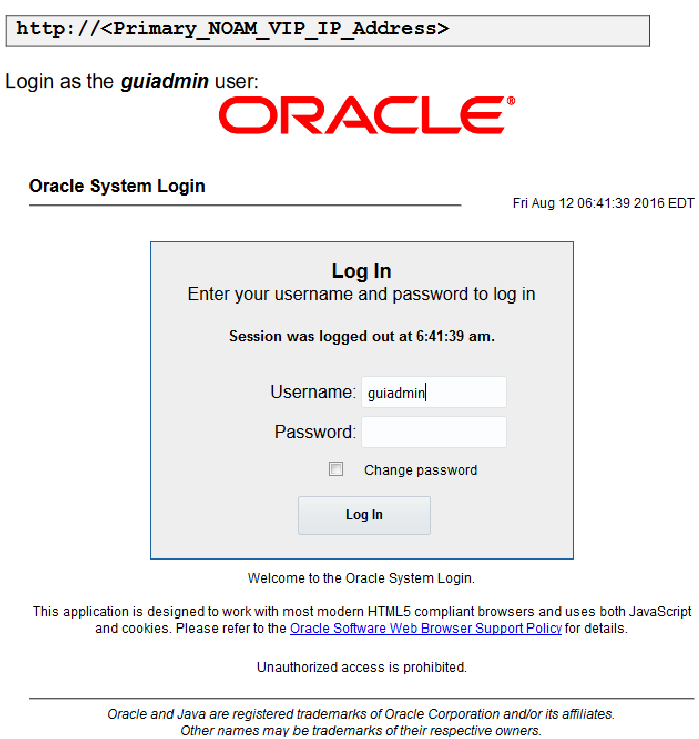 |
|
| 12 |
NOAM VIP GUI: Monitor and Confirm database restoral |
Wait for 5-10 minutes for the System to stabilize with the new topology: Monitor the Info tab for “Success”. This will indicate that the backup is complete and the system is stabilized. Following alarms must be ignored for NOAM and MP Servers until all the Servers are configured: Alarms with Type Column as “REPL” , “COLL”, “HA” (with mate NOAM), “DB” (about Provisioning Manually Disabled) Note: Do not pay attention to alarms until all the servers in the system are completely restored.Note: The Configuration and Maintenance information will be in the same state it was backed up during initial backup. |
|
| 13 |
ACTIVE NOAM: Login |
Login to the recovered Active NOAM via SSH terminal as admusr user. | |
| 14 | NOAM VIP GUI: Recover Standby NOAM |
Install the second NOAM server by executing procedures from reference [1] Procedure 15 “Configure the Second NOAM Server” steps 1, 3-7 Procedure 16 “Complete Configuring the NOAM Server Group” Step 4 |
|
| 15 | Active NOAM: Correct the RecognizedAu thority table |
Establish an SSH session to the active NOAM, login
as admusr. Execute the following command:
Figure 19-15 Command 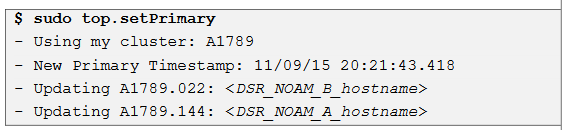 |
|
| 16 |
NOAM VIP GUI: Restart DSR application |
Navigate to Main Menu->Status & Manage->Server, Figure 19-16 Manage server 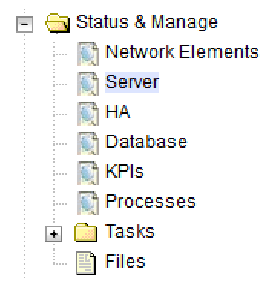 Select the recovered standby NOAM server and click on Restart Figure 19-17 Restart  Select the recovered standby NOAM server and click on Restart. |
|
| 17 | NOAM VIP GUI: Set HA on Standby NOAM |
Navigate to Status & Manage -> HA Figure 19-18 Manage-HA 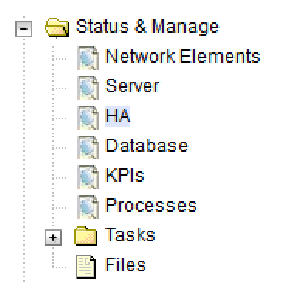 Click on Edit at the bottom of the screen Select the standby NOAM server, set it to Active Press OK |
|
| 18 |
NOAM VIP GUI: Perform Key exchange with Export Server |
Navigate to Main Menu -> Administration -> Remote Servers -> Data Export Figure 19-19 Data Export 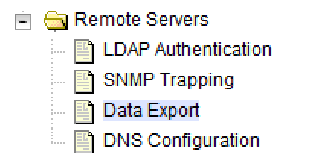 Click on SSH Key Exchange at the bottom of the screen. Enter the Password and press OK
Figure 19-20 SSH Key 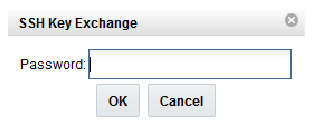 |
|
| 19 | NOAM VIP GUI: Stop Replication to the C-Level Servers of this Site. | Inhibit Replication to the working C Level Servers
which belong to the same site as of the failed SOAM servers,
as the recovery of Active SOAM will cause the database wipeout in
the C level servers because of the replication
Figure 19-21 Warning  If the spare SOAM is also present in the site and lost: Inhibit A and B Level Replication on C-Level Servers (When Active, Standby and Spare SOAMs are lost) If the spare SOAM is NOT deployed in the site: Execute Inhibit A and B Level Replication on C-Level Servers. Figure 19-22 Warning |
|
| 20 | NOAM VIP GUI: Recover Active SOAM Server |
Install the SOAM servers by executing procedures from reference [1] Procedure 22 “Configure the SOAM Servers”, steps 1,
3- 7
Note: Wait for server to reboot before continuing. |
|
| 21 | NOAM VIP GUI: Restart DSR application on Recovered Active SOAM Server |
Navigate to Main Menu->Status & Manage->Server, Figure 19-23 Manage server 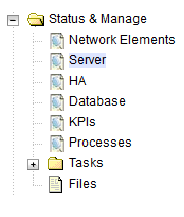 Select the recovered server and click on
Restart.
Figure 19-24 Restart  |
|
| 22 | NOAM VIP GUI: Upload the backed up SOAM Database file |
Navigate to Main Menu->Status & Manage->Files Select the Active SOAM server. The following screen will appear. Click on Upload as shown below and select the file “SO Provisioning and Configuration:” file backed up after initial installation and provisioning. Figure 19-25 upload Click on Browse and locate the backup file Check This is a backup file Box Click on Open as shown below. Figure 19-26 Browse 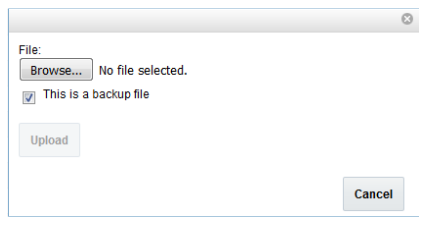 Click on the Upload button. The file will take a few seconds to upload depending on the size of the backup data. The file will be visible on the list of entries after the upload is complete. |
|
| 23 | Recovered SOAM GUI: Login |
Establish a GUI session on the recovered SOAM server. Open the web browser and enter a URL of: Figure 19-27 Recovered SOAM GUI Login 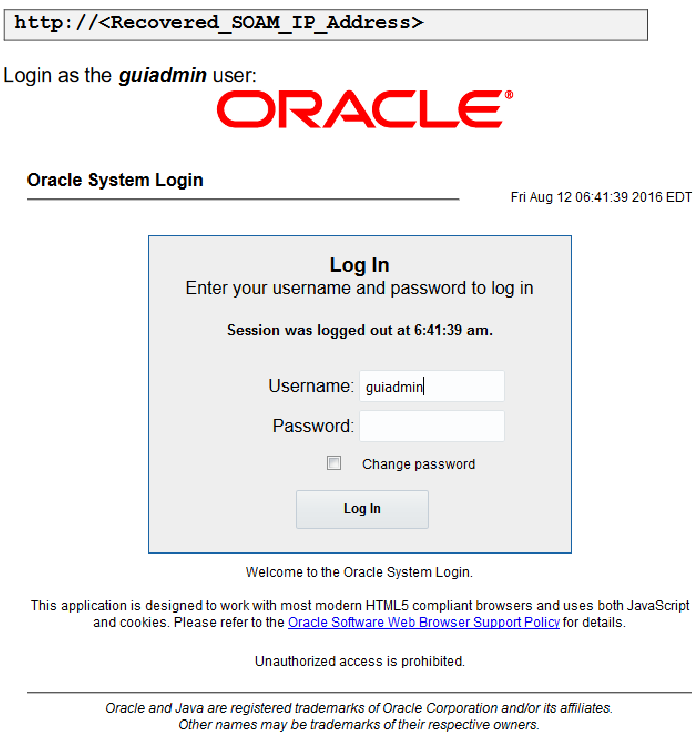 |
|
| 24 | Recovered SOAM GUI: Verify the Archive Contents and Database Compatibility |
Navigate to Main Menu->Status & Manage->Database Select the Active SOAM server and click on the Compare. Figure 19-28 Recovered SOAM GUI  The following screen is displayed; click the button for the restored database file that was uploaded as a part of Step 13 of this procedure. Figure 19-29 Database compare 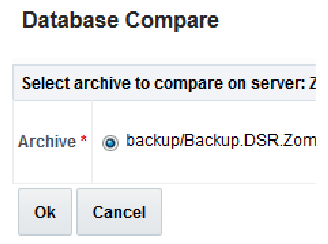 Verify that the output window matches the
screen below.
Note: You will get a database mismatch regarding the NodeIDs of the VMs. That is expected. If that is the only mismatch, proceed, otherwise stop and contact My Oracle Support (MOS).Figure 19-30 Database archive 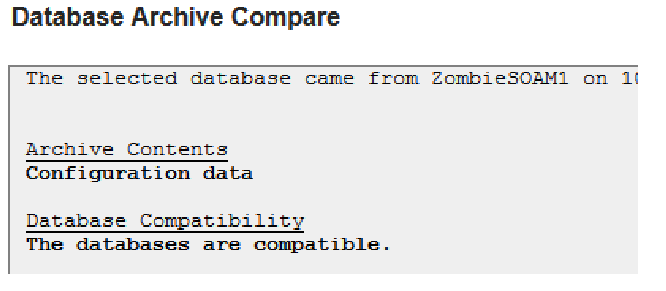 Note: Archive Contents and Database Compatibilities must be the following.Archive Contents: Configuration data Database Compatibility: The databases are
compatible.
Note: The following is expected Output for Topology Compatibility Check since we are restoring from existing backed up data base to database with just one SOAM:Topology Compatibility THE TOPOLOGY SHOULD BE COMPATIBLE MINUS THE
NODEID.
Note: We are trying to restore a backed up database onto an empty SOAM database. This is an expected text in Topology Compatibility. If the verification is successful, Click BACK button and continue to next step in this procedure. |
|
| 25 | Recovered SOAM GUI: Restore the Database |
Click on Main Menu->Status & Manage->Database Select the Active SOAM server, and click on Restore as shown below. The following screen will be displayed. Select the proper back up provisioning and configuration file. Figure 19-31 Archive to restore 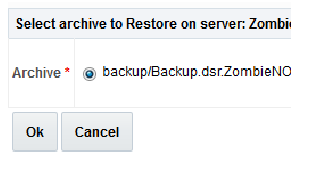 Click OK Button. The following confirmation screen will be displayed. If you get an error that the NodeIDs do not match. That is expected. If no other errors beside the NodeIDs are displayed, select the Force checkbox as shown below and Click OK to proceed with the DB restore. Figure 19-32 Database Restore Confirm 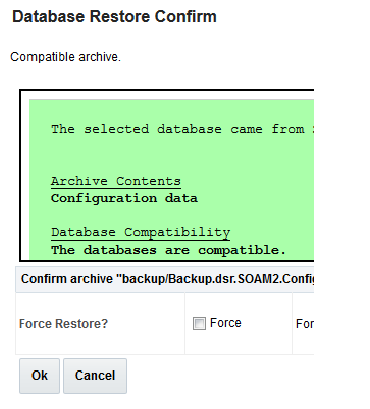 Note: After the restore has started, the user will be logged out of XMI SOAM GUI since the restored Topology is old data. |
|
| 26 | Recovered SOAM GUI: Monitor and Confirm database restoral |
Wait for 5-10 minutes for the System to stabilize with the new topology: Monitor the Info tab for “Success”. This will indicate that the backup is complete and the system is stabilized. Note: Do not pay attention to alarms until all the servers in the system are completely restored. Note: The Configuration and Maintenance information will be in the same state it was backed up during initial backup.Note: The Configuration and Maintenance information will be in the same state it was backed up during initial backup. |
|
| 27 | NOAM VIP GUI: Login |
Establish a GUI session on the NOAM server by using the VIP IP address of the NOAM server. Open the web browser and enter a URL of: Figure 19-33 NOAM VIP GUI Login 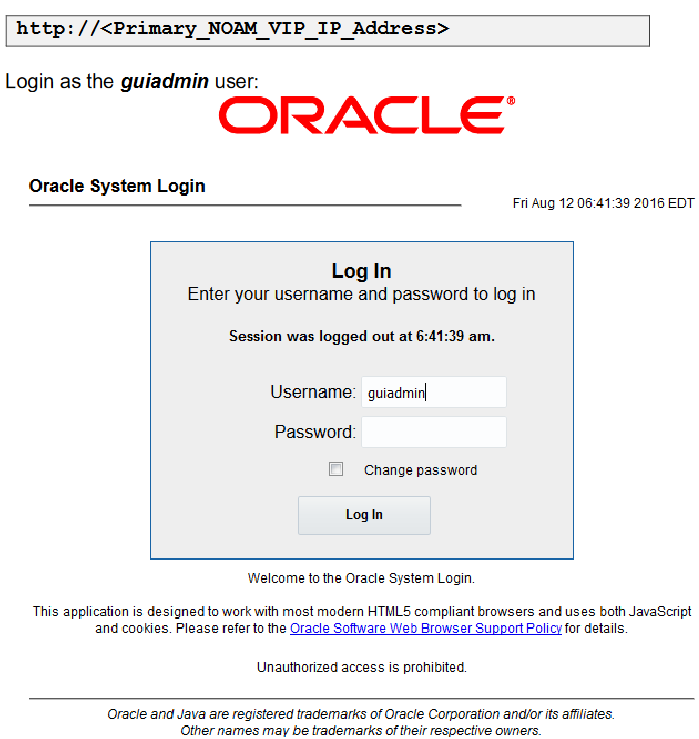 |
|
| 28 | NOAM VIP GUI: Recover remaining SOAM Server |
Install the SOAM servers by executing procedure from reference [1] Procedure 22 “Configure the SOAM Servers”, steps 1, 3- 6 Note: Wait for server to reboot before continuing. |
|
| 29 | NOAM VIP GUI: Restart DSR application on remaining SOAM Server(s) |
Navigate to Main Menu->Status & Manage->Server, Figure 19-34 Status and manage 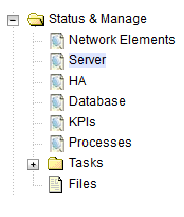 |
|
| 30 | NOAM VIP GUI: Set HA on Recovered Standby SOAM Server |
Note: For Non-HA sites SKIP this step.Navigate to Status & Manage -> HA Figure 19-35 HA 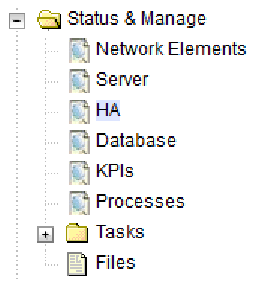 Click on Edit at the bottom of the screen Set Max Allowed HA Role to Active Press OK |
|
| 31 | NOAM VIP GUI: Start Replication on Working C- Level Servers |
Un-Inhibit (Start) Replication to the working C-Level Servers which belong to the same site as of the failed SOAM servers. If the spare SOAM is also present in the site and lost: Execute Un-Inhibit A and B Level Replication on C-Level Servers (When Active, Standby and Spare SOAMs are lost) If the spare SOAM is NOT deployed in the site: Execute Un-Inhibit A and B Level Replication on C-Level Servers Navigate to Main Menu->Status & Manage->Database If the “Repl Status” is set to “Inhibited”, click on the Allow Replication button as shown below using the following order, otherwise if none of the servers are inhibited, skip this step and continue with the next step:
Verify that the replication on all the working servers is allowed. This can be done by examining the Repl Status table as seen below: Figure 19-36 REPL status 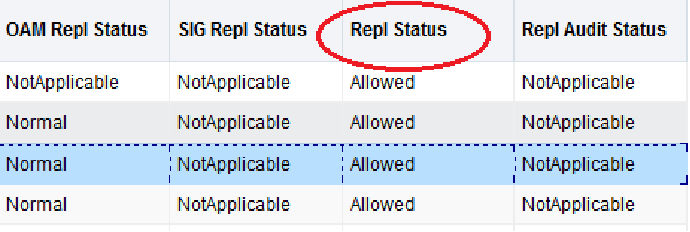 |
|
| 32 | NOAM VIP GUI: Recover the C-Level Server (DA- MP, SBRs, IPFE,vSTP- MP) |
Establish a SSH session to the C Level server being recovered, login as admusr. Execute following command to set shared memory to unlimited: Figure 19-37 Shared memory  |
|
| 33 | NOAM VIP GUI: Restart DSR application for Recovered C- Level Server |
Navigate to Main Menu->Status & Manage->Server, Figure 19-38 Manage server 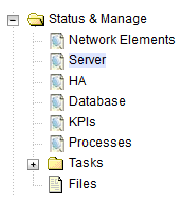 Select the recovered server and click on Restart. Figure 19-39 Restart  |
|
| 34 | NOAM VIP GUI: Start Replication on all C-Level Servers |
Un-Inhibit (Start) Replication to the ALL C-Level Servers Navigate to Status & Manage -> Database Figure 19-40 Database 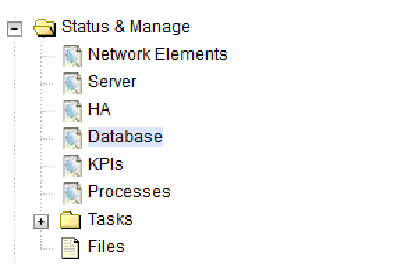 If the “Repl Status” is set to “Inhibited”, click on the Allow Replication button as shown below using the following order: Active NOAM Server Standby NOAM Server Active SOAM Server Standby SOAM Server Spare SOAM Server (if applicable) MP/IPFE Servers Verify that the replication on all the working servers is allowed. This can be done by examining the Repl Status table as seen below: Figure 19-41 Repl status |
|
| 35 | NOAM VIP GUI: Set HA on all C- Level Servers |
Navigate to Status & Manage -> HA Figure 19-42 HA 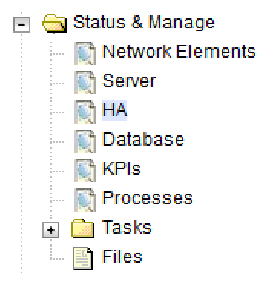 Click on Edit at the bottom of the screen For each server whose Max Allowed HA Role is set to OOS, set it to Active Press OK |
|
| 36 | ACTIVE NOAM: Perform key exchange between the active-NOAM and recovered servers. |
Establish an SSH session to the Active NOAM, login as admusr. Execute the following command to perform a key exchange from the active NOAM to each recovered server: Figure 19-43 Key exchange  Note: If an export server is configured, perform this step. |
|
| 37 | ACTIVE NOAM: Activate Optional Features |
Establish an SSH session to the active NOAM, login as admusr. Note:
Refer to section 1.5 Optional Features to activate
any features that were previously activated.
Refer to section 1.5 Optional Features to activate any features that were previously activated. |
|
| 38 | NOAM VIP GUI: Fetch and Store the database Report for the Newly Restored Data and Save it |
Navigate to Main Menu->Status & Manage->Database Figure 19-44 Database 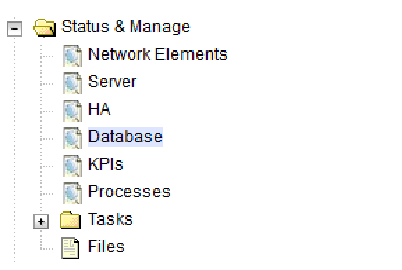 Select the active NOAM server and click on the Report button at the bottom of the page. The following screen is displayed: Figure 19-45 Manage Database Report 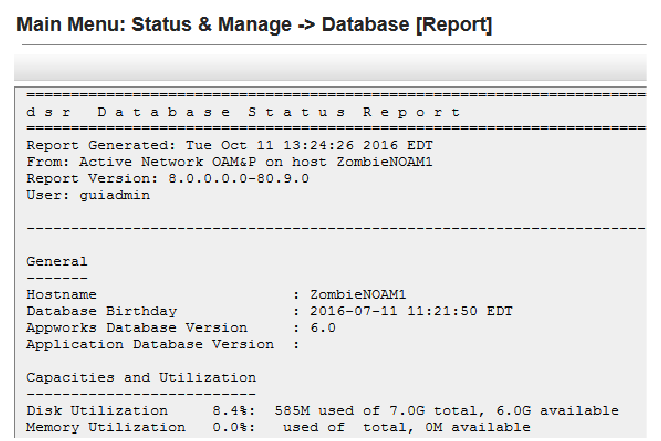 Click on Save and save the report to your local machine. |
|
| 39 | ACTIVE NOAM: Verify Replication Between Servers. | Login to the Active NOAM via SSH terminal as
admusr user. Execute the following command:
Figure 19-46 SSH Terminal 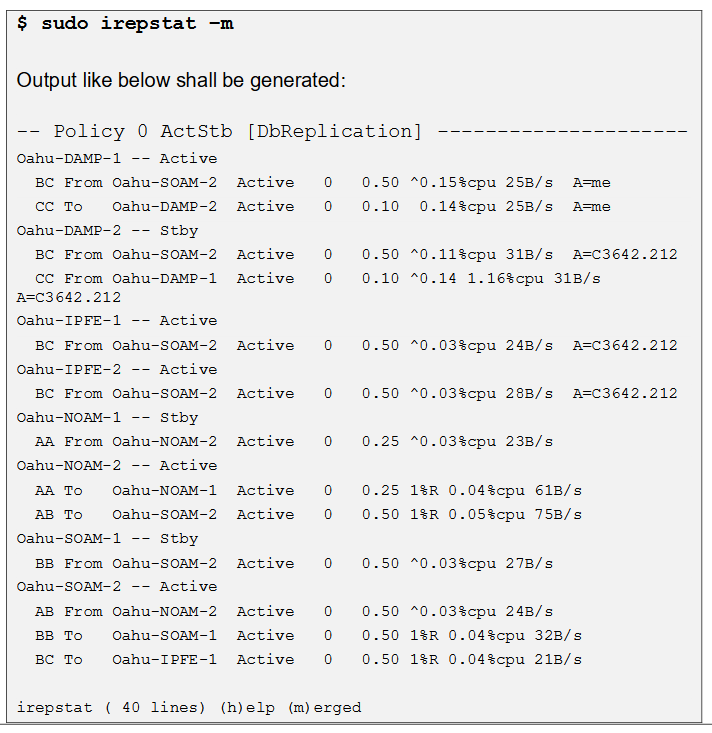 |
|
| 40 | NOAM VIP GUI: Verify the Database states |
Click on Main Menu->Status and Manager->Database Figure 19-47 Database Verify that the “OAM Max HA Role” is either “Active” or “Standby” for NOAM and SOAM and “Application Max HA Role” for MPs is “Active”, and that the status is “Normal” as shown below: Figure 19-48 Main menu 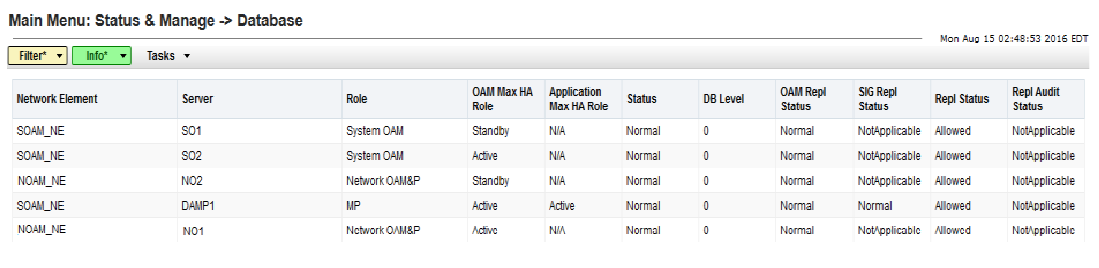 |
|
| 41 | NOAM VIP GUI: Verify the HA Status |
Click on Main Menu->Status and Manage->HA Figure 19-49 HA Select the row for all of the servers Verify that the “HA Role” is either “Active” or “Standby”. Figure 19-50 Main Menu HA 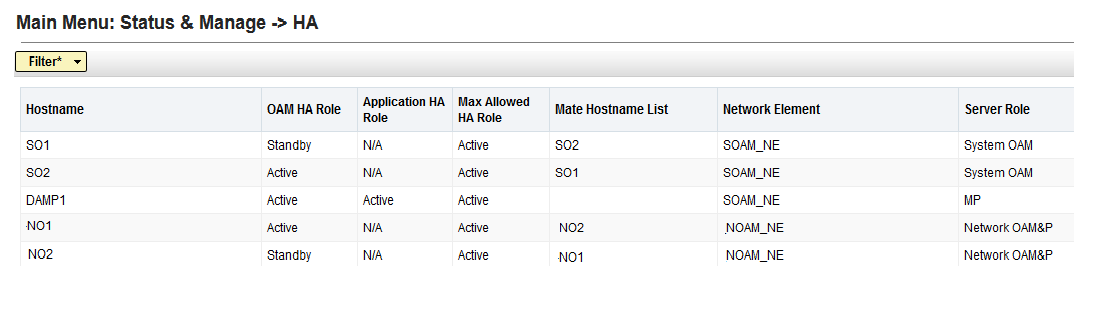 |
|
| 42 | NOAM GUI: Enable Provisioning |
Click on Main Menu->Status & Manage->Database Figure 19-51 Database Enable Provisioning by clicking on Enable Provisioning button at the bottom of the screen as shown below. Figure 19-52 Enable provisioning  A confirmation window will appear, press OK to enable Provisioning. Figure 19-53 Enable provisioning 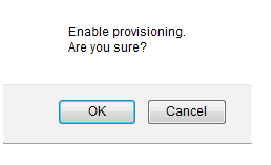 |
|
| 43 | SOAM VIP GUI: Verify the Local Node Info |
Navigate to Main Menu->Diameter->Configuration->Local Node Figure 19-54 local nodes 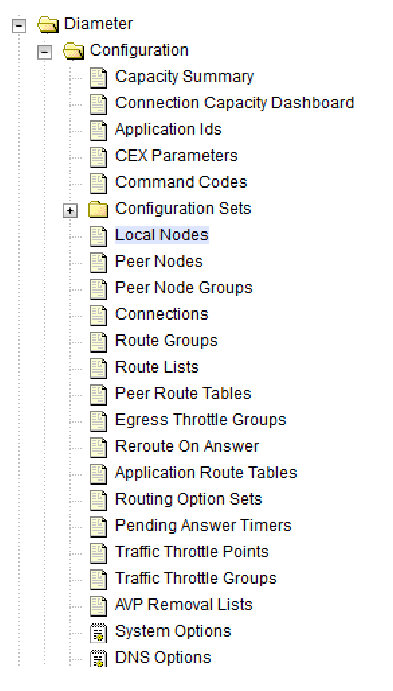 Verify that all the local nodes are shown. |
|
| 44 | SOAM VIP GUI: Verify the Peer Node Info |
Navigate to Main Menu->Diameter->Configuration->Peer Node Figure 19-55 peer node 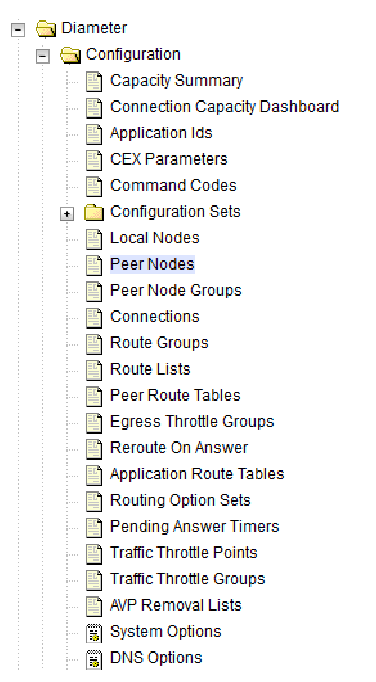 Verify that all the peer nodes are shown. |
|
| 45 | SOAM VIP GUI: Verify the Connections Info |
Navigate to Main Menu->Diameter->Configuration->Connections Figure 19-56 Connections 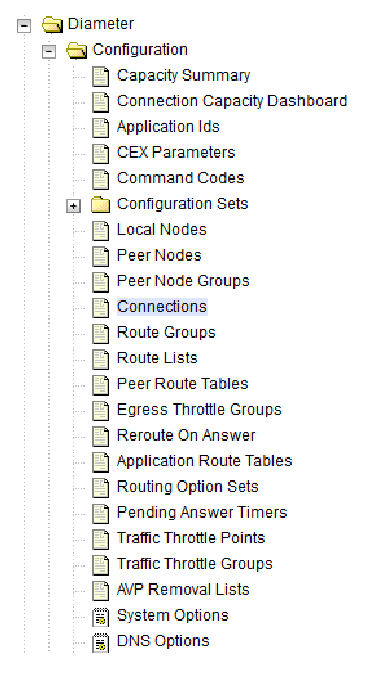 Verify that all the connections are shown. |
|
| 46 | For vSTP Only- SOAM VIP Server Console (Optional): Verify the local nodes info |
To verify the vSTP MP Local nodes info:
Figure 19-57 output 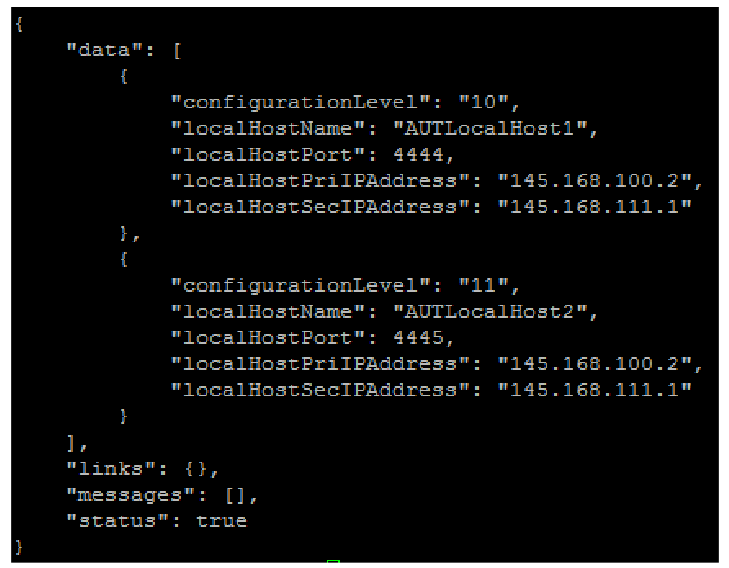 |
|
| 47 | For vSTP Only- SOAM VIP Server Console (Optional): Verify the remote nodes info |
To verify the vSTP MP Remote nodes info:
Figure 19-58 Output 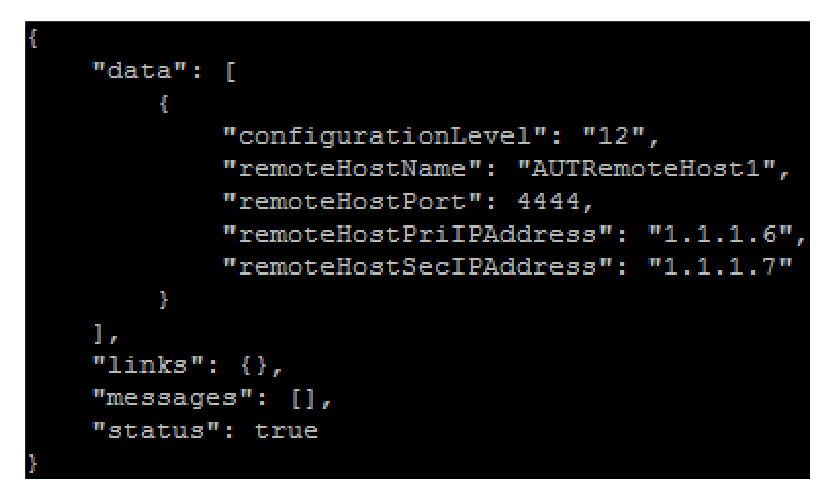 |
|
| 48 | For vSTP Only- SOAM VIP Server Console (Optional): Verify the Connections info |
To verify the vSTP MP Connections info:
Figure 19-59 data output 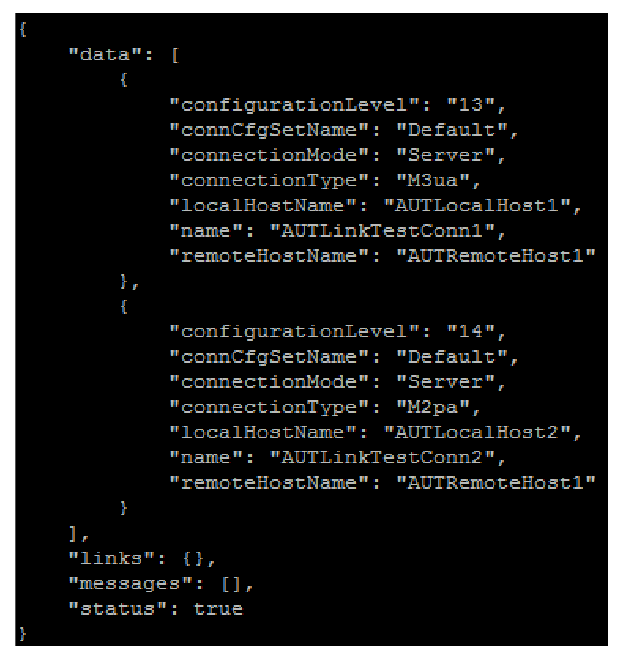 |
|
| 49 | MP Servers: Disable SCTP Auth Flag |
For SCTP connections without DTLS enabled, refer to Enable/Disable DTLS Appendix from reference [1]. Execute this procedure on all Failed MP Servers. |
|
| 50 | SOAM VIP GUI: Enable Connections if needed |
Navigate to Main Menu->Diameter->Maintenance->Connections Figure 19-60 Connections 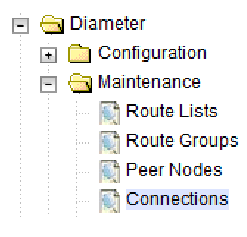 Select each connection and click on the Enable button. Alternatively you can enable all the connections by selecting the EnableAll button. Figure 19-61 Enable All  Verify that the Operational State is Available.
Note: If a Disaster Recovery was performed on an IPFE server, it may be necessary to disable and re-enable the connections to ensure proper link distribution. |
|
| 51 | SOAM VIP GUI: Enable Optional Features |
Navigate to Main Menu -> Diameter -> Maintenance -> Applications Figure 19-62 Applications 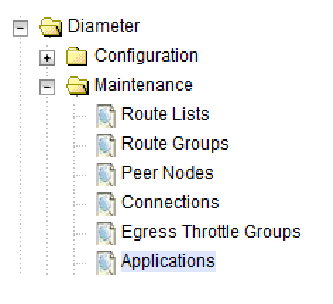 Select the optional feature application configured before. Click the Enable button. Figure 19-63 Enable-disable  |
|
| 52 | SOAM VIP GUI: Re-enable Transports if Needed |
Navigate to Main Menu->Transport Manager -> Maintenance -> Transport Figure 19-64 Transport 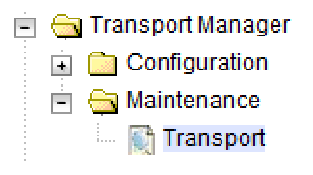 Select each transport and click on the Enable button Figure 19-65 Enable-disable  |
|
| 53 | SOAM VIP GUI: Re-enable MAPIWF application if needed |
Navigate to Main Menu->Sigtran->Maintenance->Local SCCP Users Figure 19-66 local sccp users 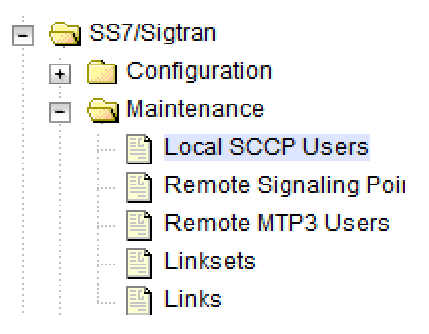 Click on the Enable button corresponding to MAPIWF Application Name. Figure 19-67 Enable  Verify that the SSN Status is Enabled. |
|
| 54 | SOAM VIP GUI: Re-enable links if needed. |
Figure 19-68 Links 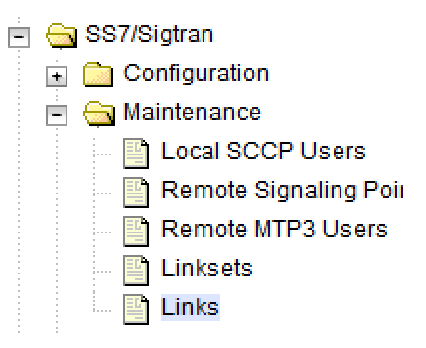 Click on Enable button for each link. Figure 19-69 Enable Verify that the Operational Status for each link is Up. |
|
| 55 | SOAM VIP GUI: Examine All Alarms |
Navigate to Main Menu->Alarms & Events->View Active Figure 19-70 view-active 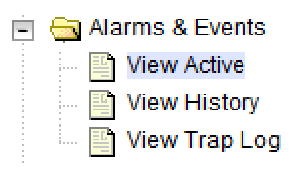 Examine all active alarms and refer to the on-line help on how to address them. If needed contact My Oracle Support (MOS). |
|
| 56 | NOAM VIP GUI: Examine All Alarms |
Login to the NOAM VIP if not already logged in. Navigate to Main Menu->Alarms & Events->View Active Figure 19-71 View active 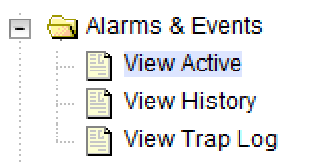 Examine all active alarms and refer to the on-line help on how to address them. If needed contact My Oracle Support (MOS) |
|
| 57 | Restore GUI Usernames and Passwords |
If applicable, Execute steps in Section 6.0 to recover the user and group information restored. |
|
| 58 | Backup and Archive All the Databases from the Recovered System | Execute DSR Database Backup to back up the Configuration databases: |