Creating and Managing Tuition Reimbursement Requests
Employees and administrators can use the Tuition Reimbursement feature to request reimbursement for educational expenses covered by the organization. This feature enables users to enter training courses, costs and other related expenses needed for reimbursement. Organizations can also require that employees get pre-approval for training expenses prior to taking a course. This feature integrates with PeopleSoft Payroll for North America system to support the loading of tuition reimbursement data into the payroll system for payment.
The topic discusses the page used to create a tuition reimbursement request.
|
Page Name |
Definition Name |
Usage |
|---|---|---|
|
HC_HR_TUITION_FL_TILE (this is the cref for the tile) |
Access the Tuition Reimbursement pages to create or review a tuition pre-approval or reimbursement request as an employee. |
|
|
HC_HR_MGR_TUITION_FL_TILE (this is the cref for the tile) |
Access the Tuition Reimbursement request pages for one of your employees to view the status or history of tuition requests. |
|
|
HC_HR_ADM_TUITION_FL_TILE (this is the cref for the tile) |
Access the Tuition Reimbursement pages to create or review a tuition pre-approval or reimbursement request for an employee. |
|
|
HRTR_EE_LANDING_FL |
Review tuition reimbursement requests for a person or initiate the process to add a new request, if applicable. |
|
|
HRTR_FLTR_SCF |
Apply rules for the types of requests that should appear in the reimbursement list |
|
|
HRTR_JOB_SEL_FL |
Select the job for which you want to create a reimbursement request. This page is available to employees with multiple jobs. |
|
|
HRTR_ACK_FL |
Acknowledge that you have reviewed and accept the tuition reimbursement guidelines as specified on the page. |
|
|
HRTR_REIMB_SEL_FL |
Identify the type of training for the reimbursement request. |
|
|
HRTR_EEREQ_PG_FL |
Enter details about the reimbursement request, such as the type of training, course details, and costs. |
|
|
HRTR_SUB_CNF_FL |
Confirm that your request has been submitted and view the approval status details. |
|
|
HRTR_EEREQ_PG_FL |
View a detailed summary of a specific reimbursement request or start a reimbursement request for a pre-authorized training you created earlier. |
Employees use the Tuition Reimbursement tile to access the Tuition Reimbursement pages to create or review a tuition pre-approval or reimbursement request for themselves.
Navigation:
Use personalizations to add the Tuition Reimbursement tile to the Employee Self Service homepage.
From the PeopleSoft (My Home) Landing Page, select the Quick Access – Benefits, Pay & Time Tile. The Tuition Reimbursement tile is in the My Benefits section of the dashboard.
This example illustrates the fields and controls on the Tuition Reimbursement tile.
Select the tile to access the Tuition Reimbursement (Landing) Page.
Managers use the Team Tuition Reimbursements tile to access the Tuition Reimbursement request pages for one of their employees to view the status or history of tuition requests.
Navigation:
Use personalizations to add the Team Tuition Reimbursement tile to the Manager Self Service homepage.
From the PeopleSoft (My Home) Landing Page, select the Team Tuition Reimbursement tile from the My Work - Team Section.
This example illustrates the fields and controls on the Team Tuition Reimbursements tile.
Select the tile to access the Tuition Reimbursement (Landing) Page.
Administrators use the Manage Tuition Reimbursement tile to access the Tuition Reimbursement pages to create or review a tuition pre-approval or reimbursement request for an employee.
Navigation:
Use personalizations to add the Manage Tuition Reimbursement tile to the Administer Workforce homepage.
From the PeopleSoft (My Home) Landing Page, select the Manage Tuition Reimbursement tile from the My Work - Human Resources Section.
This example illustrates the fields and controls on the ManageTuition Reimbursement tile.
Select the tile to access the Tuition Reimbursement (Landing) Page.
Use the Tuition Reimbursement (landing) page (HRTR_EE_LANDING_FL) to review tuition reimbursement requests for a person or initiate the process to add a new request, if applicable.
Navigation:
Employees:
Use the Tuition Reimbursement tile you added to a homepage through personalizations.
From the PeopleSoft (My Home) Landing Page, select the Quick Access – Benefits, Pay & Time Tile. The Tuition Reimbursement tile is in the My Benefits section of the dashboard.
Managers:
Use the Team Tuition Reimbursement tile you added to a homepage through personalizations. Then select an employee row from the Find Team Members page.
From the PeopleSoft (My Home) Landing Page, select the Team Tuition Reimbursement tile from the My Work - Team Section.
Administrators:
Use the Manage Tuition Reimbursement tile you added to a homepage through personalizations. Then select an employee from the search page.
From the PeopleSoft (My Home) Landing Page, select the Manage Tuition Reimbursement tile from the My Work - Human Resources Section.
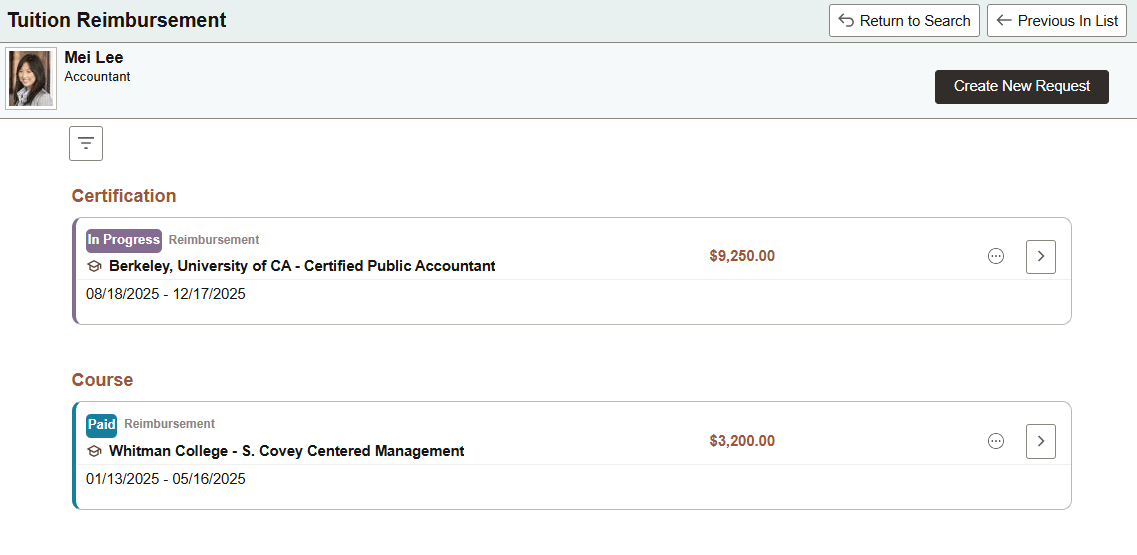
This example illustrates the fields and controls on the Tuition Reimbursement (landing) page for the employee.
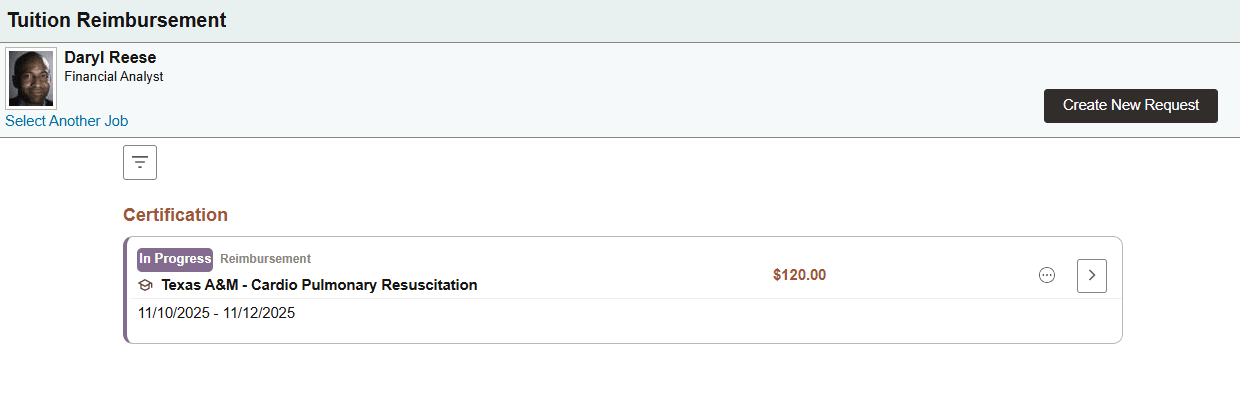
This example illustrates the fields and controls on the Tuition Reimbursement (landing) page for an administrator.
This example illustrates the fields and controls on the Tuition Reimbursement (landing) page for a Pre-Authorization request that has been approved.
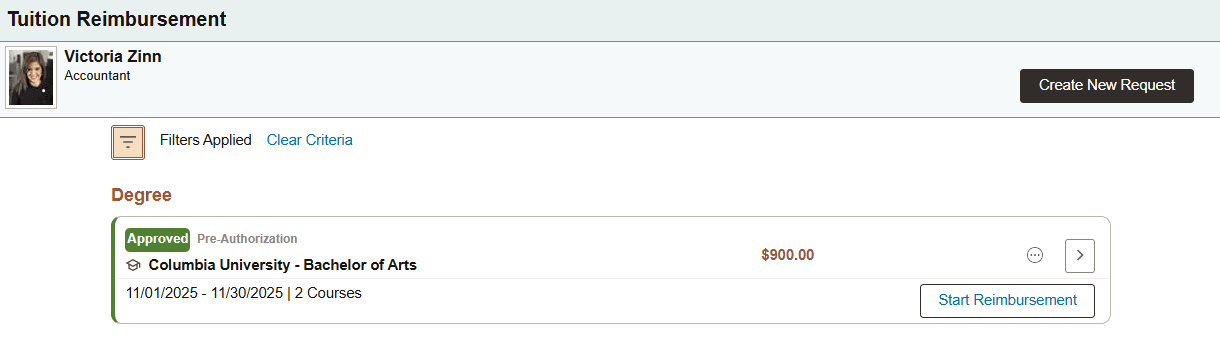
Use this page to view historical rows of reimbursement requests. If no previous requests are available, the page will state that no requests have been created.
Employees and administrators can also initiate or withdraw a reimbursement request from this page. Managers have view only capabilities and cannot create or withdraw a request.
When previous requests are available, they are grouped by reimbursement types, such as Certification and Degree. Administrators add reimbursement types on the Company Level Configuration Page page. Each transaction shows the status of the reimbursement, the name of the institution offering the training, its duration, as well as the cost of the training.
The following lists the approval statuses for both Pre-Autorization and Reimbursement requests, with each status type reflected in a different color:
In Progress
Withdrawn
Approved
Denied
Payment Pending
Payment Reversed
Paid
Partially Paid
|
Field or Control |
Description |
|---|---|
|
Return to Search, Previous in List, and Next in List buttons |
(Administrator) Select these navigation buttons to return to or scroll through the search result rows that were generated in the previous step of this process, when applicable. |
|
Select Another Job link |
(Employee) This link is available for employees with multiple jobs. Select this link to access the Change Job Selection page and select the job for which you want to create a reimbursement request. |
|
Create New Request button |
(Employee and Administrator) Select this button to initiate the process of creating a new tuition reimbursement request. |
|
|
Select to access the Tuition Reimbursement - Filters Page and apply criteria for the types of requests that should appear in the reimbursement list. You can filter information by type, date, or status. |
|
|
Select the Filter icon button to access the Tuition Reimbursement - Filters Page and modify the criteria for the types of requests that should appear in the reimbursement list. Select the Clear Criteria link to remove all filters and show all reimbursement requests for the person. |
|
|
Select to view a list of actions you can perform for this transaction. Options include:
|
|
|
Select to access the Tuition Reimbursement (View Summary) Page and view the details of a request. |
|
Start Reimbursement button |
This button appears for pre-authorization requests that have been approved. Select to access the Tuition Reimbursement (View Summary) Page to complete a reimbursement request for pre-authorized training. |
 (Filter) icon button
 (Filters Applied) icon button and
  (Related Actions) icon
 (Continue) arrow button
Use the Filters page (HRTR_FLTR_SCF) to apply rules for the types of requests that should appear in the reimbursement list.
Navigation:
Select the Filters button from the Tuition Reimbursement (Landing) Page.
This example illustrates the fields and controls on the Filters page.
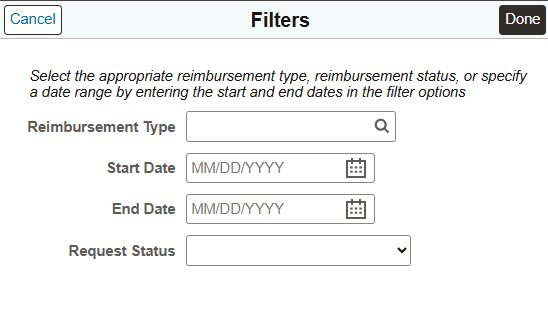
Enter one or several filters to limit your reimbursement results on the Tuition Reimbursement (Details) Page then select Done. The page will show only those requests that meet all filter criteria.
|
Field or Control |
Description |
|---|---|
|
Reimbursement Type |
Select to show transactions from a specific reimbursement type. Reimbursement types are defined by the administrator on the Company Level Configuration Page. |
|
Start Date |
Enter the earliest start date for the training. This will show training that started on or after the date. If a course started before this date, even if it crossed over the start date, it will not appear in the list. |
|
End Date |
Enter an end date for the training. This will show training that ended before or on the date. If a course ended after this date, even if it started and was held prior to the end date, it will not appear in the list. |
|
Request Status Type |
Select from a list of statuses to show only requests with that status. Values include:
|
Employees use the Tuition Reimbursement (Select a Job) page (HRTR_JOB_SEL_FL) to select the job for which you want to create a reimbursement request.
Note: This page is available to employees with multiple jobs.
Navigation:
Select the Select Another Job link from the Tuition Reimbursement (Landing) Page.
This example illustrates the fields and controls on the Tuition Reimbursement (Select a Job) page.
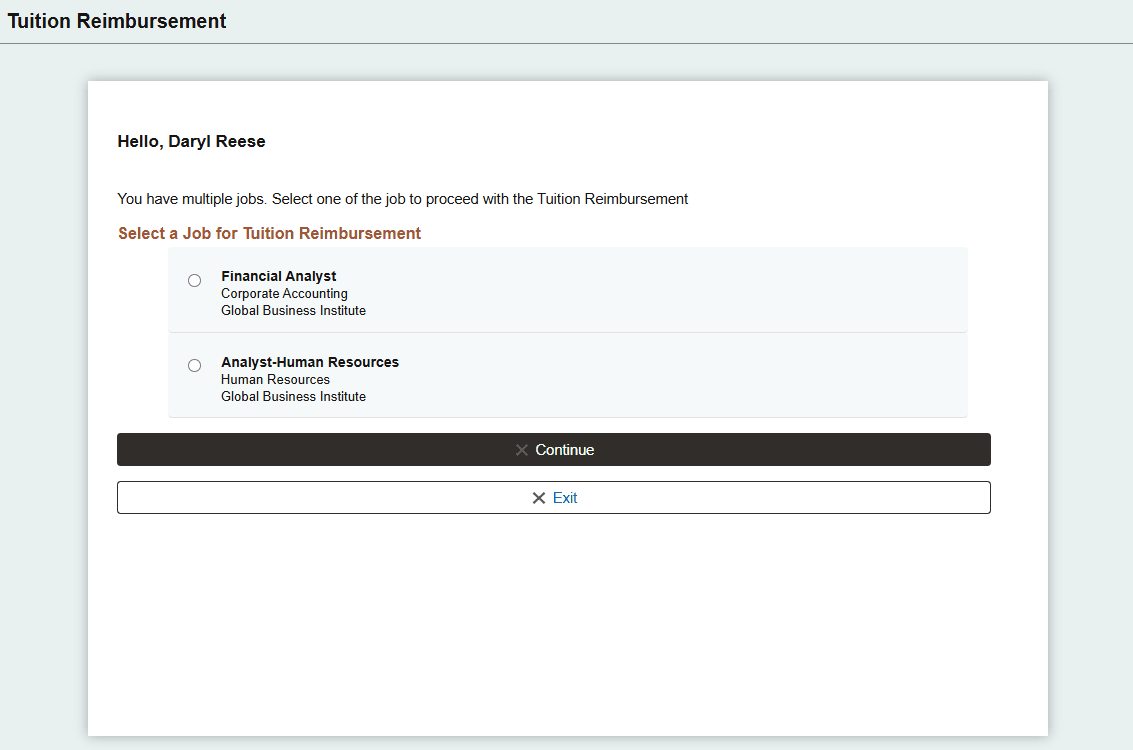
Select a job and the Continue button to move to the next step in the process.
Use the Tuition Reimbursement (Acknowledgement) page (HRTR_ACK_FL) to acknowledge that you have reviewed and accept the tuition reimbursement guidelines as specified on the page.
Note: This page is available to employees when an acknowledgement ID is defined on the Country Level Configuration Page.
Navigation:
Select the Create New Request button from the Tuition Reimbursement (Landing) Page.
If you have multiple jobs, select a job and then the Continue button on the Tuition Reimbursement (Select a Job) Page.
This example illustrates the fields and controls on the Tuition Reimbursement (Acknowledgement) page.
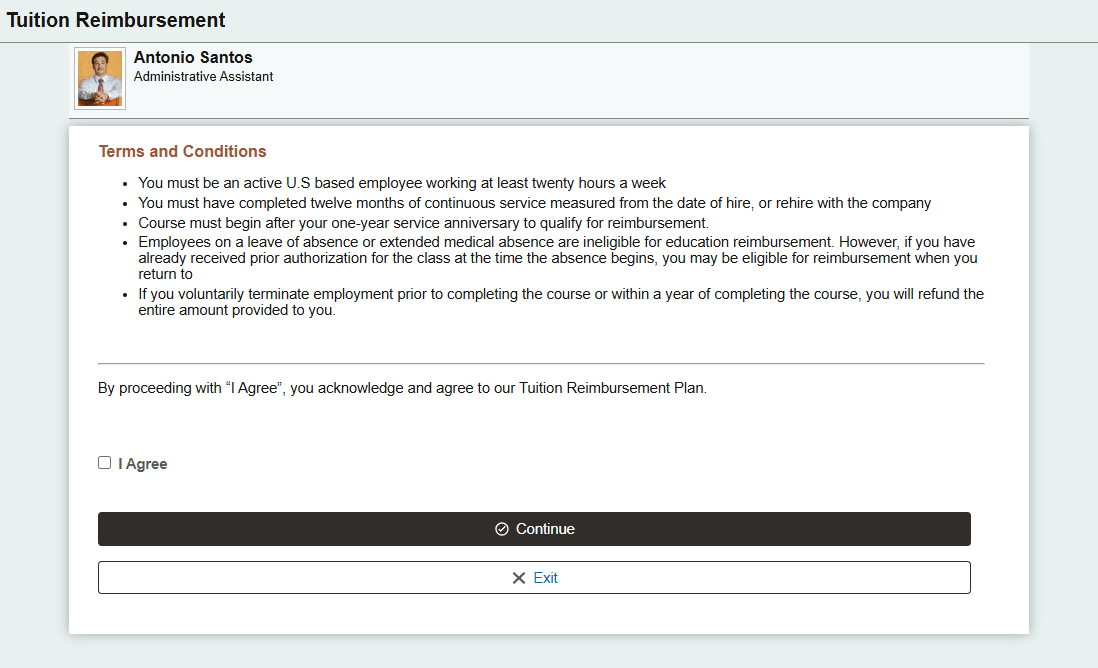
The text on this page comes from the acknowledgement ID configured in the Acknowledgement framework and is assigned to a company on the Company Level Configuration Page.
Select I Agree and the Continue button to move to the next step in the process.
Use the Reimbursement Type page (HRTR_REIMB_SEL_FL) to identify the type of training for the reimbursement request.
Navigation:
Select the Continue button on the Tuition Reimbursement (Acknowledgement) Page.
When an acknowledgement ID is not defined for a company, select the Create New Request button from the Tuition Reimbursement (Landing) Page.
This example illustrates the fields and controls on the Tuition Reimbursement (Reimbursement Type) page.
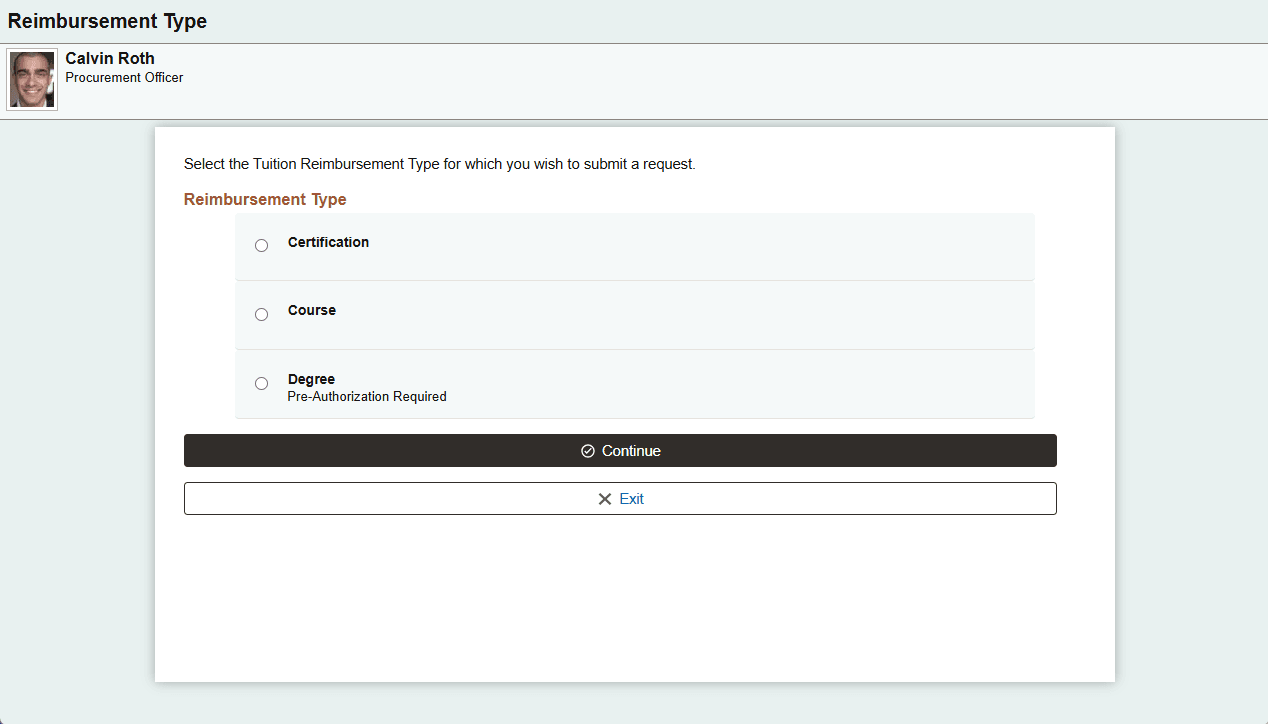
Reimbursement types are defined on the Company Level Configuration Page. These are used to group or categorize reimbursement requests by the type of training a person is taking. You can also filter requests by the type.
When configured to use pre-authorization, the Pre-Aurhorization Required text appears below the reimbursement type. This will take the user to the tuition reimbursement pages, but they will enter estimated costs for the training. Pre-authorization requests are not reimbursement requests but a request made before taking a course to approve the cost of training in advance. When the training is complete, you will access the approved request to enter the final cost for which you are requesting reimbursement.
Use the Tuition Reimbursement (Details) page (HRTR_EEREQ_PG_FL) to enter details about the reimbursement request, such as the type of training, course details, and costs.
Navigation:
Select the Continue button from the Reimbursement Type Page.
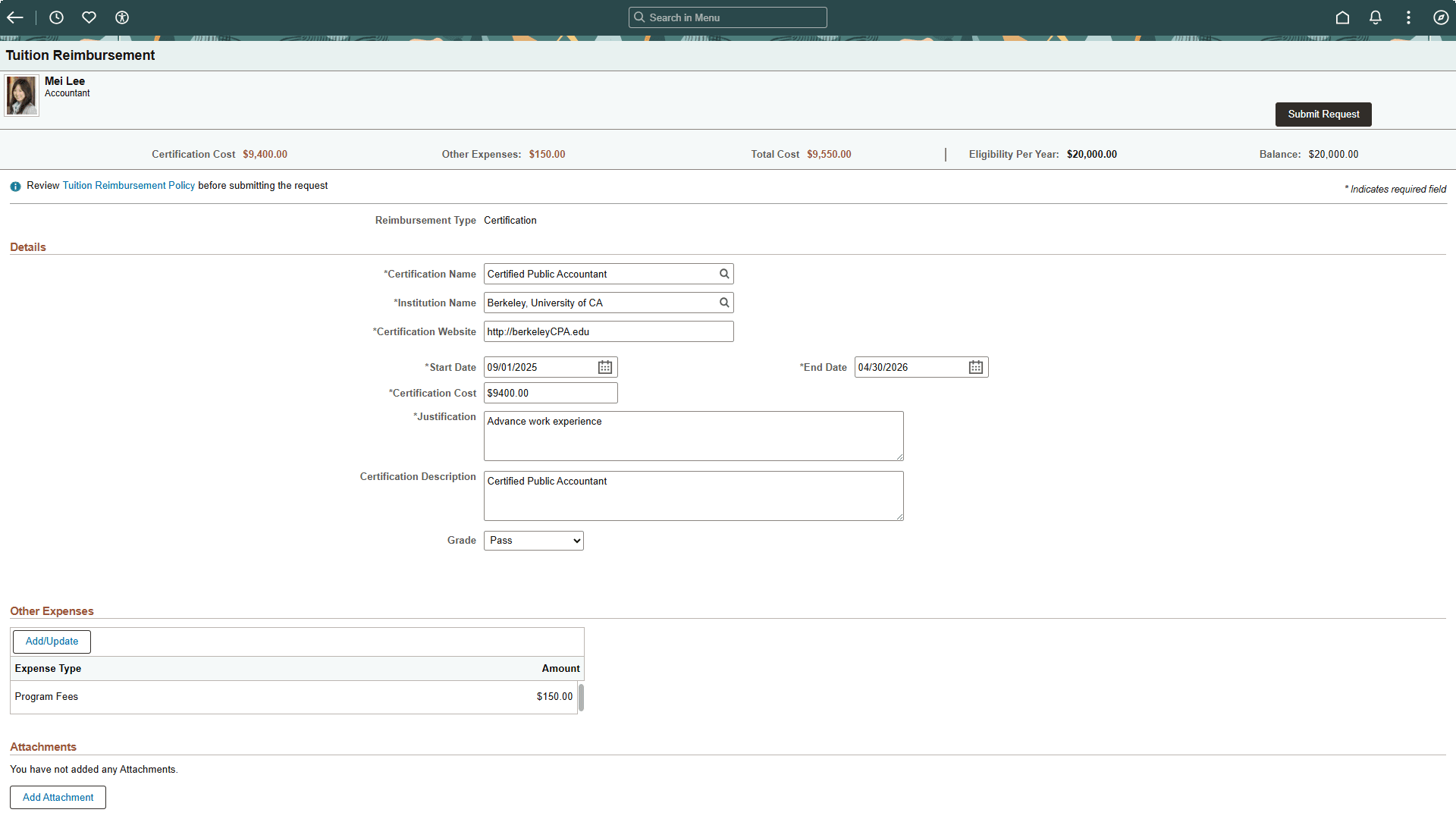
This example illustrates the Tuition Reimbursement (Details) page for a request that does not list multiple courses.
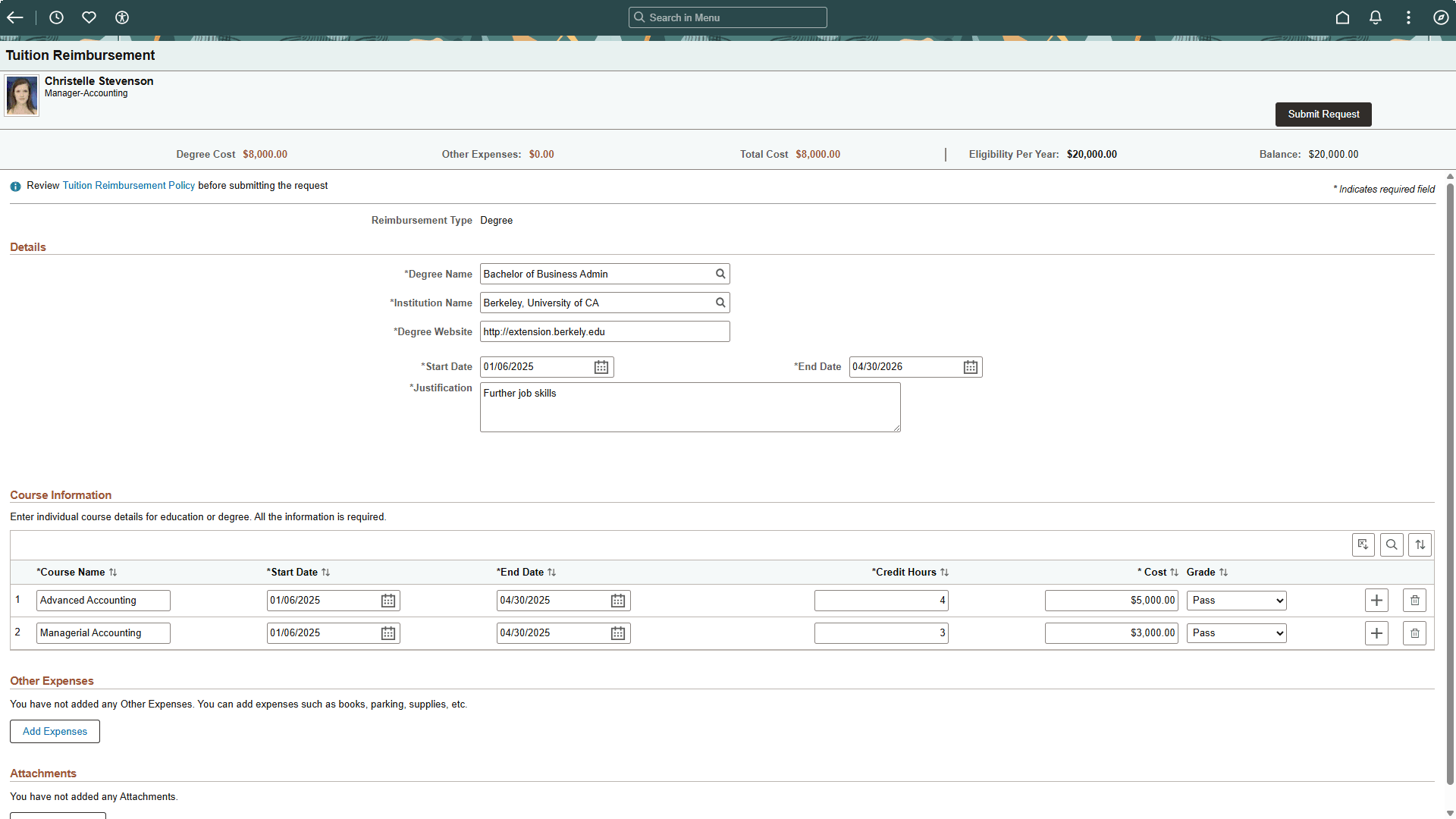
This example illustrates the Tuition Reimbursement (Details) page for a request that lists multiple courses
This example illustrates the Tuition Reimbursement (Details) page for a Pre-Authorization request.
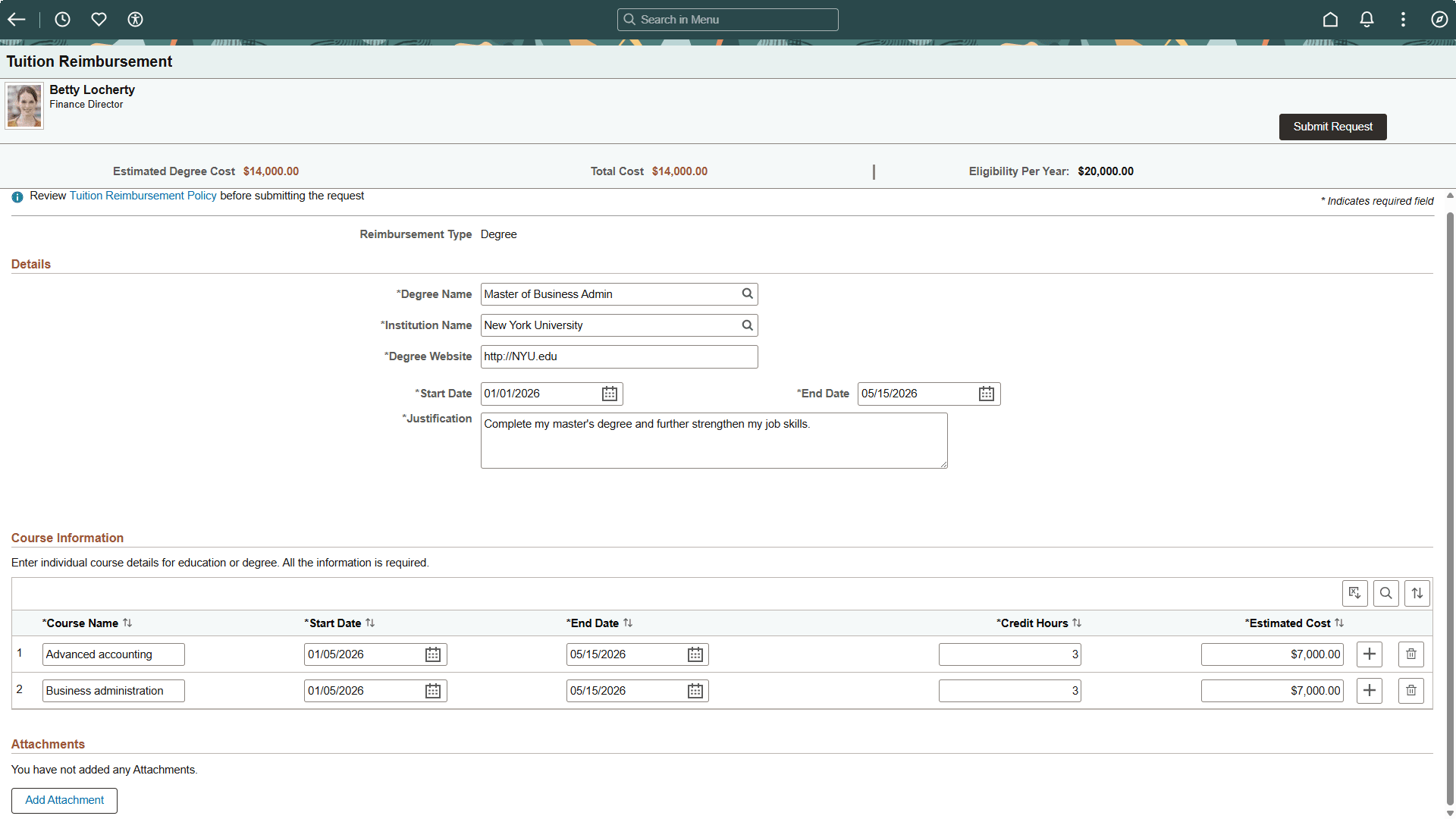
The fields on this page will vary based on the settings defined on the Company Level Configuration Page.
Pre-Authorization Requests Considerations
When entering a pre-authorization request for training that includes multiple courses over a long period of time, consider entering multiple requests for shorter segments of time. This will enable you to submit a reimbursement request for courses taken during a short period of time instead of waiting to get reimbursed for completing a full program or degree. For example, enter a pre-approval for all the fall courses of a program so when the fall session is complete you can start a reimbursement at that time for the completed courses.
Note: When you submit and get a reimbursement request approved for what was originally pre-authorized training, the process changes the status of the request to Reimbursement Approved and you can no longer include additional training expenses. You will need to submit a new request for further training.
To enter final cost reimbursement details for a pre-authorized course, see the Tuition Reimbursement (View Summary) Page.
Header Information
|
Field or Control |
Description |
|---|---|
|
Submit Request button |
Select this button to submit a request after you have entered all required details. There is no save or draft option. If you exit the page without submitting a request, you will lose all the information you entered. Approvers will use the Pending Approvals - Pre-Authorize Tuition or Reimburse Tuition Page to review and take action on a reimbursement request. |
|
<Reimbursement Type> Estimated Cost or <Reimbursement Type> Cost |
Displays the sum of all the course Cost fields. |
|
Other Expenses |
This field is available for Reimbursement requests. Pre-Authorization requests do not track additional expenses. Displays the sum of all the Other Expenses: Amount fields. |
|
Total Cost |
Displays the sum of all expenses (cost and other) associated with the training request. |
|
Eligibility Per Year |
Displays the annual eligibility amount per person for reimbursements. This values is defined on the Country Level Configuration Page. |
|
Balance |
This field is available for Reimbursement requests. Pre-Authorization requests do not track the employees annual balance since a pre-authorization may cross over different periods. Displays the employee's remaining balances for requests that have been approved. This does not include amounts for requests that have not been approved. |
|
Tuition Reimbursement Policy link |
Select this link to view the company reimbursement policy. This link is defined on the Country Level Configuration Page. |
|
Reimbursement Type |
Displays the reimbursement type selected on the Reimbursement Type Page. This value determines the field display on the rest of this page. |
Details
|
Field or Control |
Description |
|---|---|
|
<Reimbursement Type> Name |
Select the name of the reimbursement type, such as the actual name of a license, program, or degree. This information comes from Manage Profiles and is linked to the reimbursement type on the Company Level Configuration Page. |
|
Institution Name |
Select the institution that is providing the training. Valid institutions enabled for tuition reimbursement are defined on the Schools Page. |
|
<Reimbursement Type> Website |
Enter the specific website for the course or program you are taking. This appears as a link to the approver and is used to review the specifics about the training. Note: Oracle recommends that you avoid entering the general school website because this does not give the approver information specific to the training. |
|
Start Date and End Date |
Enter the start and end date of the training. For Pre-Authorization requests, the date can be historical, current, or future dated. For Reimbursement requests, the date must be a current or historical date. Courses should be completed before submitting a request for reimbursement. |
|
<Reimbursement Type> Estimated Cost or <Reimbursement Type> Cost |
This field is available when Add Courses is not selected for the reimbursement type on the setup table. When Add Courses is enabled, the cost fields are available in the Course Information section of the page. For Pre-Authorization requests, enter the anticipated cost for all the training expenses. For Reimbursement requests, enter the actual cost of the course you are submitting for reimbursement. This should not include the cost of other expenses that are defined in the Other Expenses section of the page. |
|
Justification |
Enter the reason for taking the training. |
|
Course Description |
This field is available when Add Courses is deselected on the Company Level Configuration Page for a reimbursement type. Enter a description of the course you took. |
|
Grade |
This field is available when Add Courses is deselected on the Company Level Configuration Page for the reimbursement type. When Add Courses is enabled, the grade field is available in the Course Information section of the page. Enter a grade for the course. This is for information purposes only. The grading system is defined for the reimbursement type on the Company Level Configuration Page. |
Course Information
This section is available when Add Courses is selected on the Company Level Configuration Page for a reimbursement type.
|
Field or Control |
Description |
|---|---|
|
Course Name |
Enter the name of the course you have completed. |
|
Start Date and End Date |
Enter the dates you took the course. |
|
Credit Hours |
This field is available when you have enabled credit hours on the company level setup table. Enter the credit hours for the course in whole numbers. The system uses this and the Cost field values by dividing the cost of the training by the credit hours to verify verifies that it does not exceed the allotted maximum per credit amount. For example, if the maximum limit per credit is set to $1,000 and you enter a 2 credit course that costs $2,500, the system will issue a warning that the amount exceeds the $1,000 per credit maximum ($2,500/2 = $1,250). If you enter the amount of $2,000 for the same course, the system allows the expense, provided it meets all other eligibility amounts. |
|
Estimated Cost or Cost |
This field is available when Add Courses is selected for the reimbursement type on the company level setup table. When Add Courses is not enabled, the cost fields are available in the Request Details section at the top of this page. For Pre-Authorization requests, enter the anticipated cost for all the course. For Reimbursement requests, enter the actual cost of the course. This should not include the cost of other expenses that are defined in the Other Expenses section of the page. |
|
Grade |
This field is not available for Pre-Authorization requests. This field is available when Add Courses is selected on the Company Level Configuration Page for the reimbursement type. When Add Courses is not selected on the setup, the grade field is available in the Request Details section at the top of this page. Enter a grade for the course. The grading system is defined for the reimbursement type on the Company Level Configuration Page. |
Other Expenses
This section is available for Reimbursement requests when other expenses are listed on the Company Level Configuration Page. It is not available for Pre-Authorization requests.
Select the Add Expenses or Add/Update button to access the Other Expenses page and enter the amounts for the eligible expenses. The amounts entered here totaled to determine the Other Expenses amount and contribute to the Total Cost value in the header.
Attachments
This section is available when attachments is enabled on the Company Level Configuration Page for a reimbursement type.
Use the Tuition Reimbursement (Confirmation) page (HRTR_SUB_CNF_FL) to confirm that your request has been submitted and view the approval status details.
Navigation:
Select the Submit Request button on the Tuition Reimbursement (Details) Page.
This example illustrates the fields and controls on the Tuition Reimbursement (Confirmation) page.
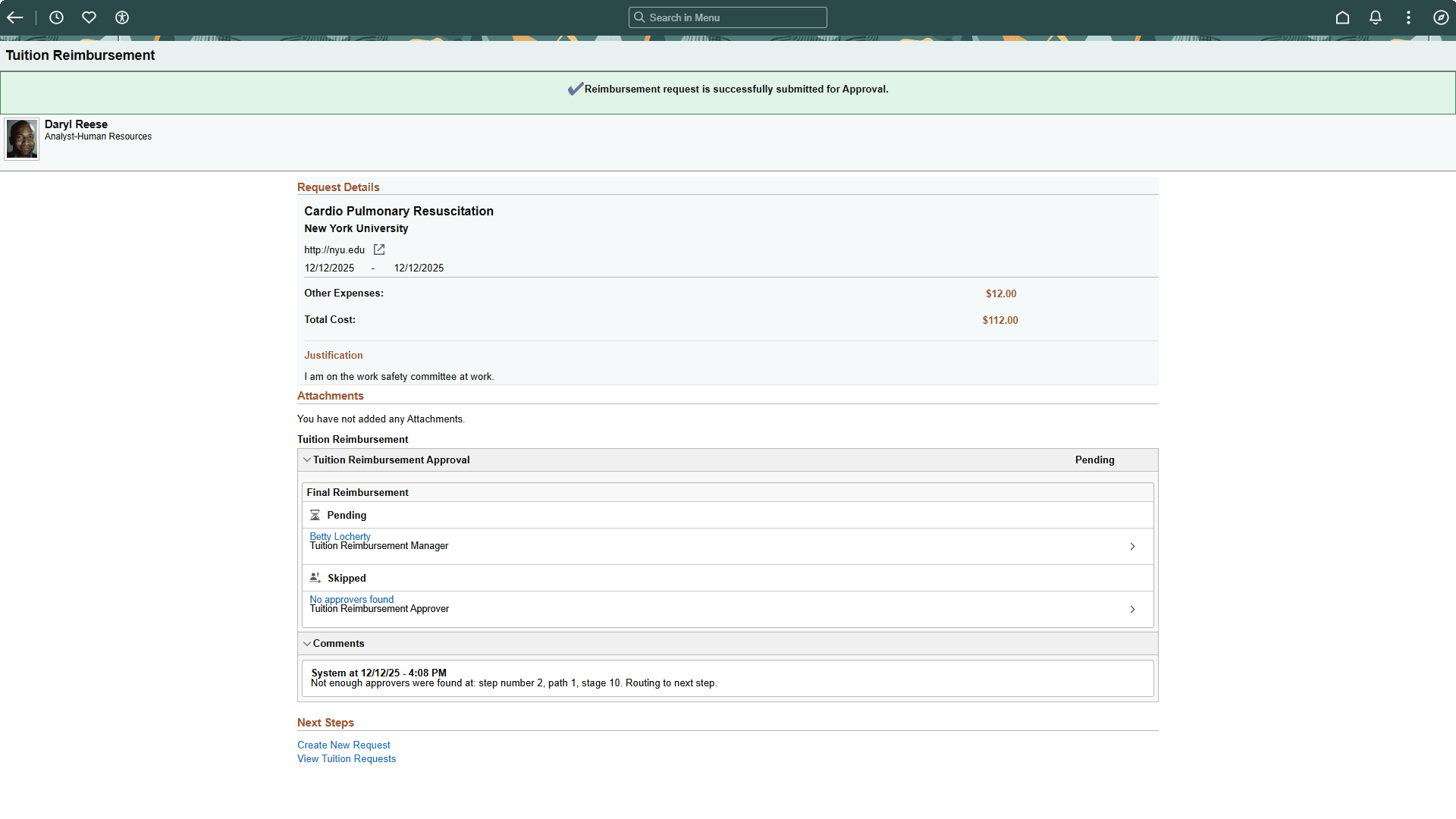
Use this page to review the details of the request that have been submitted for approval.
Pre-authorization requests use a one step approval process. Reimbursement requests use a two-step approval process.
Next Steps
|
Field or Control |
Description |
|---|---|
|
Create New Request link |
Select to access the add another request for this person and bypass the landing summary page. Depending on your setup and user role, this may take you to the job selection, acknowledgement, or reimbursement type page of the request. |
|
View Tuition Requests link |
Select this link to return to the Tuition Reimbursement (Landing) Page to view all reimbursement requests for this person. |
Use the Tuition Reimbursement (View Summary) page (HRTR_EEREQ_PG_FL) to view a detailed summary of a specific reimbursement request or start a reimbursement for a pre-authorized training request.
When accessing the page from the Continue > button for an existing request
Navigation:
Select Continue > (arrow button) for an existing request on theTuition Reimbursement (Landing) Page.
This example illustrates the fields and controls on the Tuition Reimbursement (View Summary) page for an existing reimbursement request.
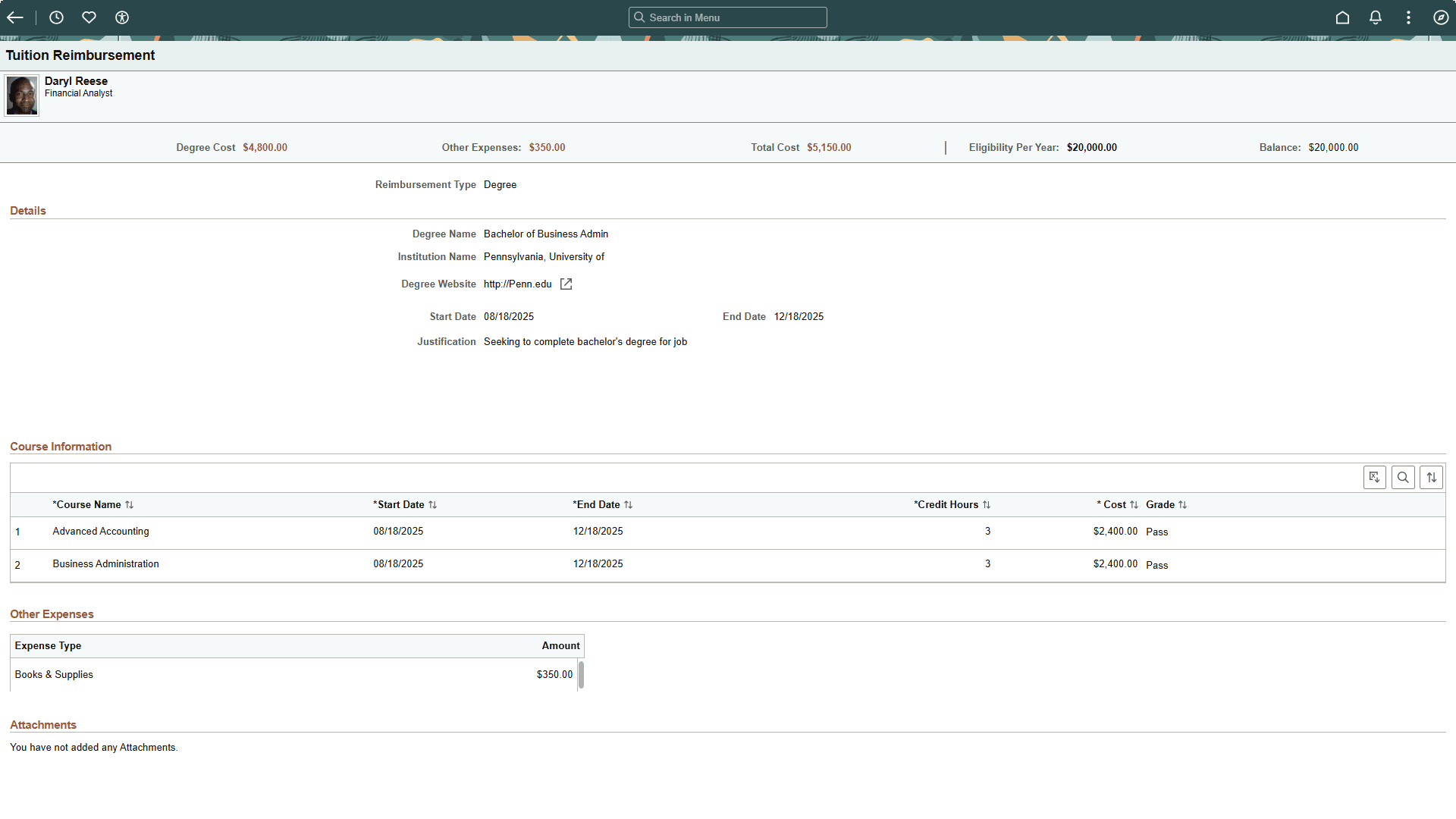
The fields on this page are display only when viewing an existing request.
When accessing the page from the Start Reimbursement button for an approved pre-authorization request
Navigation:
Select Start Reimbursement button for an approved pre-authorized request on the Tuition Reimbursement (Landing) Page.
This example illustrates the fields and controls on the Tuition Reimbursement (View Summary) page when accessing the page from the Start Reimbursement button for an approved pre-authorized request.
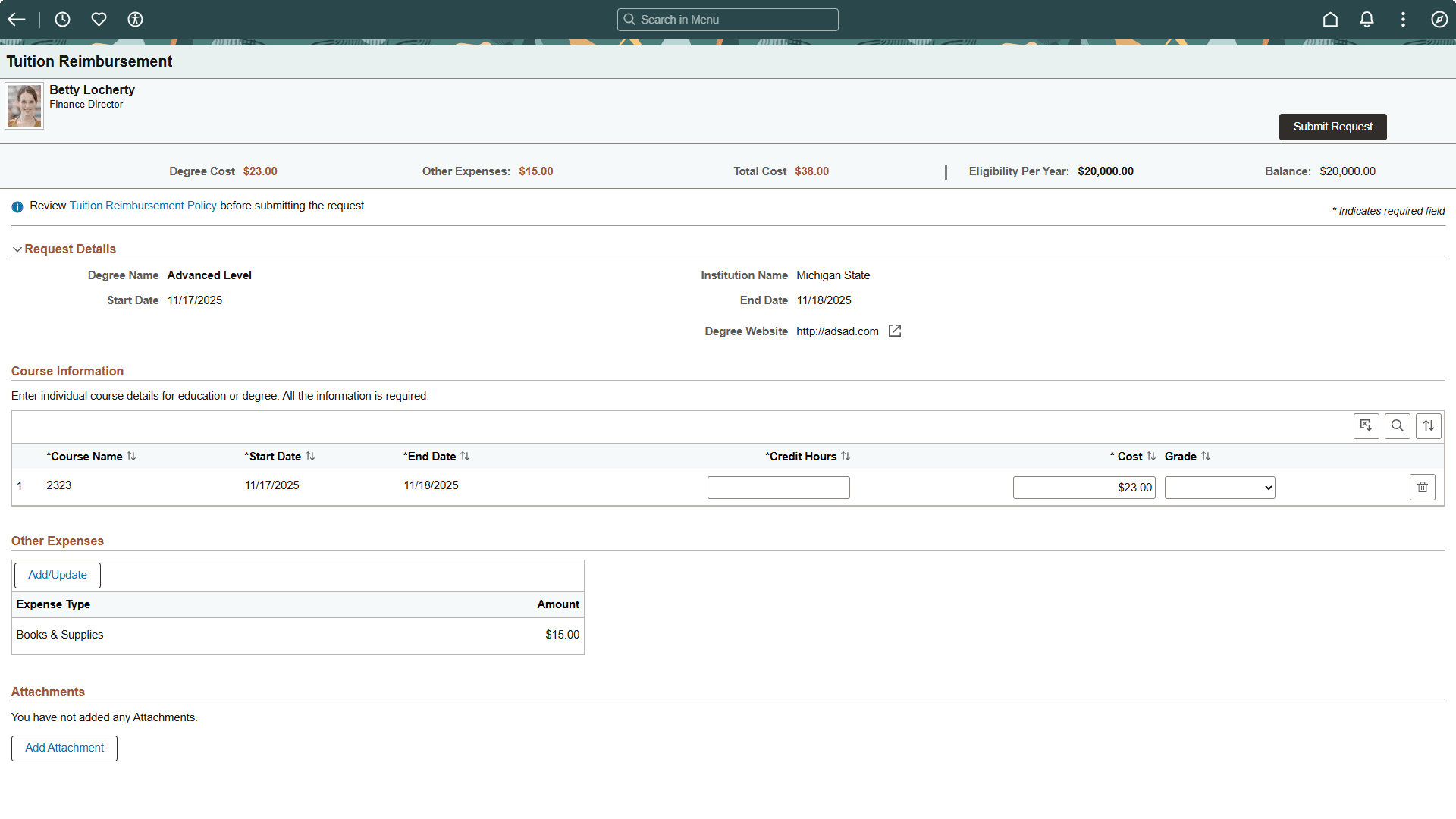
Use this page to complete a reimbursement request for a pre-authorized request.
The following fields are the only ones available for entry so you can indicate the final costs and information to submit a reimbursement request:
Justification
Credit Hours (if enabled)
Cost
Grade
Other Expenses: Amount field when you select the Add Expenses or Add/Update button.
Attachments (if enabled)
Approvers will use the Pending Approvals - Pre-Authorize Tuition or Reimburse Tuition Page to review and take action on a reimbursement request.