Setting Up and Processing Tuition Reimbursements
To set up the Tuition Reimbursement feature for organizations, use the Country Level Configuration (HRTR_COUNTRY_CFG), Grading Scheme (HRTR_GRDSCM_CMP), Company Level Configuration (HRTR_CONFIG_CMP), and JobCode Eligibility (HRTR_JBCD_CFG_CMP) components.
To load tuition reimbursement data to the payroll system, use the Process Tuition Reimbursement (HRTR_RUNCNTL_CMP) component.
This topic provides the Tuition Reimbursement setup overview, list roles and permission lists, and discusses how to set up and process tuition reimbursements.
|
Page Name |
Definition Name |
Usage |
|---|---|---|
|
HC_CONFIGURE_TUITION_REIMBURSE (this is the cref for the nav collection) |
View a collection of Tuition Reimbursement setup components. |
|
|
HRTR_COUNTRY_CFG |
Define basic country reimbursement configuration settings, such as the period, currency, and non taxable eligibility amount. |
|
|
HRTR_GRDSCM_PG |
Identify the grading recognized by your organization, such as pass, fail, or a letter grade. |
|
|
HRTR_CONFIG_PG |
Define a company reimbursement rules, like eligibility details, credit hours, payroll data, expense and reimbursement types, and approvals. |
|
|
HRTR_JBCD_CFG_PG |
Enter eligibility currency amounts by job code. |
|
|
HRTR_PRCSRUNCNTL |
Load tuition reimbursement data into the payroll system. |
These are the high-level steps to set up the Tuition Reimbursement feature:
Note: This setup assumes that you have set up Fluid Approvals and the Profile Management tables to track content types (such as certificates, degrees, licenses, and so forth). See also Understanding the Content Catalog.
Define which schools are eligible for tuition reimbursement on the Schools Page.
Assign roles and permission lists to your users.
See the Roles and Permission Lists topic that follows.
Set up tuition reimbursement tables by accessing the Setup Tuition Reimbursement Navigation Collection.
(Select , or performing a global search for the Setup Tuition Reimbursement navigation collection.)
Specify the reimbursement period, currency, and non taxable eligibility amount for a country on the Country Level Configuration Page. This is a mandatory step.
Identify the grading recognized by your organization on the Grading Scheme Page.
Define the reimbursement rules, eligible expense and reimbursement types, and enable reimbursement approvals for a country and company using the Company Level Configuration Page. This is a mandatory step.
If applicable, enter the currency limit allowed for a job code on the JobCode Eligibility Page.
Set up Payroll for North America tables for tuition reimbursements.
See the Payroll for North America documentation Integrating with Tuition Reimbursement.
After requests have been submitted and approved, use the Process Tuition Reimbursement Page to submit tuition reimbursement data to payroll.
The following table lists the roles to access and perform Tuition Reimbursement transactions:
|
Role |
Description |
|---|---|
|
Tuition Reimbursement Approver |
Gives approval access for tuition reimbursement requests to the Tuition Reimbursement Administrator. |
The following table identifies the permission lists for accessing and performing Tuition Reimbursement transactions. You need to assign these permission lists to the appropriate roles:
|
Permission List |
Description |
|---|---|
|
HCLPSSTUITION (Tuition Reimbursement SS) |
For the employee to access the Tuition Reimbursement pages via the self service. This has been added to the Benefits Self Service role. |
|
HCLPTSSTUITION (Team Tuition Reimbursements) |
For the manager to access the Team Tuition Reimbursement pages via manager self service. |
|
HCLPTUITIONMNG (Manage Tuition Reimbursements) |
For the HR administrator to access the Manage Tuition Reimbursement pages. |
Use the Setup Tuition Reimbursement navigation collection to view a collection of Tuition Reimbursement setup components.
Navigation:
Perform a global search from the main banner header for the Setup Tuition Reimbursement navigation collection.
This example illustrates the Setup Tuition Reimbursement navigation collection.
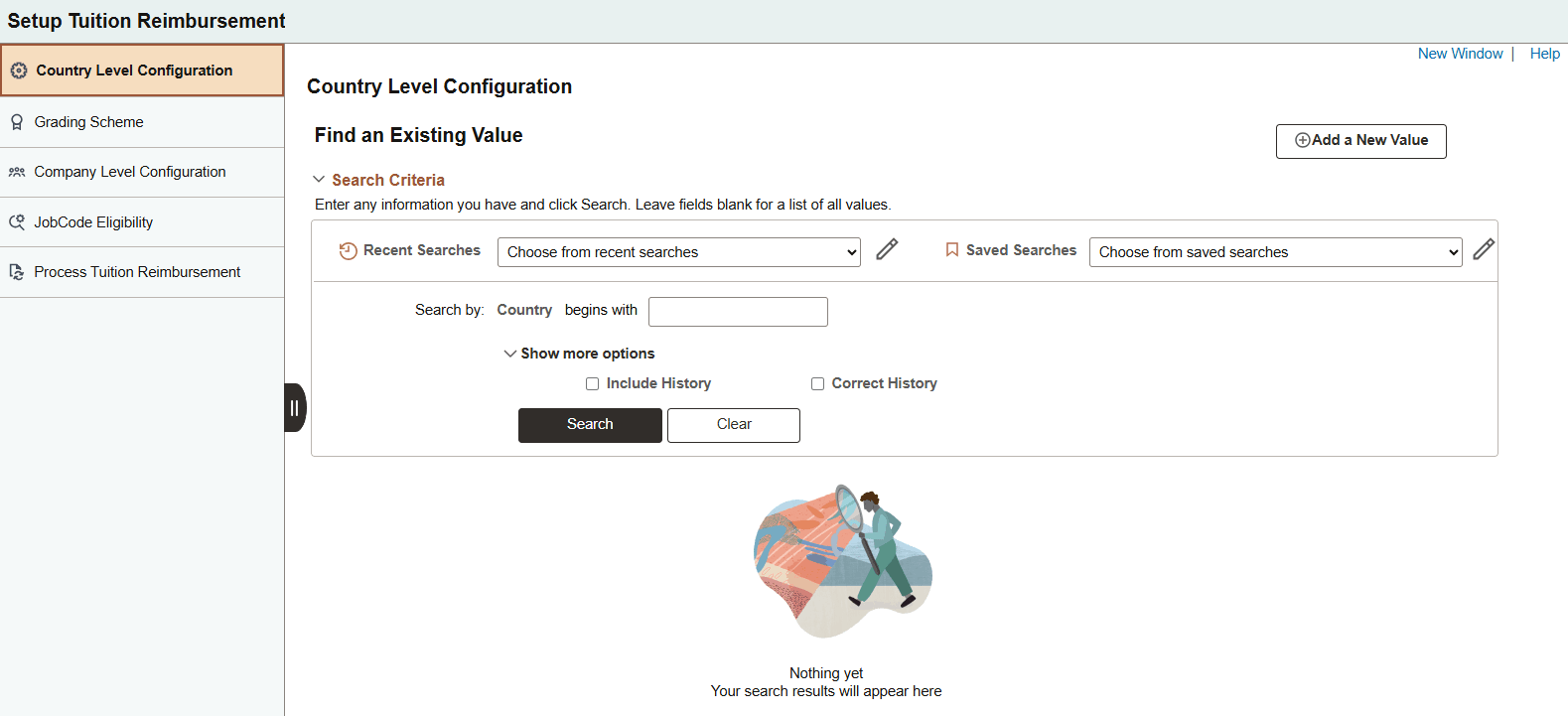
This navigation collection enables administrators to access the following setup pages to configure tuition reimbursement settings:
Country Level Configuration Page (this setup is required for the Tuition Reimbursement feature)
Company Level Configuration Page (this setup is required for the Tuition Reimbursement feature)
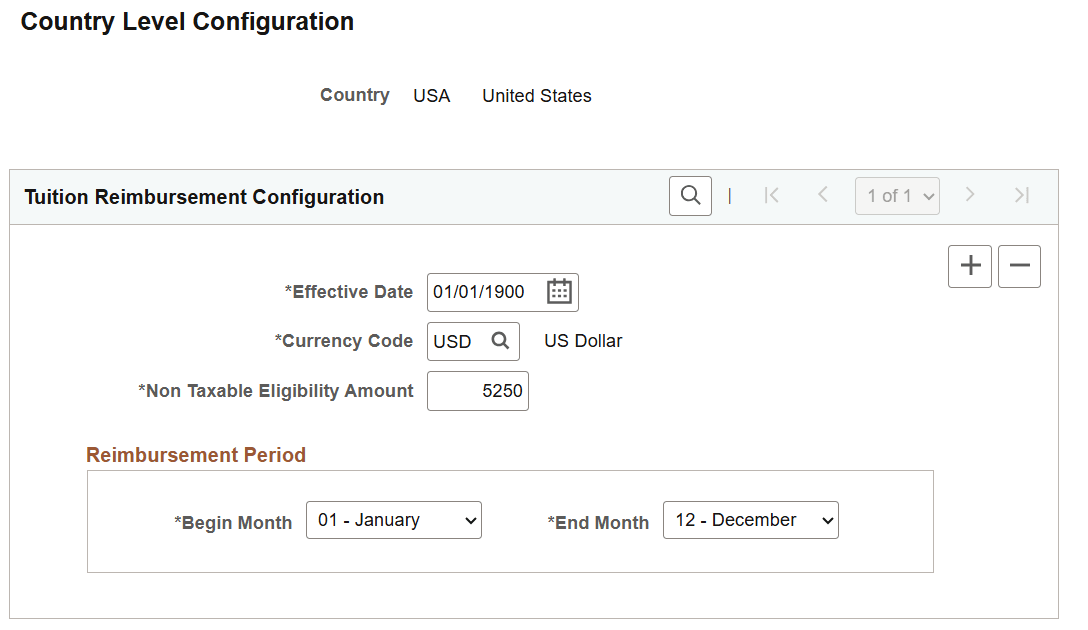
Use the Country Level Configuration page (HRTR_COUNTRY_CFG) to define basic country reimbursement configuration settings, such as the period, currency, and non taxable eligibility amount.
Navigation:
Perform a global search from the main banner header for the Setup Tuition Reimbursement navigation collection. Select the Country Level Configuration option from the left panel.
This example illustrates the fields and controls on the Country Level Configuration page.
|
Field or Control |
Description |
|---|---|
|
Non Taxable Eligibility Amount |
Enter the non-taxable tuition reimbursement limit defined by the government for an employer's educational assistance program. Any amount above this limit is typically considered taxable income. When the limit changes, insert a new row and enter the effective date of the limit change. |
|
Begin Month and End Month |
Enter the start and end months for a tuition reimbursement period. Any requests entered after these dates will apply toward the next year's reimbursement period. |
Use the Grading Scheme page (HRTR_GRDSCM_PG) to identify the grading recognized by your organization, such as pass/fail or a letter grade.
Navigation:
Perform a global search from the main banner header for the Setup Tuition Reimbursement navigation collection. Select the Grading Scheme option from the left panel.
This example illustrates the fields and controls on the Grading Scheme page.
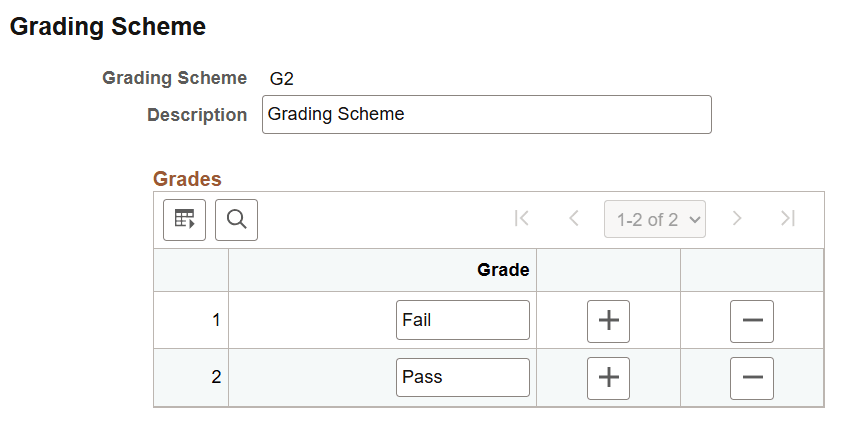
Use this page to identify the grading system you may use to help in approving or tracking tuition reimbursements, especially if reimbursement is based on student performance and part of the company policy.
This data is informational only and is used when:
Administrators define the company rules for reimbursements on the Company Level Configuration Page.
Users enter a grade when submitting a reimbursement request.
Organizations can then use this information when determining if they want to approve a request. A failing grade does not prevent someone from submitting or approving a course.
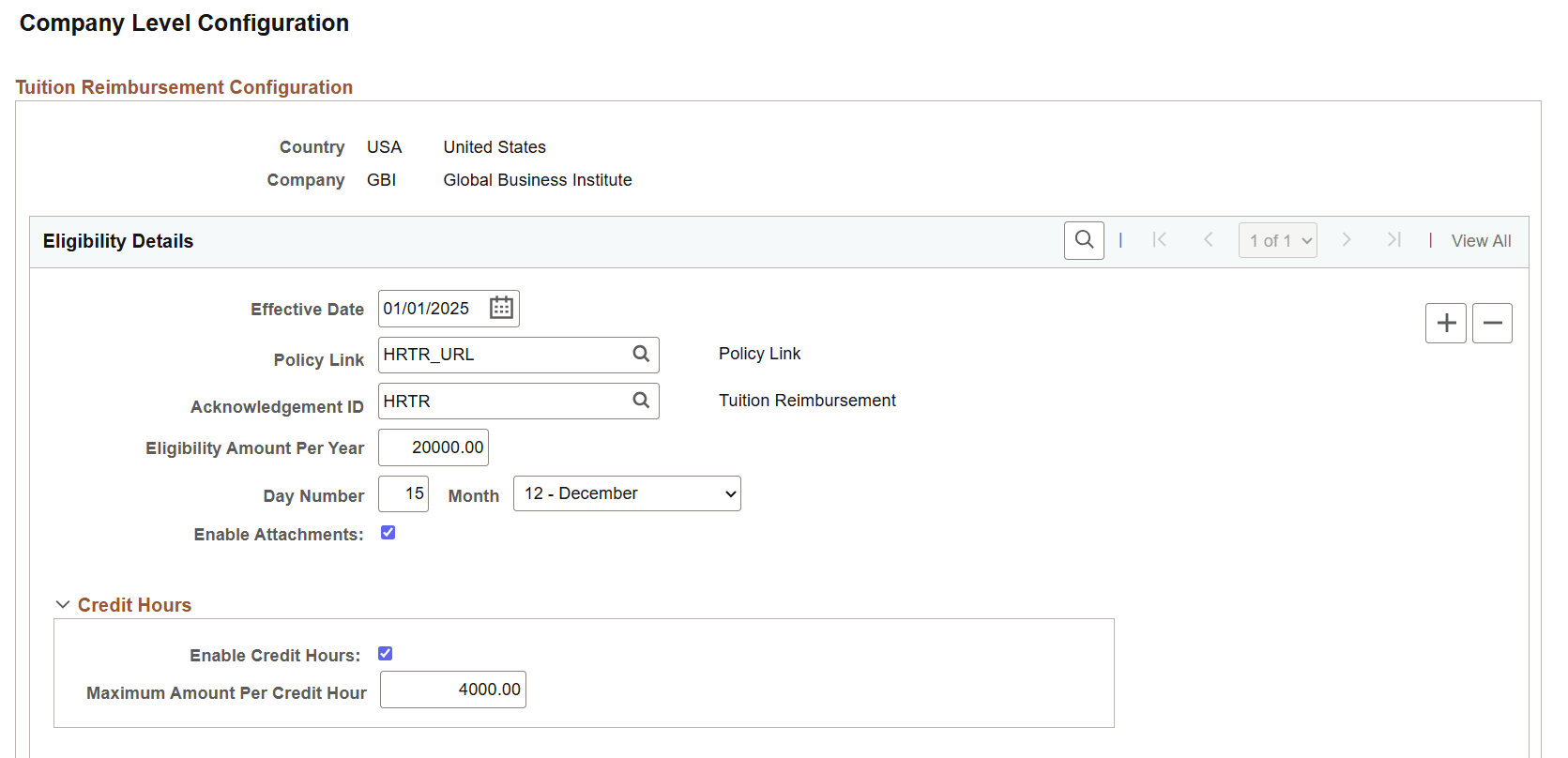
Use the Company Level Configuration page (HRTR_CONFIG_PG) to define a company reimbursement rules, like eligibility details, credit hours, payroll data, expense and reimbursement types, and approvals.
Navigation:
Perform a global search from the main banner header for the Setup Tuition Reimbursement navigation collection. Select the Company Level Configuration option from the left panel.
This example illustrates the fields and controls on the Company Level Configuration page (1 of 3).
This example illustrates the fields and controls on the Company Level Configuration page (2 of 3).
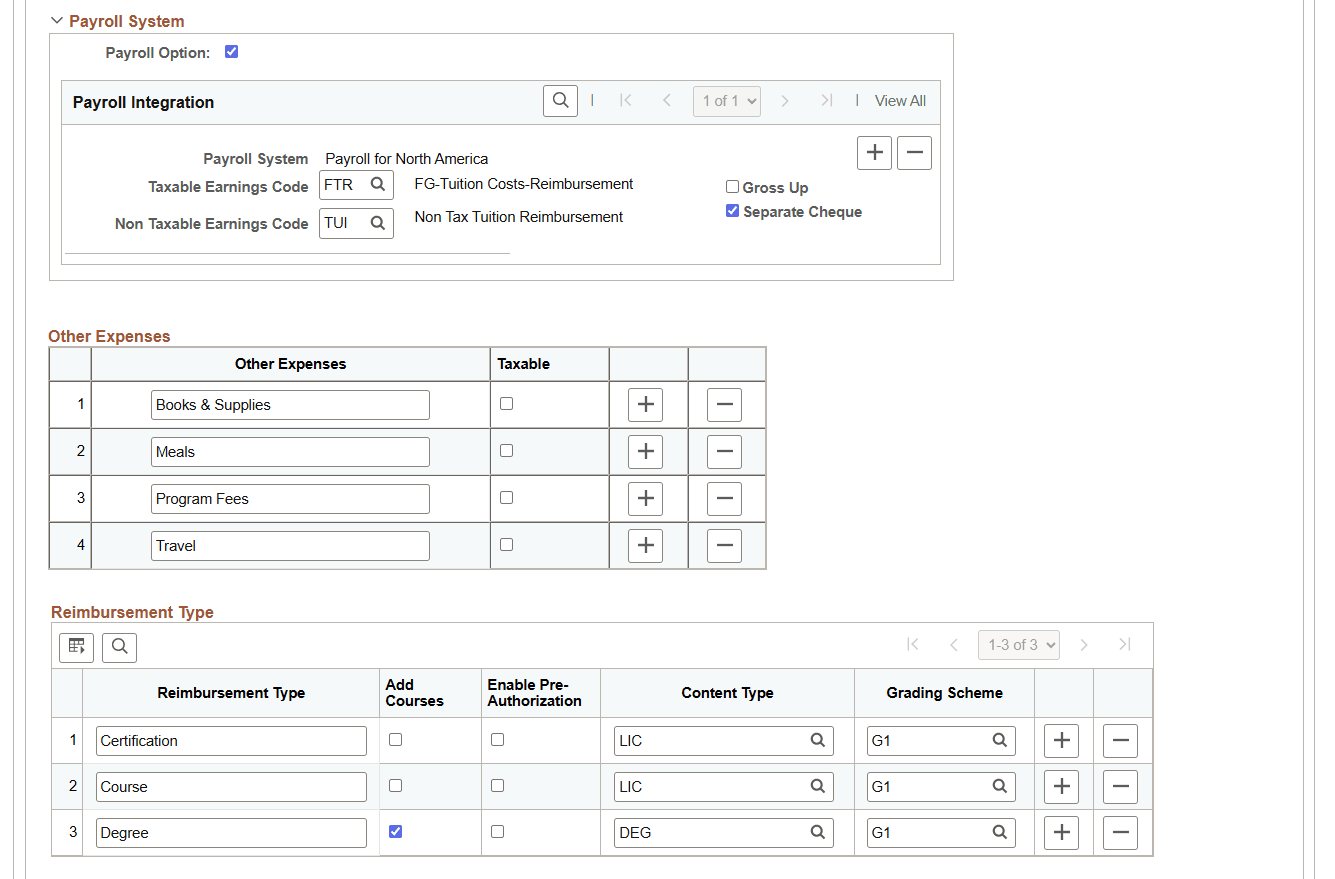
This example illustrates the fields and controls on the Company Level Configuration page (3 of 3).
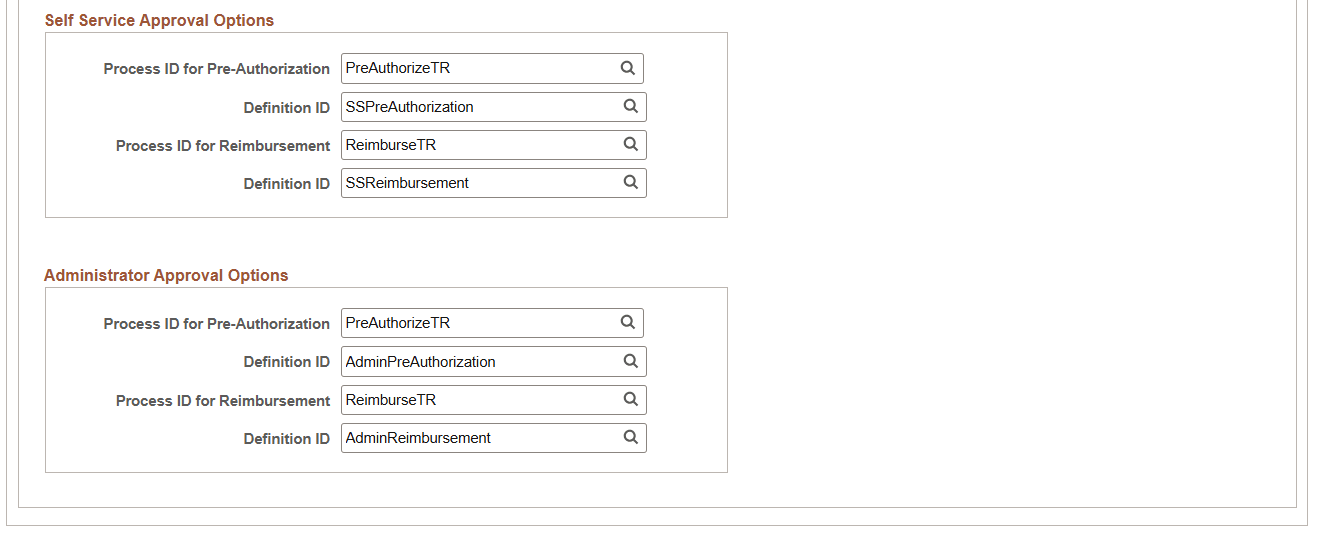
Eligibility Details
|
Field or Control |
Description |
|---|---|
|
Policy Link |
Enter the URL identifier of where the tuition reimbursement policy is located. This will appear as a link on the Tuition Reimbursement (Details) Page and the Pending Approvals - Pre-Authorize Tuition or Reimburse Tuition Page to aid the user when creating or approving a reimbursement request. |
|
Acknowledgement ID |
Enter the acknowledgement ID containing the information that an employee will need to acknowledge and accept prior to creating a reimbursement request. The text you select will appear on the Tuition Reimbursement (Acknowledgement) Page. Leave this field blank to have requesters bypass the acknowledgement step. They will not be required to agree to any information and will be taken directly to the Reimbursement Type Page when initiating a request. You create acknowledgement IDs on the Acknowledgement Configuration Page. |
|
Eligibility Amount Per Year |
Enter the amount the organization allows annually for tuition reimbursement. Note: You can override this amount for a job code using the JobCode Eligibility Page. The limit you enter for the job code will override the company limit. |
|
Annual Cut Off day and Month |
This is a required field. Enter the day and month all reimbursement requests should be submitted for the year. Any reimbursement requests approved after this date will be applied to the next year's reimbursement period. If your organization does not have a specific cut-off day, enter the last day of the reimbursement period. |
|
Enable Attachments |
Select to allow the user to upload attachments when creating a reimbursement request. This displays the Attachments section on the Tuition Reimbursement (Details) Page. Deselect this option to hide the Attachments section on the user page and disable attachments. |
Credit Hours
Use this section to limit the cost of training by course credit.
Note: This information applies to reimbursement types that have the Add Courses option selected within the Reimbursement Types section of this setup page. By enabling credit hours, the user can enter the credits given for training. The system uses this information to verify that it does not exceed the maximum per credit amount defined in this section.
|
Field or Control |
Description |
|---|---|
|
Enable Credits Hours |
Select to limit the cost of course expenses by credit hours. When you select this option, the Maximum Amount Per Credit Hour field becomes available for entry. Selecting this option will also display the Credit Hours field to the requester in the Course Information section of the Tuition Reimbursement (Details) Page. |
|
Maximum Amount Per Credit Hour |
This field is available when you select Enable Credits Hours. Enter the maximum amount that is allowed for each credit hour. When a user enters the credits and cost of a course in the Course Information section, the system divides the cost of the training by the credit hours and verifies that it does not exceed the maximum per credit amount defined in this section. For example, if the maximum limit per credit is set to $1,000 and the requestor enters a 2 credit course that costs $2,500, the system will issue a warning that the amount exceeds the $1,000 per credit maximum ($2,500/2 = $1,250). If the user enters the amount of $2,000 for the same course, the system allows the expense, provided it meets all other eligibility amounts. Note: Credit hour amounts must be within the overall eligibility limit setup when a user enters a request. |
Payroll System
|
Field or Control |
Description |
|---|---|
|
Payroll Option |
Select to integrate with your Payroll for North America system. When you select this option, the remaining fields in this section become available for entry. |
|
Payroll System |
Displays the payroll system. Note: Currently, this feature only uses the PeopleSoft Payroll for North America system. |
|
Taxable Earnings Code |
Enter the earnings code for expenses that are considered taxable earnings. The HRTR_PROCESS process assigns the codes to the expenses when you submit information to payroll (see Process Tuition Reimbursement Page). |
|
Non Taxable Earnings Code |
Enter the earnings code for expenses that are considered non taxable earnings. The HRTR_PROCESS process assigns the codes to the expenses when you submit information to payroll (see Process Tuition Reimbursement Page). |
|
Gross Up |
Select to gross up a person's reimbursement check so the system calculates the before-tax earnings needed to provide a specific take-home payment. |
|
Separate Cheque |
Select if reimbursements should be delivered as a separate check and not with the regular payroll check. |
Other Expenses
|
Field or Control |
Description |
|---|---|
|
Other Expenses |
Enter additional expense types that your organization allows for reimbursement, like books or meals. |
|
Taxable |
Select if this expense is taxable. This information will be used to calculate the annual non taxable eligibility amount as well as assign earnings codes when you submit the expenses to payroll. |
Reimbursement Type
Use this section to identify the types of reimbursements that allow a user to enter multiple courses for training, such as for a degree or program, if the training needs to be pre-approved prior to taking a course, and associate a profile content type to the training.
Note: Reimbursement types are required to create tuition requests.
|
Field or Control |
Description |
|---|---|
|
Reimbursement Type |
Enter reimbursement types that categorize the type of training your employees can take, such as certifications, courses, or degrees. The user will select from these types on the Reimbursement Type Page when creating a request. It also groups a person's requests into categories on the Tuition Reimbursement (Landing) Page. |
|
Add Courses |
Select to allow the user to enter multiple courses for a reimbursement type, such as for a degree or program. Important! You must select this option to enforce the maximum amount per credit hour, if enabled in this setup. |
|
Enable Pre-Authorization |
Select to require that employees receive pre-authorization before taking training. When enabled and a tuition request is submitted, the request will go through an approval process prior to the employee submitting a request for reimbursement. |
|
Content Type |
Enter the content type from the Manage Profile system. For more information on content types, see Understanding the Content Catalog and Understanding Managing Profiles. |
|
Grading Scheme |
Select the grading method your organization accepts for a reimbursement type. This could include a letter grade, pass/fail, or something else. These are defined on the Grading Scheme Page and will be available for a request on the Tuition Reimbursement (Details) Page. |
Self Service Approval Options
Use this section to define the employee self service approval processes.
Oracle provides demo-data where pre-approvals involve a one-step authorization process that is sent to the manager, while reimbursement requests use a two-step authorization process, sending the request first to the manager and then to the tuition reimbursement administrator.
Note: Approvals are required to submit tuition reimbursement requests.
|
Field or Control |
Description |
|---|---|
|
Process ID for Pre-Authorization |
Associate the pre-approval transaction process ID that should be used when an employee creates a reimbursement request. |
|
Definition ID |
Enter the definition ID to be used to process the pre-approval of a reimbursement. |
|
Process ID for Reimbursement |
Associate the reimbursement approval process ID that should be used for an employee reimbursement request. |
|
Definition ID |
Enter the definition ID to be used to process the approval for the employee request. |
Administrator Approval Options
Use this section to define the administrator approval processes.
Oracle provides demo-data where pre-approvals involve a one-step authorization process that is sent to the manager, while reimbursement requests use a two-step authorization process, sending the request first to the manager and then to the tuition reimbursement administrator.
|
Field or Control |
Description |
|---|---|
|
Process ID for Pre-Authorization |
Associate the pre-approval transaction process ID that should be used when an administrator creates a reimbursement request for a person. |
|
Definition ID |
Enter the definition ID to be used to process pre-approval of a reimbursement request from an administrator. |
|
Process ID for Reimbursement |
Associate the reimbursement approval process ID that should be used for an administrator's reimbursement request on behalf of an employee. |
|
Definition ID |
Enter the definition ID to be used to process the approval for an administrator's reimbursement request on behalf of an employee. |
Use the JobCode Eligibility page (HRTR_JBCD_CFG_PG) to enter eligibility currency amounts by job code.
Navigation:
Perform a global search from the main banner header for the Setup Tuition Reimbursement navigation collection. Select the JobCode Eligibility option from the left panel.
This example illustrates the fields and controls on the JobCode Eligibility page.
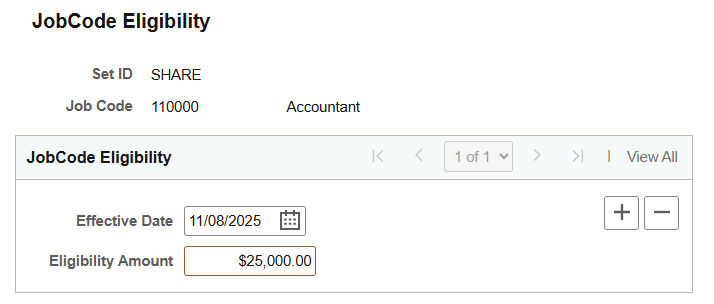
Use this page to override the company annual eligibility amount.
|
Field or Control |
Description |
|---|---|
|
Eligibility Amount |
Enter the annual tuition reimbursement amount allowed for this job code. When an amount is defined for a job code, this amount takes precedence over the company eligibility amount per year defined on the Company Level Configuration Page. |
Use the Process Tuition Reimbursement page (HRTR_PRCSRUNCNTL) to load tuition reimbursement data into the payroll system.
Navigation:
Perform a global search from the main banner header for the Setup Tuition Reimbursement navigation collection. Select the Process Tuition Reimbursement option from the left panel.
This example illustrates the fields and controls on the Process Tuition Reimbursement page.
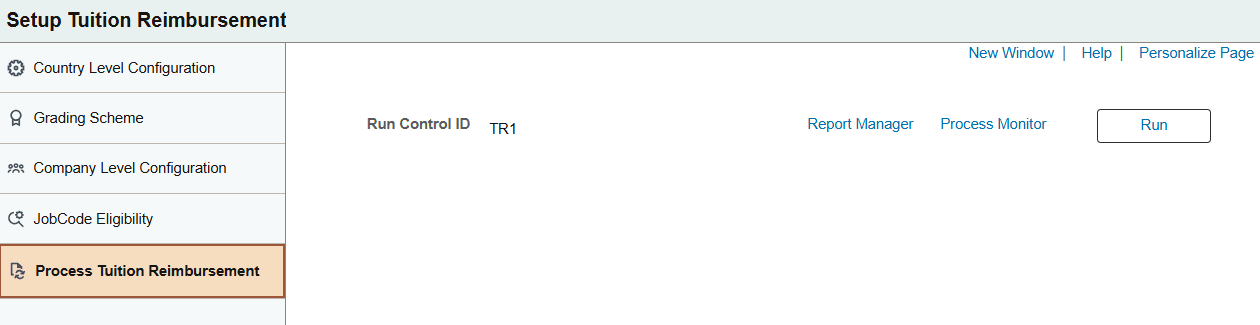
This process sends the following details to payroll:
Employee name, empl ID, reimbursement amount, currency, earnings codes.
Note: All active and inactive employees who have a tuition amount to be will be sent to payroll for reimbursement.
The IRS limit overflow.
If the amount exceeds the IRS threshold, the process will submit two rows: one for the non-taxable amount and one for the taxable amount.
For information on how to process payroll data from the payroll system, see Integrating with Tuition Reimbursement.
Considerations
The system considers the following when submitting the tuition reimbursement to payroll:
If the request is within the reimbursement approval cut-off date and month as defined on the Company Level Configuration Page, it will send the reimbursement amount to payroll
If the request is not within the reimbursement approval cut-off date and month, the batch process will hold the request and it will be sent at the beginning of the next reimbursement period start date.
The employee is associated with the Payroll for North America system.
Employee reimbursement amounts will be sent only once to payroll after they have been approved. The status of the request will appear on the Tuition Reimbursement (Landing) Page.
When submitted, payroll will accept or reject a request.
When accepted the status will be set to Request Received by Payroll.
When rejected the status will be set to Request Denied by Payroll.
When paid, the status will change to Paid.