Autonomous AI Database (Dedicated)
This topic explains how to configure Oracle Autonomous Data Guard from the OCI Console.
Note:
-
The following steps describe how to configure Oracle Autonomous Data Guard for Oracle-managed keys and customer-managed keys.
-
For step-by-step instructions to configure a customer-managed key, see Protect Autonomous AI Database (Dedicated).
Configure Oracle Autonomous Data Guard on Autonomous AI Database in Oracle AI Database@AWS
These steps describe how to enable Oracle Autonomous Data Guard for Oracle Autonomous AI Database on Dedicated Infrastructure.
-
From the OCI console, select Oracle AI Database, and then select Autonomous AI Database on Dedicated Infrastructure.
-
From the left menu, select Autonomous Exadata VM Clusters, and then select the name of the Autonomous Exadata VM Cluster.
-
Select the Autonomous Container Databases tab, then select the name of Autonomous Container Databases which you want to configure with Oracle Autonomous Data Guard.
-
Select the Autonomous Data Guard Group tab, then select the Add standby button which will open an Add standby page.
-
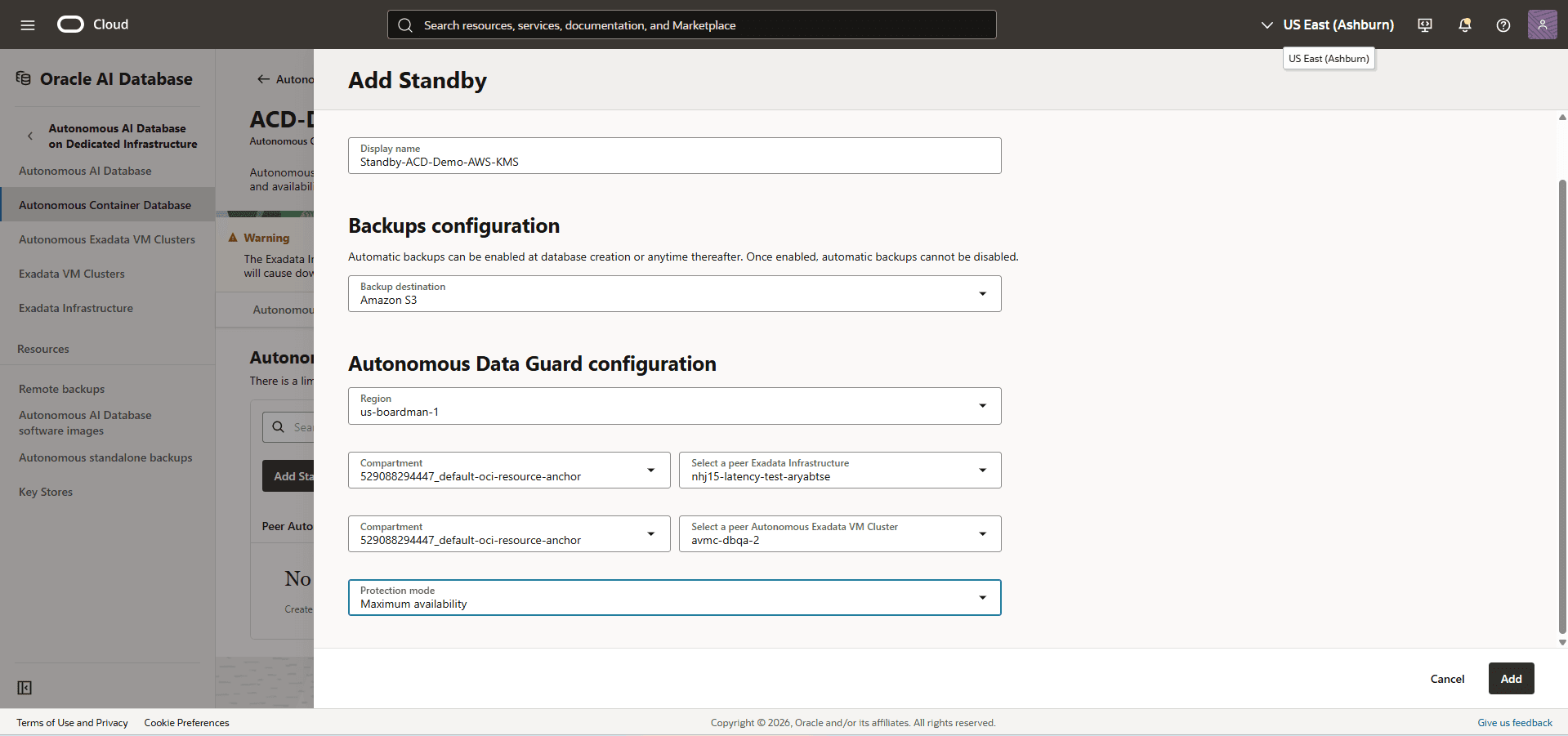
From the Add standby page, enter the following information:
-
Compartment for standby Autonomous Container Database: Choose the compartment in which you want to deploy the standby Autonomous Container Database.
-
Display Name: Choose a name for your standby Autonomous Container Database.
-
Backup destination: Select Amazon S3, Object Storage, or Autonomous Recovery Service as your backup location. For more information, see Autonomous AI Database (Dedicated) - Automatic.
-
Region: Select the region where the standby database will be running.
Note
Note:
- For cross-region Autonomous Data Guard, make sure to select a different region than the source.
- For multi-AZ Autonomous Data Guard, make sure to select the same region and a different Availability Domain than the source.
-
Compartment: Select the compartment where your Standby Exadata Infrastructure is located.
-
Peer Exadata Infrastructure: Select the Standby Exadata Infrastructure.
-
Compartment: Select the compartment where your Standby Autonomous Exadata VM Cluster is located.
-
Peer standby Autonomous Exadata VM Cluster: Select the Standby Autonomous Exadata VM Cluster.
-
Protection Mode: Select Maximum performance or Maximum availability from the dropdown list.
Note
Note:
- Maximum Performance is selected by default.
- For more information about Autonomous Data Guard and guidance on selecting where to place the standby Autonomous Container Database and which protection mode to use, see About Autonomous Data Guard and Autonomous Data Guard Configuration Options.
-
Review your information, and then select the Add button.
Note
Note: A work request is issued to configure the Autonomous Data Guard association. The progress of the request and the stages of provisioning can be viewed on the Work Requests page of the respective Standby database.
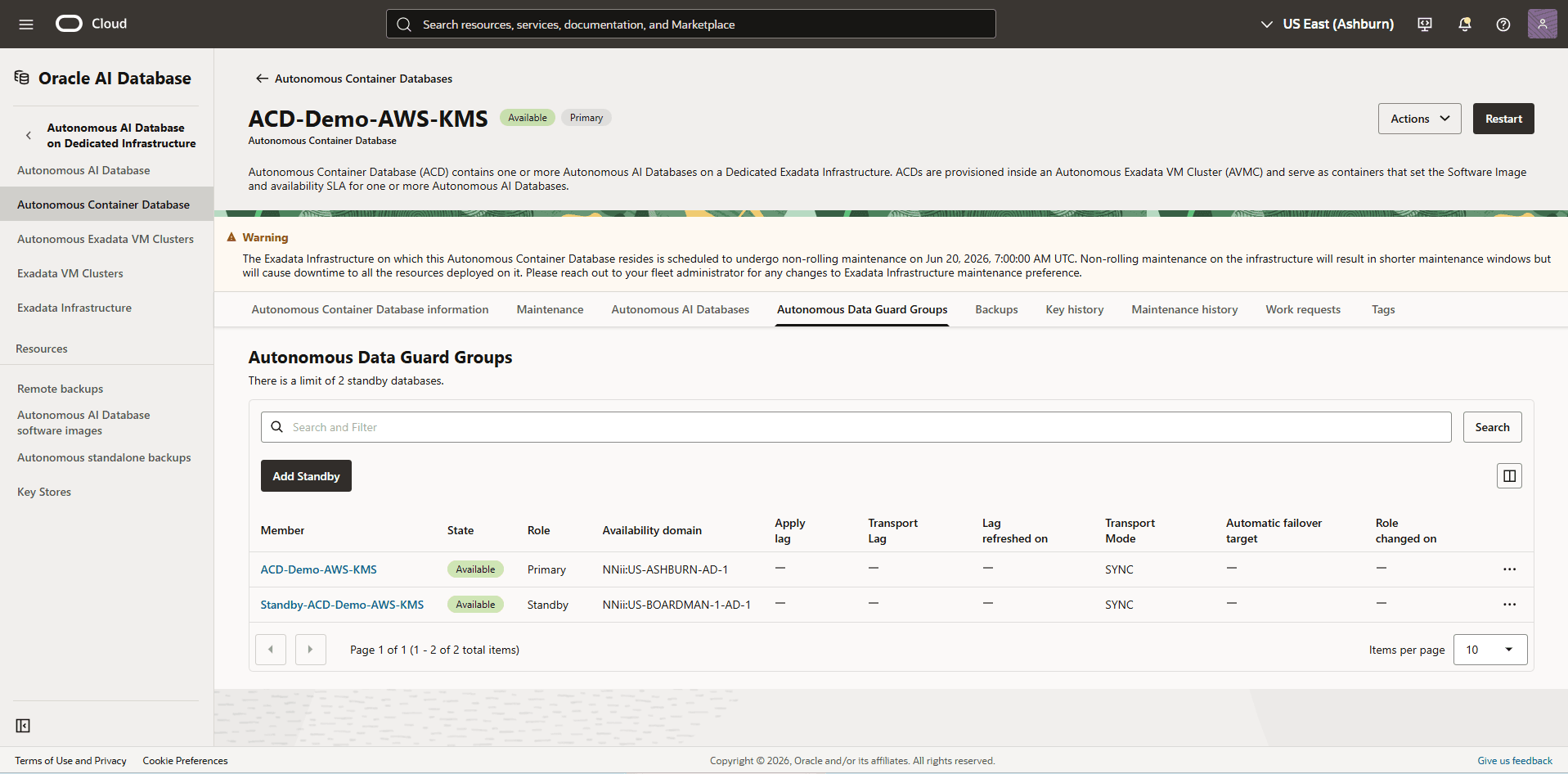
When the association is created, the details for a database and its peer display their respective roles as Primary or Standby.
After the work request is complete, a new Autonomous Container Database is created in the standby Autonomous Exadata VM Cluster, and an Autonomous Data Guard Group or Association is created between the two Autonomous Container Database. All the Autonomous Databases in the Autonomous Container Database are configured as a standby database.
-
Switch Roles in an Autonomous Data Guard Configuration
You can switch the roles of the primary and standby Autonomous Container Databases in an Autonomous Data Guard configuration from the Details page of the standby Autonomous Container Database.
-
From the OCI console, select Oracle AI Database, and then select Autonomous AI Database on Dedicated Infrastructure.
-
From the left menu, select Autonomous Exadata VM Clusters, and then select the name of the Autonomous Exadata VM Cluster.
-
Select the Autonomous Container Databases tab, then select the name of Autonomous Container Databases.
-
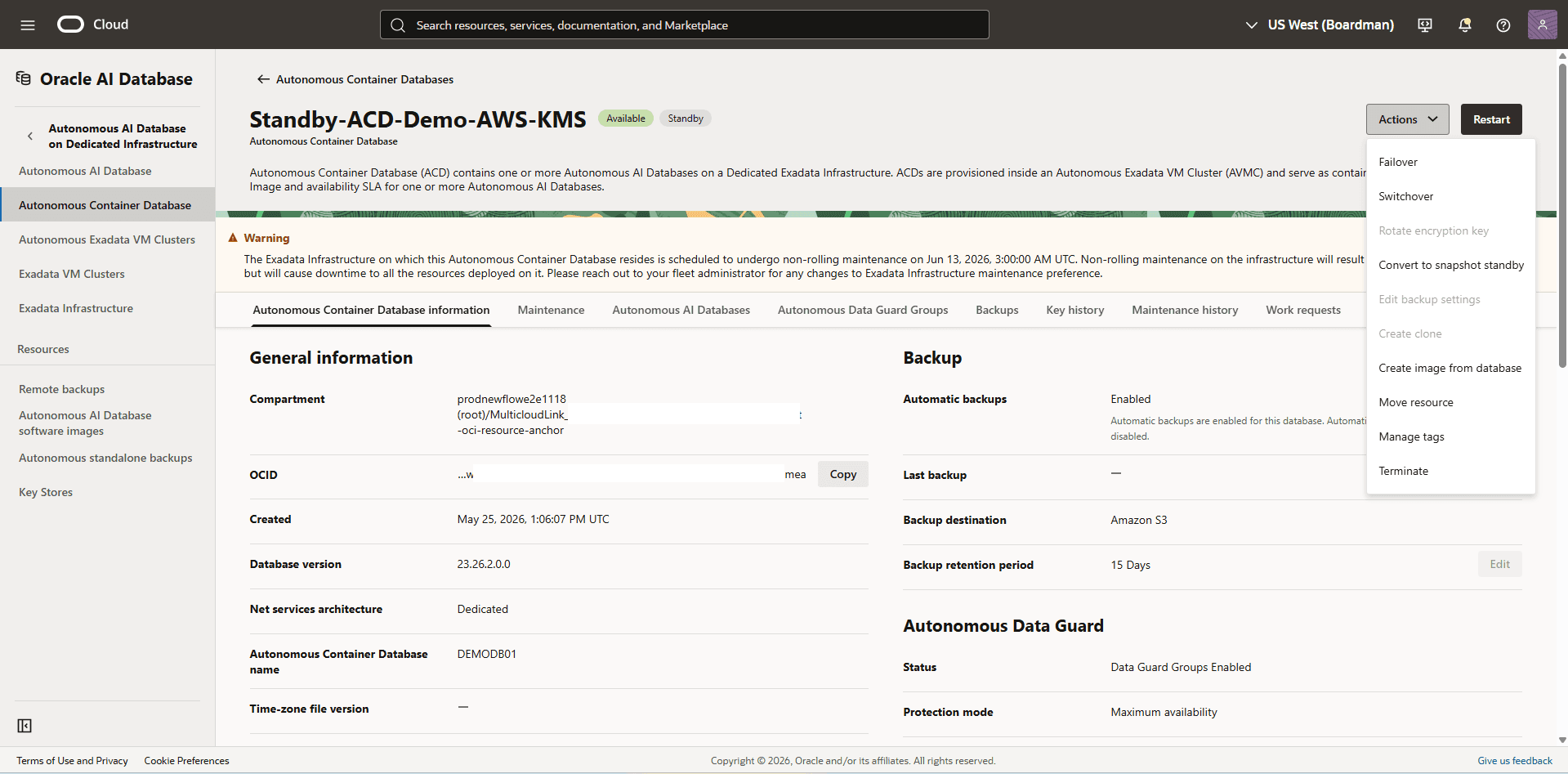
Select the Actions button, then select the Switchover option. For more information, see Switch Roles in an Autonomous Data Guard Configuration.
Note
Note: You cannot switch the roles of the primary and standby Autonomous Container Databases in an Autonomous Data Guard configuration when the standby ACD is in the snapshot standby role.
- Enter a descriptive name for your Autonomous Container Database in the confirmation dialog, and select the Switchover button.
Note
Note: Oracle Autonomous AI Database on Dedicated Exadata Infrastructure sets the state of the standby and its primary container databases to Role Change in Progress and begins the switchover operation, which causes the primary container database to assume the standby role and the standby container database to assume the primary role. Upon completion, the state of both container databases returns to Active.

Failover to the Standby in an Autonomous Data Guard Configuration
You can fail over to the standby Autonomous Container Database in an Autonomous Data Guard configuration from its Details page.
-
From the OCI console, select Oracle AI Database, and then select Autonomous AI Database on Dedicated Infrastructure.
-
From the left menu, select Autonomous Exadata VM Clusters, and then select the name of the Autonomous Exadata VM Cluster.
-
Select the Autonomous Container Databases tab, then select the Autonomous Container Databases name.
-
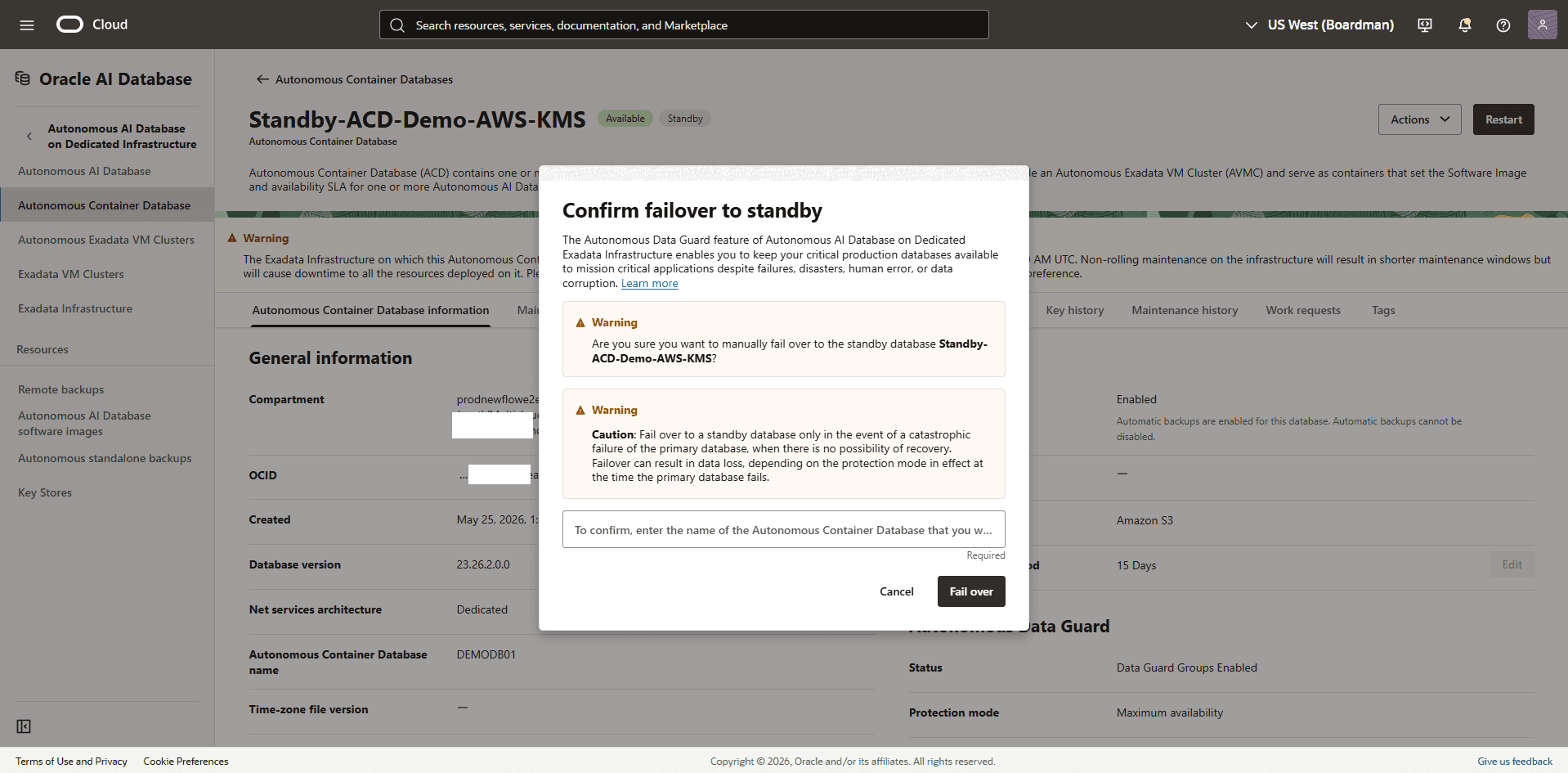
Select the Actions button, then select the Failover option.
Note
Note: In case of a snapshot standby Autonomous Container Database, you see a message alerting you that the snapshot standby will be converted to physical standby after discarding all its local updates and applying data from your primary database. Select Failover to proceed.

- Enter a descriptive name for your Autonomous Container Database in the confirmation dialog, and then select the Fail over button.