Protect Critical Databases from Failures and Disasters Using Autonomous Data Guard
The Autonomous Data Guard feature enables you to keep your critical production databases available to mission critical applications despite failures, disasters, human error, or data corruption. This kind of capability is often called disaster recovery.
In Autonomous AI Database on Dedicated Exadata Infrastructure, you configure and manage Autonomous Data Guard at the Autonomous Container Database level.
About Autonomous Data Guard
Autonomous Data Guard creates and maintains two completely separate copies of your database: a primary database that your applications connect to and use, and a standby database that is a synchronized copy of the primary database. Then, should the primary database become unavailable for any reason, Autonomous Data Guard can convert the standby database to the primary database and, as such, it will begin servicing your applications.
The primary and standby databases are often called peer databases of each other. You can have up to two standby databases per Autonomous Container Database.
Note: Applications must be configured to use Transparent Application Continuity (TAC) to gain the full benefit of the database availability features provided by Autonomous Data Guard.
The following diagram shows how each standby database is kept synchronized with the primary database.
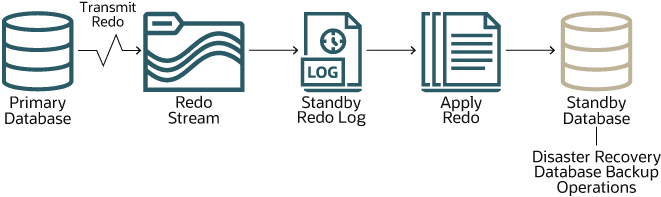
Description of the illustration autonomous-data-guard.png
Changes made to the primary database are recorded in the primary database’s redo log. Autonomous Data Guard transmits these redo records as a stream over the network to the standby database’s redo log. Then, the standby database applies these records to the standby database. In this way, the standby database is kept synchronized with the primary database.
Synchronization is nearly instantaneous, but, as the process just described implies, there are two operations that consume time: transporting the redo records to the standby database and applying the redo records to the standby database. The first of these is called the transport lag, and the other is called the apply lag. You can view current lag values for an Autonomous AI Database from the database’s Details page under Autonomous Data Guard . You can view current lag values across all the Autonomous AI Databases in a container database from the container database’s Details page in a similar fashion.
Note: With multiple standby databases, cascaded Redo Transport is not supported.
Configuring Autonomous Data Guard
In Autonomous AI Database on Dedicated Exadata Infrastructure, you configure and manage Autonomous Data Guard at the Autonomous Container Database (ACD) level. You can enable Autonomous Data Guard for already provisioned ACDs and add up to two standby ACDs from its Details page using the Oracle Cloud Infrastructure console. See Enable Autonomous Data Guard on an Autonomous Container Database and Add a Second Standby Autonomous Container Database for instructions.
-
You can now create and manage Autonomous Data Guard between an ACD in Oracle Cloud Infrastructure (OCI) and an ACD in Amazon Web Services (AWS).
-
You can add a standby ACD from AWS region to the already provisioned ACD in the OCI region. Alternatively, you can add a standby ACD in the OCI region to an already provisioned ACD in the AWS region.
Please note the following before configuring Autonomous Data Guard:
-
Autonomous AI Databases deployed on Exadata Cloud@Customer must have Port 1522 open to allow TCP traffic between primary database and standby database in an Autonomous Data Guard setup.
-
Autonomous Data Guard cannot be enabled on an ACD with an active maintenance run scheduled within the next three days. You can either run the active maintenance first and then enable Autonomous Data Guard or change the maintenance run schedule so that it does not begin until the second standby database is added.
-
Adding a second standby database requires an automatic rolling restart for the the first standby database. The primary database is not affected by this rolling restart.
Configure Autonomous Data Guard with customer-managed keys
In Autonomous AI Database on Dedicated Exadata Infrastructure, you can configure and manage Autonomous Data Guard with customer-managed keys at the Autonomous Container Database (ACD) level. You can enable Autonomous Data Guard for already provisioned ACDs and add up to two standby ACDs from its Details page using the Oracle Cloud Infrastructure console. See Enable Autonomous Data Guard on an Autonomous Container Database and Add a Second Standby Autonomous Container Database for instructions.
Please note the following before configuring Autonomous Data Guard with customer-managed keys:
-
If you are using Oracle Cloud Infrastructure Key Management System (OCI KMS) and want to enable Cross-Region Autonomous Data Guard:
-
You first need to replicate the OCI vault to the region where you want to add the standby database. See Replicating Vaults and Keys for more details.
-
You can only have the primary and standby databases in a maximum of 2 regions. That is, if you want to add a second standby and you have already used cross-region for the first standby, then the second standby needs to be in the primary region or the first standby region.
Note: Virtual vaults created before the cross-region vault replication feature was introduced can’t be replicated across regions. Create a new vault and new keys if you have a vault that you need to replicate in another region and replication isn’t supported for that vault. However, all private vaults support cross-region replication. See Virtual vault cross-region replication for details.
-
-
If you are using Oracle Key Vault (OKV) and want to enable Cross-Region Autonomous Data Guard, ensure that you have added Connection IP addresses for your OKV Cluster in the Key Store.
-
If you are using AWS Key Management System ( AWS KMS) and want to enable Cross-Region Autonomous Data Guard:
- You should have one AWS Multi-region key registered in the primary region. You can select the type of AWS key as Multi-region only when you create it and it cannot be changed later.
- You need to set the required policies in the replicated region as policies are not replicated automatically.
- The AWS KMS Multi-region key must be replicated from the source region to the target region from the AWS console. See Replicate AWS KMS keys in the AWS console for details.
- The AWS KMS Multi-region key must be replicated from the primary region to the target region from the OCI console. See Replicate AWS KMS keys in the OCI console for more details.
Role Transitions and Operations
After an Autonomous Container Database (ACD) is created, you can change the role of the peer databases using either a switchover or a failover operation. If automatic failover is enabled, Autonomous Data Guard automatically performs a failover operation whenever the primary database become unavailable, for any reason.
A switchover is a role reversal between the primary database and its standby database. A switchover ensures no data loss. During a switchover, the primary database transitions to the standby role, and the standby database transitions to the primary role. To perform a switchover operation, see Switch Roles in an Autonomous Data Guard Configuration.
A failover is when the primary database is unavailable. The failover results in a transition of the standby database to the primary role. If automatic failover is not enabled, you can perform a manual failover as described in Fail Over to the Standby in an Autonomous Data Guard Configuration.
The availability and status of the database after a failover operation is characterized by two recovery objectives:
-
Recovery Time Objective (RTO). The RTO the maximum amount of time required for the database to become available to applications after a failover, and is related to some degree to the apply lag at the time of the failure. For Autonomous Data Guard, the RTO is seconds up to two minutes.
-
Recovery Point Objective (RPO). The RPO is the maximum duration of potential data loss from the failed primary database, and is related to some degree to the transport lag at the time of the failure. For Autonomous Data Guard, the RPO is near-zero.
After a failover, the failed primary becomes a Disabled Standby and remains unavailable for any database connection. You can re-enable it and turn it into a healthy standby by performing a reinstate operation. Once a failed primary has been reinstated as a standby, you can perform a switchover to return it to its original primary role. To perform a reinstate operation, see Reinstate the Disabled Standby in an Autonomous Data Guard Configuration.
Automatic Failover or Fast-Start Failover
With automatic failover, whenever the primary ACD becomes unavailable because of a region failure, an availability domain failure, a failure of the Exadata Infrastructure or Autonomous Exadata VM Cluster (AVMC), or the failure of the ACD itself, it automatically fails over to the standby ACD. This is also known as Fast-Start Failover.
You cannot enable automatic failover while configuring Autonomous Data Guard on an ACD. Automatic failover can only be enabled or disabled while updating the Autonomous Data Guard settings from the ACD Details page.
Note: Automatic failover cannot be enabled for Autonomous AI Databases deployed in Exadata Cloud@Customer with cross-region Autonomous Data Guard setup.
You can not add a second standby ACD with automatic failover enabled for the first standby ACD. So, disable automatic failover using Update Autonomous Data Guard Settings before the creating the second standby ACD, and re-enable it later, if needed.
Both the maximum performance and maximum availability protection modes support automatic failover:
-
In the Maximum availability mode, automatic failover guarantees zero data loss.
-
In the Maximum performance mode, automatic failover ensures that the standby database does not fall behind the primary database beyond the value specified for Fast Start failover lag limit. By default, Fast Start failover lag limit is set to 30 seconds and is applicable only to the Maximum performance mode. In this case, automatic failover is only possible when the apply lag (potential data loss) of the standby does not exceed the configured lag limit. You can modify the Fast Start failover lag limit to any value between 5 and 3600.
See Update Autonomous Data Guard Settings for more details.
Besides hardware failures, availability domain outages, and regional outages, there are a few more database health conditions that can trigger a Fast-Start Failover, as listed below:
| Database Health Condition | Description |
|---|---|
| Corrupted Controlfile | Controlfile is permanently damaged because of a disk failure. |
| Corrupted Dictionary | Dictionary corruption of a critical database. Currently, this state can be detected only when the database is open. |
| Datafile Write Errors | Write errors are encountered in any data files, including temp files, system data files, and undo files. |
As a result of automatic failover, the role of the failed primary database becomes Disabled Standby and, after a brief period, the standby database assumes the role of the primary database. After automatic failover concludes, a message is displayed on the details page of the disabled standby database advising you that failover has occurred.
After the service resolves the former primary Autonomous Container Database issues, you can perform a manual switchover to return both databases to their initial roles. Once you provision the standby database, you can perform various management tasks related to the standby database, including:
-
Manually switching over a primary database to a standby database.
-
Manually failing over a primary database to a standby database.
-
Reinstating a primary database to standby role after failover.
-
Terminating a standby database.
In an Autonomous Data Guard setup with multiple standby databases and automatic failover:
-
Manual failovers require you to manually reinstate the original primary database, which becomes the new standby database.
-
Whenever an automatic failover occurs, Autonomous AI Database on Dedicated Exadata Infrastructure tries to reinstate the old primary as a standby. However, if that attempt fails, then it must be manually reinstated.
Snapshot Standby Database
A snapshot standby database is a fully updatable standby database created by converting a standby Autonomous Container Database (ACD) to a snapshot standby ACD. See Convert Physical Standby to Snapshot Standby for step-by-step instructions.
A snapshot standby database receives and archives, but does not apply, redo data from the primary database. However, it increases your Recovery Time Objective (RTO) because real-time changes from the primary database are not applied.
Snapshot standby feature supports various use cases, but here are the primary use cases:
-
Connect primary and standby application instances to primary and standby databases in read-write mode to perform initial configurations.
-
Patch snapshot standby database first and test with your standby application instance to confirm patch stability. This requires converting the physical standby to a snapshot standby first, so the patch can be applied on the snapshot standby.
Note: You can not convert a physical standby Autonomous Container Database to a snapshot standby with automatic failover enabled.
While converting to a snapshot standby, you can either activate new database services that are active only in snapshot mode or use the same set of services used with the primary database. However, activating primary database services on the snapshot standby database may result in snapshot standby connection requests forwarded to the primary database or vice-versa if you use incorrect database connect strings. Hence, you must be careful to use appropriate connect string while connecting to your primary and snapshot standby database.
Note: When you create new services with snapshot standby, wallets for all the Autonomous AI Databases in the snapshot standby ACD are updated. To access the database, reload the wallets from standby Autonomous AI Databases and use snapshot standby connection strings.
You can convert the snapshot standby ACD back to a physical standby ACD from the Oracle Cloud Infrastructure (OCI) manually. See Convert Snapshot Standby to Physical Standby for detailed instructions. If a snapshot standby is not converted to a physical standby manually, it will be automatically converted back to a physical standby after 7 days from its creation. In any case, converting the snapshot standby back to a physical standby will discard all the local updates to your snapshot standby databases and apply the redo data received from the primary databases.
When a standby ACD is in the snapshot standby mode, you cannot perform the following operations on the primary ACD:
-
Create or terminate Autonomous AI Databases
-
Scale up or scale down Autonomous AI Databases
-
Restore Autonomous AI Databases
If the situation demands, you can manually failover to a snapshot standby from the primary database. In that case, failover converts your snapshot standby database to a physical standby database by discarding all the local updates made to your snapshot standby and applying data from the primary database. See Fail Over to the Standby in an Autonomous Data Guard Configuration for step-by-step instructions.
A switchover between the primary database and its snapshot standby database is not allowed. You must manually convert your snapshot standby to a physical standby before attempting a switchover.
Accessing Standby Databases from Client Applications
In an Autonomous Data Guard configuration, your client applications normally connect to and perform operations on the primary database.
Connecting to the Physical Standby Database
In addition to this normal connectivity, Autonomous Data Guard provides you the option to connect client applications that perform read-only operations on the standby database. To take advantage of this option, client applications connect to the database using database service names that include “_RO” (for “read only”), as described in Predefined Database Service Names for Autonomous AI Database.
Connecting to the Snapshot Standby Database
Autonomous Data Guard also lets you connect client applications that perform read-write operations to the snapshot standby database. These operations are local to the snapshot standby database and do not modify its primary database. To connect to a snapshot standby database, client applications can use database service names that include “_SS” (for “snapshot standby”), as described in Predefined Database Service Names for Autonomous AI Databases.
Note: When the standby database is in the snapshot standby mode, all the database services that include “_RO” services in their name are inactive and can not be used for connections.
Monitoring Lag Times
As your databases that use Autonomous Data Guard are running, you can monitor transport lag and apply lag times from the database’s (or container database’s) Details page by choosing Autonomous Data Guard Groups. You can also use the OCI console or observability APIs to monitor transport lag and configure alarms and notifications. See Database Observability with Autonomous AI Database Metrics for more information.
You should expect to see minor fluctuations over time as the workload on your database ebbs and flows. However, if you notice a continuing upward trend in lag time, you can take these actions to resolve the situation:
-
Upward Trend in Apply Lag. A continuing upward trend in apply lag indicates that the standby database doesn't have sufficient capacity to keep up with the redo records coming from the primary database. To resolve this situation, scale up the OCPUs of the database, as described in Add CPU or Storage Resources to a Dedicated Autonomous AI Database.
-
Upward Trend in Transport Lag. A continuing upward trend in transport lag indicates a network performance issue. Oracle Cloud operations staff constantly monitors network performance, so you should see the situation resolve itself without you taking any action. However, if you want, you can bring the situation to the operations staff by raising a service request, as described in Create a Service Request in My Oracle Support.
Autonomous Data Guard Configuration Options
When you configure Autonomous Data Guard , you specify which Exadata Infrastructure and Autonomous Exadata VM Cluster resources you want the standby database created in, and you specify which data protection mode you want to use.
You have the following choices when specifying which Exadata Infrastructure and Autonomous Exadata VM Cluster resources to use for the standby:
-
In a different region from the primary database's Exadata Infrastructure and Autonomous Exadata VM Cluster:
This choice provides the highest level of protection against disasters, including a catastrophic loss of external network connectivity or power to an entire region.
To make best use of this cross-region protection, your application tier also needs to be configured to support cross-region protection. Therefore, Oracle recommends that you choose this option if your application tier is already configured this way or if you are willing to reconfigure it to support cross-region protection.
If you choose to locate the standby database in a different region, Oracle recommends that you use the Maximum Performance protection mode.
-
In a different availability domain (AD) from the primary database's Exadata Infrastructure and Autonomous Exadata VM Cluster:
This choice provides a high level of protection against disasters, including a catastrophic loss of external network connectivity or power to an availability domain within a region.
This choice provides a good balance between data protection and simplicity of configuration in your application tier.
If you choose to locate the standby database in a different availability domain, Oracle recommends that you use the Maximum Availability protection mode.
-
In the same availability domain (AD) as the primary database's Exadata Infrastructure and Autonomous Exadata VM Cluster:
This choice provides a minimum level of protection against disasters, and Oracle recommends that you not choose it.
If the primary database's Exadata Infrastructure and Autonomous Exadata VM Cluster resources are in a region that has only one availability domain, Oracle recommends that you use the “in a different region” option.
If you do choose to locate the standby database in the same availability domain, Oracle recommends that you use the Maximum Availability protection mode.
-
In a different tenancy from the primary database's Exadata Infrastructure and Autonomous Exadata VM Cluster:
APPLIES TO:
 Oracle Public Cloud only
This choice allows you to add a standby database in a different tenancy from the primary database, letting your database failover or switchover to that cross-tenancy standby database. You can also create a snapshot standby in the remote tenancy. Having a cross-tenancy standby database can be helpful with database migration across tenancies.
Cross-tenancy standby databases:
-
Can be enabled with either ECPU or OCPU compute model. The standby database must use the same compute model as the primary database.
-
Supports automatic failover. However, Automatic failover cannot be enabled for Autonomous AI Databases deployed in Exadata Cloud@Customer with cross-region Autonomous Data Guard setup.
-
Cannot be added using the Oracle Cloud Infrastructure console. You can only add a cross tenancy standby database using CLI or REST API. Once you add the standby database , you can view the cross-tenancy standby database, perform a failover or switchover to the cross-tenancy standby database from the Oracle Cloud Infrastructure console.
-
About Protection Modes
Autonomous Data Guard provides these data protection modes:
-
Maximum Availability. This protection mode provides the highest level of data protection that is possible without compromising the availability of the primary database.
The primary database does not commit transactions until it receives acknowledgment that the data has been received on the standby, (not that it has been written to disk). If the primary database does not receive this acknowledgment within 30 seconds, it operates as if it were in maximum performance mode to preserve primary database availability until it again receives acknowledgments in a timely fashion.
This protection mode ensures zero data loss except in the case of certain double faults, such as failure of a primary database after failure of the standby database.
-
Maximum Performance. This is the default protection mode. It provides the highest level of data protection that is possible without affecting the performance of the primary database.
The primary database commits transactions as soon as all redo data generated by those transactions has been written to its online redo log. It also sends redo data to the standby database, but this is done asynchronously with respect to transaction commitment, so primary database performance is unaffected by delays in writing redo data to the standby database.
This protection mode offers slightly less data protection than maximum availability mode and has minimal impact on primary database performance.
You can change the protection mode in an Autonomous Data Guard setup from the Oracle Cloud Infrastructure (OCI) console. See Update Autonomous Data Guard Settings for step-by-step instructions.
For more information about protection modes in Oracle Data Guard (which underlies the Autonomous Data Guard feature), see Oracle Data Guard Protection Modes in Oracle Data Guard Concepts and Administration.
Best Practices while Configuring Autonomous Data Guard
While Autonomous AI Database lets you create up to two standby ACDs with Autonomous Data Guard, you can choose to use single or multiple standby ACDs, depending on your requirement. However, to use the most resilient disaster recovery option that an Autonomous AI Database offers, you can add one local standby ACD and one remote or cross-region standby ACD with maximum availability as the data protection mode.
Let’s understand the benefits of this design:
-
Local Standby:
-
Automatic failover to a local standby in the same region provides significant local disaster isolation and application failover simplicity.
-
The business value of a local standby database is seen in zero data loss failover and application downtime reduced to seconds.
-
Applications automatically and transparently fail over to the local standby, maintaining the same latency between application servers and the database. This is particularly important for OLTP and package applications because higher latency can significantly impact throughput and overall application response time.
-
-
Remote Standby:
-
If a regional disaster makes the primary and local standby systems inaccessible, the application and database can fail over to the remote standby.
-
Even though database downtime is still very low when a regional disaster occurs, the application downtime can be higher due to additional orchestration required for DNS, application, and database failover operations to the secondary region.
-
-
Maximum Availability:
-
If automatic failover or fast start failover (FSFO) is enabled, whenever primary ACD becomes unavailable, Autonomous Data Guard fails over to the local standby with zero data loss and no change to database latency in application.
-
If automatic failover or fast start failover (FSFO) is enabled, whenever the entire primary region becomes inaccessible, system fails over to the remote standby with a potential data loss.
-
How Autonomous Data Guard Affects Standard Management Operations
In some cases, the standard management operations you perform on Autonomous Container Databases work differently on the primary and standby container databases in an Autonomous Data Guard configuration as compared to standard container databases. The following list describes these differences.
-
Change the maintenance schedule
Maintenance scheduling of a primary container database and its standby are linked: maintenance on the standby is performed a number of days before maintenance on the primary. The default is 7 days; you can choose from 1 to 7 days when you create the primary container database or later by editing its Maintenance Details.
-
Change the maintenance type
The maintenance type of a primary container database and its standby must be the same. You choose the maintenance type for both the primary and standby when you create the primary container database or later by editing its Maintenance Details.
-
Disable automatic backups
You can not disable automatic backups while provisioning an Autonomous Container Database (ACD) with Autonomous Data Guard.
-
Manage scheduled maintenance
You can manage scheduled maintenance of a primary container database and its standby separately. However, because maintenance of the two are linked, you must perform scheduled maintenance on the standby before the primary if you choose to override the scheduled maintenance time.
-
Move to a different compartment
You can move primary and standby container databases to different compartments separately and independently, just as though they were standard container databases. However, as with standard container databases, you should exercise extreme caution when moving a container database to ensure that the container database remains accessible to the appropriate groups of cloud users.
-
Restart
You can restart primary and standby container databases separately and independently, just as though they were standard container databases.
-
Rotate the encryption key
You can rotate the encryption keys from the primary ACD or primary database.
-
Terminate
You can terminate primary and standby container databases separately. However, the consequences of terminating a primary container database and terminating a standby container database differ:
-
Terminating a primary container database terminates both the primary and standby container databases. You cannot terminate a primary container database that contains Autonomous AI Databases.
-
Terminating a standby container database terminates the standby container database and removes it from the Autonomous Data Guard configuration. If it has only a primary remaining, the Autonomous Data Guard configuration is removed, turning the primary into a standalone container database.
-
Step-by-Step Guides
For step-by-step guidance on managing the Autonomous Data Guard configuration in an Autonomous Container Database, see:
-
Enable Autonomous Data Guard on an Autonomous Container Database
-
Fail Over to the Standby in an Autonomous Data Guard Configuration
-
Reinstate the Disabled Standby in an Autonomous Data Guard Configuration
You can also use API to view and manage Autonomous Data Guard configuration. For more details, see API to Manage Autonomous Data Guard Configuration.