Establishing Criteria for Tuition Groups and Fee Triggers
To set up criteria for tuition groups and fee triggers, use the Criteria component (SEL_CRITERIA_PANEL).
This section provides an overview of tuition group and fee trigger criteria and discusses:
Understanding Tuition Group and Fee Trigger Criteria
Criteria are essentially questions that can be answered yes or no. In PeopleSoft Student Financials, use criteria to compare one or more variable values to a student's academic situation to determine whether an action should be triggered (for example, applying a waiver to fees), or in which tuition group the student should be included.
The Criteria component is a flexible means of identifying and classifying students. Criteria can be as simple as a single variable (for example, is the student a sophomore) or extremely complex involving multiple variables. Whenever you create a criteria definition, test it thoroughly to make sure it produces the exact results that you expect.
Trigger criteria and tuition group criteria cannot be used interchangeably. You can, however, create one of each using the same detail setup.
Pages Used to Establish Criteria for Tuition Groups and Fee Triggers
| Page Name | Definition Name | Navigation | Usage |
|---|---|---|---|
|
Criteria |
SEL_CRITERIA_TABLE |
|
Define criteria codes and criteria types. |
|
Criteria Details |
SEL_CRITER_TABLE |
|
Define criteria details. |
Defining Criteria Codes and Criteria Types
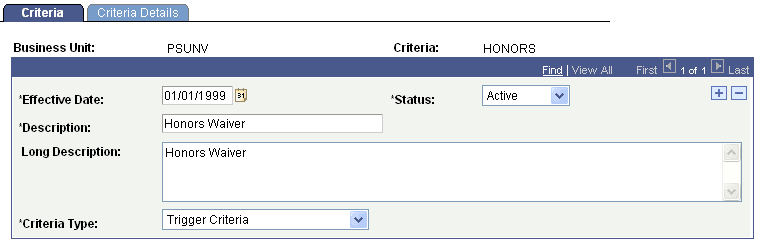
Access the Criteria page ().
This example illustrates the fields and controls on the Criteria page. You can find definitions for the fields and controls later on this page.
| Field or Control | Description |
|---|---|
|
Criteria Type |
Select one of two criteria types. The two types cannot be used interchangeably. Select from: Trigger Criteria: Select to define a criterion that triggers an event. Tuition Group Criteria: Select to define a criterion that links a student to a tuition group. |
Defining Criteria Details
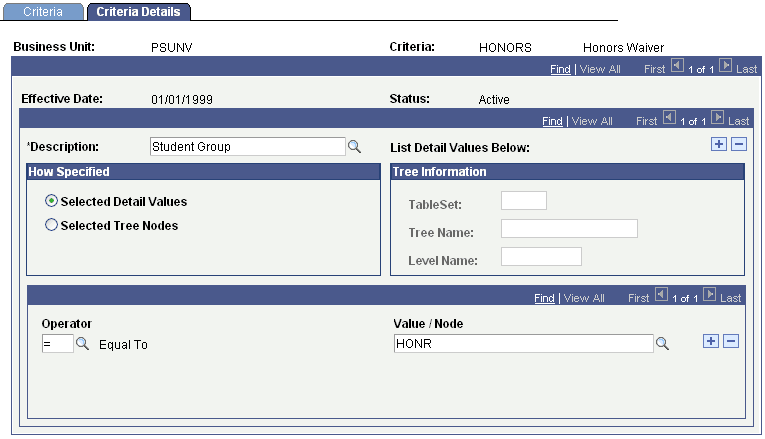
Access the Criteria Details page ().
This example illustrates the fields and controls on the Criteria Details page. You can find definitions for the fields and controls later on this page.
| Field or Control | Description |
|---|---|
|
Description |
Select a variable related to a student's characteristics for a particular term. Note: Student Financials provides system variables that cover most needs. In addition, 30 user-defined variables are available to use. Using these user-defined variables is more difficult because you must know the definition of each variable position. |
How Specified
| Field or Control | Description |
|---|---|
|
Selected Detail Values |
Select to match the variable with a specific value. |
|
Selected Tree Nodes |
Select to match the variable using any value within a tree node. When you select this option, the fields in the Tree Information group box become available. |
|
TableSet, Tree Name, and Level Name |
Select the tableset, tree name, and a level name on the tree if the tree has strictly enforced levels. After specifying this information, enter a node or nodes to assist in specifying the student group. |
|
Operator |
Define the function that the system performs against the value. |
Relational Operators
| Operator | Description |
|---|---|
|
< |
Less than |
|
<= |
Less than or equal to |
|
> |
Greater than |
|
>= |
Greater than or equal to |
|
<> |
Not equal to |
|
BLK (blank) |
The field value is blank |
|
BTW (between) |
The field value is between A and B |
|
NBL (not blank) |
The field value is not blank |
| Field or Control | Description |
|---|---|
|
Value/Node |
If you select Selected Detail Values in the How Specified group box, enter an explicit variable value. The system edits it against a prompt table if one exists, or the system edits it for valid dates, numbers, and string lengths. If you chose Selected Tree Nodes in the How Specified group box, specify a tree node in the Node field. A tree node is a collection of values that is aggregated under a single node. It is a quick way to specify numerous values. A tree must have the same criteria as its detail value. |
Related Topics