Mobile Physical Inventory
Mobile physical inventory enables you to perform mobile physical inventory—scanning assets, retrieving and displaying asset information from the Asset Repository, and automatically populating the Physical Inventory and Scan History tables with scan records—all from your mobile scanning device.
To facilitate mobile physical inventory, PeopleSoft Asset Management provides the new Physical Inventory tile within the Asset Tracking homepage.
Physical Inventory tile and the Asset Tracking homepage
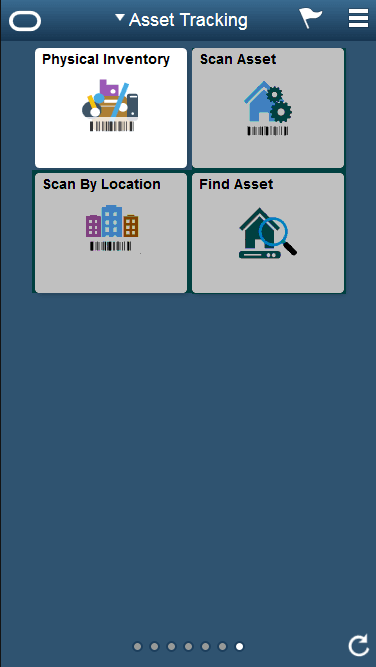
The Physical Inventory tile is part of the PeopleSoft Fluid User Interface and can be accessed from your mobile scanning device (with web browsing capability).
The Physical Inventory tile enables you to:
-
Perform mobile physical inventory.
-
Access real time data in the Asset Repository using your mobile scanning device.
-
Add a new asset or edit an existing asset using your mobile scanning device.
-
Automatically populate the PI_SCAN and PI_SCAN_HIST tables with scan records, simply by scanning a barcode.
-
Send email notifications regarding an asset from your mobile scanning device.
You will use the Physical Inventory tile after you run the Generate Scan Scope process and before you run the Generate Results process and the Generate Transactions process.
For more information on using the Physical Inventory tile, see:
Understanding Mobile Physical Inventory Processing
Mobile Physical Inventory Processing
Follow these steps to perform mobile physical inventory:
-
Set up and configure physical inventory per your requirements.
-
Set up scan scope parameters and run the Generate Scan Scope (AMPI1000) process. The Generate Scan Scope process automatically defines a set of assets that should be scanned and enables that information to be discoverable by your scanning device.
Note:
You do not need to manually populate the PI_EXTACT table, create an extract file, and load the file into a scanning device.
See:
Defining the Extract Scope, the Scan Scope, and the Physical Inventory Parameters
Load/Match/Reconcile PI Info Page (Mobile Physical Inventory)
-
Perform barcode scanning in combination with the Physical Inventory tile in the PeopleSoft Fluid User Interface; this populates the Physical Inventory (PI_SCAN) and Scan History (PI_SCAN_HIST) tables with scan records.
-
Run the Generate Results (AMPI1000) process to perform scan scope/scanned data matching and generate physical inventory results for review.
-
Run the Generate Transactions (AMPI1000) process to move transactions from the PI_SCAN interface table to Asset Management tables.
-
Run the Delete Data (AMPI1000) process to delete physical inventory transactions, physical inventory results, and physical inventory scanned asset data when you no longer need them.
Prerequisites
The following prerequisites are required prior to setting up and performing physical inventory in PeopleSoft Asset Management:
-
All assets must have tag numbers.
-
All assets must belong to a particular department or location, or you must have some other way to track their whereabouts, such as asset custodian.