Viewing Physical Inventory History and Reports
This topic lists the pages used to view physical inventory history.
Pages Used to View Physical Inventory History
| Page Name | Definition Name | Usage |
|---|---|---|
|
PI_ASSET_HIST1 |
View a history of all the instances that an asset has been inventoried by PI ID, Inventory date and user. |
|
|
RUN_AMPI2000 |
Generate physical inventory reports, specifying Physical Inventory ID, location and department. |
Review Inventory History Page
Use the Review Inventory History page (PI_ASSET_HIST1) to view history of all the instances that an asset has been inventoried by Physical Inventory ID, Inventory date and user.
Navigation:
This example illustrates the fields and controls on the Review Inventory History Page. You can find definitions for the fields and controls later on this page.
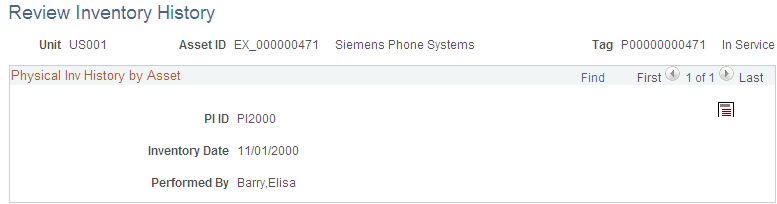
Review all the physical inventory process instances for a given asset within a business unit. You can click the Popup Comment PB button to add your comments for the instance in the modal window, PI History Comments.
Run Physical Inventory Reports Page
Use the Run Physical Inventory Reports page (RUN_AMPI2000) to generate physical inventory reports, specifying Physical Inventory ID, location and department.
Navigation:
This example illustrates the fields and controls on the Run Physical Inventory Reports Page. You can find definitions for the fields and controls later on this page.
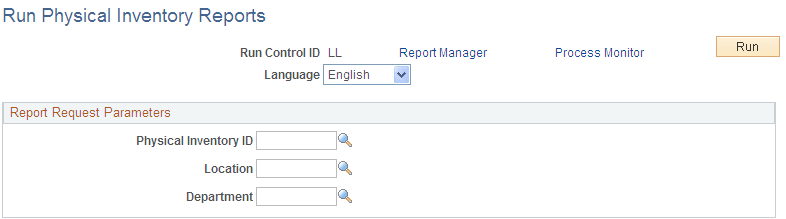
Select report request parameters to limit report output by Physical Inventory ID, Location, and Department. Click the Run button, and select any of the following SQR reports from the Process Scheduler Request page:
-
AMPI2000 - PI Extract
-
AMPI2100 - PI Scan Data
-
AMPI2200 - PI Results Inventoried
-
AMPI2210 - PI Results – Unders
-
AMPI2220 - PI Results - Overs