Mileage Section - Display Distance Calculator
When Display Distance Calculator is selected on the Expenses Definition - Business Unit 2 Page, these fields appear.
Note:
The Location and Originating Location check boxes are deselected on the Expense Types 1 Page for the Automobile Mileage expense type. This removes the Originating Location and Destination Location fields that appear in the Additional Information section.
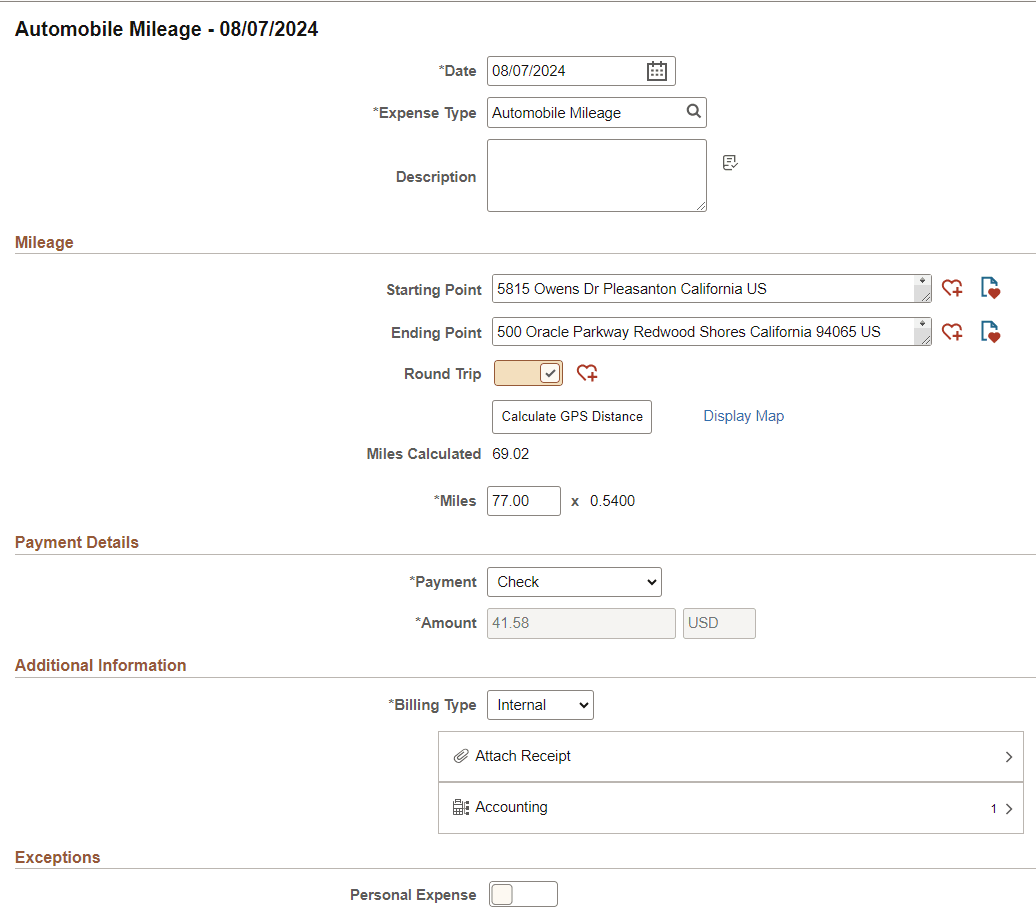
This example illustrates the fields and controls on the Expense Entry page when Automobile Mileage is selected, and the Display Distance Calculator is on.
| Field or Control | Description |
|---|---|
|
Staring Point and Ending Point |
Enter an address that matches your starting and ending locations. Because you have selected Display Distance Calculator on the Expenses Definition - Business Unit 2 Page: The system automatically searches for a match and only displays a maximum of four options based on real-world data. You must select one of the options as opposed to entering the entire address manually. The address options come from Oracle eLocation Services. Note: When using these two fields, you may want to remove the Originating Location and Destination Location fields that appear in the Additional Information section. To do this, access the Expense Types 1 Page for Automobile Mileage and deselect the Location and Originating Location check boxes. |
 (Add to Favorite List) |
Select to access the Add to Favorite List window, which allows you to add a new favorite location. |
 (View Favorites) |
Select to access the View Favorites window, which lists favorite locations. |
|
Round Trip |
Select to indicate that the trip is not one-way, but a round trip. You can then select the Calculate GPS button to calculate the distance, which is then doubled for the round trip. |
|
Calculate GPS |
Select to calculate and display the GPS distance after entering the starting and ending point of a trip. The system automatically enters the distance in the Miles Calculated field. If you also selected Round Trip, the distance is doubled. This field is only available when the Expense Type is Automobile Mileage, and if you have selected Display Distance Calculator on the Expenses Definition - Business Unit 2 Page. |
|
Display Map (link) |
Select to access a map showing the starting and ending points. This field is only available when the Expense Type is Automobile Mileage, and if you have selected Display Distance Calculator on the Expenses Definition - Business Unit 2 Page. |
|
Miles Calculated |
Displays the distance as calculated by the GPS calculator using Starting Point and Ending Point fields. If the Round Trip option is selected, the distance is doubled. This field is only available when the Expense Type is Automobile Mileage, and if you have selected Display Distance Calculator on the Expenses Definition - Business Unit 2 Page. If Oracle Maps or the eLocation is not being used, you must manually enter the distance in the Miles field. |
|
Miles / Kilometers and (rate) |
Displays the distance (in miles or kilometers) as calculated by the GPS calculator. You can override this value, and you may be required to enter exception comments if the Require Comments to Override check box is selected in the Expenses Definition - Business Unit 2 Page. Enter the actual distance for the trip if the system does not calculate it automatically. If the Display Distance Calculator check box is not selected on the Expenses Definition - Business Unit 2 Page, then this is the only field displayed in the Additional Information section. The mileage (or kilometer) rate is displayed to the right of the Miles / Kilometers field and is used to calculate the reimbursement amount for the distance traveled. |