Picking/Shipping Overrides Page
Use the Picking/Shipping Overrides page (IN_FW_SHP_DFT_1_SP) to enter any picking and shipping override entries to be applied at the transaction request, group, detail, or LLS level.
Navigation:
Select the Group Picking/Shipping Default link or the Ship Defaults link on most pages of the Fulfillment Workbench component.
This example illustrates the fields and controls on the Picking / Shipping Overrides page. You can find definitions for the fields and controls later on this page.
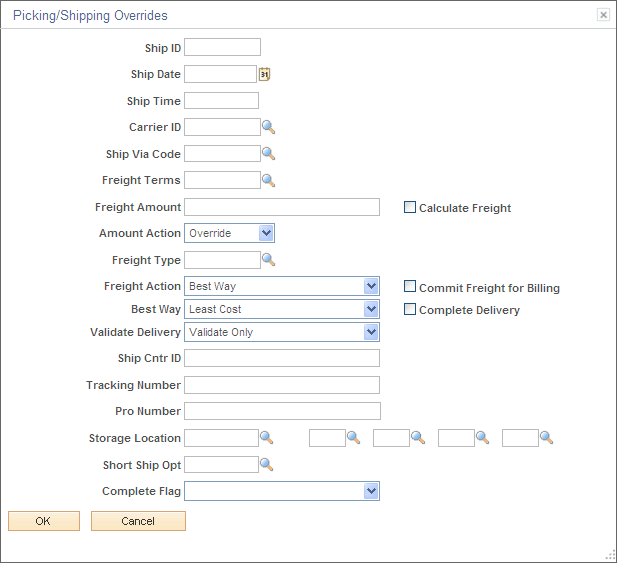
Enter picking and shipping overrides for demand lines processed on the Front End Shipping and Shipping Request transactions. When entering this page, the system displays any overrides previously entered for this request. This page can be accessed from several pages in the Fulfillment Workbench component. How you access the page determines the level that the picking and shipping overrides are applied. The overrides can be applied at the request, group, detail, of LLS levels, as follows:
| Level Applied | Navigation to Picking/Shipping Overrides Page |
|---|---|
|
Request Header Level: Applies to the entire transaction request. Overrides are applied unless another override exists at a lower level. |
|
|
Group Level: Applies to the group. One request can contain one or more groups. |
|
|
Detail Level: Applies to one detail level within a group. For example, one demand line in an order. |
Select the Ship Defaults link under the Miscellaneous tab on the Demand Lines page. |
|
LLS Level: Applies to one LLS within a detail. For example, as demand line might have multiple serial IDs. |
Select the Ship Defaults link under the Lot/Location/Serial tab on the Fulfillment Queue page. |
| Field or Control | Description |
|---|---|
|
Freight Terms |
Enter a freight terms code to override the default value. The freight terms code determines whether the buyer or the seller pays the freight. |
|
Freight Action |
Select one of the following freight options to request freight from an external third-party freight system:
|
|
Best Way |
If you have selected Best Way or Carrier with Best Way in the Freight Action group box, then use this group box to choose your best way option:
|
|
Commit Freight for Billing |
Select this check box to indicate that once the freight is applied and prorated to the individual orders, then the freight is ready to be picked up by PeopleSoft Billing and by PeopleSoft Cost Management. |
|
Complete Delivery |
Select this check box to set the status of the delivery to Complete Delivery when this workbench shipment is finished. The Complete Delivery status indicates all fulfillment steps for the delivery are complete and all demand lines in the delivery are ready to be depleted using the Deplete On Hand Qtys process. If the PeopleSoft Inventory business unit is using deliveries, the Deplete On Hand Qtys process only pick ups demand lines that are on a delivery with the Complete Delivery status. |
|
Ship Cntr ID |
Enter an override value for the shipping container ID. |
|
Tracking Number |
Enter an override value for the tracking number for this shipment. This field is only available if you have entered a Ship Cntr ID on this page. |
|
Pro Number |
Enter an override value for the pro number for this shipment. |
|
Storage Location |
Enter the material storage location to pick stock for shipment. This override is applied against all demand lines processed from an unfulfilled or releasable state that do not have picking locations identified at the Location/Lot/Serial segment of the transaction request. If a picking location is not entered on the request, then the fulfillment engine uses the picking location setup on the Setup Fulfillment component. |
|
Short Ship Opt |
Select an option for short shipping this demand line. Options are:
|
|
Complete Flag |
Choose an override Complete Flag option to automatically performing picking functionality on demand lines that have no previous picking activity reported against them. The LLS segment and the override location are applied prior to implementing the complete flag logic. Using the Complete Flag, the line can be moved to different sub-states within the Released state, or, with auto-processing, moved downstream to the shipped or depleted states. The Complete Flag options are:
|
|
Defer Depletions |
Select the value of Override to Yes or Override to No to change the value of the Defer Depletions field on each demand line included in the selection criteria. The defer depletions value is only applied when the line is being placed in the Shipped fulfillment state. The Defer Depletions override field is available in the Picking /Shipping Overrides page located a the header, group, and detail levels. Overrides at lower levels take precedent over settings at the higher levels; for example, an N at the detail level is used rather than a Y at the header level. For more information in the Defer Depletions feature, go to the "Shipping Inventory" topic, "Delaying the Billing and Costing of Inventory Shipments" section. See Delaying the Billing and Costing of Inventory Shipments. |