Adding and Maintaining Assets
This topic provides an overview of adding and maintaining assets and discusses how to add asset information, add IT asset related information, use ExpressAdd, print an asset view, view the asset component hierarchy, and use workflow when adding an asset.
Pages Used to Add and Maintain Assets
| Page Name | Definition Name | Usage |
|---|---|---|
|
ASSET_GENERAL_01 |
Add and maintain hardware or software assets. |
|
|
ASSET_GENERAL_02 |
Add or update IT asset-related information. |
|
|
ASSET_LEASE_01 |
Create capital or operating leases with appropriate payment and depreciation schedules. |
|
|
AM_LOOKUP_PRINT |
Print basic asset information. |
|
|
AM_HGRID |
View asset hierarchy in a grid. Move assets within the asset hierarchy. |
|
|
AM_ADD_E_LINK_WL |
Approve or deny a request from Manage Exceptions to add an asset, identified on the worklist as Worked by Activity AM_RTF_ADD_BASIC and specified in a link described as Asset added from Manage Exceptions, Route to Finance. |
Understanding Adding and Maintaining Assets
The PeopleSoft Asset Management application is used to add and maintain all assets, including IT assets. When you are adding IT assets on the General Information page, select an asset type of Hardware or Software and select the appropriate subtype. For hardware assets to be processed through the Compare Asset Repositories process and metrics, select the In Physical Use check box. Assets that are designated to be in physical use are tracked in ITAM irrespective of financial status.
See Understanding the Compare Asset Repositories Process.
See PeopleSoft Asset Management: General Information Page.
On the Operation/Maintenance page, you can enter an Internet Protocol (IP) address and add additional information in user-defined fields. Additionally, IT Hardware assets are required to have a serial number. Provide the serial number for the asset on the Operations/Maintenance tab.
Software assets have a SKU that must be populated. You can do this in the Basic Add component for individual assets. You can add the SKU to the Item master so that when the assets are acquired through PO/AP integration, they automatically inherit the SKU from the Item master.
See PeopleSoft Asset Management: Understanding Adding and Maintaining Assets.
General Information Page
Use the General Information page (ASSET_GENERAL_01) to add and maintain hardware or software assets.
Navigation:
Note:
You should enter an asset subtype and select the In Physical Use check box for each IT hardware asset, if applicable. Assets without subtypes supersede IT role access are viewable by all users.
See PeopleSoft Asset Management: Understanding Adding and Maintaining Assets.
Operation/Maintenance Page
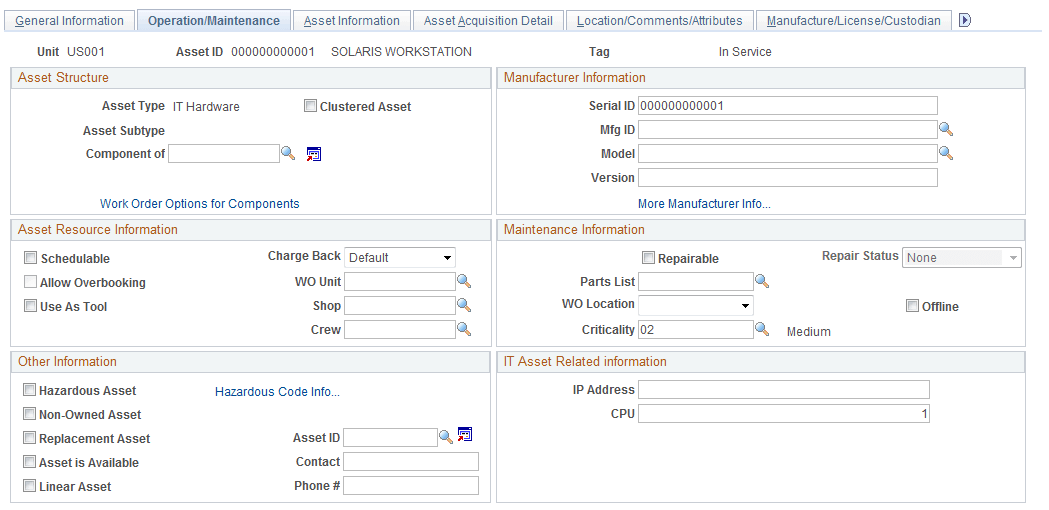
Use the Operation/Maintenance page (ASSET_GENERAL_02) to add or update IT asset-related information.
Navigation:
This example illustrates the fields and controls on the Operation/Maintenance page.
Note:
IT Hardware assets are required to have a Serial ID.
IT Asset Related Information
The fields in the IT Asset Related Information group box are available only if you select an asset type of Hardware or Software on the General Information page.
| Field or Control | Description |
|---|---|
|
IP Address |
Enter an IP address, if applicable. |
|
CPU |
Enter the number of CPUs that an IT hardware device has installed, physical and/or virtual. When the CPU field value is updated in Basic Add, if the asset IT Subtype is Authorize Software by Device, for any Software Device Group of which the asset is a member (when the current effective row has an active status), a new row with the updated CPU value is inserted into the Software Device Group definition. The CPU value is also the source for the Declared Device Licenses. For any asset that is not overridden, the change in the CPU value is used in calculating the consumption of licenses for the asset software combination. |
Definition Page
Use the Definition page (ASSET_LEASE_01) to create capital or operating leases with appropriate payment and depreciation schedules.
Navigation:
See PeopleSoft Asset Management: Adding Assets with the Asset ExpressAdd Component.
Printable view of Asset Page
Use the Printable view of Asset page (AM_LOOKUP_PRINT) to print basic asset information.
Navigation:
See PeopleSoft Asset Management: Printing Asset Information.
Asset Component Hierarchy Page
Use the Asset Component Hierarchy page (AM_HGRID) to view asset hierarchy in a grid.
Navigation:
See PeopleSoft Asset Management: Viewing and Managing the Component Asset Hierarchy.
Add Asset Page
Use the Add Asset page (AM_ADD_E_LINK_WL) to approve or deny a request from Manage Exceptions to add an asset, identified on the worklist as Worked by Activity AM_RTF_ADD_BASIC and specified in a link described as Asset added from Manage Exceptions, Route to Finance.
Navigation:
Use this interim page to add additional information about the asset prior to adding it. Use the EmplID link to view basic employee information.
When you have verified that the asset values are correct, click the Add Asset link. This transfers you to the Basic Add component in PeopleSoft Asset Management. If the asset has already been added prior to accessing this page, the Asset ID appears only; the Add Asset link changes to Capitalize Asset. Clicking the link transports you to the Basic Add pages in PeopleSoft Asset Management for capitalization. If the asset is in the Transaction Loader process, the page appears only and a Hold check box appears. The asset must be completely loaded before you attempt to capitalize the asset (or add) through workflow.
To deny the workflow, click Deny and provide a reason for the denial.