Setting Up and Using Manual Capitalization
To set up and use manual capitalization, use these components to create an asset, project, activity and higher-level configuration:
-
Asset Profile (PROFILE_PC)
-
Project Costing Options (PC_BUS_UNIT_OPT)
-
Project General (PROJECT_GENERAL)
-
Activity General (PROJECT_ACTIVITY)
-
Project Costing Asset Definition (PC_AM_DEFN).
These pages are used to relate assets to specific project activities and assign transactions to the asset using the classic interface:
-
Relate Assets by Project ID (PC_PCAM_DEFN)
-
Assign Resources to an Asset component (PC_AM_RESOURCES)
-
Selection Criteria component (PC_SEL_CRITERIA).
These pages are used to relate assets to specific project activities and assign transactions to asset using fluid:
-
Relate Asset to Activities (PC_AMPC_REL_FL)
-
Assign Cost to Asset (PC_AM_CAP_CRIT_FL)
-
Capitalization Template page (PC_AM_CAP_TPL_FL).
Pages Used to Set Up and Use Manual Capitalization
| Page Name | Definition Name | Usage |
|---|---|---|
|
PROFILE_DEFN_PC |
Create asset profiles in PeopleSoft Project Costing if you do not use PeopleSoft Asset Management. |
|
|
PC_AM_RULE_BU |
Set up integration with PeopleSoft Asset Management at the business unit level. |
|
|
Project Definitions - Asset Integration Rules Page |
PC_AM_RULE_PRJ |
Set up integration with PeopleSoft Asset Management at the project level. |
|
Activity Definitions - Asset Integration Rules Page |
PC_AM_RULE_ACT |
Set up integration with PeopleSoft Asset Management at the activity level. |
|
PC_AM_DEFN |
Specify basic information about a project asset. |
|
|
PC_PCAM_DEFN |
(For Classic page users only) Associate assets with a specific project. |
|
|
(For Classic page users only) Associate projects and activities for to an asset for manual capitalization. |
||
|
PC_AM_RES_SUM |
(For Classic page users only) You can view the list of assets or profiles that are related to a project, and drill down into the asset or profile to assign transactions. |
|
|
PC_AM_RESOURCES |
(For Classic page users only) Assign or clear transactions to a profile or asset. View transactions that are eligible for asset assignment. |
|
|
PC_SEL_CRITERIA1 |
(For Classic page users only) Define selection criteria for date, activity, and transaction fields. |
|
|
PC_SEL_CRITERIA2 |
(For Classic page users only) Define selection criteria for department, activity location, and asset profile. This is an extension of the Define Filter Criteria - Standard 1 page. |
|
|
PC_SEL_CRITERIA3 |
(For Classic page users only) Include or exclude transaction fields from the criteria definition. |
|
|
PC_AMPC_REL_FL |
Associate assets with specific projects and activities using fluid. |
|
|
PC_AM_CAP_CRIT_FL |
Define criteria for assigning project transactions and process updates to assign transactions to specific assets using fluid. |
|
|
PC_AM_CAP_TPL_FL |
Define templates with predefined criteria for assigning cost to assets using fluid. |
Asset Profile Page
Use the Asset Profile page (PROFILE_DEFN_PC) to create asset profiles in PeopleSoft Project Costing if you do not use PeopleSoft Asset Management.
Navigation:
Define templates that contain standard depreciation criteria for an asset type and its corresponding asset books.
Asset profiles are discussed in the Asset Profiles and the Asset Profile Page topics.
Project Costing Options - Asset Integration Rules Page
Use the Project Costing Options - Asset Integration Rules page (PC_AM_RULE_BU) to set up integration with PeopleSoft Asset Management at the business unit level.
Navigation:
Select the Asset Integration Rules tab.
To enable the manual asset integration processes to create assets from the business unit's project activities:
-
Select Enable Integration in the Asset Integration Defaults group box.
-
Select an integration type of Capitalization.
-
Select an asset identification rule of Manual Identification.
After you select the manual identification rule on the Asset Integration Rules page you will perform other manual steps to define assets, relate assets to projects, and assign transactions to assets. After those manual steps are complete, the values that you specify on this page for timing triggers, asset location source, destination of asset rows, and asset adjustment rules can be used for the manual capitalization process.
Define Assets Page
Use the Define Assets page (PC_AM_DEFN) to specify basic information about a project asset.
Navigation:
This example illustrates the fields and controls on the Define Assets page. You can find definitions for the fields and controls later on this page.
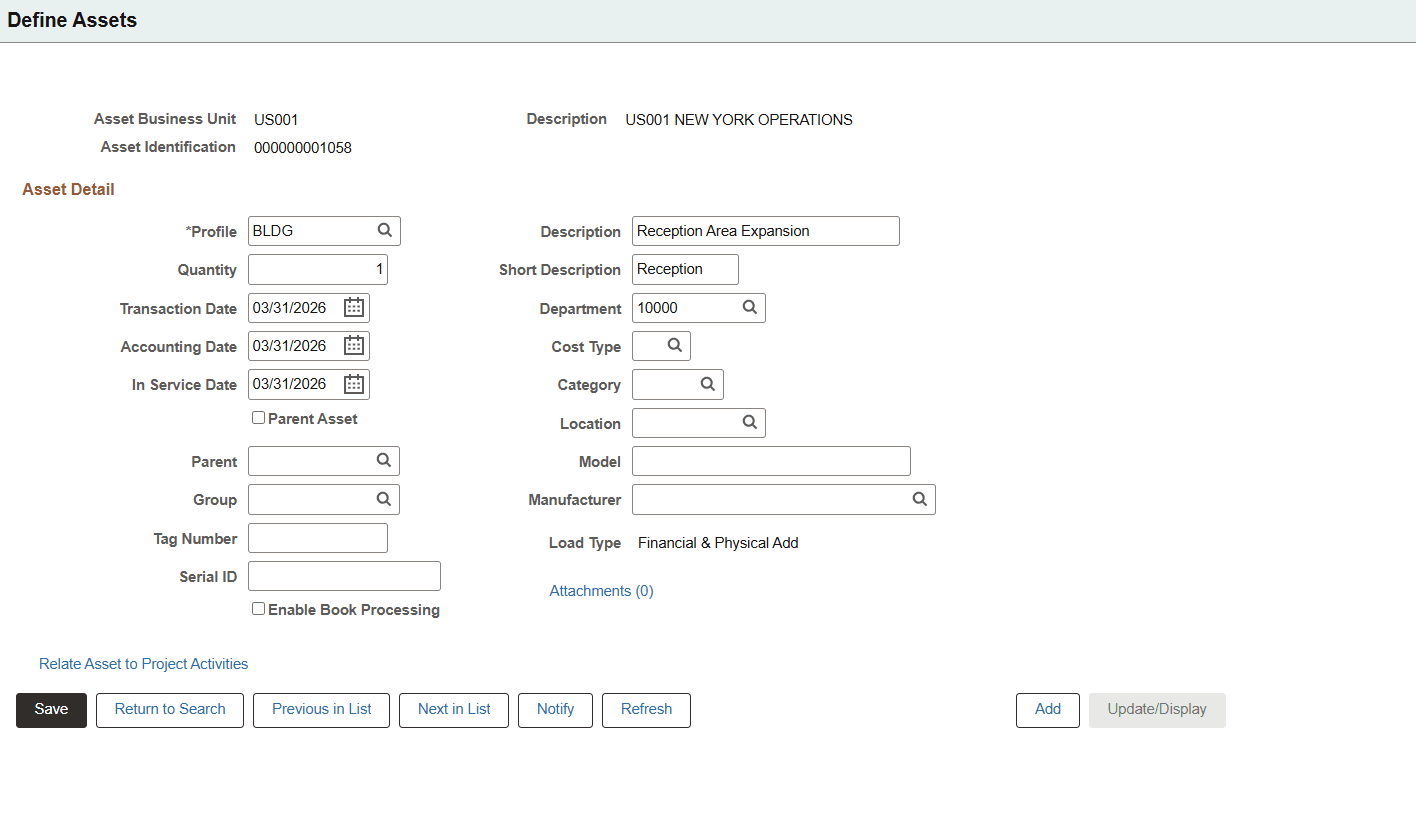
Some of the fields that appear in this topic are defined in the Common Elements Used to Manage Assets topic.
Note:
PeopleSoft Project Costing can create capitalized rows and distribute them without integrating with PeopleSoft Asset Management. You can use the PeopleSoft Asset Management Loader tables, but you must create a custom process that PeopleSoft does not support to extract data from the tables.
When an asset definition is created in PeopleSoft Asset Management, information such as depreciation method, useful life, category, or group asset ID are inherited from the asset profile. You can override default values from the profile on this page.
| Field or Control | Description |
|---|---|
|
Transaction Date |
Enter the date that the asset transaction occurs. This date is used as the default value for the transaction date override on the Manual Capitalization Review page. The transaction date of an adjustment that you make after an asset is created must be equal to or greater than the previous transaction date. |
|
Accounting Date |
Enter the date for which the asset transaction is accounted. This date is used as the default value for the accounting date override on the Manual Capitalization Review page. |
|
Parent Asset |
Select to indicate the asset as a parent asset. |
|
Cost Type |
Enter the cost type for the asset. The Cost Type field (COST_TYPE) resides in the Project Transaction table as well as in the PeopleSoft Payables and PeopleSoft Purchasing systems that feed data to PeopleSoft Project Costing. Breakdown by cost type can occur for assets that are created from those transaction rows if the installation option Cost Type from Transaction is selected. If the Cost Type from Transaction installation option is not selected, only the cost type that you enter in this field is included with the asset. Note: To ensure data integrity in PeopleSoft Asset Management, after you specify the Cost Type from Transaction option during installation, do not change it. |
|
Model |
Enter the model identifier that is assigned to the asset. |
|
Load Type |
Displays the transaction load type that PeopleSoft Asset Management uses to determine the types of transactions that occur when the Load Transaction into Asset Management process loads rows into the Asset transaction tables. |
|
Interface Status |
Displays the status of the integration from PeopleSoft Project Costing to Asset Management, such as Pending or Generated. |
|
Enable Book Processing |
Select to enable the asset's transaction costs to be tracked by book in the PeopleSoft Asset Management system. |
|
Attachments |
Click to access the Define Asset Attachments page where you can add/ remove attachments. The number of attachments added to an asset is displayed next to the Attachments link. Note: For PeopleTools release 8.59 and later, you can select multiple files (maximum limit is 20) at a time to be included as attachments. |
|
Relate Asset to Project Activities |
Select to open Relate Assets to Activities Page to associate assets with projects and its activities. |
Capitalizing Assets in the Early Phases of Projects
This topic applies to the Classic page users only.
Costs that a project incurs can be depreciated during the early phases of a project's life cycle even before you know exactly what assets the project will create. By using the Summarize by Profile feature in PeopleSoft Project Costing to integrate with PeopleSoft Asset Management, the system automatically reverses profile summaries and creates permanent assets when you process the actual asset information.
To set up this integration process:
-
Create a project and a work breakdown structure (WBS) that contains one or more activities.
You must select an asset identification rule of Manual Identification on the Asset Integration Rules page.
-
Define a temporary asset by using the Define Assets page.
When you define the permanent asset, assign the same asset profile to the permanent asset as you assign to the temporary asset.
-
Relate the temporary asset to the appropriate project activities.
You must select a Summarization Type of By Profile on the Relate by Project page or Relate by Asset page.
-
Accumulate transaction costs against the project activities.
Transactions with an analysis type that belongs to the PRECL (PC to AM Profile Summary) analysis group are eligible for assignment during this process.
-
Assign transactions to the temporary asset.
You must select an Assign Type of Profile on the Assign Transactions to Assets page.
-
Run the Send to Asset Management process.
You must select a Summarize Type of By Profile on the Send to Asset Management page.
Use the manual capitalization process when you are ready to capitalize the permanent asset. On the Relate by Project page, select a summarization type of By Asset. On the Assign Transactions to Assets page, select an assign type of Asset.
Before you run the Send to Asset Management process you must change the accounting date of the temporary asset to match the accounting date of the permanent assets. Additionally, you must change the transaction date of the permanent assets to match the original transaction date of the temporary asset. This ensures that the system reverses the temporary asset capitalized value and uses the correct final capitalized amount to create the permanent assets.
Relate by Project Page
This topic applies to the Classic page users only.
Use the Relate by Project page (PC_PCAM_DEFN) to associate assets with a specific project.
Navigation:
Note:
You can relate a single asset to multiple projects and activities.
This example illustrates the fields and controls on the Relate by Project page. You can find definitions for the fields and controls later on this page.
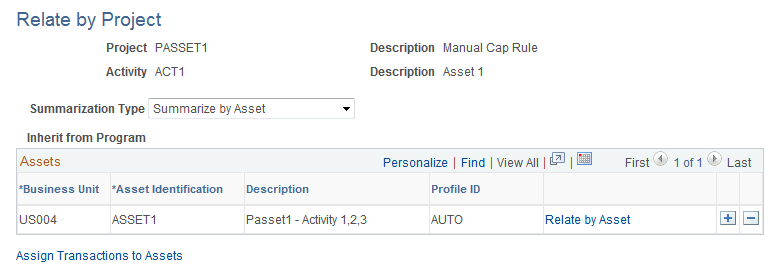
This page displays a project's view of the data. Add rows to associate the project activity with additional assets.
| Field or Control | Description |
|---|---|
|
Summarization Type |
Select whether to summarize By Asset or By Profile. |
|
Relate by Asset |
Click the Relate by Asset link after saving a row to access the Relate by Asset page, which provides a different view of the relationship between the project and asset. |
|
Assign Transactions to Assets |
Click to access the Assign Transactions to Assets page, which contains a list of assets for assignment to transactions. |
Relate by Asset Page
This topic applies to the Classic page users only.
Use the Relate by Asset page to associate projects and activities to an asset for manual capitalization.
Navigation:
. Click the Relate by Asset link on the Relate by Project page
Note:
You can relate a single asset to multiple projects and activities.
This example illustrates the fields and controls on the Relate by Asset page. You can find definitions for the fields and controls later on this page.
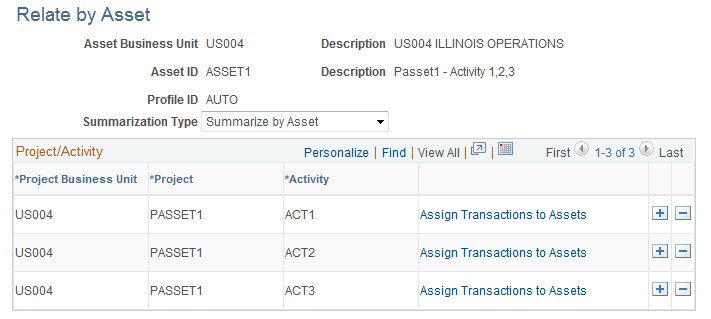
This page displays an asset's view of the data and it is used to associate an asset with project activities. Add rows to associate the asset with additional project activities.
| Field or Control | Description |
|---|---|
|
Assign Transactions to Assets |
Click to access the Assign Transactions to Assets page, which contains a list of assets for assignment to transactions. This link appears when you save the row. |
Assign Transactions to Assets Page
This topic applies to the Classic page users only.
Use the Assign Transactions to Assets page (PC_AM_RES_SUM) to view the list of assets or profiles that are related to a project, and drill down into the asset or profile to assign transactions.
Navigation:
This example illustrates the fields and controls on the Assign Transactions to Assets page. You can find definitions for the fields and controls later on this page.
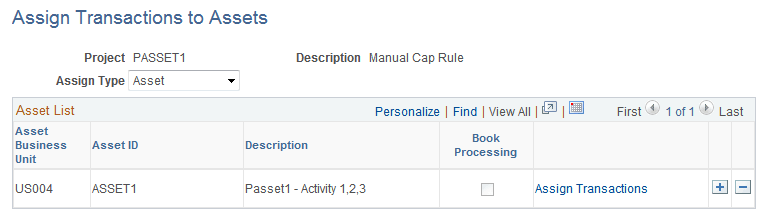
Projects appear on this page if the project's asset identification rule is Manual Identification on the Asset Integration Rules page.
| Field or Control | Description |
|---|---|
|
Assign Type |
Select Asset or Profile. These options determine the fields that appear on the asset list rows. Retire appears as the assign type if the project has an integration type of Retirement on the Asset Integration Rules page. |
|
Book Processing |
Displays the value that is inherited from the Enable Book Processing field on the Define Assets page. |
|
Save |
Click to enable the Assign Transactions link. |
|
Assign Transactions |
Click to access the Assign Transactions page where you can complete the transaction assignment process. This link is available after you save the row. |
Assign Transactions Page
This topic applies to the Classic page users only.
Use the Assign Transactions page (PC_AM_RESOURCES) to assign or clear transactions to a profile or asset.
View transactions that are eligible for asset assignment.
Navigation:
Click the Assign Transactions link on the Assign Transactions to Assets page after you save the row.
This example illustrates the fields and controls on the Assign Transactions page. You can find definitions for the fields and controls later on this page.
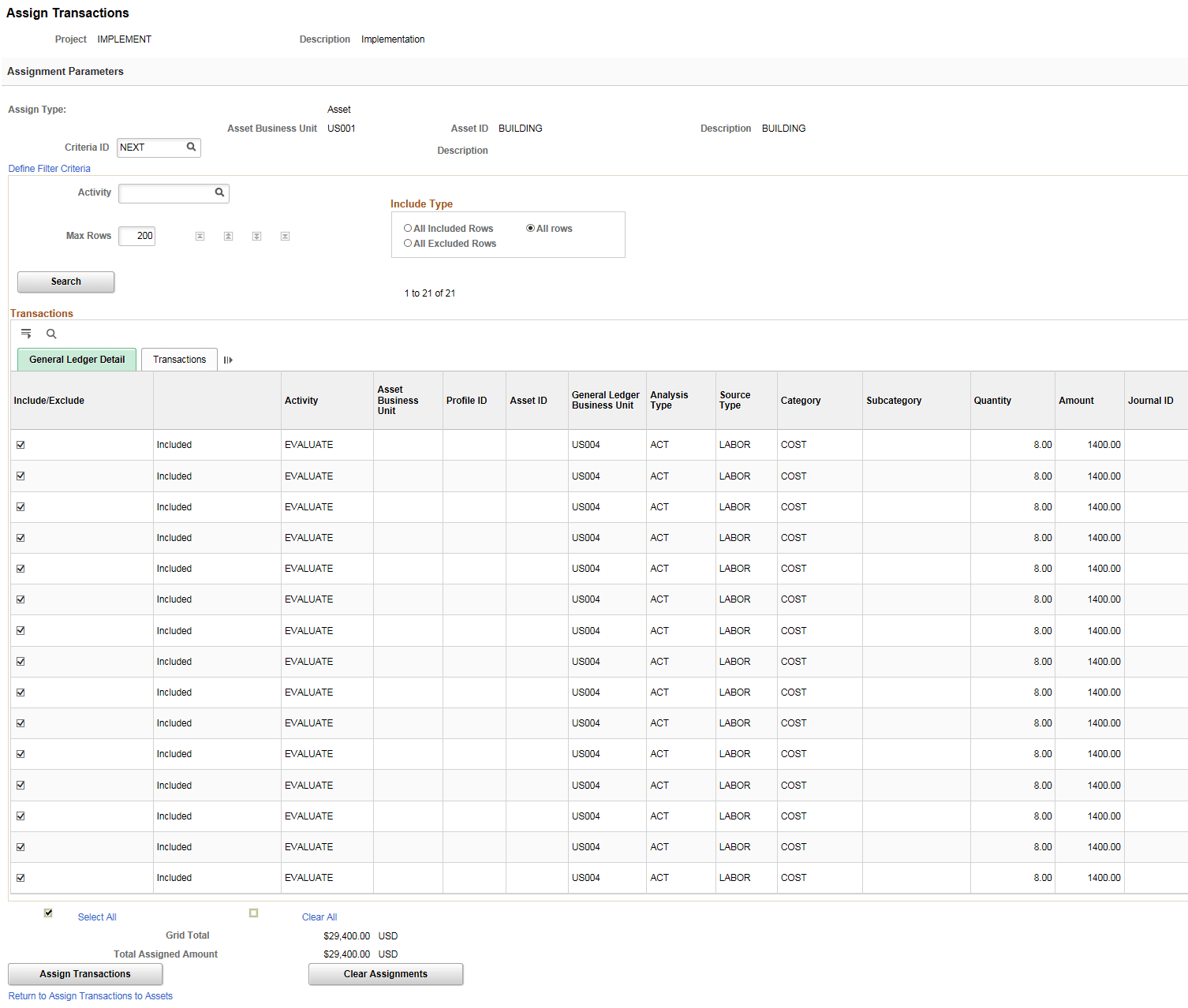
Use this page to:
-
Assign a group of transactions to a profile or an asset.
-
Clear a group of transactions from the profile or asset.
-
View transactions that are eligible or ineligible for asset assignment based on specific criteria.
-
Selectively override the criteria for individual transactions.
| Field or Control | Description |
|---|---|
|
Criteria ID |
Select a value or create a new criteria ID. To create a new ID, either enter a new ID or keep the default value of NEXT and let the system assign the criteria ID. |
|
Define Filter Criteria |
Click to access the Selection Criteria component, where you can view and edit existing filter criteria that determine which project activity costs to include in the asset. Note: The system determines which transactions are eligible for assignment based on the filter criteria and the value of the Asset Management Distribution Status field . Only transactions that have not been distributed to PeopleSoft Asset Management are eligible for assignment by using the Assign Transactions page. Transactions with an Asset Management distribution status value of D (distributed) are not eligible for assignment. |
|
Activity |
Enter an activity to display only the transactions that are associated with the specified activity. To display all transactions that are associated with the project, leave the Activity field blank. |
|
Max Rows (maximum rows) |
Enter the maximum number of rows to appear in the Transactions grid. This may result in fewer rows appearing in the grid than the number of transactions that are actually assigned to the asset. |
|
Include Type |
Select a filter that operates in conjunction with the Activity and Max Rows fields to determine the rows that appear in the grid. Available options are: All Included Rows: Displays transactions that meet the selection criteria and any manually included rows to be processed. All Excluded Rows: Displays transactions that do not meet the criteria or are manually excluded and are not to be processed. All Rows: Displays all transactions that meet the selection criteria. |
|
Search |
Click to retrieve all transactions that match the selected criteria and Include Type option. |
Note:
The Activity, Max Rows, and and Include Type fields define only which rows appear in the grid. These fields are used for viewing only, whereas the Criteria ID field is used to filter rows. For example, assume that the filter criteria returns transaction rows with activities of PLAN, DEVELOP, and BUILD. You can enter a value of PLAN in the Activity field to view only the transaction rows in the PLAN activity. If you click the Assign Transactions button, the system stamps the asset information on all transactions from the PLAN, DEVELOP, and BUILD activities that the system returned based on the criteria ID.
| Field or Control | Description |
|---|---|
|
Include/Exclude |
Select check box to include or exclude transactions for asset capitalization. Initially when transactions are loaded for the first time, the Include/Exclude check box is selected by default for all transactions. After changes are done and saved for this field, the values are retained. In the subsequent column corresponding status will be displayed. |
|
Save |
Click to store the selections that are on this page. |
WARNING:
You must save the selections on this page before you click the Assign Transactions or Clear Assignments buttons. Otherwise, you will lose any unsaved actions when the assign or clear event occurs.
| Field or Control | Description |
|---|---|
|
Grid Total |
Displays the total value based on the Transactions grid output. |
|
Total Assigned Amount |
Displays the total amount that will be assigned for capitalization. |
|
Assign Transactions |
Click to assign and stamp an asset business unit, profile ID, and asset ID in the Project Transaction table for eligible transactions. This process defines how the system distributes project costs to assets. Note: When you click the Assign button, the system stamps and assigns all eligible rows, not just rows that are visible in the Transactions grid. You must relate assigned rows to the asset before they can be used to create an asset. You can assign a row then relate it to the asset after the asset is already created. Rows that are sent to an existing asset are treated as adjustments in the asset management system. Note: This button is not applicable for all rows excluded from processing. |
|
Clear Assignments |
Click to clear the asset business unit, profile ID, and asset ID from the grouped transactions. Note: This button is not applicable for all rows excluded from processing. |
Apart from the fields included for General Ledger Detail, there are additional fields such as Voucher, Supplier ID, PO ID, Report ID, Time Report ID, Work Order, Empl ID, and Invoice included for Transactions. Click the Transactions tab to access these fields.
Note:
If an activity has transactions with a pending action, no additional transactions can be assigned to that activity until the pending transactions are interface to Asset Management. In other words, you must interface pending transactions to Asset Management before assigning additional transactions to the same activity.
Define Filter Criteria - Standard 1 Page
This topic applies to the Classic page users only.
Use the Define Filter Criteria - Standard 1 page (PC_SEL_CRITERIA1) to define selection criteria for date, activity, and transaction fields.
Navigation:
Click the Define Filter Criteria link on the Assign Transactions page.
This example illustrates the fields and controls on the Define Filter Criteria - Standard 1 page. You can find definitions for the fields and controls later on this page.
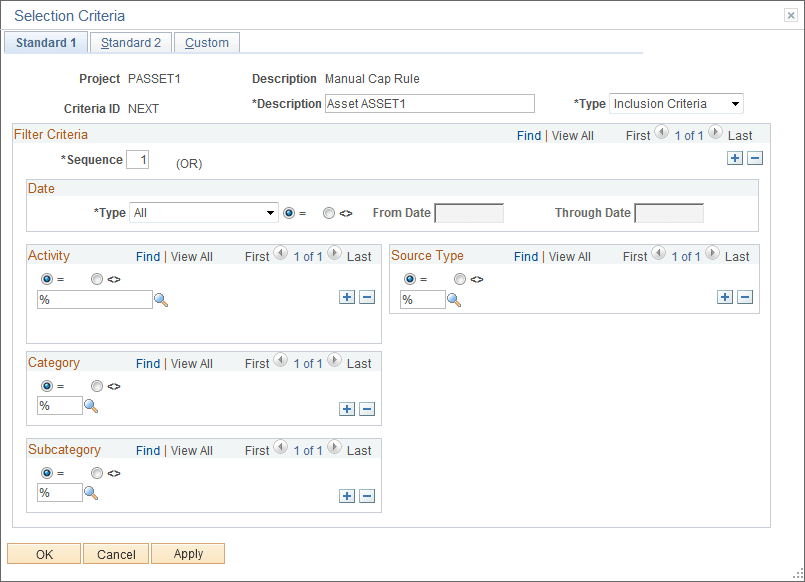
Define criteria to determine what transactions are eligible to select transactions for asset assignment. You must define filter criteria each time that you create a new project for the manual capitalization process. The system stores manual capitalization filters at the project level, and the express capitalization filters at the project business unit level.
| Field or Control | Description |
|---|---|
|
Type (criteria) |
Choose to Include or Exclude transactions that meet the criteria. |
|
Sequence |
Enter the sequence number. A row that does not meet the criteria that is in sequence 1 is still included if it meets the criteria in a subsequent sequence. For each sequence, all field values must be met for the system to include a transaction row. |
|
Type (date) |
Select Accounting Date, Transaction Date, or the default value of All. |
|
= or <> |
Choose the operand to specify if transactions are included in the selection criteria if their date is equal to (=) or not equal to (<>) the selected date range. |
|
From Date and Through Date |
Select a date range if the date type is Accounting Date or Transaction Date. These fields are not available if you select a date type of All. |
|
Activity, Source Type, Category, and Subcategory |
Select operands and enter valid values for this project. |
Define Filter Criteria - Standard 2 Page
This topic applies to the Classic page users only.
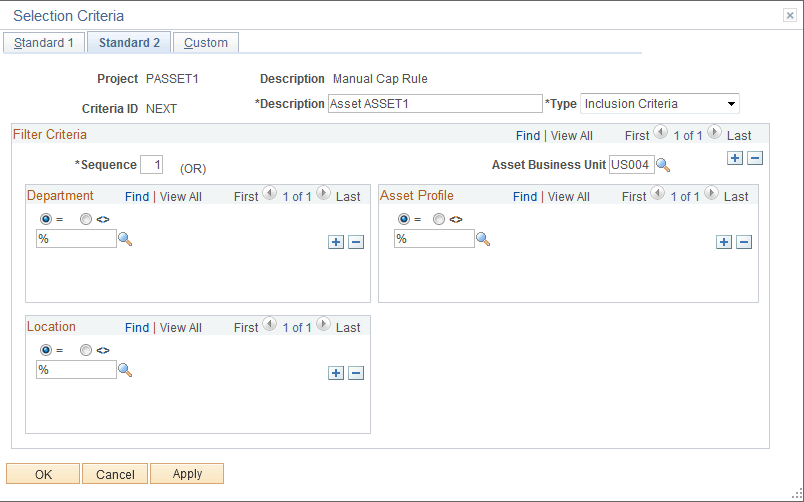
Use the Define Filter Criteria - Standard 2 page (PC_SEL_CRITERIA2) to define selection criteria for department, activity location, and asset profile.
This is an extension of the Define Filter Criteria - Standard 1 page.
Navigation:
Select the Standard 2 tab on the Define Filter Criteria - Standard 1 page.
This example illustrates the fields and controls on the Define Filter Criteria - Standard 2 page. You can find definitions for the fields and controls later on this page.
| Field or Control | Description |
|---|---|
|
Description (criteria) |
Enter a description in the field or leave the default description from the Define Filter Criteria - Standard 1 page. |
|
Department |
Select from the list of departments that are defined for this business unit and project. |
|
Location |
Specify the location of each activity when defining the activity. This field refers to the location of the activity, not the location of the asset in PeopleSoft Asset Management. If you exclude location from the selection criteria, the system excludes all transactions that are associated with the activity. |
|
Asset Profile |
Select from the list of asset profiles that are based on the value in the Asset Business Unit field. |
Define Filter Criteria - Custom Page
This topic applies to the Classic page users only.
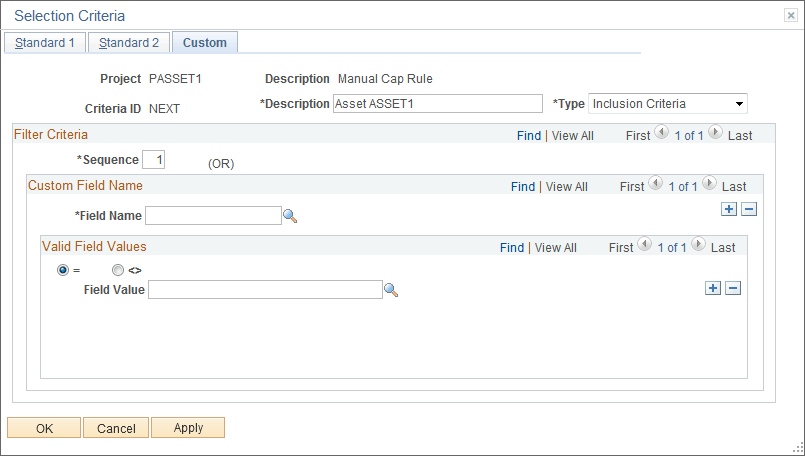
Use the Define Filter Criteria - Custom page (PC_SEL_CRITERIA3) to include or exclude transaction fields from the criteria definition.
Navigation:
Select the Custom tab on the Define Filter Criteria - Standard 1 or Standard 2 page.
This example illustrates the fields and controls on the Define Filter Criteria - Custom page. You can find definitions for the fields and controls later on this page.
| Field or Control | Description |
|---|---|
|
Custom Field Name |
Select a field from the drop-down list box that is unique from the fields that are available on the Define Filter Criteria - Standard 1 and Standard 2 pages. |
|
Valid Field Values |
Select the operand to specify if the field name and its associated value is included (=) or excluded (<>) from the definition. |
Related Topics
Relate Assets to Activities Page
Use the Relate Assets to Activities page (PC_AMPC_REL_FL) to associate assets with specific projects and activities.
Navigation:
This example illustrates the fields and controls on the Relate Assets to Activities page.
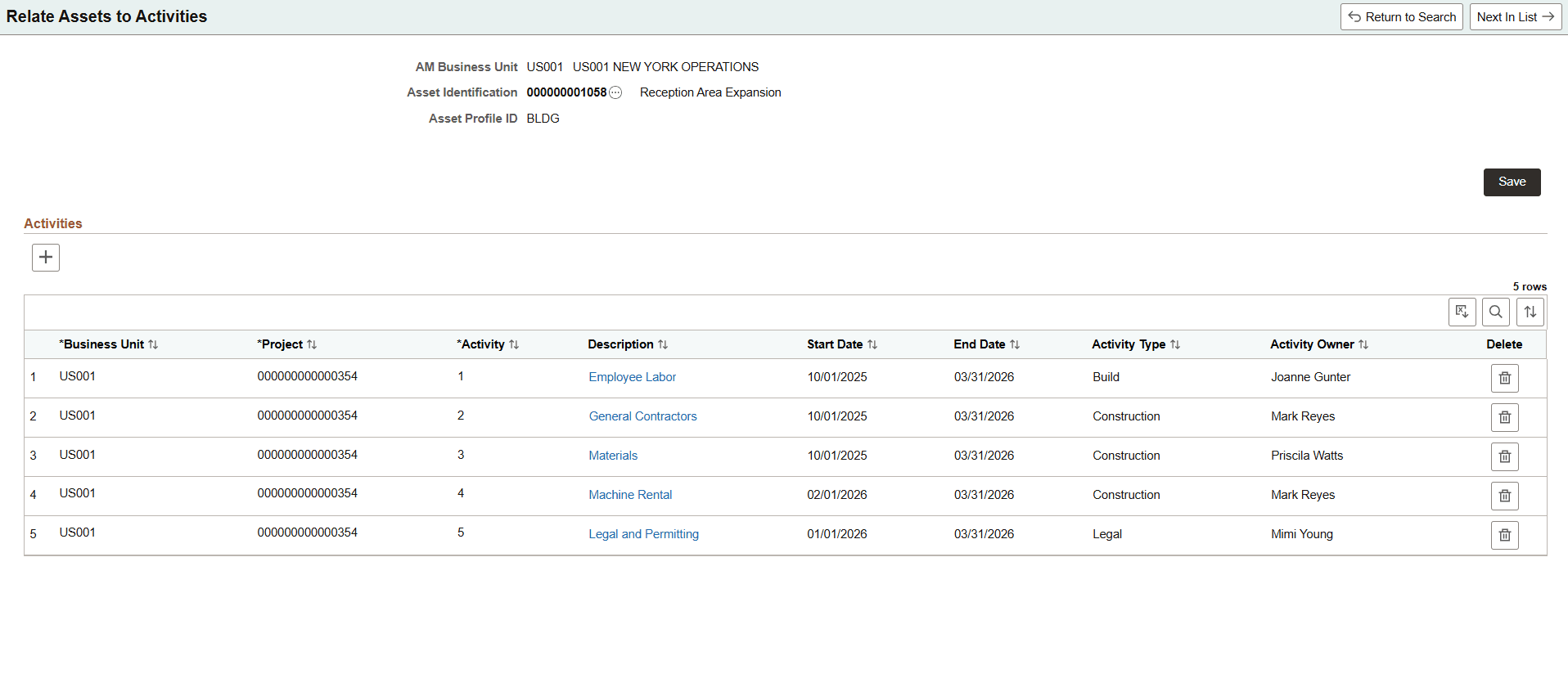
Users can add a Project and its activities to an asset. An asset is generally linked to one project and one or more activities of the project. A single project activity can be associated with multiple assets.
The asset can be linked to multiple projects when program projects are being used.
Select Save to link the activities to the asset.
Select the three dots icon next to the Asset Identification number to open the Actions menu. Users can navigate to the Assign Cost to Asset page using the Actions menu.
Assign Cost to Asset Page
Use the Assign Cost to Asset page (PC_AM_CAP_CRIT_FL) to define a criteria for assigning transaction cost to an asset.
Navigation:
This page can also be accessed from the action icon next to the Asset ID on the Relate Asset to Activities page.
This example illustrates the fields and controls on the Assign Cost to Asset page.
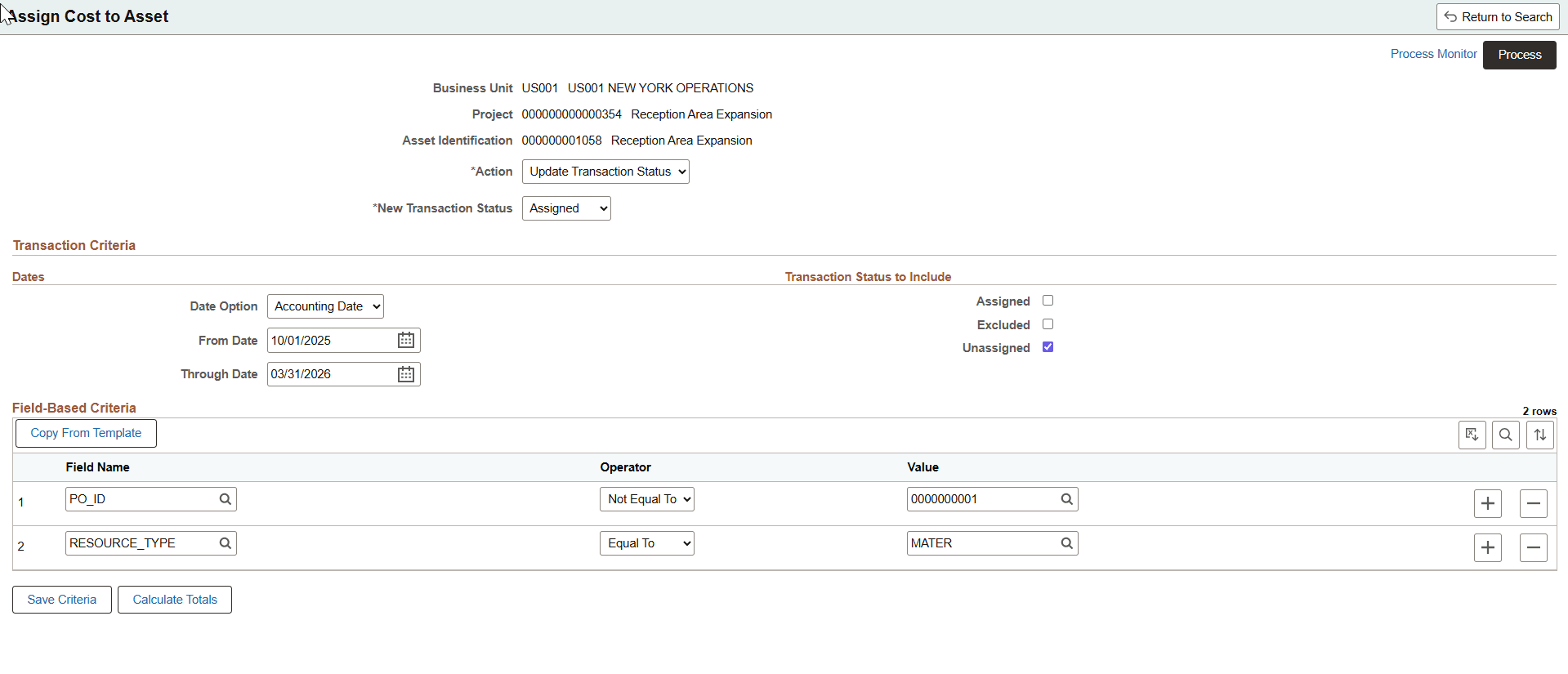
Users can review and update the transactions using the Actions field. The Review Transaction Detail option allows you to run the process and review an excel file detailing the transactions that meet the criteria on the page.
Select Update Transaction Status and the New Transaction Status to update transactions meeting criteria with a new status. Transaction status can be updated to Assigned, Excluded or Unassigned.
The From Date and Through Date are default dates from the Define Project General Info page.
The Transaction Status to include is set to Unassigned by default since this page is primarily used to update unassigned transactions. This includes the transactions with AM distribution statuses with N or blank which means it is not yet assigned to an asset.
Select Excluded to review and update transactions with AM distribution statuses set to I or Ignore.
Select Assigned to include transactions with AM distribution status set to Y.
The Field Based Criteria allows users to add multiple fields from PROJ_RESOURCE and use operators to work with the entered values. The system evaluates all criteria and updates the AM Distribution status for only those transactions that meet all the listed criteria.
Use the Copy From Template button to import predefined criteria from the Asset Capitalization Template page. This replaces any existing criteria with the imported criteria.
Select the Calculate Totals to apply the criteria to PROJ_RESOURCE and display the total value to the user.
Select Process and an application engine will update rows that meet criteria and generate an excel file showing the updated information in Report Manager.
Note:
If a process running for a specific project and you try to request another, a warning is displayed to wait until the process is done.Asset Capitalization Template Page
Use the Asset Capitalization Templates page (PC_AM_CAP_TPL_FL) to define templates with predefined criteria for assigning costs to assets. Criteria templates are created by business unit and may be used as a starting point for criteria on specific assets.
Navigation:
This example illustrates the fields and controls on the Asset Capitalization Template page.
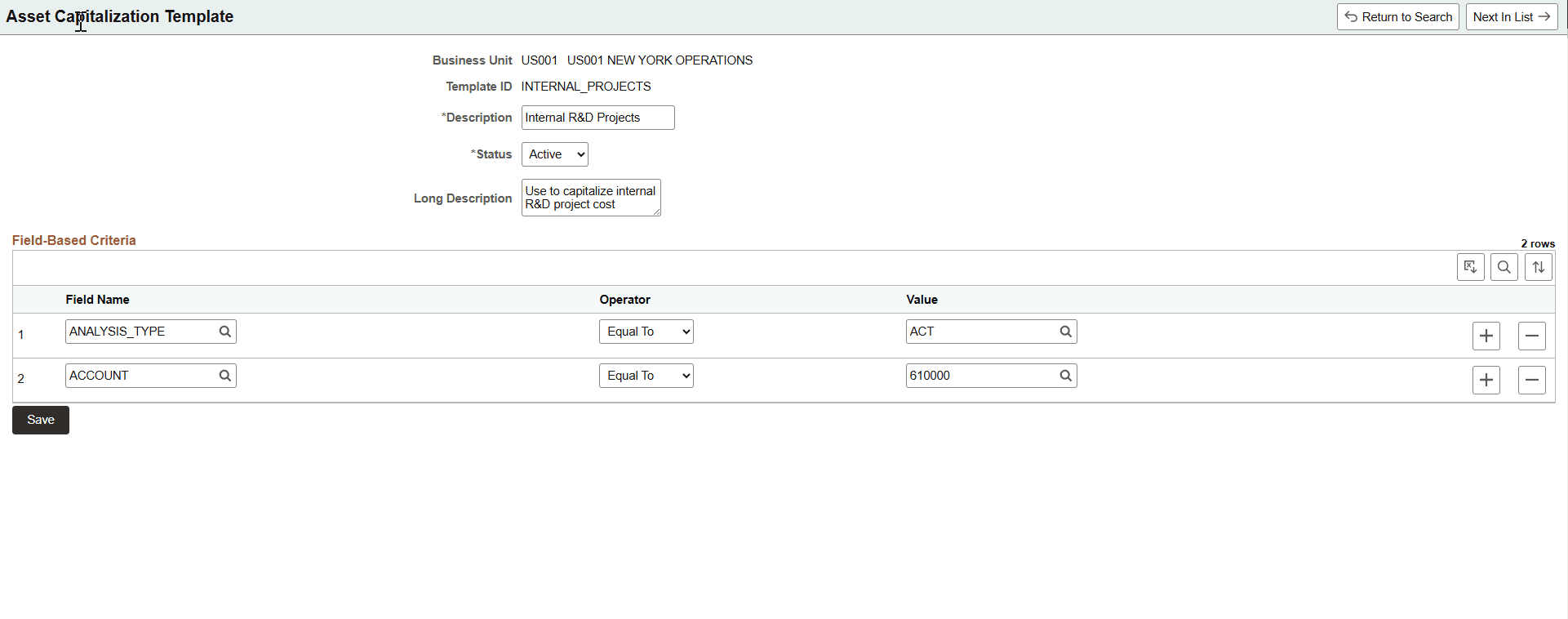
Use the Field-Based Criteria to define your template.
Users can add any fields from the Project Transaction table (PROJ_RESOURCE) to include in the criteria.
The Operator field provides Equal to, Not Equal to, In, and Not In as options to control the values entered.
You can add comma separated multiple values in one field when using In and Not In operators.
Use the Status field to make the template active or inactive.