Generating and Printing Follow-Up Letters
Page Used to Generate and Print Follow-Up Letters
| Page Name | Definition Name | Usage |
|---|---|---|
|
RUN_AR33004 |
Run the Follow Up Letters Extract process, the Follow Up Letter report, or the Follow Up Letters multiprocess job. |
Understanding Follow-Up Letter Processing
Follow-up letters change little from mailing to mailing. Only the names, addresses, and dates change. PeopleSoft Receivables delivers a sample follow-up letter that you create by using BI Publisher that you can modify to suit your organization's needs.
The system generates follow-up letters as long as you provide a valid contact ID, follow-up action, follow-up user ID, and letter code on the Conversations page.
Note:
To print the standard text within a follow-up letter, you must enter a promise amount, a promise date, and a review date on the Conversations page.
To generate follow-up letters, you run two processes:
-
The Follow Up Letters Extract Application Engine process (AR_FOLLOWUP) extracts names, addresses, and other data, scanning conversation records with letter codes for follow-up letters that have not been marked by the system as done.
After the process extracts data, it marks the conversation record as done on the Conversation Actions and Keywords page.
-
The Customer Follow Up Letter report (ARX33004) merges the extracted data with the follow-up letter.
Note:
PeopleSoft Receivables also provides the Follow Up Letters multiprocess job (FOLLOWUP), which runs both the Follow Up Letters Extract process and the Customer Follow Up Letter report.
You run all three processes from the Customer Follow Up Letter page. If you run the extract process and the report separately, you must wait for the Follow Up Letters Extract process to finish before you run the report.
Prerequisites
You must perform these tasks before you generate follow-up letters:
-
Verify that you have a letter code of F for follow-up letters.
-
Assign a remit to address to the correspondence customer who should receive follow-up letters and other types of customer correspondence on the General Information - Correspondence Options page.
-
Set up delivery information for correspondence for a contact.
-
When you create the conversation entries for a specific customer, provide a valid contact ID, follow-up action, and a follow-up letter of F.
Common Element Used to Generate and Print Follow-Up Letters
| Field or Control | Description |
|---|---|
|
Customer ID |
Enter the customer ID for a specific customer or leave the field blank to run the process for all customers. Use a wildcard (%) to process all customers for multiple business units. |
Customer Follow Up Letter Page
Use the Customer Follow Up Letter page (RUN_AR33004) to run the Follow Up Letters Extract process, the Follow Up Letter report, or the Follow Up Letters multiprocess job.
Navigation:
This example illustrates the fields and controls on the Customer Follow Up Letter page. You can find definitions for the fields and controls later on this page.
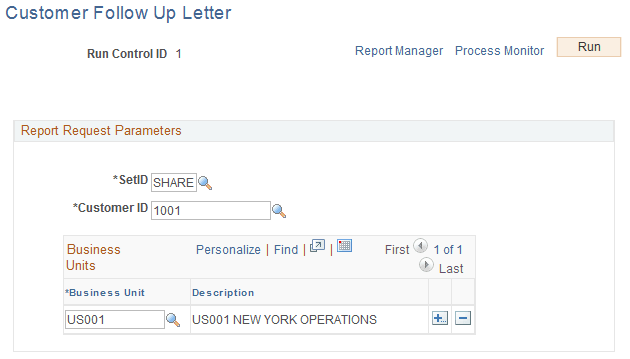
| Field or Control | Description |
|---|---|
|
SetID |
If you use only a SetID, the process creates follow-up letters for each correspondence customer in every business unit that references the TableSet. |
|
Customer ID |
Enter a customer ID to create follow-up letters for the specified customer. If you select a customer who is part of a correspondence group, the system addresses the statement to the correspondence customer but includes only the specified customer's information. Enter a wildcard (%) to process all customers for multiple business units. |
|
Business Unit |
Enter a business unit to create follow-up letters for all customers in a specific business unit. The system enables you to specify multiple business units. |