Setting Up Business Objectives
Review this information when setting up business objectives.
1. Determine the Hierarchy Structure
Decide on the hierarchy structure that will be used to determine the reporting structure of your business objectives. The hierarchy can be position or department. The objective pages will be created using data from either position data or a department tree.
-
Position:
To use the position hierarchy, the Position Number and Reports To fields in the Job Data component need to be populated for all employees in your population.
-
Department:
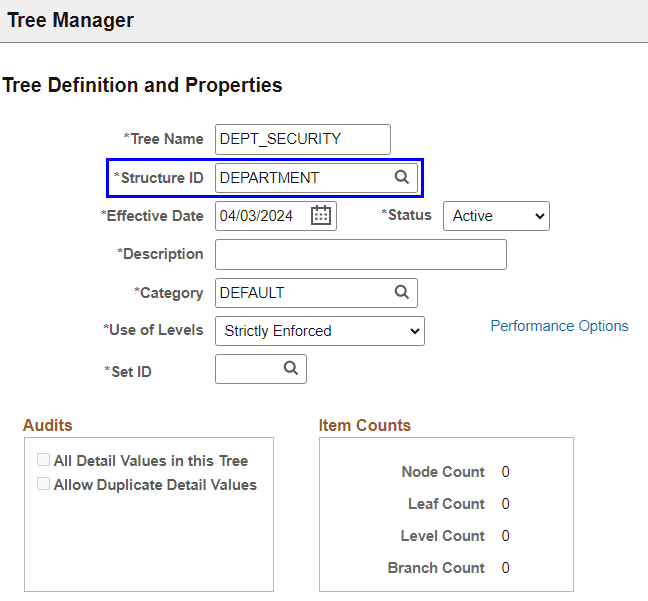
To use the department hierarchy, you need to define a tree with the Structure ID = Department. The tree needs to be active in Tree Manager.
This example illustrates the Tree Definition and Properties page.
Note:
(For performance documents) The Department tree structure needs to match the reporting hierarchy used by the performance documents if you want to align and copy business objectives to the performance documents.
See Also PeopleSoft Human Resources Administer Workforce: (Fluid) Updating Job Data and Application Fundamentals: Setting Up and Assigning Tree-Based Data Permission.
2. Define Objective Plans
New objective plans are typically defined yearly.
Objective plans are based upon department tree or position data.
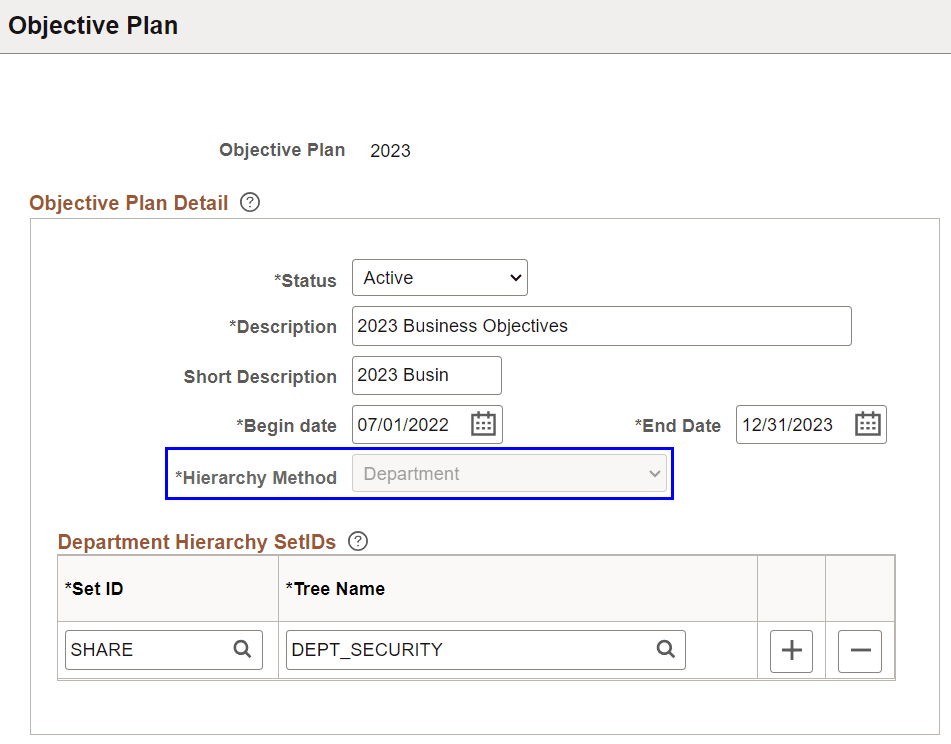
If Department is used as the hierarchy method, specify the set ID and the department tree to be used on the Objective Plan Page.
This example illustrates the Objective Plan page.
3. Define Objective Sections
Note that:
-
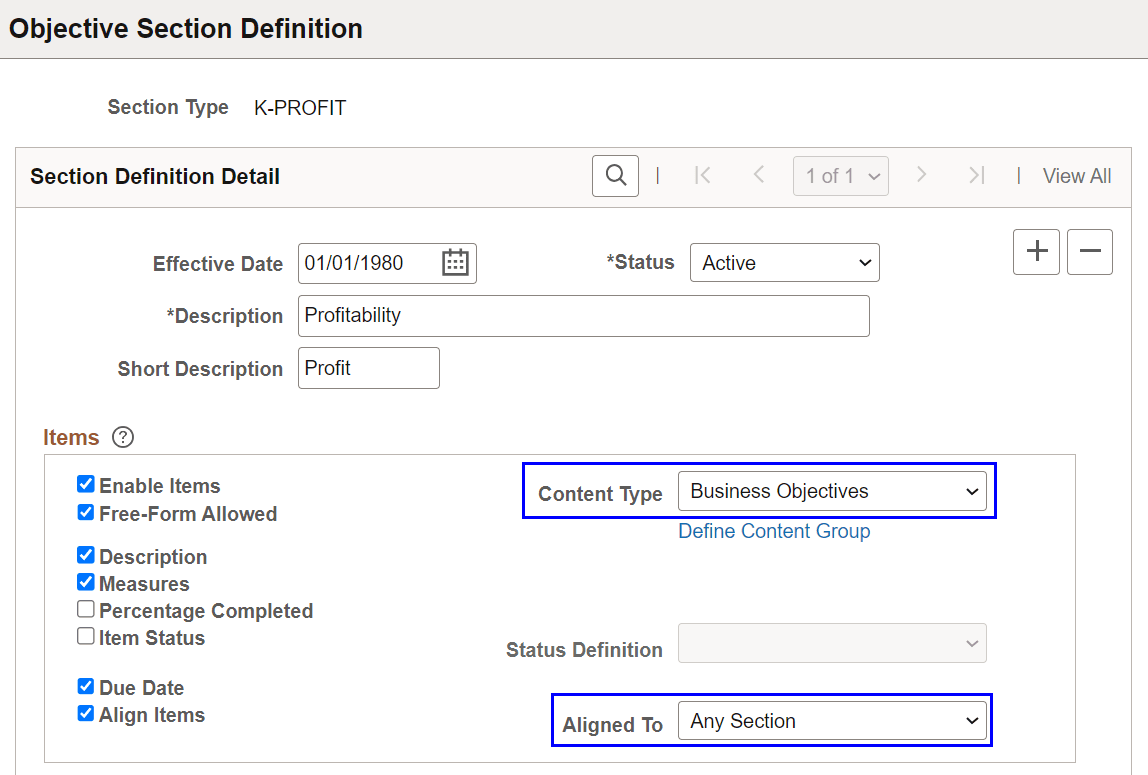
In order to copy business objectives to performance documents as items, the content type on the business objective section setup must be the same as the content type on the performance document section setup.
-
The Aligned To field on the Objective Section Definition Page shows all business objective sections that are active, plus the Any Section value which will allow alignment to any section on the business objective page above in the hierarchy.
-
Recommendation: Use Any Section unless you need to tightly align content.
This example illustrates the Objective Section Definition page.
4. Objective Template Definition
Note that:
-
If you want to automatically populate the page title with the department or position name, select the Add Dept/Position to Title check box on the Objective Template Definition - General Page. This name will be appended to whatever is specified in the Default Title field.
-
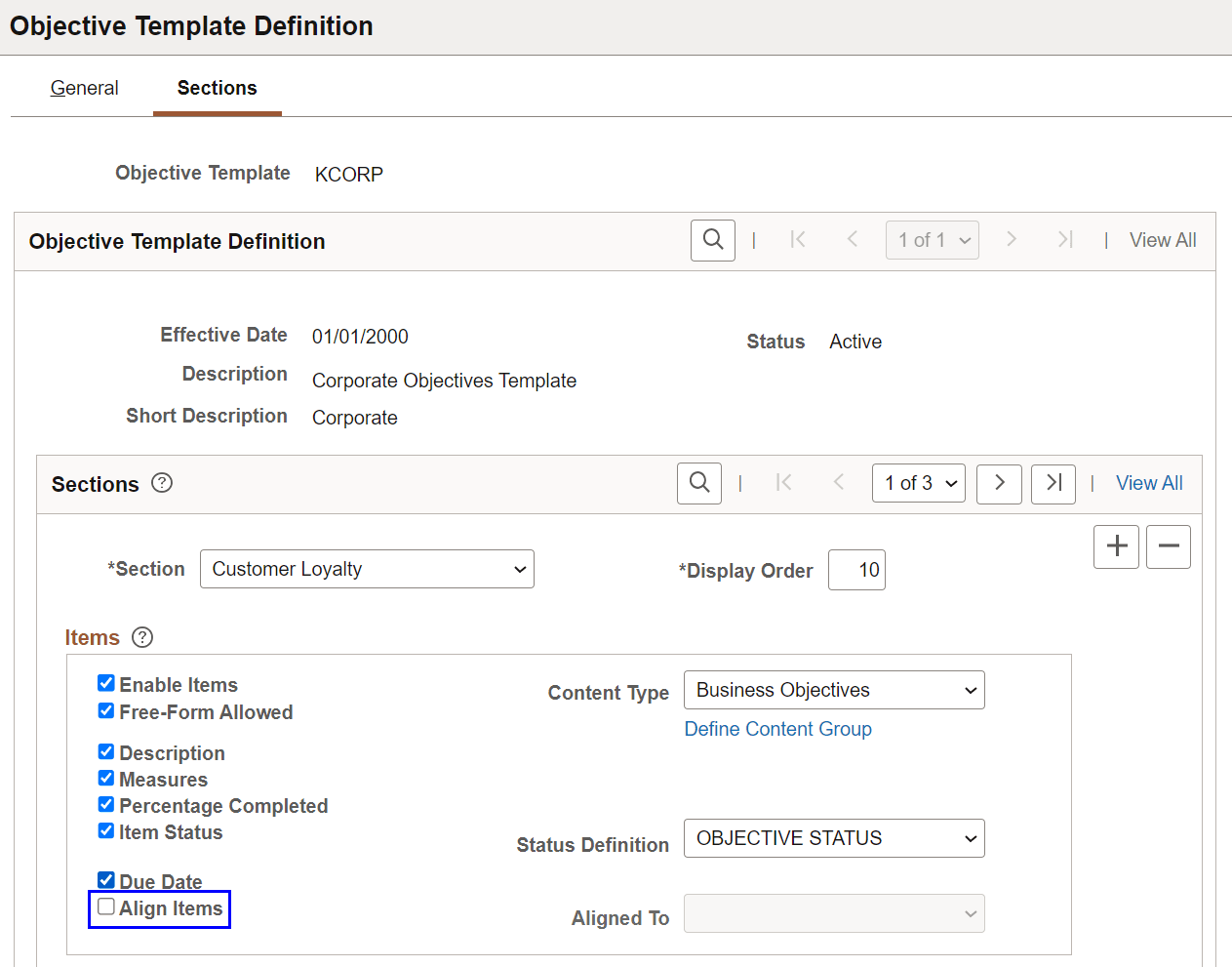
Recommendation: Use a separate template to create the business objective page for the top node of the hierarchy. The Align Items field on the Objective Template Definition - Sections Page for this template should be blank since there aren’t any business objectives pages above this node to align to.
This example illustrates the Objective Template Definition - Sections page.
5. Identify Objective Nodes
Note that:
-
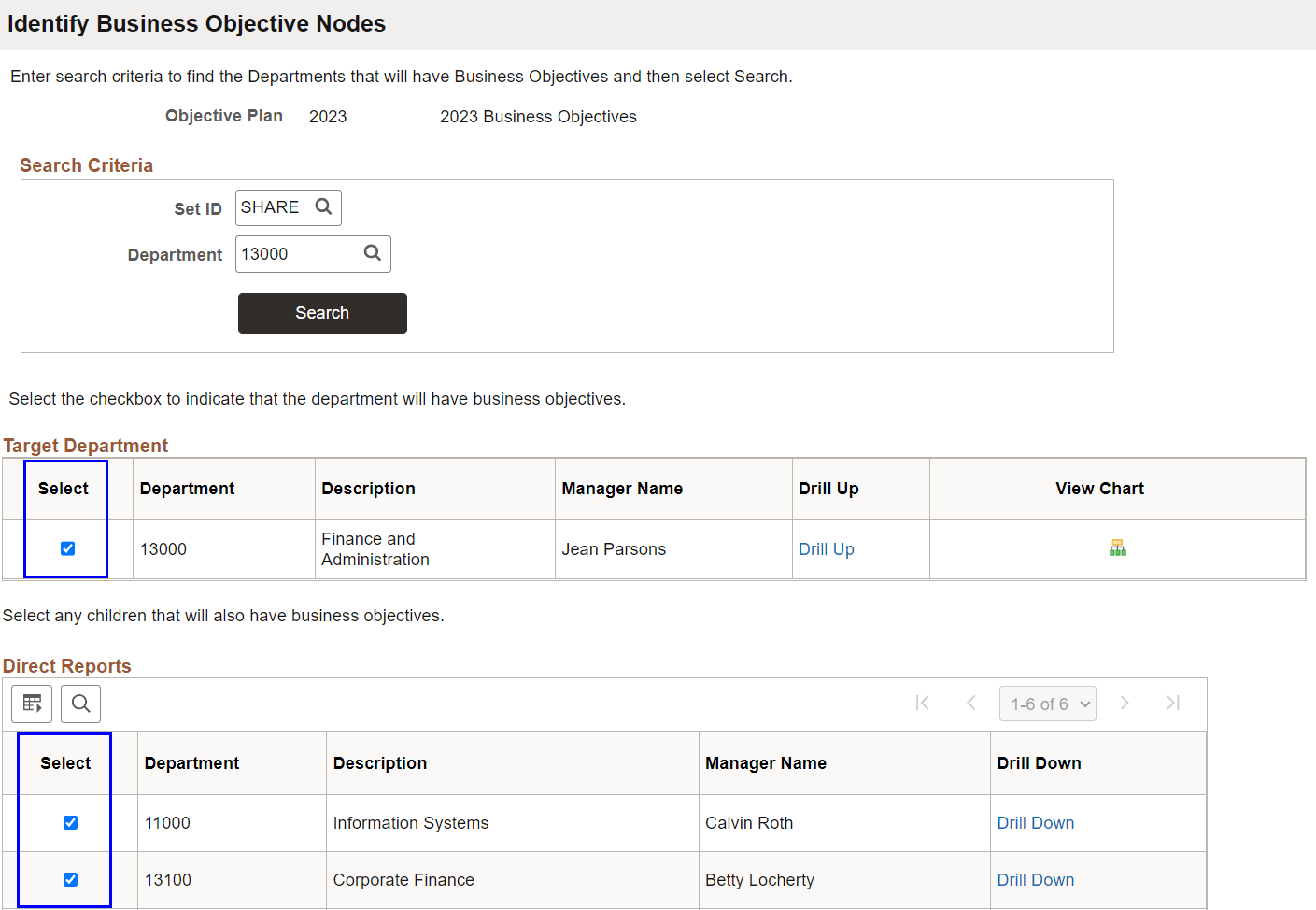
You must identify the departments or positions that will have business objective pages on the Identify Business Objective Nodes Page prior to creating them.
-
Recommendation: Only identify departments or positions that will have published pages. If some pages are identified, and not published, the hierarchy will not be able to climb beyond the unpublished pages.
This example illustrates the Identify Business Objective Nodes page.
6. Create Business Objectives
Note that:
-
Recommendation: To avoid page owners from having access to unpublished objective pages and accidentally aligning before the page is complete, create the pages one level at a time, starting from the top of the organization. Complete and publish the pages for that level before creating pages and assigning page owners for the next level.
-
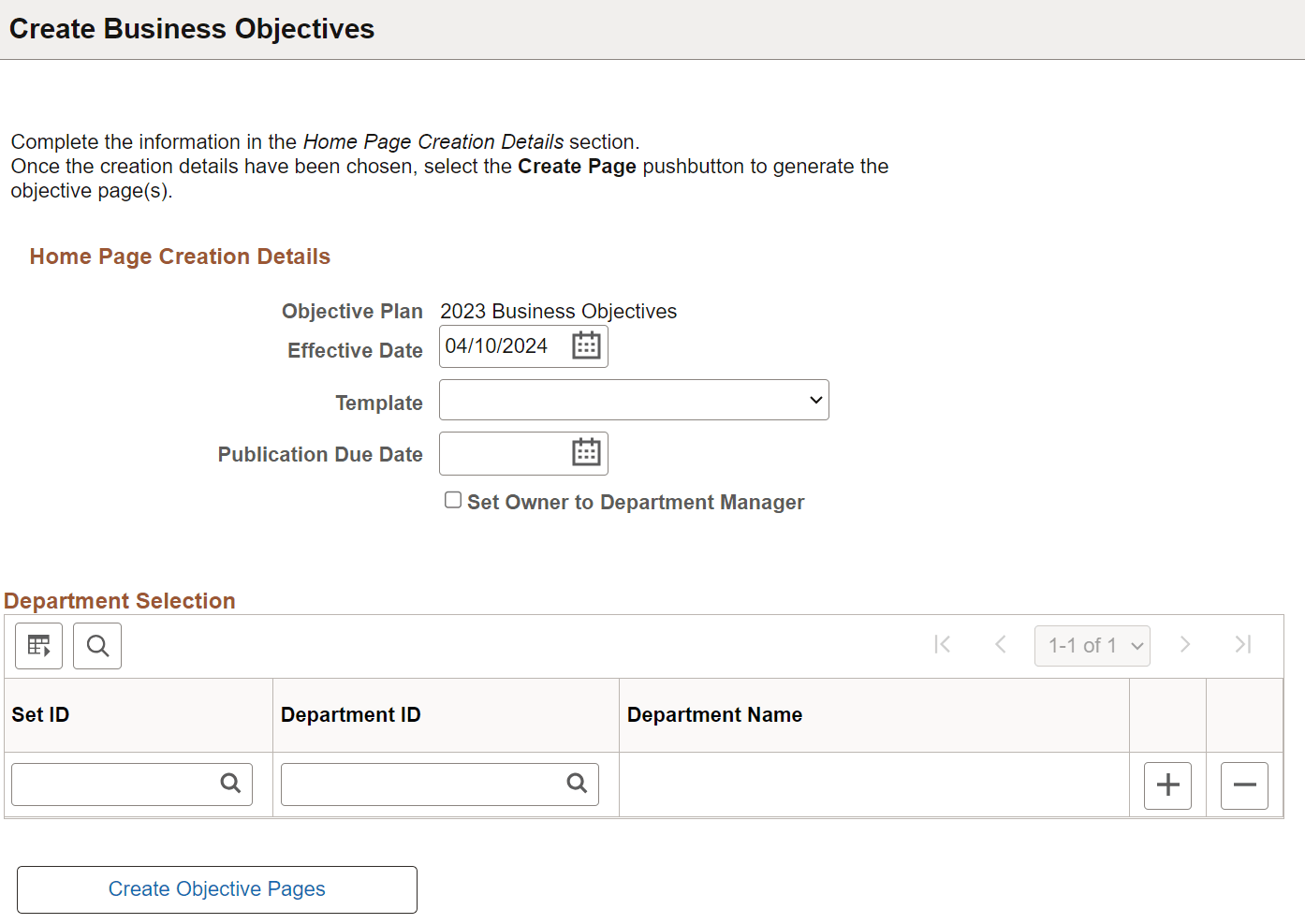
Recommendation: (For Administrators) Select the Set Owner to Department Manager (or Set Owner to Position Manager) check box when creating the pages. If you do not select this check box, or no department (or position) manager exists for the department (or position) you are creating, then you will need to manually assign the owner when you need to transfer the page. An owner must exist prior to publishing the page.
-
Department or position prompt will only include the departments or positions that have been selected on the Identify Business Objective Nodes page.
-
Both administrators and managers can create business objective pages.
-
(For Administrators) Publication due date, template, and department (or position number) are required on the Create Business Objectives Page.
Check the confirmation page messages to verify the pages were created and whether or not the owner was assigned.
This example illustrates the Create Business Objectives page for administrators.
-
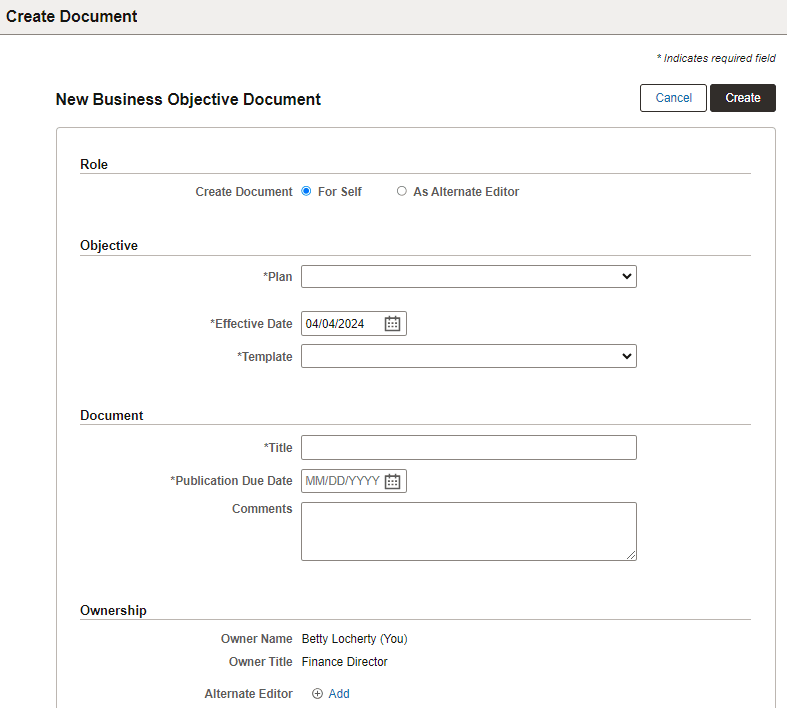
(For Fluid Manager Self-Service) Create business objective documents for themselves or as alternate editors on the New Business Objective Document Page.
A banner message is shown briefly confirming the creation of the document, which is now ready for update.
This example illustrates the New Business Objective Document page for managers.
-
7. Manage Business Objectives
Owners, alternate editors, and the administrator can view and update the objective pages.
-
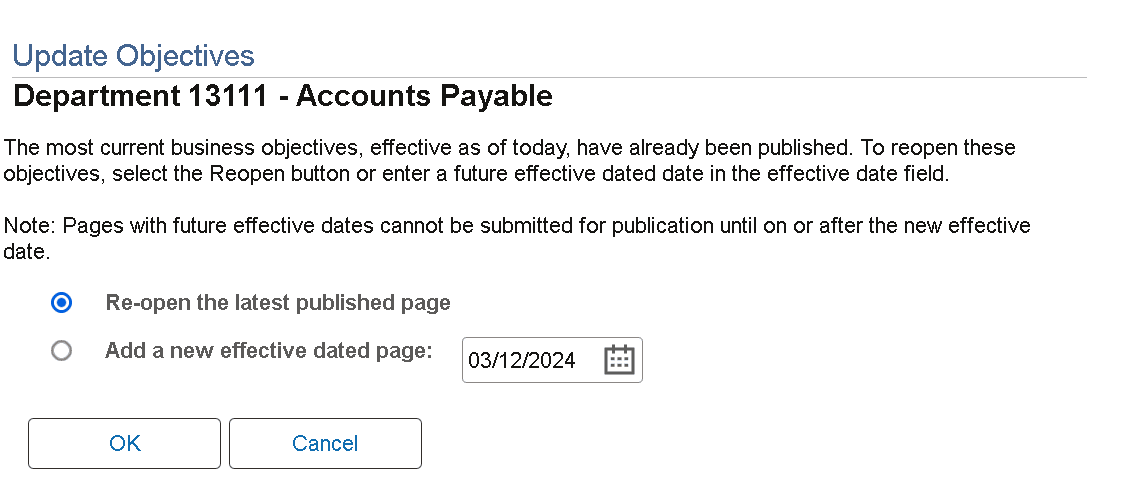
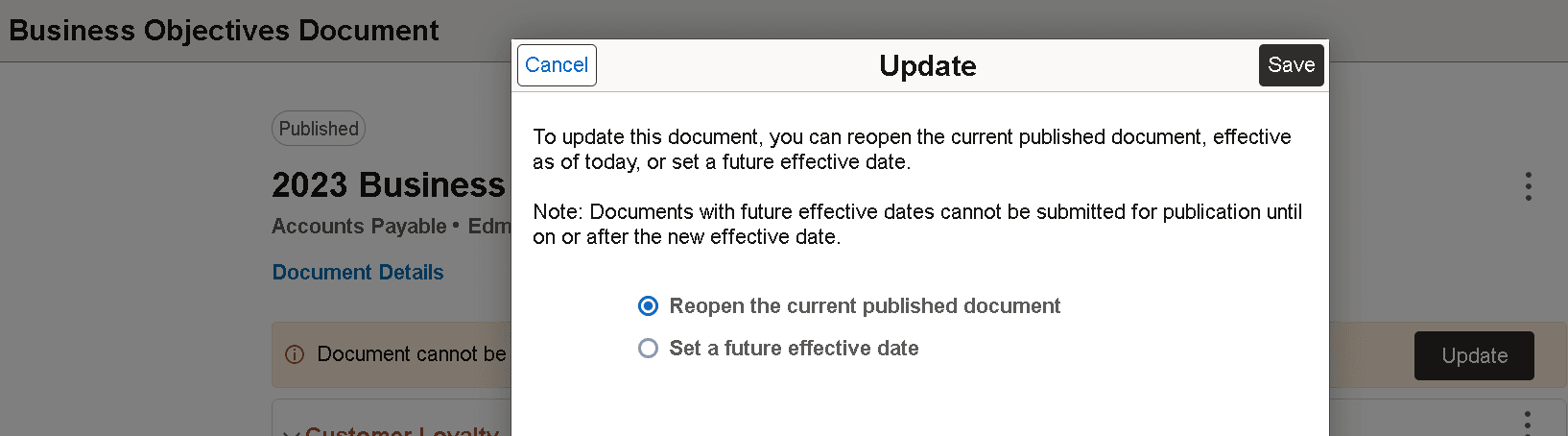
Once an objective page has been published, the next time you want to update the page, you will be prompted for a new effective date. If the most recent effective dated row is dated today, then you can either reopen that row, or add a new future-dated row.
Note:
Future-effective dated rows cannot be submitted for publication (or subsequently published), until on or after that date.
-
(For Administrators)
This example illustrates the Update Objectives page for administrators to reopen published business objective pages for edit.
-
(For Fluid Manager Self-Service)
This example illustrates the Update modal page for managers to reopen published business objective documents for edit.
-
-
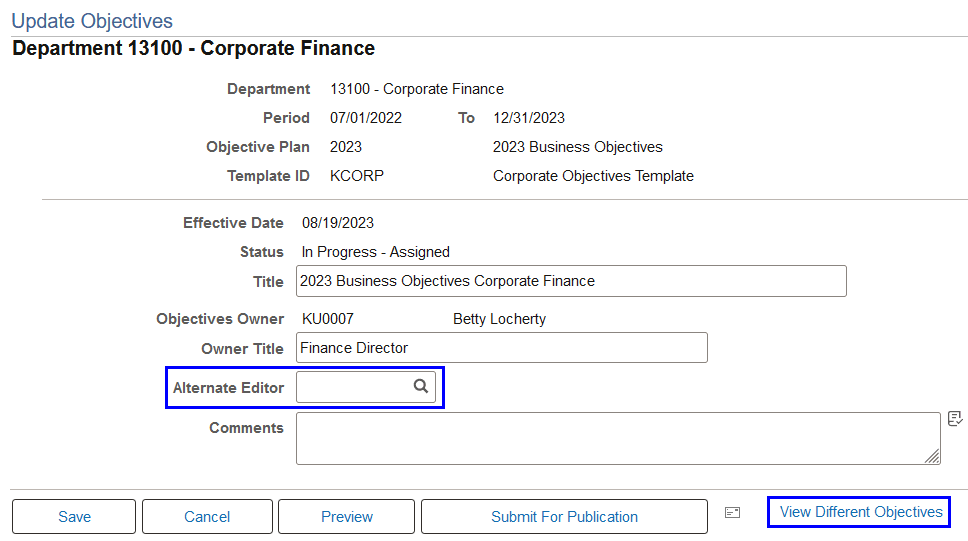
Setting the Alternate Editor field will allow an additional person to update the objective page. The alternate editor must have the permission list for ePerformance Manager.
-
(For Administrators)
This example illustrates the Update Objectives page for administrators to edit business objective pages.
-
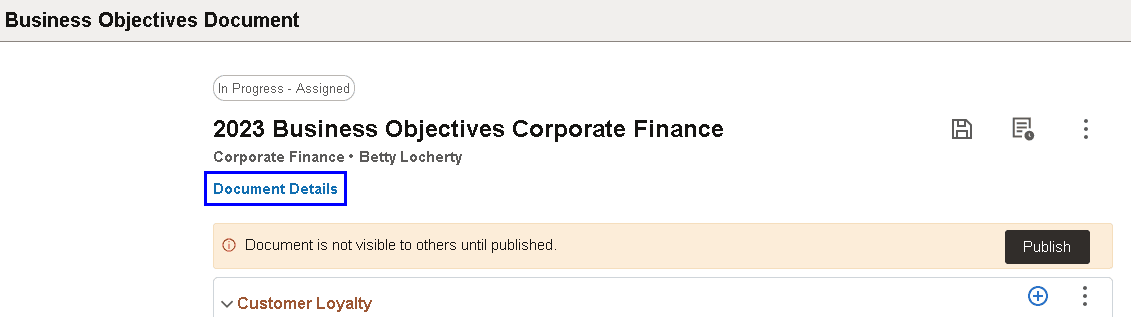
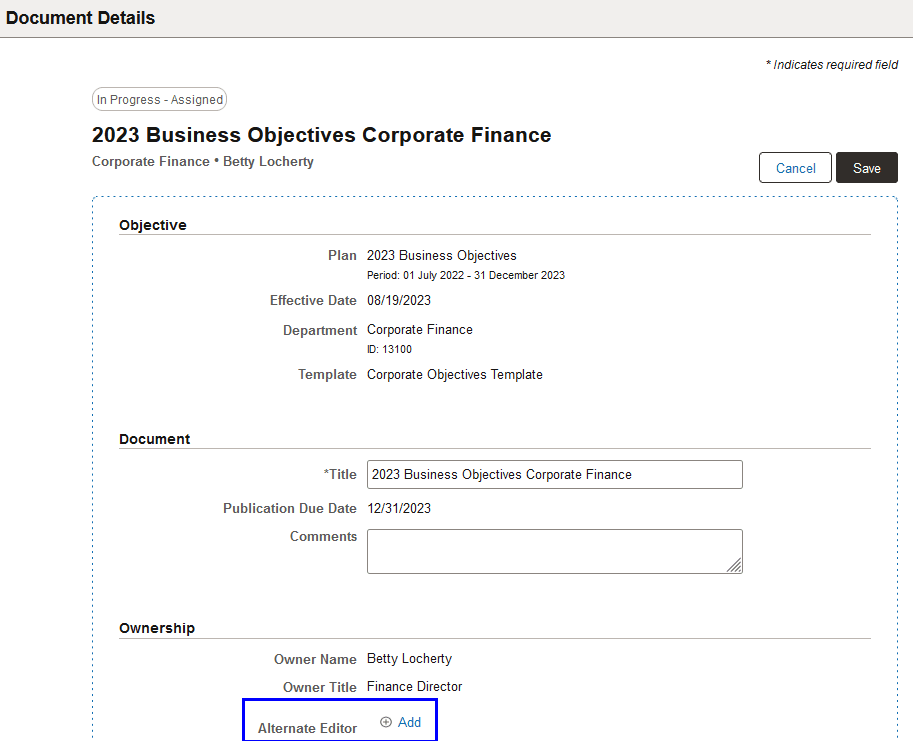
(For Fluid Manager Self-Service) Use the Document Details link on the document page to add new, edit or remove the alternate editor.
This example illustrates the Business Objectives Document page for managers to review and update documents.
This example illustrates the Document Details page for managers to review document ownership.
-
-
View other published business objectives in the hierarchy.
-
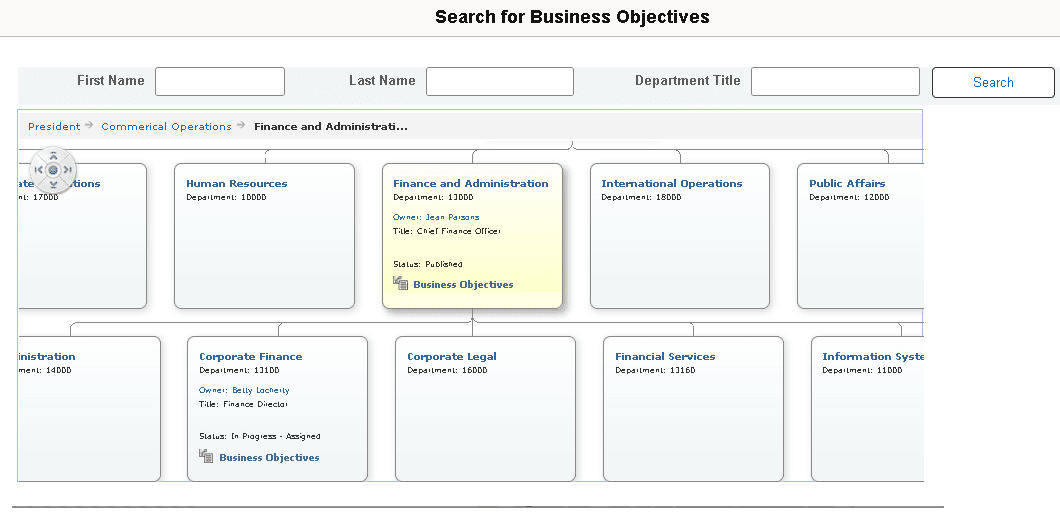
(For Administrators) The View Different Objectives link is used to view the objectives chart.
Only objective pages that have never been published can be deleted by the administrator.
This example illustrates the Search for Business Objectives page.
-
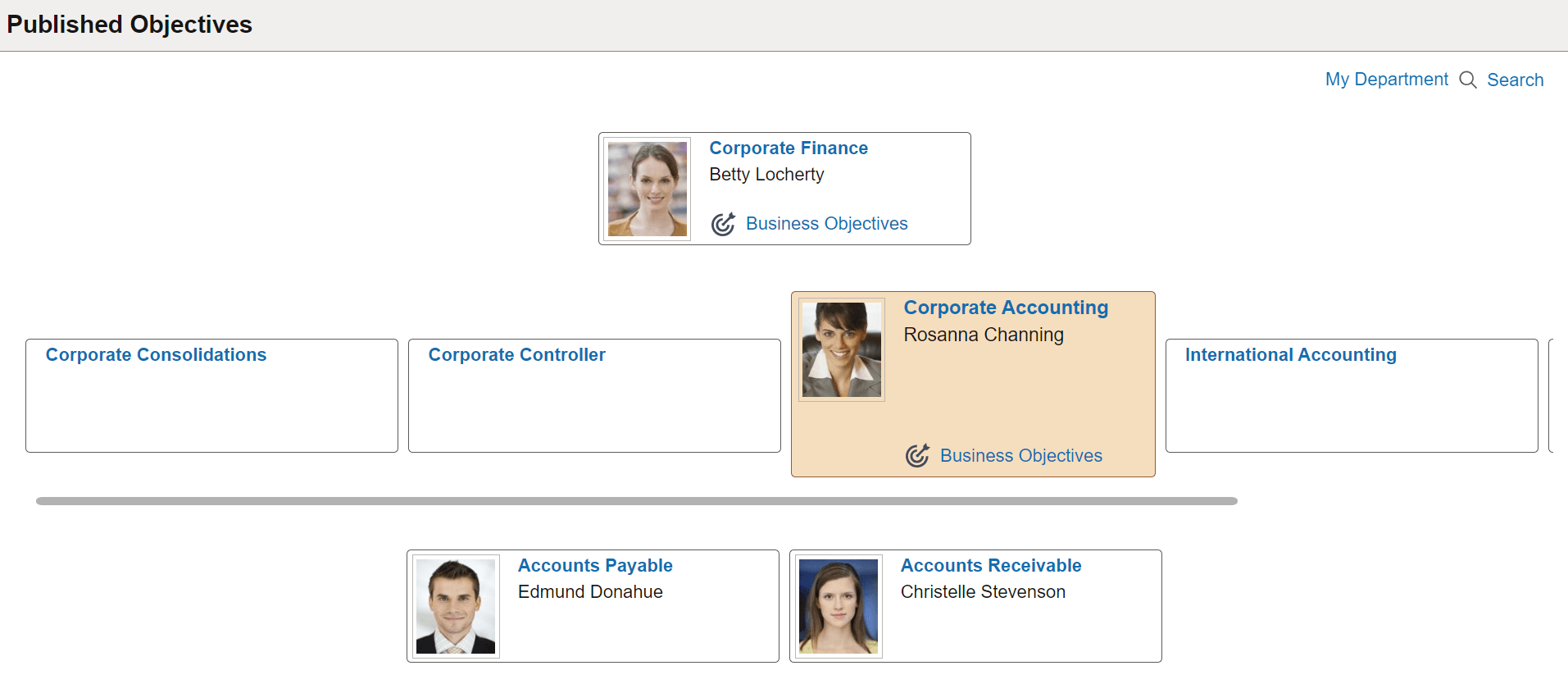
(For Fluid Manager Self-Service) Use the More Actions menu (document level) > View Published Objectives to view other published business objective documents in the hierarchy.
Managers cannot delete business objective documents.
This example illustrates the Published Objectives page.
-
-
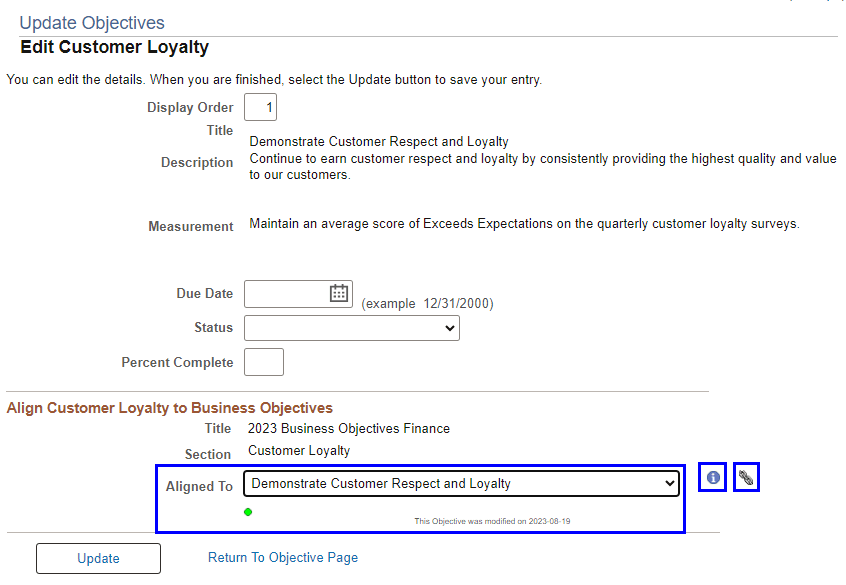
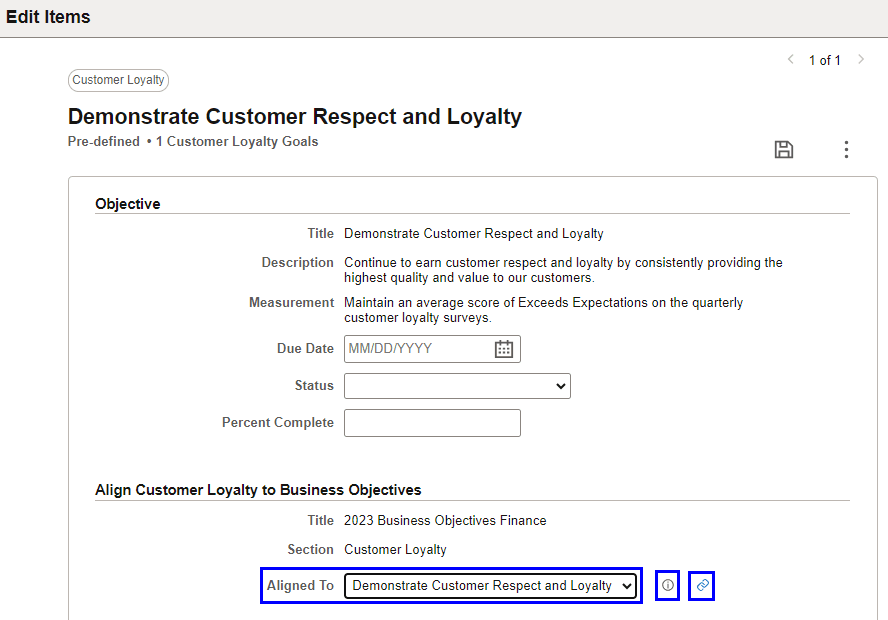
Use the Edit icon and then the Aligned To field to get business objectives from the department or position directly above the page you are currently on. The system will only allow alignment to the items from the section(s) defined in the template.
-
(For Administrators)
This example illustrates the Update Objectives page for administrators to edit business objectives.
-
(For Fluid Manager Self-Service)
This example illustrates the Edit Items page for managers to edit business objectives.
-
-
The Info icon next to the Aligned To field displays item details.
-
The Chain icon next to the Info icon displays the alignment of the item, with the progression showing the departments/positions that the item is aligned to.
-
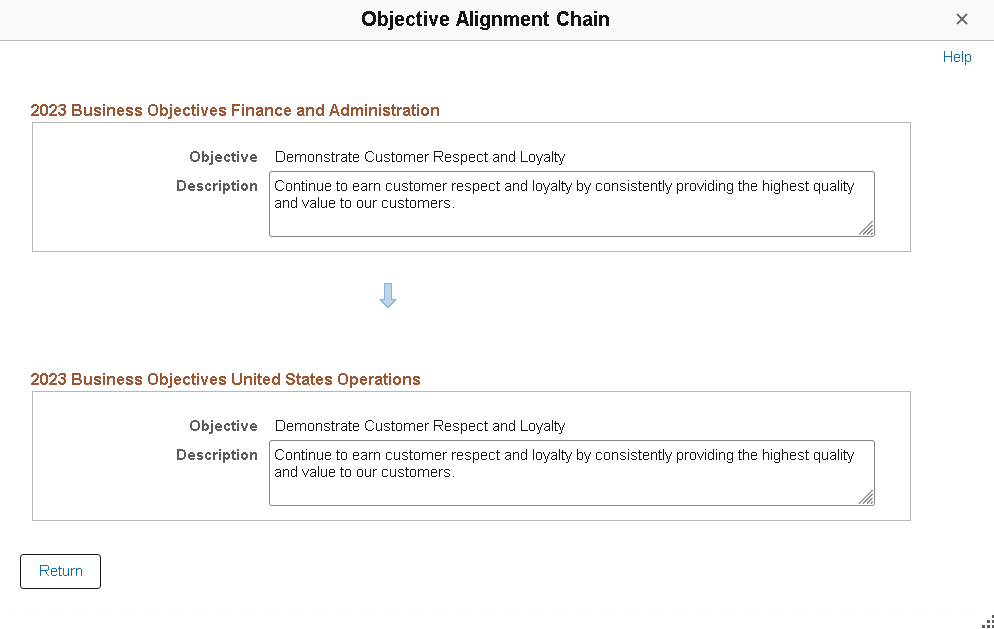
(For Administrators) The objective page you’re on is displayed at the top of the chain page. The aligned node at the top of the organization is displayed at the bottom of the chain page.
This example illustrates the Objective Alignment Chain page.
-
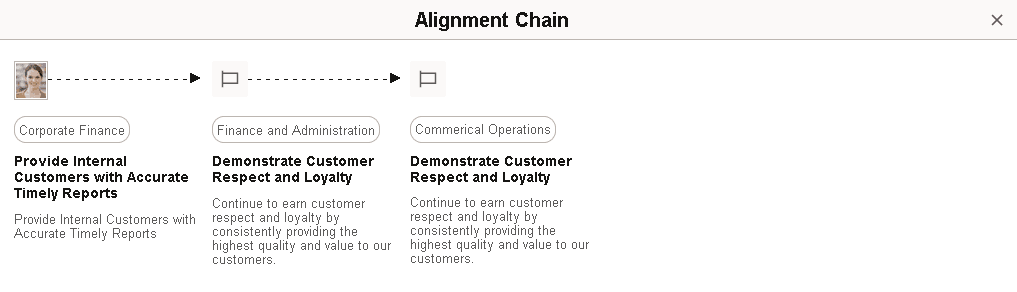
(For Fluid Manager Self-Service) The objective page you’re on is displayed on the left of the chain page. The aligned node at the top of the organization is displayed on the right of the chain page.
This example illustrates the Alignment Chain page.
-
-
(For Administrators only) The alert icon, which displays beneath the Aligned To item on the main and edit pages, signifies whether the item has been updated since it was aligned to this business objective page.
Green means the aligned item is still active and has not been updated since alignment.
Yellow means that the item is still active but has been updated since it was aligned. You may want to recheck the item.
Red signifies that the item is now inactive, and you should change the alignment to an active item. When inactive, text will also display next to the item title.
-
(From the Workforce Development menu) The page owner must use the Submit for Publication button to submit the business objective page to the administrators for publication. If modifications are made to the page after it has been published, the page must be submitted to the administrator again for publication.
(For Fluid Manager Self-Service) If enabled, managers (owners or alternate editors) can publish business objective documents as well as submit documents to the administrator for publication. For more information, see the Publish Business Objective section in this topic.
-
The View History drop-down (for administrators) or the View History button (for Fluid Manager Self-Service, next to the Save button on the document page) is available when there is more than one effective-dated row. Selecting a date value will open a new window to display the history.
-
If you delete an item from a published business objective page (update by adding a new effective-dated row), then the item will be inactivated instead of deleted. It can be reactivated. If an item is deleted before first publication, then the item is truly deleted.
-
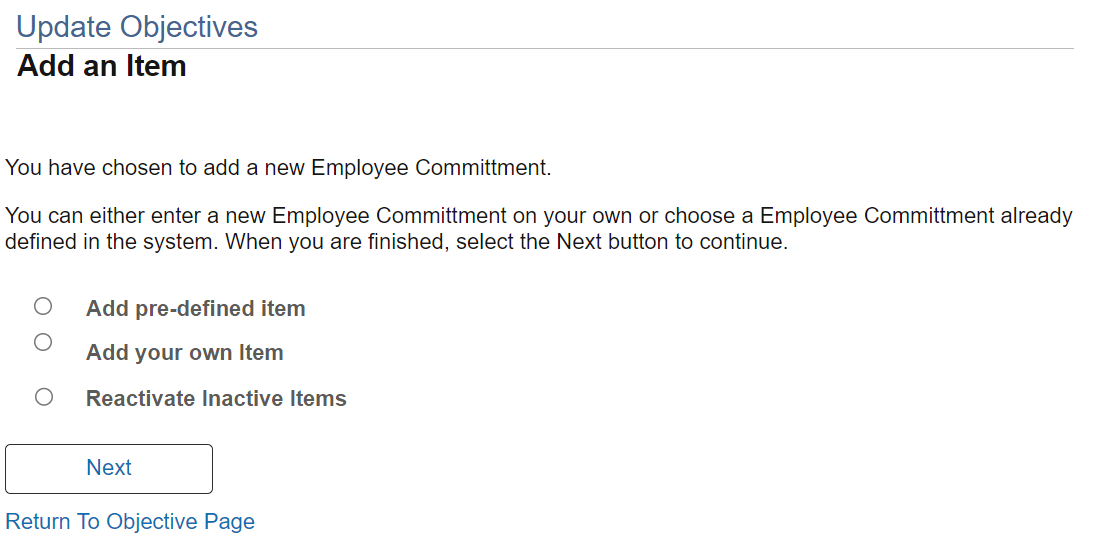
(For Administrators) Reactivate using the add item functionality.
This example illustrates the Add an Item page for administrators to reactivate inactive business objectives.
-
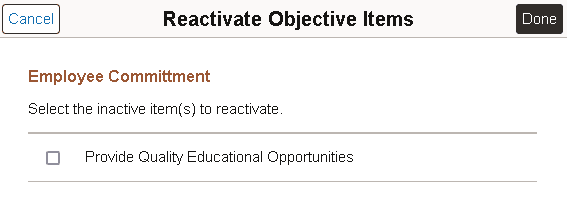
(For Fluid Manager Self-Service) Reactivate using the More Action menu (section level) > Reactivate Items.
This example illustrates the Reactivate Objective Items page for managers.
-
See Also (Classic) Managing Business Objectives and (Fluid) Working With Business Objective Documents.
8. Assign or Transfer Business Objectives
Note that:
-
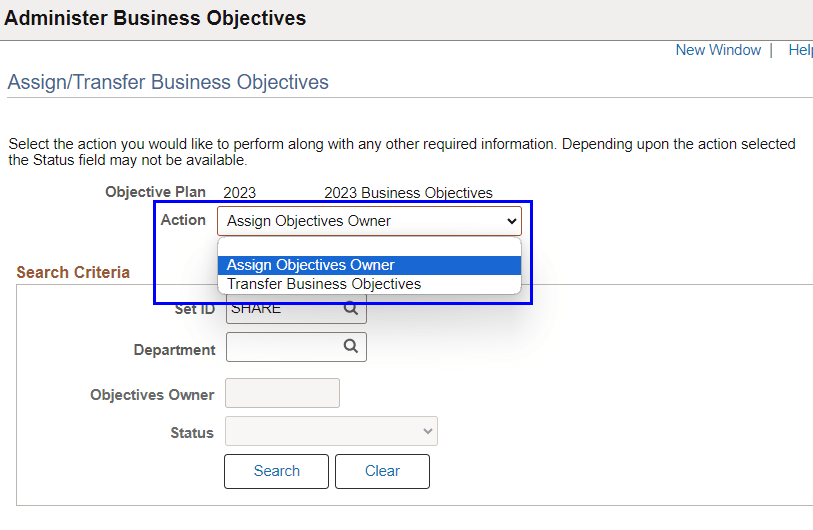
You can only assign an owner to business objective pages that are currently without an owner (status = In Progress - Unassigned).
-
Business objective pages must have an owner before they can be published.
-
When transferring a business objective page to a new owner on the Assign/Transfer Business Objectives Page:
-
A new effective-dated row is added if the business objective page is published.
-
The current row is updated if the business objective page is not yet published.
-
This example illustrates the Assign/Transfer Business Objectives page.
9. Publish Business Objectives
Note that:
-
Business objective pages must be published to be used on performance documents.
-
Recommendation: Publish all business objective pages prior to working on the performance documents. Features to copy items from business objectives and align items with business objectives cannot be utilized until the closest business objective page in the hierarchy is published.
-
Both administrators and managers can publish business objectives pages.
-
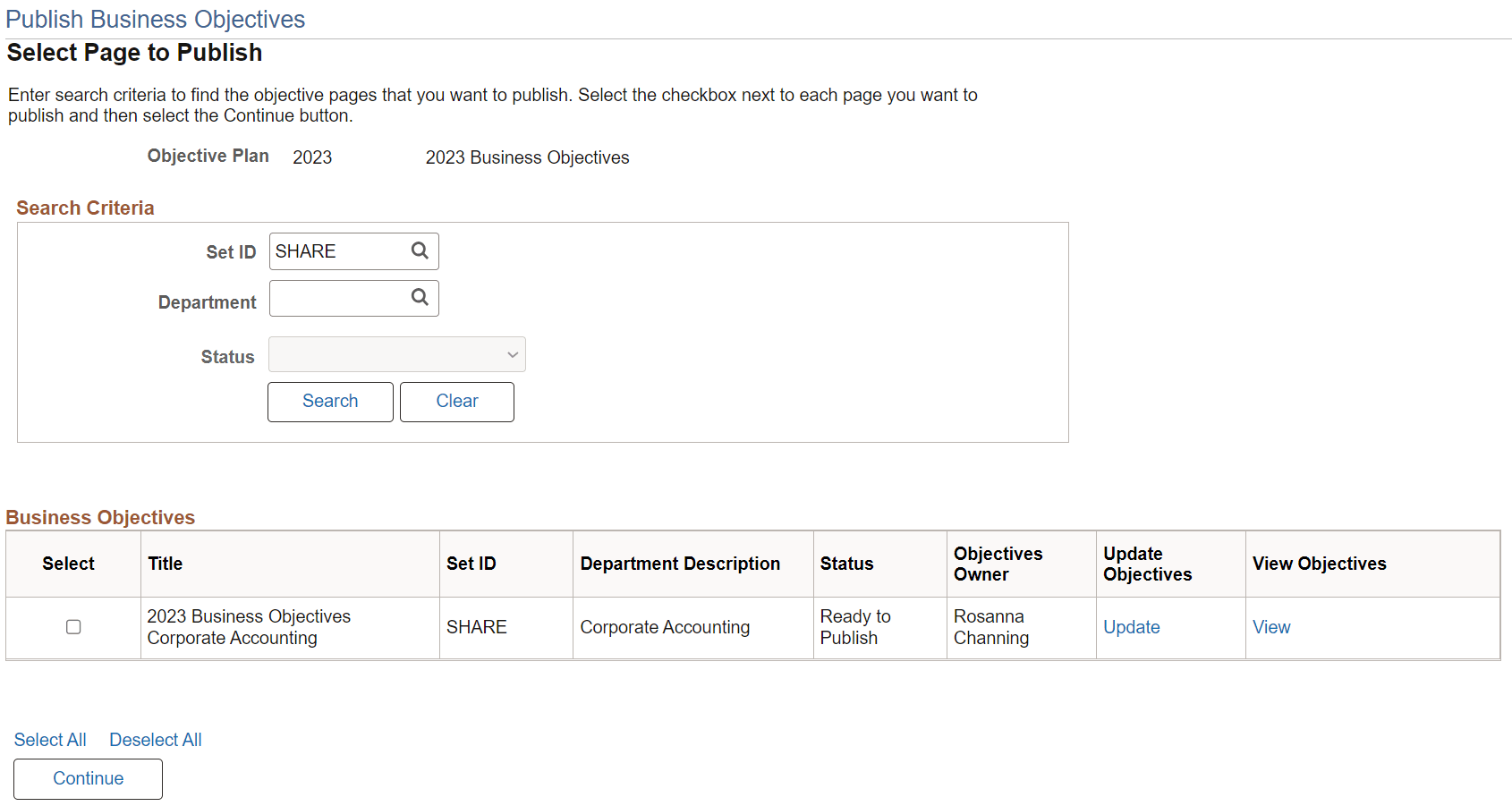
(For Administrators) Business objective pages must be in the Ready to Publish status to be available for publication on the Publish Business Objectives - Select Page to Publish Page.
This example illustrates the Publish Business Objectives page used by administrators to publish business objective documents.
-
(For Fluid Manager Self-Service) Feature is available when the option to allow managers (page owners or alternate editors) to publish business objective documents is enabled on the ePerformance Installation - Objective Pages Page.
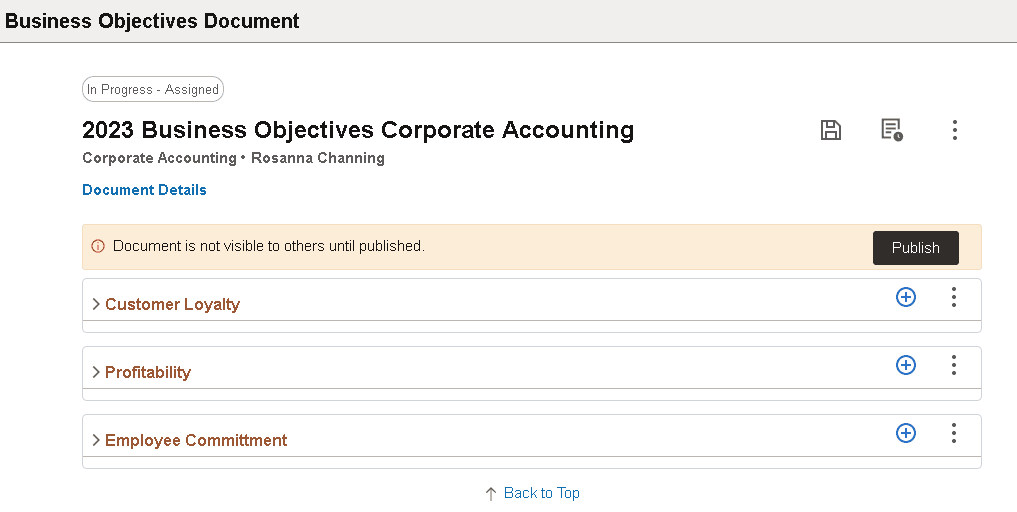
Managers can publish In Progress - Assigned business objective documents of which they are the owner or alternate editor, and the documents have never been published.
This example illustrates the Publish button on the Business Objectives Document page that managers can use to publish their business objective documents.
Note:
The Publish button is not available to managers when they update In Progress - Assigned business objective documents that were once published. They must use the Submit For Publication button to submit the documents to be republished by the administrator.
-
-
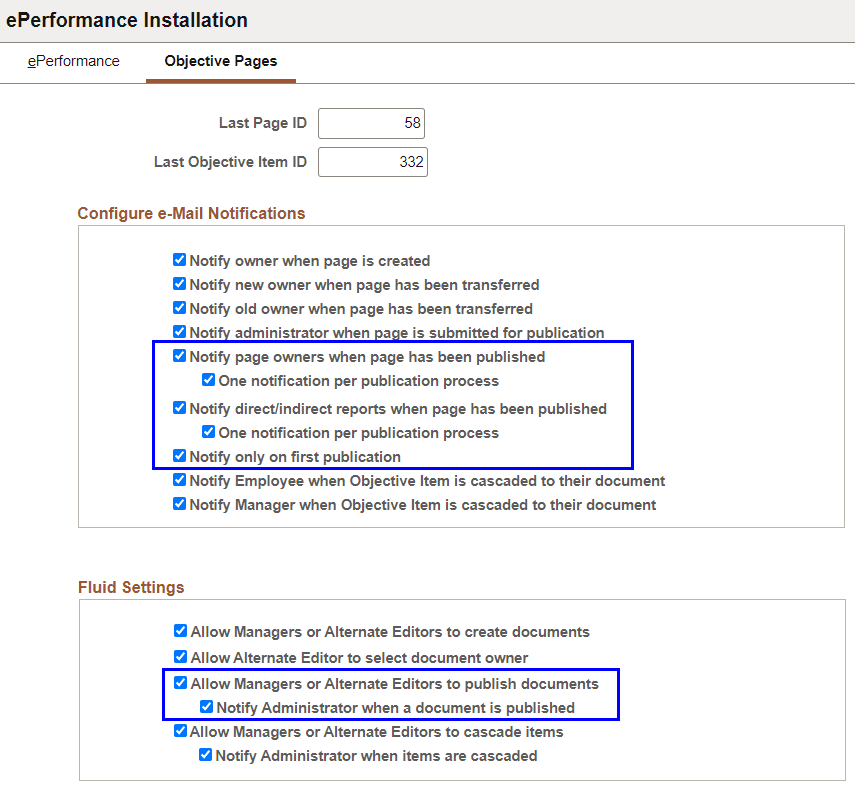
Use the ePerformance Installation - Objective Pages Page to select when the system sends notifications regarding the publication of business objectives.
To provide managers the ability to publish their business objectives in Fluid Manager Self-Service, select Allow Managers or Alternate Editors to publish documents and the associated notification option (if desired).
This example illustrates the ePerformance Installation - Objective Pages page.
-
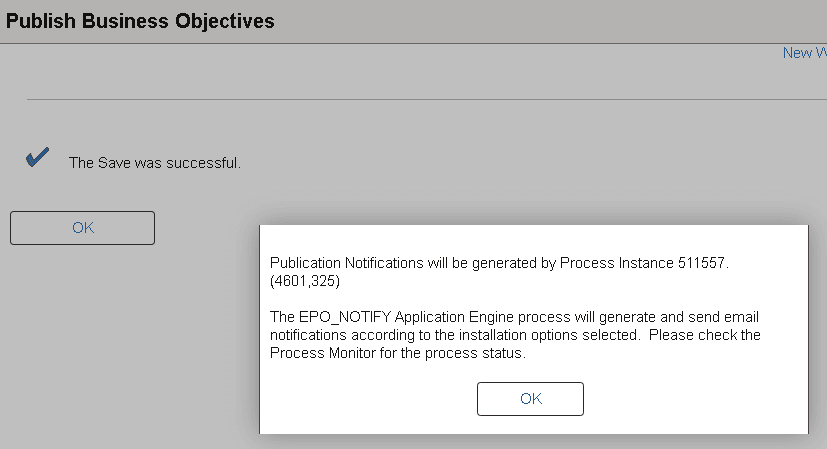
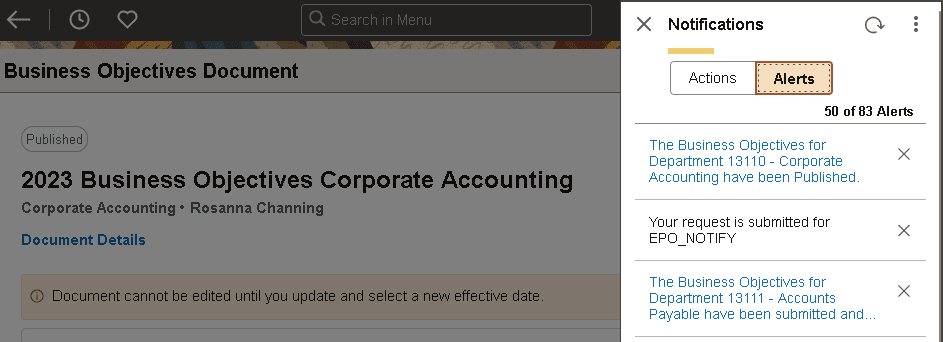
Each time you publish an objective page and you have publication notifications selected on the installation page, a notification process will be submitted to the process scheduler and you will get the following message identifying the process instance when you confirm your publication.
-
(For Administrators)
This example illustrates the publication confirmation as popup message.
-
(For Fluid Manager Self-Service)
This example illustrates the publication confirmation as informational alert displayed in the Notifications panel.
-
-
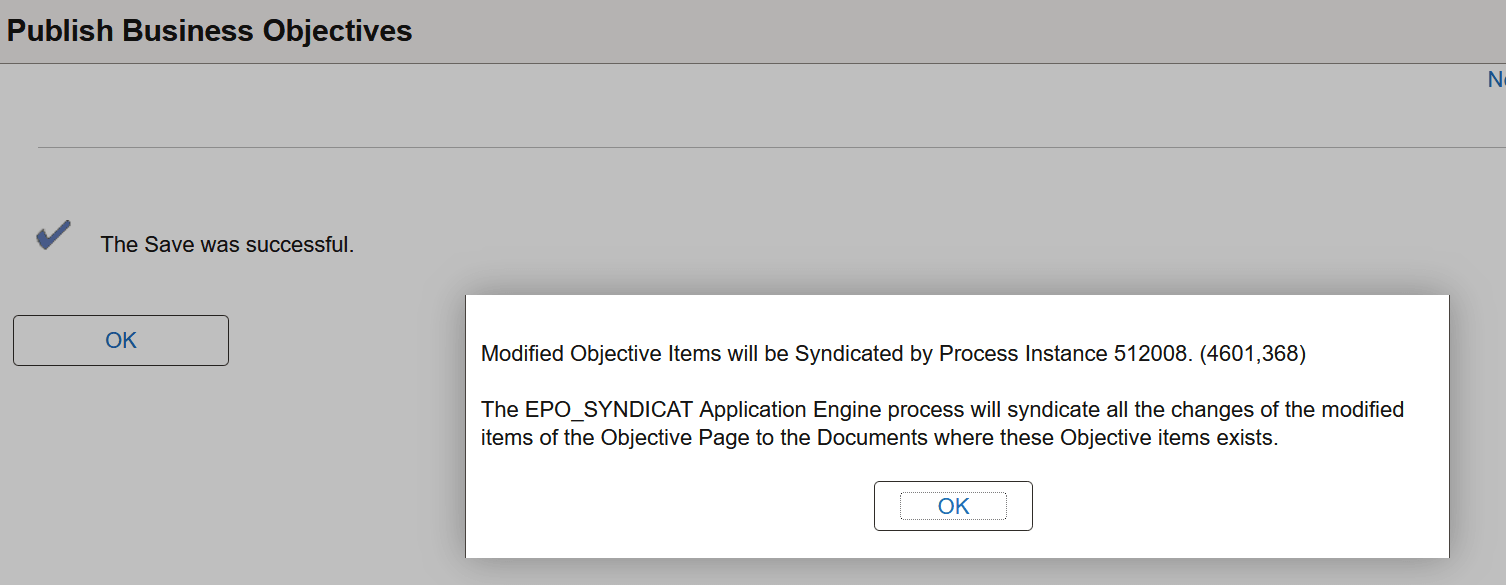
After a business objective page has been published, and you are republishing it after making updates, a process for syndication will be submitted to the process scheduler and you will get the following message identifying the process instance when you confirm your publication.
This example illustrates the process for syndication confirmation as popup message.
-
Once a business objective page has been published, it cannot be deleted.