The Activity Guide Composer Framework for OnBoarding
The Activity Guide Composer frameworks lets you define OnBoarding templates that can be instantiated to perform steps pointing to specific PreBoarding and OnBoarding tasks.
The OnBoarding activity guides display application steps in left panel as part of the guided process. When you select a step, the corresponding page appears in the main panel. The activity guide also provides navigation buttons in the page banner for navigating through the steps.
To set up templates using the Activity Guide Composer, see the Enterprise Components: Understanding the Activity Guide Composer documentation.
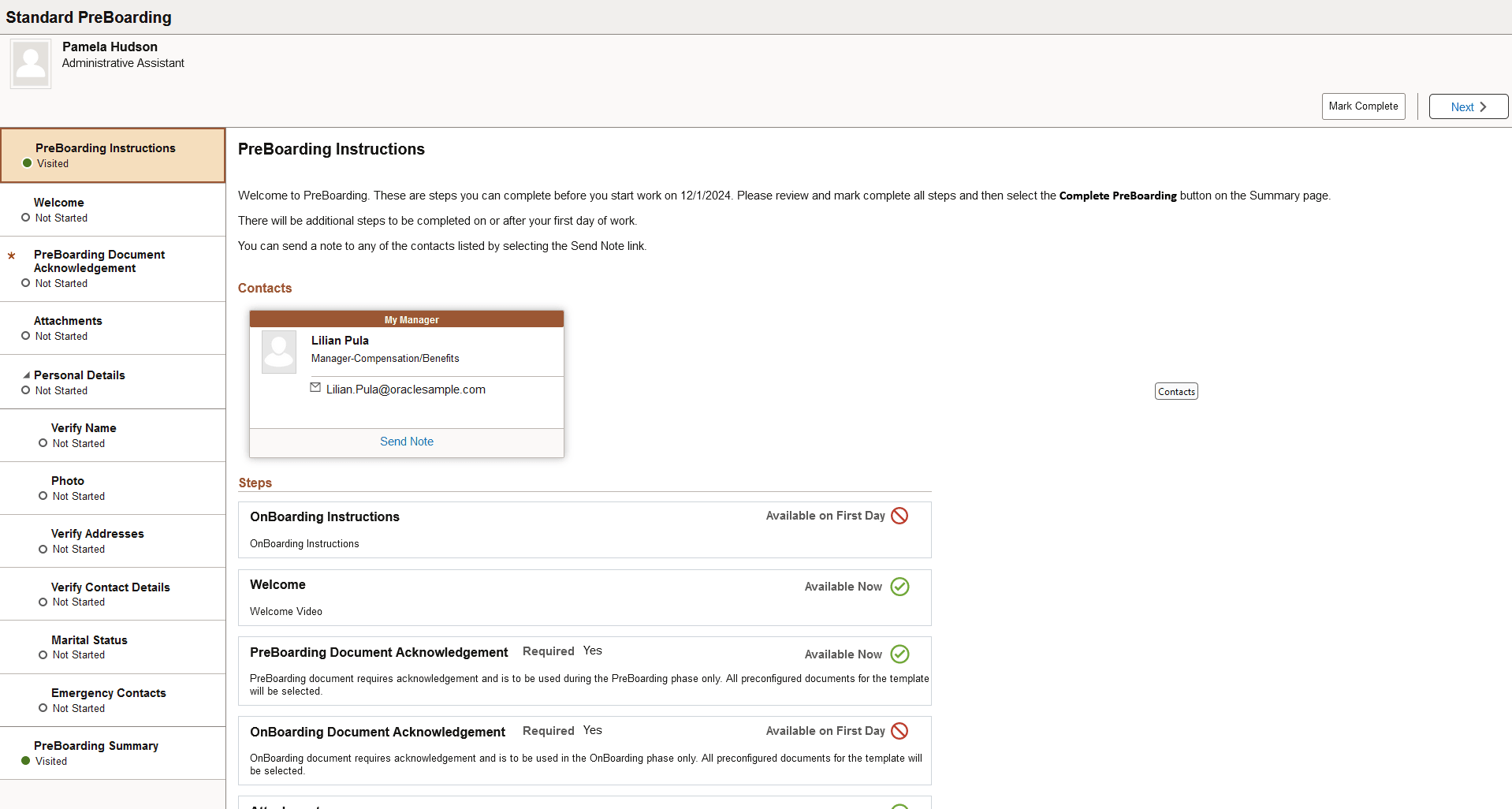
This example illustrates the layout for PreBoarding for a large form factor device.
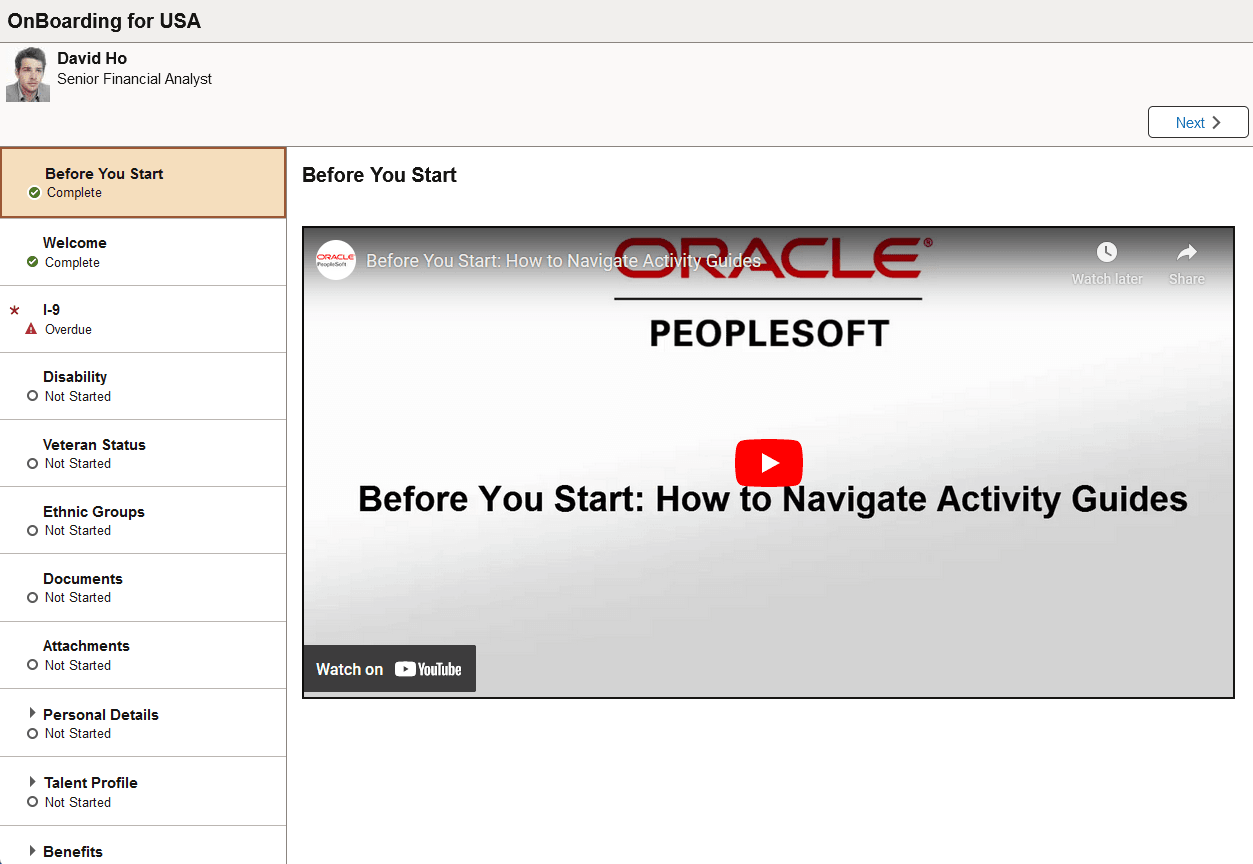
This example illustrates the layout for OnBoarding for a large form factor device.
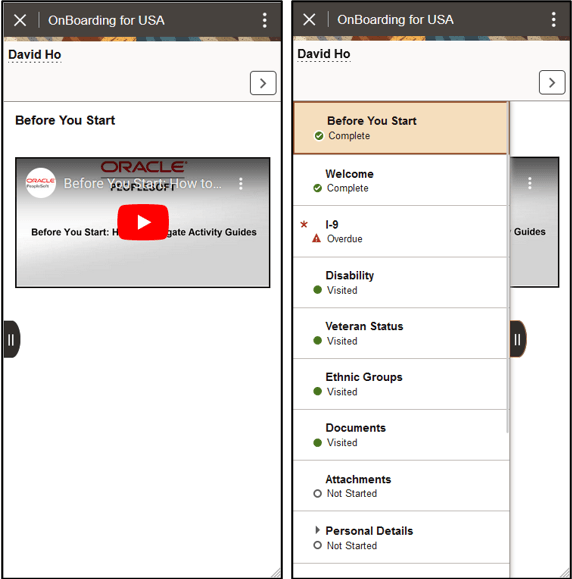
This example illustrates the layout of OnBoarding on a small form factor device. In the first image, the left panel is hidden. In the second image, the left panel is exposed.
Note:
During runtime, PeopleTools manages the delivery of the activity guide. Throughout this topic, the page illustrations show the page sections of the PreBoarding and OnBoarding steps without the context of the activity guide process. Even though the framework is not illustrated, remember that all steps appear within that framework.
Page Banner
The top of PeopleSoft pages is called the page banner.
On most pages, users see the standard set of banner icon buttons.
| Field or Control | Description |
|---|---|
|
|
Select this button to exit the OnBoarding activity guide. If you have not selected the Complete PreBoarding or Complete button on the summary page before exiting, you can resume the OnBoarding process at a later time. |
 or
or  Exit button
Header (Sub-Banner)
A gray area under the main page title banner displays contextual information that is specific to the activity guide, including the person’s name and action buttons.
| Field or Control | Description |
|---|---|
|
|
Select this button to navigate to the previous step or substep. When configured to use the Auto Save feature, selecting this button will save changes to the current step before moving to the next. If it is not configured to use auto save, then the system will issue a message prompting the user to save the page first. The button is not visible on the first step in the request. |
|
|
Select this button to navigate to the next step or substep. When configured to use the Auto Save feature, selecting this button will save changes to the current step before moving to the next. If it is not configured to auto save, then the system will issue a message prompting the user to save the page first. |
|
or
|
Select the Mark Complete option to change the status of a step. See the Step List Format section that follows for more information on step statuses. |
 or
or  Previous button
 or
or  Next button

Step List Format
The following delivered OnBoarding templates are set up using the Vertical Non Sequential activity guide type:
-
OBDPRBD – Standard PreBoarding
-
OBDSTND – Standard OnBoarding
-
OBDMULT – Standard Multi-Participant OnBoarding
-
(USA) OBDUSA1 – OnBoarding for USA
-
(CAN) OBDCAN1 – OnBoarding for CAN
Your organization may define templates that require the user to follow a prescribed order or use a horizontal display. In these cases, the steps are numbered and labeled. To define sequential steps for a vertical or horizontal display, see the Enterprise Components: Activity Guide Composer - Activity Guide Type Page documentation.
The delivered activity guide type templates include a left panel that lists the steps in the OnBoarding process. This panel appears on the left of larger devices. On a small form factor such as phone, the panel is initially hidden. Select the Item/Sub-Item Section tab to expand and view the steps and navigate to other step pages.
| Field or Control | Description |
|---|---|
|
<Step or Substep Name> |
The left panel has individual steps that are labeled. The delivered OnBoarding templates do not require a sequential order to completing steps. Some steps will have substeps. Steps with substeps are indicated by an expand/collapse arrow icon before to the step name. The step is automatically expanded when you reach it. You can also select the parent step at any time to expand or collapse it. The page will highlight the current step or substep. |
|
|
This icon appears before a step label and represents that the step is required. You cannot complete an OnBoarding transaction until all required steps are completed. |
|
<Step Status> |
Each step and substep has a status. These statuses include:
Users can return to steps and substeps by selecting the step, using the navigation buttons in the banner, or accessing a page from the Summary Page (or Overall Summary) Page using the Go to Step button. |
 Required icon
For more information on how to display steps and selecting and organizing steps, see the Enterprise Components: Activity Guide Composer - Activity Guide Type Page, Enterprise Components: Activity Guide Composer - Select Steps Page, and Enterprise Components: Activity Guide Composer - Organize and Configure Steps Page.
<Transaction Name> Pages
During the activity guide process, the right or main panel displays the page for the current step in the transaction.
| Field or Control | Description |
|---|---|
|
<Title Text> |
Displays a page title that includes the step name. For substeps, the page title includes both the step and substep name, separated by a hyphen. For example, Personal Details - Verify Name indicates that the step title is Personal Details and the substep title is Verify Name. |