(PreBoarding phase only) PreBoarding Instructions Page
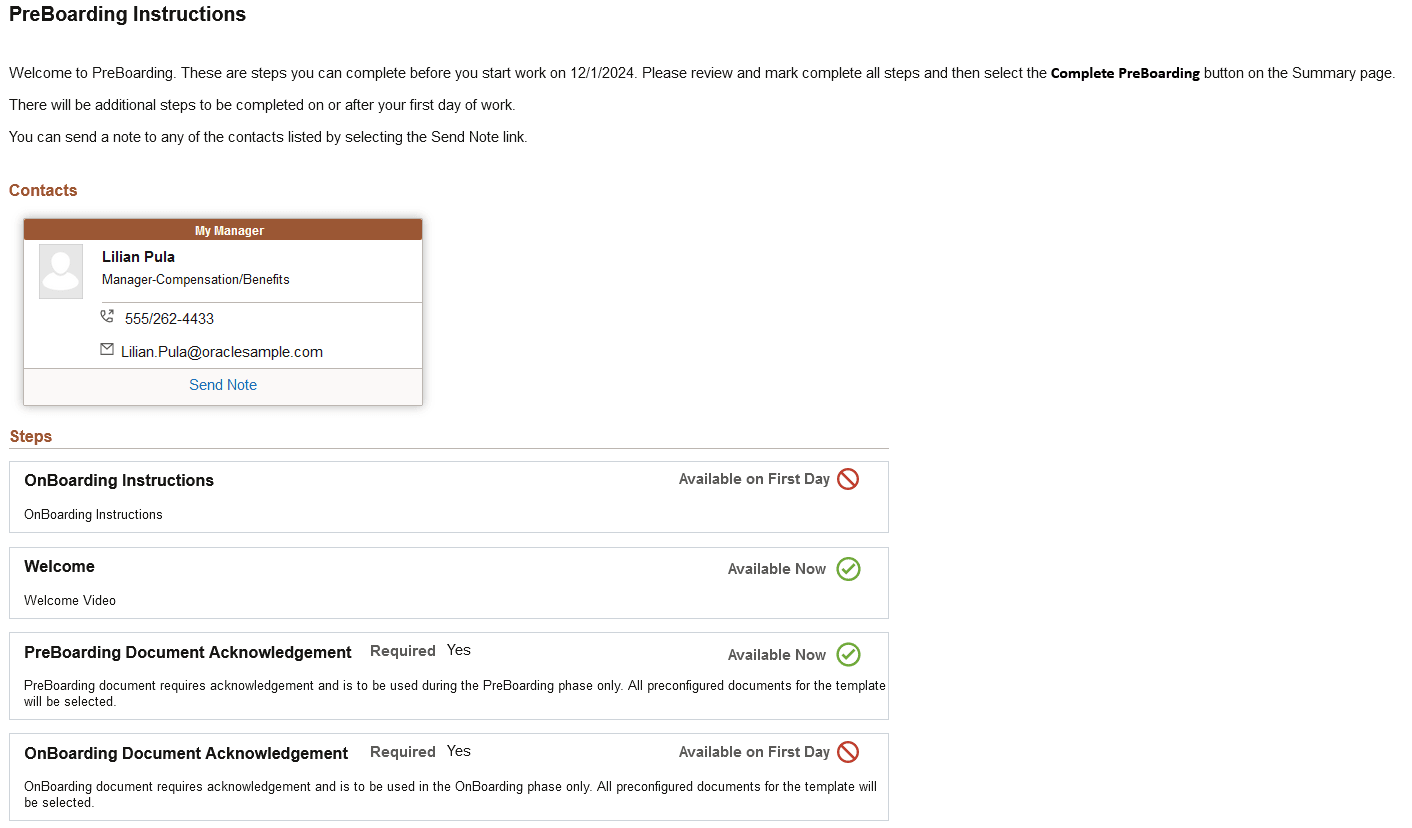
Use the PreBoarding Instructions page (HR_OBD_PB_INST_FL) to view a list of tasks that are available before and after the first day of employment. You can also view contact information and send a note to your manager.
Note:
This page is delivered as part of the Standard PreBoarding template and is available for future workers only (PreBoarding phase). As of the first day of work, the activity guide moves to the OnBoarding phase of the process and this page is replaced by the (OnBoarding phase only) OnBoarding Instructions Page.
Note:
This page is delivered as part of the Standard PreBoarding template and is available for future workers only. As of the first day of work, this page is no longer available.
Navigation:
-
Select the OnBoarding Activities Tile (for Employees) from the dashboard or select the respective card on the OnBoarding Activities Page (for Employees).
-
Select the step from the activity guide navigation or use the navigation buttons.
This example illustrates the PreBoarding Instructions page (1 of 2).
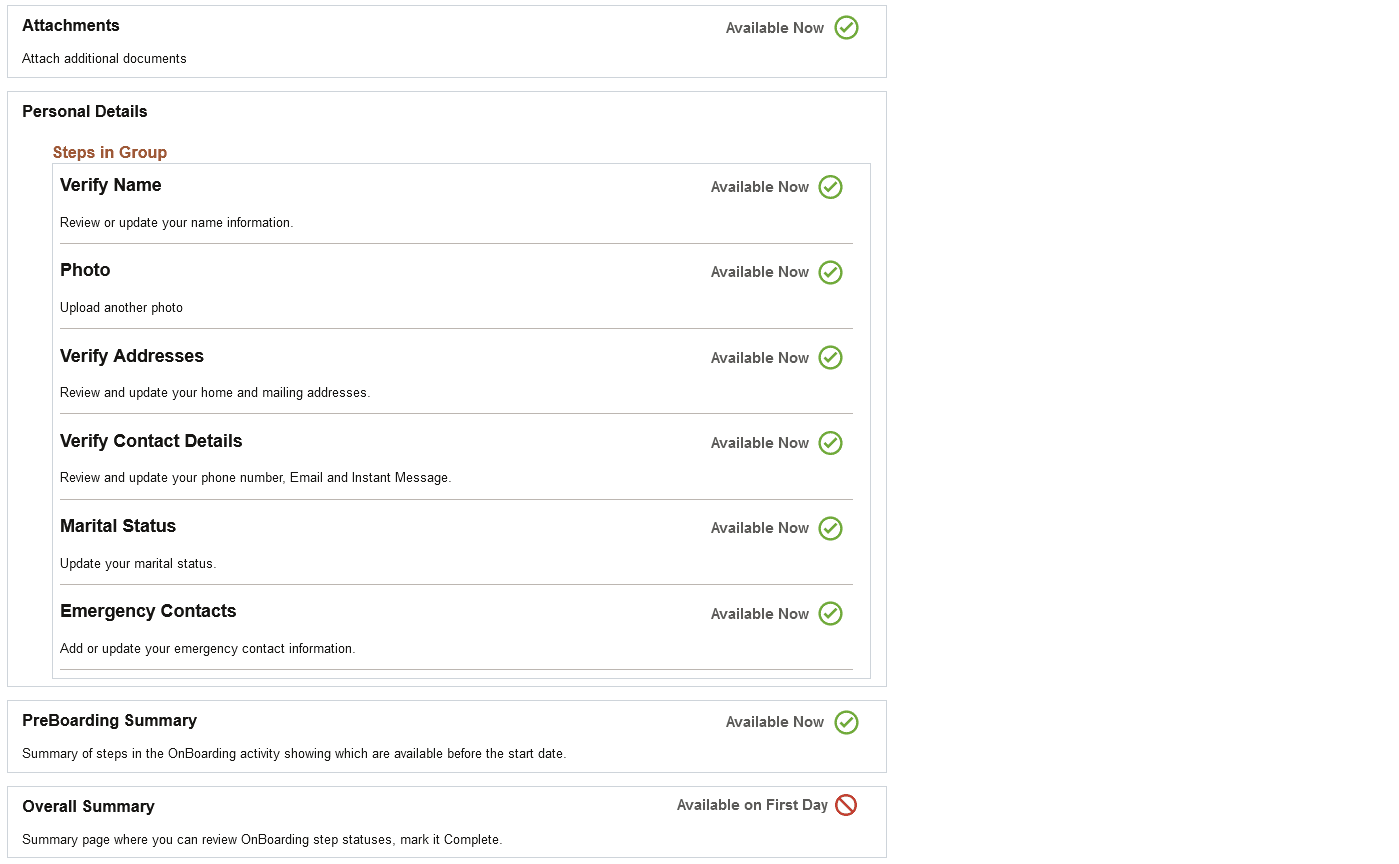
This example illustrates the PreBoarding Instructions page (2 of 2).
Contacts
This sections displays the contact information of the new hire's manager. Select Send Note on the tile to access the Notes to <Contact Name> page (HR_OBD_PB_NOTE_SCF) to compose and send a message to your manager through Notification Composer. If no email is specified for the manager, the Send Note option is not available.
Steps
This section displays the tasks that should be completed for the PreBoarding and OnBoarding phases on the activity guide process and indicates which steps are available now and those that will be available on the first day of hire.
Each steps lists a description of the task. These descriptions are defined on the Enterprise Components: AG Composer Categories - Steps Page as the long description.
| Field or Control | Description |
|---|---|
|
Required |
Displays if a step is required before completing the activity guide. The required attribute is defined for the step on the template and appear as one of the following:
|
|
Due Date |
Displays if a step has a due date but the step is not required. The due date is defined for the step on the template in the step attribute. When the due date has passed, the field text changes to red. |
|
|
Indicates that this step is available for this phase of the activity guide. Access the step to make the necessary updates and mark it complete. |
|
|
Indicates that this step is not available for this phase of the activity guide but will be available on the first day of employment. |
 Available Now icon
 Available on First Day icon
Related Topics
- Enterprise Components: Setting Up Notification Composer
- Enterprise Components: Setting Up Activity Guide Categories
- Setting Up PreBoarding and OnBoarding Activity Guides
- Enterprise Components: Activity Guide Composer - Organize and Configure Steps Page
- Enterprise Components: Configure Attributes Page