OnBoarding Activities Page (for Employees)
Use the OnBoarding Activities page (HR_OBD_ACTIVITY_FL) to view your progress and launch the OnBoarding template.
Note:
The system displays this page if you are hired for multiple jobs and are assigned multiple OnBoarding templates.
Navigation:
Click the OnBoarding Activities Tile (for Employees) when you have been assigned multiple jobs.
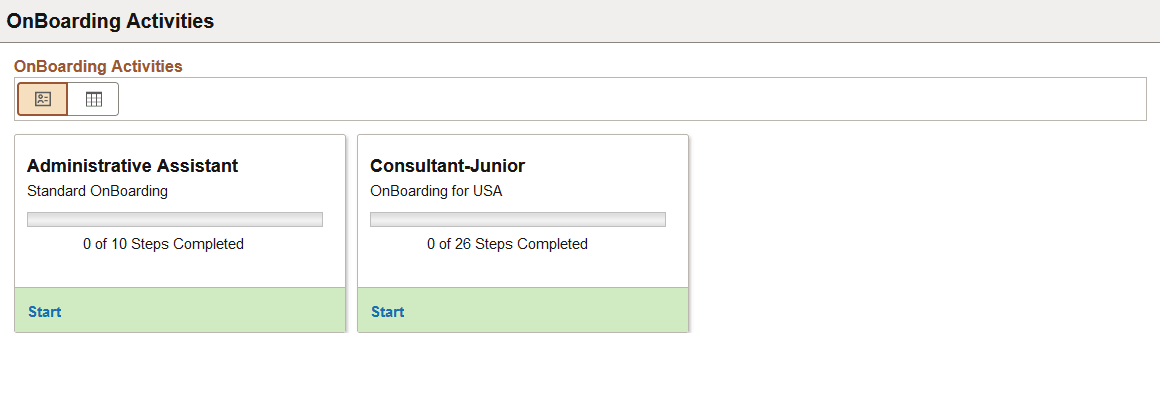
This example illustrates the card view on the OnBoarding Activities page.
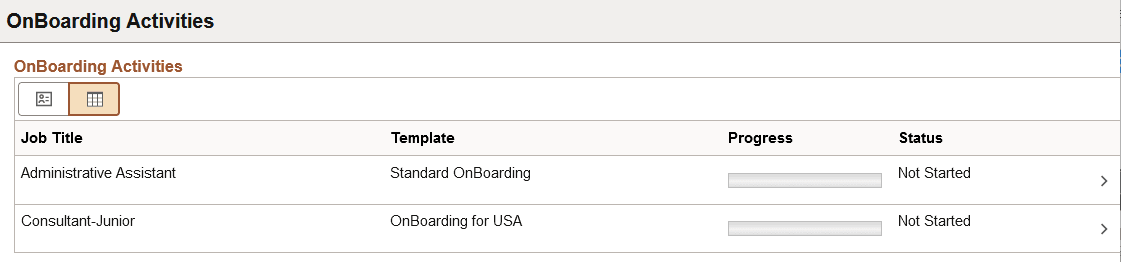
This example illustrates the grid view on the OnBoarding Activities page.
Employees and contingent workers with multiple jobs begin the OnBoarding event process by navigating to the OnBoarding Activities Page (for Employees) and then selecting the appropriate job transaction. The OnBoarding Activities page appears only if the employee has multiple jobs and needs to complete multiple OnBoarding templates. If the employee has only one job (or uses the same OnBoarding template for the multiple jobs) the OnBoarding Activities Tile (for Employees) on the dashboard will launch the activity guide directly.
The page displays the job title that initiated the trigger for the OnBoarding process. You will also see the OnBoarding template name you will be completing along with your progress and status in the process.
| Field or Control | Description |
|---|---|
|
|
Select the Card View icon button to display information in a card or tile-like format. The card view is the default mode. |
|
|
Select the Grid View icon button to display the template process in a grid format. The grid shows the same information as the card. |
 (Card View) icon button
 (Grid View)
Select a card tile or row to access the Activity Guide for this OnBoarding template.