Granting Tenure
You must grant tenure to make the tenure effective.
This section provides overviews of the rows created when saving the Assign Civil Servant Status component and tenure actions with or without step increment and discusses how to grant tenure.
Pages Used to Grant Tenure
| Page Name | Definition Name | Usage |
|---|---|---|
|
FPAEETENURE_PNL1 |
Grant tenure. You can access only trainees whose probation period has been validated. |
|
|
Competency Match Page |
FPAEETENURE_PNL4 |
Displays a comparison of the employee's competencies with those that are required by the job. |
|
Accomplishment Match Page |
FPAEETENURE_PNL3 |
Displays a comparison of the employee's accomplishments with those that are required by their job. |
|
FPAEETENURE_PNL2 |
Enter the new employee status code. |
Understanding Rows Created When Saving the Assign Civil Servant Status Component
When you save the Assign Civil Servant Status component, two rows are inserted into the employee record, one in the Status table and one in the Career table:
-
The row that is inserted into the Status table shows the employee's new status after tenure.
-
The row that is inserted into the Career table shows the tenure action, whether or not the tenure implies step increment.
The action code that corresponds to tenure is defined in the FPS Installation component.
Related Topics
Understanding Tenure Actions with or without Step Increment
If tenure is Without Step Increment, the tenure action does not terminate the step. In the action setup, select the Previous Instance Sen Carry Ov check box on the FPS Action page.
If tenure is With Automatic Step Increment, deselect the Previous Instance Sen Carry Ov check box.
Related Topics
Tenure Page
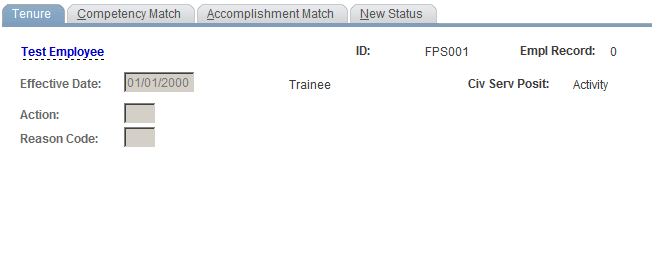
Use the Tenure page (FPAEETENURE_PNL1) to grant tenure.
Navigation:
This example illustrates the fields and controls on the Tenure page. You can find definitions for the fields and controls later on this page.
| Field or Control | Description |
|---|---|
|
Give Tenure |
Click to grant tenure to the employee. The default values for the Tenure Action and Reason codes prompt from the FPS Installation table. The effective date is the tenure date. |
Related Topics
New Status Page
Use the New Status page (FPAEETENURE_PNL2) to enter the new employee status code.
Navigation:
This example illustrates the fields and controls on the New Status page. You can find definitions for the fields and controls later on this page.
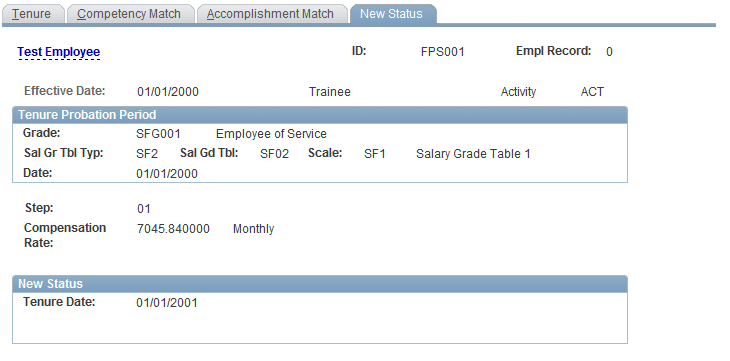
Enter the new employee status code.
The category is Civil Servant.