Setting Up the Employee Table
To set up the Employee Table, use the Employee Table (INTRFC_EMPLOYEE) component.
Page Used to Set Up the Employee Table
| Page Name | Definition Name | Usage |
|---|---|---|
|
PI_EMPLID_PNL |
Set up employee IDs when the third-party payroll system employee IDs are independent of the PeopleSoft EMPLID. |
Understanding the Employee Table
Use the Employee Table component to determine how your employees are identified in the third-party payroll system.
You can export data from any table or view in PeopleSoft HCM, as long as the record includes the PeopleSoft EmplID. To identify employees in a third-party payroll system, you can use the PeopleSoft and map the PeopleSoft EmplID to a third-party employee ID (PI EmplID) or some other unique identifier such as a Social Security Number.
Interface Employee Table Page
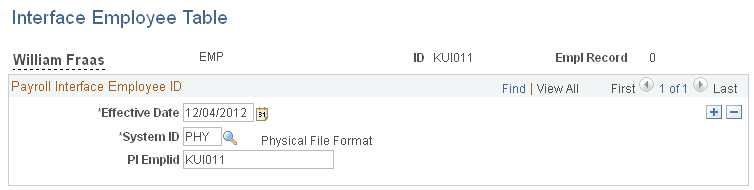
Use the Interface Employee Table page (PI_EMPLID_PNL) to set up employee IDs when the third-party payroll system employee IDs are independent of the PeopleSoft EMPLID.
Navigation:
This example illustrates the fields and controls on the Interface Employee Table page.
| Field or Control | Description |
|---|---|
|
System ID |
Select the System ID for the third-party payroll system. |
|
PI Emplid (Payroll Interface employee ID) |
Enter the ID that uniquely identifies your employees to the third-party payroll system. Note: The value of the PI Emplid field can be the third-party payroll system employee ID, the PeopleSoft EMPLID, or a national identifier such as the employee's Social Security Number. The option that you select for the System Table - Interface System Table 1 page,Convert field determines how thePI Emplid field is populated. |