Entering and Reviewing Rollover Information
This topic provides an overview of defined benefit plan rollovers and discusses how to enter rollover information.
Pages Used to Enter and Review Rollover Information
| Page Name | Definition Name | Usage |
|---|---|---|
|
PA_RT_PAY_SCHED3 |
Enter descriptive information about a payment. |
|
|
PA_RT_SCHED_RLOVR1 |
Enter descriptive information about a rollover account. |
|
|
Rollover Institution Page (Payment Schedule or Manual Schedule) |
PA_RT_SCHED_RLOVR2 |
Enter information for a rollover institution. |
|
PA_WTHDRW_CTB |
Enter the transaction when an employee elects to withdraw contributions. |
|
|
PA_CONTR_RLOVR1 |
Enter account information. |
|
|
PA_CONTR_RLOVR2 |
Enter information for a rollover institution. |
Understanding Defined Benefit Plan Rollovers
Internal Revenue Code Section 401(a)(31) requires qualified Defined Benefit Plans to allow rollovers out of the Plan to other qualified plans or to individual retirement accounts (IRAs). For most plans this requirement is in effect for distributions after 12/31/2001.
Rollovers can come from two sources: a) a payment schedule or a manual schedule, or b) contribution withdrawal.
Note:
A payment schedule and manual schedule use the same component and the same pages and tables. Therefore, the combination of a payment schedule and a manual schedule is considered just one source and not two sources of rollovers.
When rollover information is entered with regard to a payment schedule or a manual schedule, a retiree payment process is run in preliminary mode and then in confirmation mode. Rollover information appears in the Trustee Extract flat file. A rollover amount from a payment schedule or a manual schedule may include an amount from a one-time adjustment.
When rollover information is entered for a contribution withdrawal, a retiree payment process is run in preliminary mode and then in confirmation mode. Rollover information appears in the Trustee Extract flat file and is displayed online in the Review Trustee Extract Content component.
See Reviewing Trustee Extract Data.
Purge processing deletes rollover information appropriately.
Payee Payment Provider Page and Payee Manual Provider Page
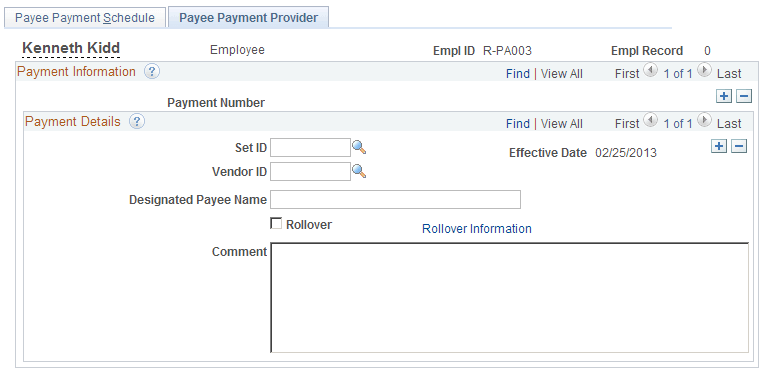
Use the Payee Payment Provider page or the Payee Manual Provider page (PA_RT_PAY_SCHED3) to enter descriptive information about a payment.
Note:
These are the same page, shown in different components.
Navigation:
This example illustrates the fields and controls on the Payee Payment Provider page. The Payee Manual Provider page is identical.
| Field or Control | Description |
|---|---|
|
Rollover |
Select this check box to initiate a rollover. |
|
Rollover Information |
Click this link to access the Payment Rollover Account page in order to enter or review rollover information. |
Payment Rollover Account Page
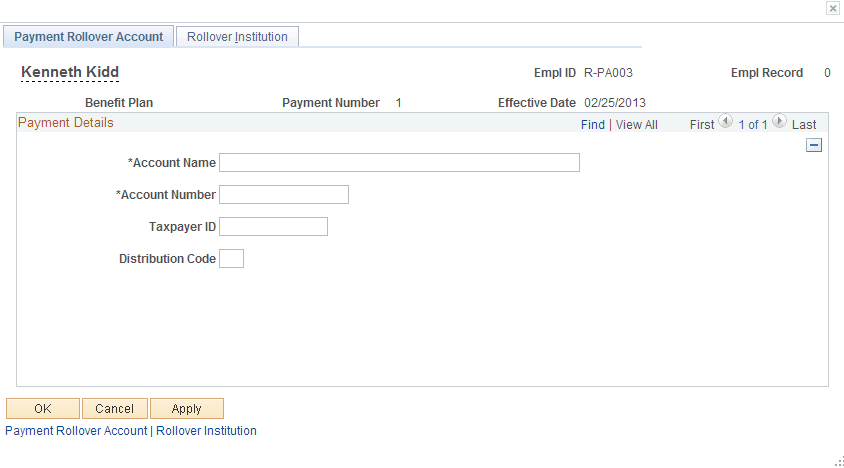
Use the Payment Rollover Account page (PA_RT_SCHED_RLOVR1) to enter descriptive information about a rollover account.
Navigation:
Click the Rollover Information link on the Payee Payment Provider page or the Payee Manual Provider page.
This example illustrates the fields and controls on the Payment Rollover Account page.
Rollover Institution Page (Payment Schedule or Manual Schedule)
Use the Rollover Institution page for a Payment Schedule or a Manual Schedule (PA_RT_SCHED_RLOVR2) to enter information for a rollover institution.
Navigation:
Click the Rollover Information link on the Payee Payment Provider page or the Payee Manual Provider page, then access the Rollover Institution tab.
This example illustrates the fields and controls on the Rollover Institution page for a Payment Schedule or Manual Schedule.
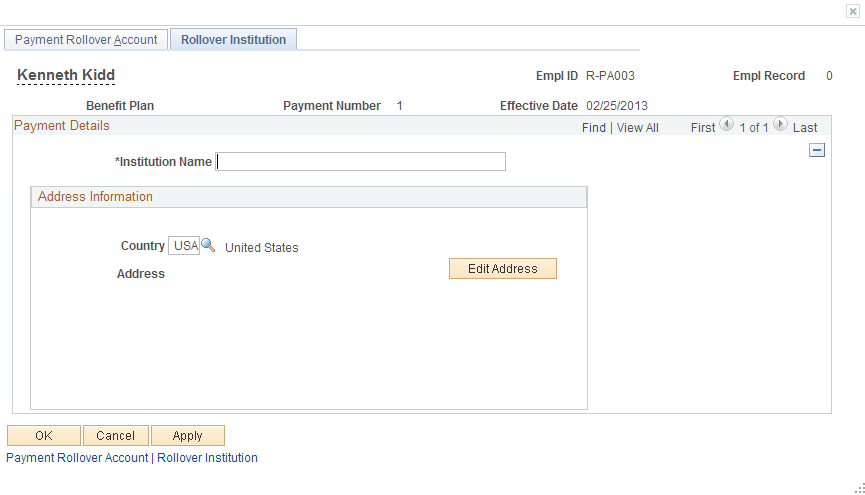
Click Edit Address to enter address information.
Withdraw Contribution Page
Use the Withdraw Contribution page (PA_WTHDRW_CTB) to enter the transaction when an employee elects to withdraw contributions.
Navigation:
This example illustrates the fields and controls on the Withdraw Contribution page.
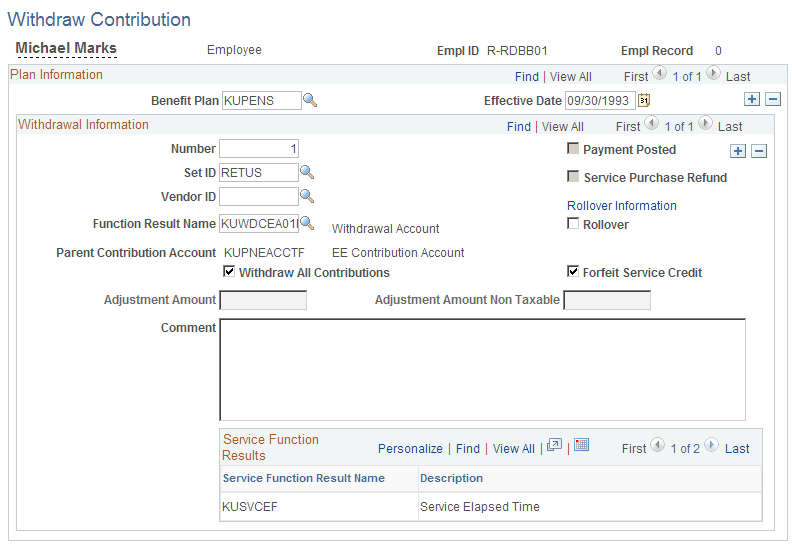
| Field or Control | Description |
|---|---|
|
Rollover |
Select to enable Rollover Information link. |
|
Rollover Information |
Select to access the Payment Rollover Account page in order to enter or review rollover information. |
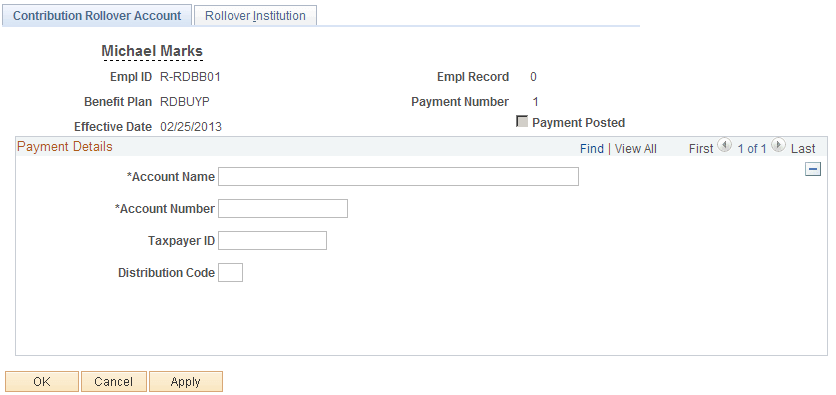
Contribution Rollover Account Page
Use the Contribution Rollover Account page (PA_CONTR_RLOVR1) to enter account information.
Navigation:
Click the Rollover Information link on the Withdraw Contribution page.
This example illustrates the fields and controls on the Contribution Rollover Account page.
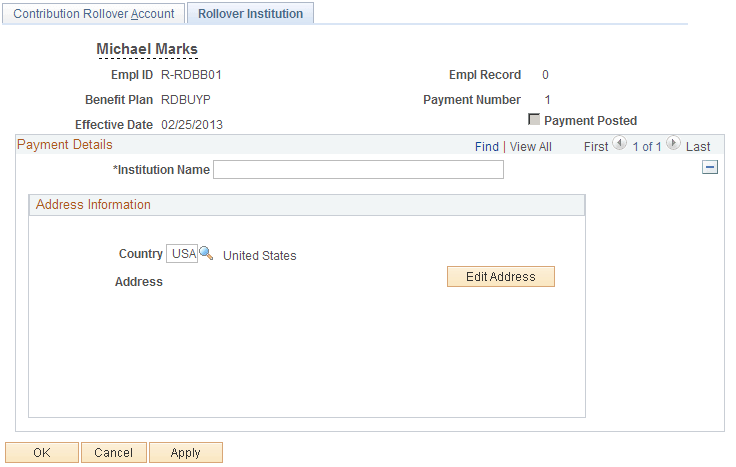
Rollover Institution Page (Withdrawn Contributions)
Use the Rollover Institution page page (PA_CONTR_RLOVR2) to enter information for a rollover institution.
Navigation:
Click the Rollover Information link on the Withdraw Contribution page, then access the Rollover Institution tab.
This example illustrates the fields and controls on the Rollover Institution page that is accessed from the Withdraw Contribution page.