My Applicants Pagelet
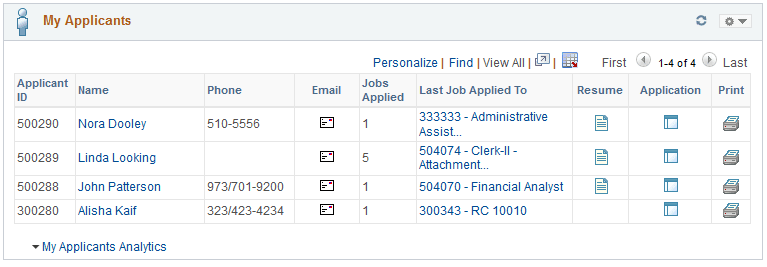
Use the My Applicants pagelet (HRS_PE_MY_APPS) to view applicants who are associated with your job openings, to review key information about each applicant, and to access applicant analytics.
This example illustrates the My Applicants pagelet.
Included Applicants
The My Applicants pagelet lists applicants who:
-
Are associated with the user’s job openings (openings to which the user has security access).
-
Are not in a Draft disposition (the disposition marked as Draft in your status configuration).
-
Are not in a Reject disposition (any disposition associated with the Reject phase).
A pagelet personalization option provides the additional ability to filter based on how recently the application was received.
Note:
The number of rows in the Applicants grid is limited based on the value entered in the My Applicants Pagelet Maximum Results field on theRecruiting Installation – Applicants Page.
Personalization
| Field or Control | Description |
|---|---|
|
|
Click the Pagelet Settings icon, then select the Personalize option to access the Personalize My Applicants page, where you can choose to filter applicants based on how recently the application was received. |

Applicants Grid
| Field or Control | Description |
|---|---|
|
Applicant ID and Name |
These fields display identifying information about the applicant. Click the applicant’s name to access the Manage Applicant page. |
|
Phone |
Displays the applicant’s primary phone number, if one exists. |
|
|
The Email icon appears if the applicant record includes a primary email address. The system displays the actual email address as mouseover text for the icon. Click the icon to access the Send Correspondence Page to send email (or a letter) to the applicant. If a user does not have authorization for the Send Correspondence component, the user’s default email client is opened instead. |
|
Jobs Applied |
Displays the number of jobs for which the applicant has applications. All job openings are included, even if they are closed or if the user does not have security access to the opening. If the applicant applied more than once to the same job opening, that opening is counted only once. Applications not linked to a job opening are not included in the count, nor are unsubmitted (draft) applications |
|
Last Job Applied To |
Displays the job opening ID and title for the applicant’s most recent application. Click the link to access the Manage Job Opening page. |
|
|
The Resume icon appears if the most recent application includes a resume. Click the icon to open the resume in a new window. If the resume is an attachment, the file opens in the new window. If the resume was entered as text in the application, the new window displays the Applicant Resume page in read-only mode. If none of the listed applicants have resumes, this column is hidden. |
|
|
Displays the Manage Application icon. Click the icon to access the Manage Application page, which provides a central location for performing all recruiting activities for a single job application. |
|
|
Click to access the Application Report Options Page, where you can choose report parameters and then generate an application details report. |


Additional Applicant Data
The Applicants grid includes additional columns that are delivered hidden. To display these additional columns, use PeopleTools Application Designer to modify the grid definition.
The additional hidden columns are:
-
Applicant Type
-
Preferred Contact Method
My Applicants Analytics
| Field or Control | Description |
|---|---|
|
My Applicants Analytics |
Click to display a menu listing related pivot grids. The menu includes a single item: In Process Applicants. Click this menu item to open the pivot grid. |