Working with Activity Guide Notifications
Activity guide processes enable you to create and send notifications to the assignees associated with your activity guide templates. The PeopleSoft application delivers several notifications, or you can create your own.
To set up Activity Guide Composer notifications, use the Define Notifications (AGC_CAT_NOTIF_TBL) and Process Notifications (AGC_NOTIFY) components.
Note:
Oracle PeopleSoft delivers Notification Composer framework to manage the setup and administration of all notifications in one central location. Once you have adopted the Notification Composer feature, you must use it to create new notifications and manage your existing notifications.
To use the Notification Compose for your activity guide processes, use the AG Composer Conversion to NC (AGC_CNVTONC) and AG Composer Installation Table (AGC_INSTALL_TBL) components, then refer to the Understanding Notification Composer documentation on how to set up notifications.
These topics provide an overview of activity guide notifications for activity guide instance steps and processes and discusses working with activity guide notifications.
Pages Used to Work with Activity Guide Notifications
| Page Name | Definition Name | Usage |
|---|---|---|
|
AGC_CAT_NOTIF_DEFN |
Create and define the notification text for an activity guide notification. |
|
|
AGC_NOTIFY |
Process a batch or individual template notifications. |
|
| AG Composer Conversion to NC page (Activity Guide Composer Notifications) |
AGC_CNVTONC |
Convert your existing Activity Guide Composer notifications to Notification Composer. |
|
AGC_INSTALL_TBL |
Identify whether AG Composer is using Notification Composer or not. |
Understanding Notifications for Activity Guide Instance Steps and Processes
You can configure your activity guides to send notifications to those who are required to complete steps within a process or the entire process. This is particularly beneficial when you are using a template that requires multiple users to complete different steps within an instance or a process that needs to be completed within a specified period. While a primary user will trigger and own the activity guide instance, there may be other users, such as a manager or administrator, that may need to react to one or more steps in an activity guide instance. These assignees are associated to steps and you can configure the system to send a push or email notification to the appropriate users at the appropriate time to complete their steps.
Notification Options and Types
You will enable and set notification defaults when you configure your categories. Although notifications can be overridden at the template level, notifications must be first enabled on the category. Templates that are assigned to categories that do not have notifications enabled will not be able to use this feature.
The system provides these notification types:
- Initial - Notify the user they were assigned a step in an activity guide process.
- Overdue Step - Notify the user they are assigned to a step that is overdue in an activity guide process.
- Overdue Process - Notify the user they are assigned to one or more incomplete steps in an overdue activity guide process.
- Reminder - Notify the user they are assigned to one or more incomplete steps in an activity guide process.
You will create your own notification messages and link these to the notification types you select on either the AG Composer Categories - Notifications Page or template Activity Guide Composer - Notifications Page. You can choose one or all of these notification types, as well as select the options of whether you want to notify the assignees through push notification, email, or both. When notifications are enabled, you must select at least one notification type and option. Since notification types are provided by default from the category, you can override which types of notifications you want to use at the template level. A type does not need to be selected at the category level to be used in the template. However, options to use push or email notifications are determined at the category level.
When setting up notifications for your categories, you are required to select a notification priority of Initial, Overdue Step, or Overdue Process.
The system will send notifications based on the priority you select for the category and in this order.
Initial Notification Priority and Considerations
When you set the category to use Initial as the priority notification, the system will process notifications in this order:
- Initial
- Overdue Step
- Overdue Process
- Reminder
When an activity guide is initiated or a batch process for notification is run, the system will first evaluate the open steps and notifications.
- When an activity guide is first initiated, the system checks to see if steps are open.
- The system then checks if the initial notification has been sent.
- If it has NOT been sent, the system checks to see if the activity guide process is overdue.
--If not, then the initial notification is sent to the assignee.
- If an initial notification has already been sent, the system checks to see if there are overdue steps. If so, then the system checks to see if the activity guide process is overdue.
--If the process is NOT overdue but the step is, then the overdue step notification is sent.
--If both are overdue, then the process overdue notification is sent.
- If the step is NOT overdue, then the system checks to see if it is time to send a reminder notification, as specified on the template Activity Guide Composer - Notifications Page.
--If the step reminder is due and the process isn't overdue, then the reminder notification is sent.
--If the step reminder is due and the process is also overdue, then the process overdue notification is sent.
- If it has NOT been sent, the system checks to see if the activity guide process is overdue.
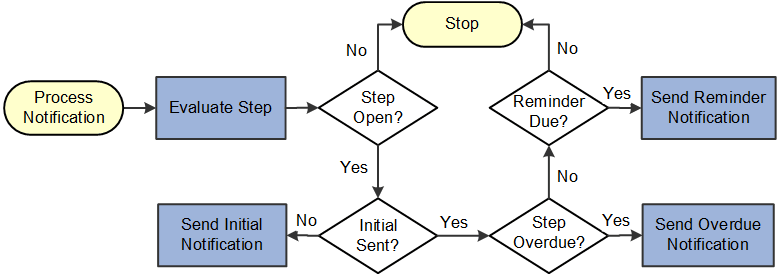
Keep the following in mind when setting up notifications when you select Initial as the first priority:
- The system will not send an initial notification to the initiator of the instance. Initial notifications are sent only to assignees who are not the initiators of the instance and sent when their step is open and ready for them to complete.
- Initial notification is sent only once for each assignee.
- If the steps or process is overdue and the initial notification was not sent, the system will first send the initial notification.
- If initial notification has been sent and the step or process is not overdue but is due for a reminder, the system will send a reminder notification.
- If the steps are overdue but not the process and initial notification was sent, then the system will send a process overdue step notification.
- If the steps and process are overdue and initial notification was sent, then the system will send a process overdue notification.
- The system will not send duplicate notifications to an assignee on the same day for the same instance of an activity guide template.
Overdue Step Notification Priority and Considerations
When you set the category to use Overdue Step as the priority notification, the system will process notifications in this order:
- Overdue Step
- Overdue Process
- Initial
- Reminder
When an activity guide is initiated or a batch process for notification is run, the system checks to see if steps are open and, if so, then checks to see if a step is overdue.
- If the step is overdue, the system checks to see if the activity guide process is overdue.
--If not, then the overdue step notification is sent to the assignee.
--If the process is overdue, then the process overdue notification is sent to the assignee.
- If the step is NOT overdue, the system checks to see if the initial notification was sent. If the initial notification was not sent, then the system checks to see if the activity guide process is overdue.
--If the process is NOT overdue, then the initial notification is sent.
--If the process is overdue, then the process overdue notification is sent.
- If the step is NOT overdue and the initial notification was already sent, then the system checks to see if it is time to send a reminder notification, as specified on the template Activity Guide Composer - Notifications Page.
--If the step reminder is due and the process isn't overdue, then the reminder notification is sent.
--If the step reminder is due and the process is also overdue, then the process overdue notification is sent.
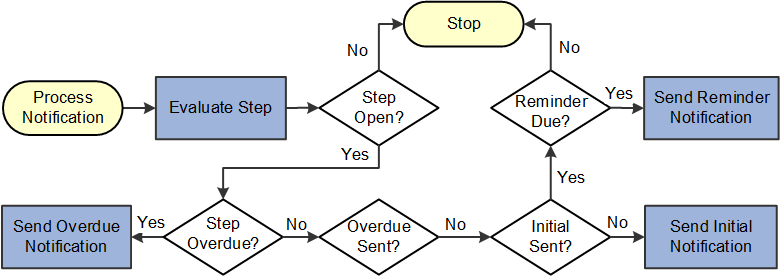
Keep the following in mind when setting up notifications when you select Overdue Step as the first priority:
- The system will not send an initial notification to the initiator of the instance. Initial notifications are sent only to assignees who are not the initiators of the instance and send when their step is ready for them to complete.
- If no overdue steps are found the first time for an assignee, then the initial notification is sent. Initial notification is sent only once for each assignee.
- If the steps are overdue when they become open, the system will send the overdue step notification. Initial notification will only be sent if the step is not overdue.
- Once the overdue notification is sent, the system will check if the step is due for reminder.
- The system will not send duplicate notifications to an assignee on the same day for the same instance of an activity guide template.
AG Composer Notification Text Page
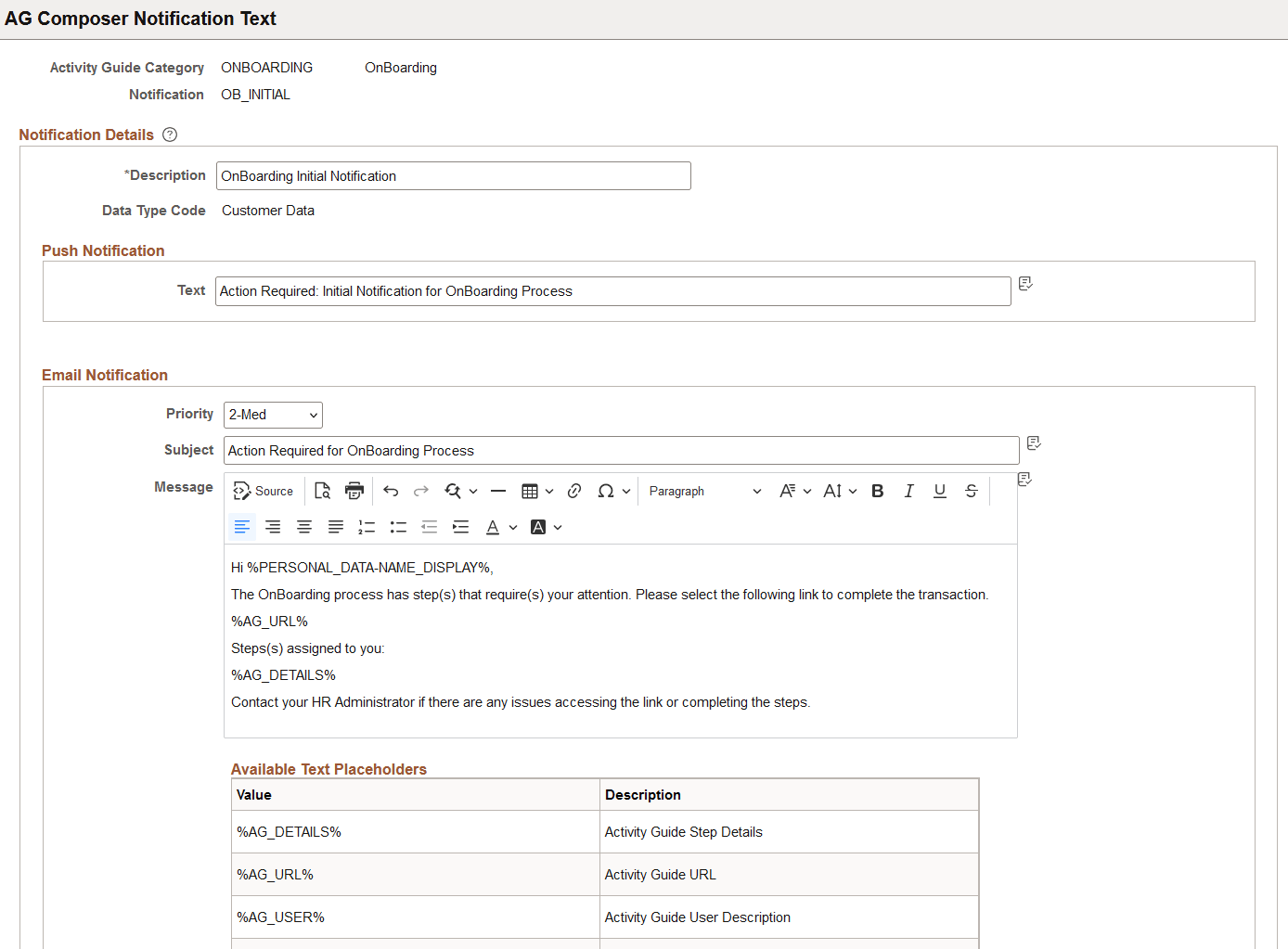
Use the AG Composer Notification Text page (AGC_CAT_NOTIF_DEF) to create and define the notification text for an activity guide notification.
Note:
You will not use this page if you have enabled AG Composer to use Notification Composer. To convert your existing AGuide Composer notifications to Notification Composer, see AG Composer Conversion to NC page (Activity Guide Composer Notifications).Navigation:
This example illustrates the fields and controls on the AG Composer Notification Text page.
| Field or Control | Description |
|---|---|
|
Push Notification |
Enter the text that should appear in the push notification alert. Alert messages appear under the Bell icon in the banner. |
|
Email Notification |
Enter the priority, subject, and message of the email that will be sent to assignees. The page displays the Available Text Placeholders section, which you can use to configure and derive your email text. These values come from the context fields defined in the Derived Contextual Data section on the AG Composer Categories - Context Page. Use these reserved text placeholders for the following:
|
Run AG Composer Notifications Page
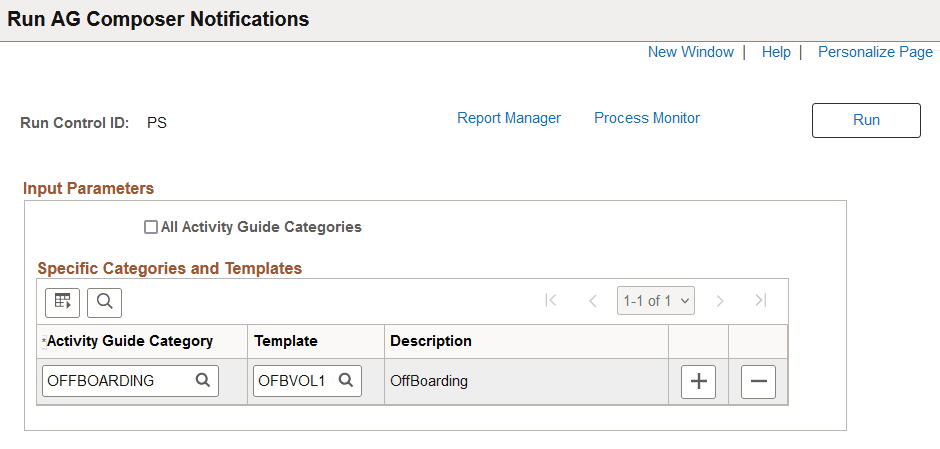
Use the Run AG Composer Notifications page (AGC_NOTIFY) to process a batch or individual template notifications.
Navigation:
This example illustrates the fields and controls on the AG Composer Notification Text page.
Processes should be run on a regular basis to capture any new or upcoming notifications that need to be sent.
| Field or Control | Description |
|---|---|
|
All Activity Guide Categories |
Select to indicate that the system should run and process notifications for all templates. By selecting this check box, the remaining fields on the page become unavailable. |
|
Activity Guide Category |
Select the categories for templates for which you want to run and process notifications. |
|
Template |
Enter the templates for which you want to run and process notifications. If you do not enter a template, notifications will be generated for all templates within the category specified. |
AG Composer Installation Table Page
Use the AG Composer Installation Table page (AGC_INSTALL_TBL) to identify whether AG Composer is using Notification Composer or not.
This example illustrates the fields and controls on the AG Composer Installation Table page.
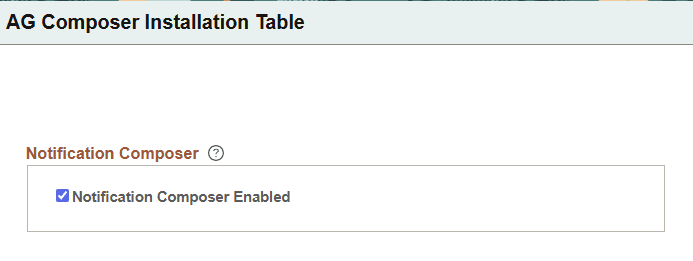
After you run the AG Composer Conversion to NC process, use this page to confirm that Notification Composer is enabled for the Activity Guide Composer.
| Field or Control | Description |
|---|---|
|
Notification Composer Enabled |
When selected, it indicates that the Activity Guide Composer is using Notification Composer. Deselect to not use Notification Composer. If you want to use Notification Composer in the future, you will need to run the conversion process again. See AG Composer Conversion to NC page (Activity Guide Composer Notifications). |