Using the Actions Menu
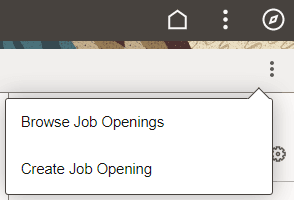
The Items in the Actions menu are divided between two lists, one in the upper and one in the lower section of the banner. The upper section contains the Actions menu which lists system-wide items. The lower section of the banner contains the More Actions menu with an additional list of action items specific to the homepage, dashboard, component, or transaction page that you are viewing.
Note:
On small factor devices, the menu items are integrated under a single Actions menu on the banner.
Actions Menu
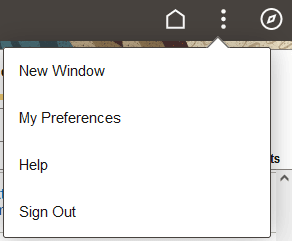
Press the Actions button in the upper part of the banner to reveal the Actions menu, which contains a list of actions you can take. The list of menu items depends on your permissions to perform certain actions.
For example, a fluid homepage contains menu items (New Window, My Preferences, Help, and Sign Out) that pertain specifically to the context of a fluid homepage. Some users, such as guest users, may not have the permission to set preferences on the homepage.
This example illustrates the options appearing on the Actions menu while accessing a fluid application homepage.
When you access the Actions menu from a dashboard or transaction page, the list of menu items displayed is specific to the dashboard or transaction page and based on the permissions associated to your user role.
This example illustrates the options appearing on the Actions menu while accessing a fluid application page.
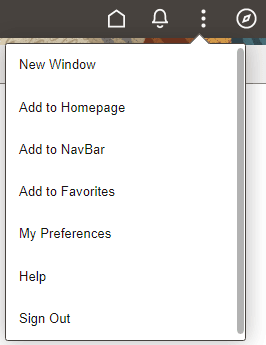
| Field or Control | Description |
|---|---|
|
New Window |
Opens the currently displayed fluid component or fluid navigation collection in a new browser tab (or window). See Opening New Windows for more information on what is displayed in the new window. Whether the New Window menu item is displayed is determined by:
In addition, when update of the fluid banner and Actions menu is allowed, the visibility of the New Window menu item can be changed by PeopleCode. |
|
My Preferences |
Opens the My Preferences component, where you can modify settings that control a variety options in the PeopleSoft system based on your preferences. See Defining User Preferences. |
|
Help |
Opens the section in PeopleSoft Online Help for the current component in a new browser window. The Help menu item is displayed only if the Help option is configured in the component properties and Help has been configured for the system on the web profile. |
|
Sign Out |
Signs you out of the system, returning you to the PeopleSoft sign-in page. |
|
Add To Homepage |
Adds a tile on an ad hoc basis to the selected fluid homepage, enabling you to access the page directly from that homepage. See “Using the Add To Homepage Feature” in Managing Tiles on Fluid Homepages and Dashboards. Add To links enable you to personalize application navigation by adding access to any fluid or classic page as needed for your user experience. When you add a tile on an ad hoc basis to a homepage or the NavBar, or when you add a favorite, you can edit and personalize the label for the item. |
|
Add To NavBar |
Adds a tile on an ad hoc basis to the left-hand side of the NavBar, enabling you to access to that page directly from the NavBar. See “Using the Add To NavBar Feature” in Working with the NavBar. Add To links enable you to personalize application navigation by adding access to any fluid or classic page as needed for your user experience. When you add a tile on an ad hoc basis to a homepage or the NavBar, or when you add a favorite, you can edit and personalize the label for the item. |
|
Add To Favorites |
Adds a link to the Favorites section of the NavBar and the quick access bar, as well as the Favorites menu folder available from a classic homepage. See Working with Favorites. Add To links enable you to personalize application navigation by adding access to any fluid or classic page as needed for your user experience. When you add a tile on an ad hoc basis to a homepage or the NavBar, or when you add a favorite, you can edit and personalize the label for the item. |
Homepage Actions Menu
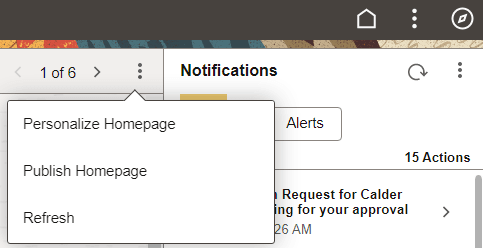
On fluid homepages, press the Homepage Actions button to reveal the Homepage Actions menu, which contains a list of actions specific to the homepage. The list of menu items depends both on what has been configured in the system as well as your permissions to perform certain actions.
For example, a fluid homepage contains menu items (Personalize Homepage, Publish Homepage, and Refresh) that pertain specifically to the context of a fluid homepage as well as the permissions granted to the signed on user. Some users, such as guest users, are not granted the permission to personalize homepages. Other users, such as portal administrators, are granted special permission to publish a personal homepage as a system homepage.
This example illustrates the options that appear while accessing a fluid application homepage.
| Field or Control | Description |
|---|---|
|
Personalize Homepage |
Allows you to personalize your fluid homepages, which can include:
|
|
Publish Homepage |
For users with permissions, allows you to publish a personal homepage as a system homepage. See Portal Technology: (Fluid only) Publishing Personalizations as a New Fluid Homepage for more information. |
|
Refresh |
Refreshes the homepage content including refreshing the content of the tiles. |
Dashboard Actions Menu
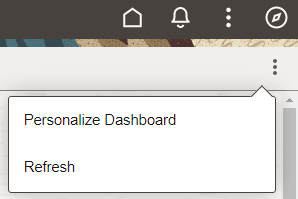
On fluid dashboards, press the Dashboard Actions button to reveal the Dashboard Actions menu, which contains a list of actions specific to the dashboard. The list of menu items depends both on what has been configured in the system as well as your permissions to perform certain actions, for example, personalizing your dashboard.
This example illustrates the options that appear while accessing a fluid application dashboard.
More Actions Menu
On fluid transaction pages, press the More Actions button to reveal the More Actions menu, which contains a list of actions specific to the transaction page. The list of menu items depends both on what has been configured in the system as well as your permissions to perform certain actions.
The More Actions menu lists items that are specific to the content you’re viewing, so the items vary depending on where you navigate. Application developers can change the label of the More Actions menu as per their business requirements. See PeopleCode API Reference: Banner Class Methods.
This example illustrates the options appearing on the More Actions menu while accessing a fluid transaction page.