Working with the NavBar
After clicking the NavBar button, the NavBar side page appears. Use this page to access additional navigational options.
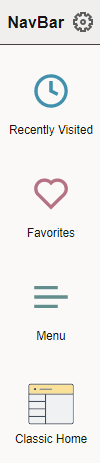
This example illustrates how the NavBar appears after it is first selected. It hugs the right side of the page, displaying the available tiles and options. These items are discussed in the following sections.
| Field or Control | Description |
|---|---|
|
|
Use to personalize the menu, and to add, reorder, or remove tiles from the NavBar. Such tiles are referred to as NavBar tiles, whereas those appearing on the homepage are homepage tiles. See Personalizing the NavBar for more information. |
|
|
Select the Recently Visited tile to view your recently visited items. See Working with Recently Visited Items for more information. |
|
|
Select the Favorites tile to view your favorites. See Working with Favorites for more information. |
|
|
Select the Menu tile to browse the menu structure and navigate to menu items. See Working with the Menu in the NavBar for more information. |
|
|
Select the Classic Home tile to navigate to your default classic homepage. Note: This tile is labeled Classic Home when the default system homepage is defined as fluid. However, this tile is labeled Fluid Home only when the default system homepage is defined as classic. In that case, selecting Fluid Home takes you to your default fluid homepage. Important: When a classic content reference is selected as the default custom homepage tab by your system administrators or through user personalization, you must add the Homepages tile to the NavBar in order to be able to navigate to any fluid homepages. |


