Using the Notifications Panel
In the Notifications panel, administrators can choose whether to display both Actions and Alerts, or display only Actions, or only Alerts.
This example illustrates the display of both Actions and Alerts on the Notifications panel. You can find definitions for the fields and controls later on this page.
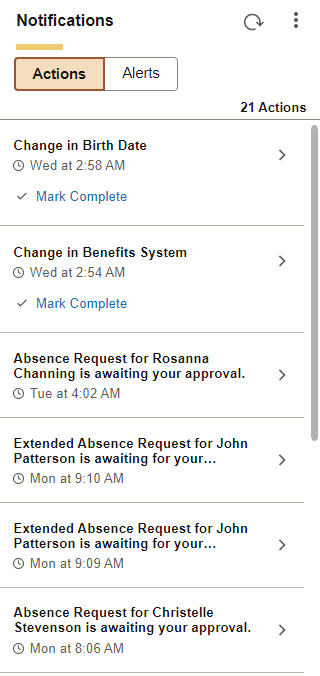
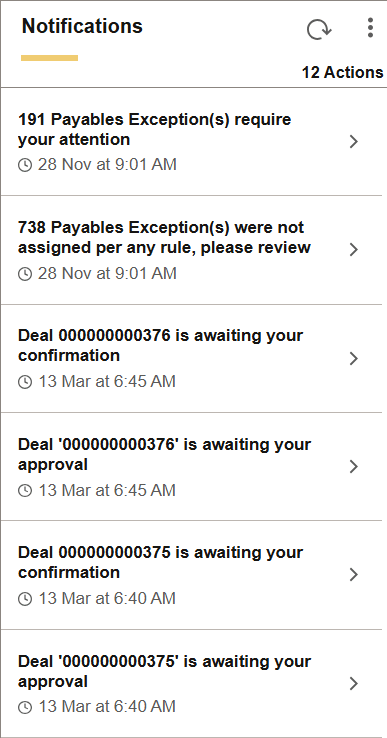
This example illustrates the display of Actions in the Notifications panel.
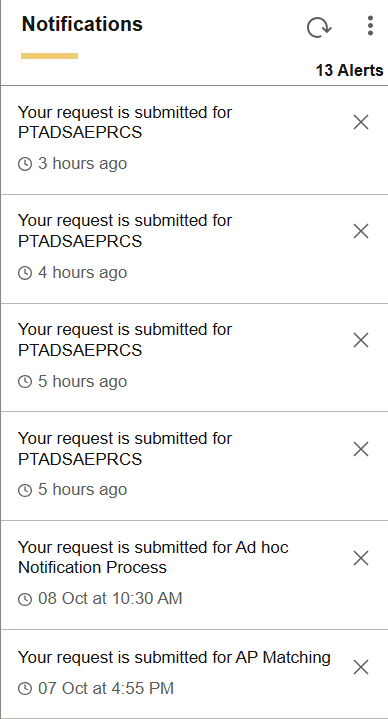
This example illustrates the display of Alerts in the Notifications panel.
| Field or Control | Description |
|---|---|
|
|
Refreshes the Notification window to add all new notifications. The Refresh button displays a blue dot when a new notification arrives. |
|
|
The Notification menu includes these links:
|
|
Actions |
Select this section to see a list of all of your actionable items. A timestamp for each of the actions item is displayed. |
|
Alerts |
Select this section to see all of your informational alerts (non-actionable items). A timestamp for each of the alerts item is displayed. |
|
View All |
If the number of actions or alerts exceeds the value specified on the Notification Settings page, a View All link is displayed to allow you to view all of your actions or alerts in New, Unread, and Read state on the View All Notifications page. See Personalizing the Notifications Panel and Your Notifications |
|
|
Click a link to open the transaction for that notification. |
|
Mark Complete |
Click this button to mark the action as complete and remove it from the Notifications panel. For more information, see the Marking an Action as Complete section later in this topic. |
|
Alert link title |
For certain alerts, you can click the alert link to view more information. |
|
|
Dismisses an alert. This button is displayed only for alerts in the Alert section. |


Note:
Notifications are generated in the language of the notification approver, which is specified on the General tab of the User Profiles page (PeopleTools, Security, User Profiles, User Profiles). For example, if the notification approver's language is set to English, the notifications will be displayed in English. When a notification is generated, the notification remains in that language and does not change to reflect the user's language preferences or current session language.
Marking an Action as Complete
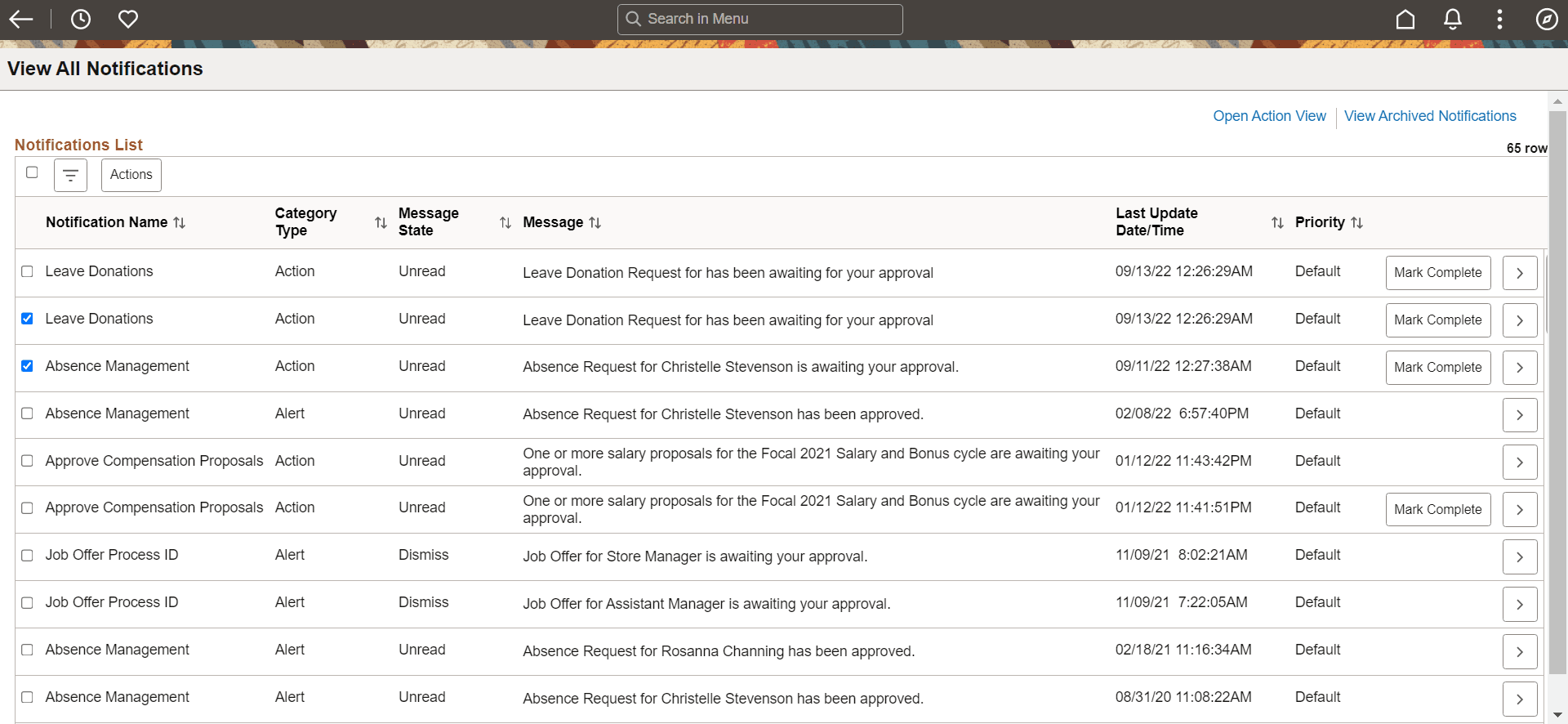
You can mark selected actionable notifications as complete and remove them from the Notifications panel without navigating to the transaction page by clicking the Mark Complete button. This option is available in the Actions section of the Notification panel on the homepage as well as on the View All Notifications page. After you mark the item as complete, it disappears from the Notifications panel and is displayed as 'Completed' in the Notifications List in the View All Notifications page.
When you select more than one actionable notification in the View All Notifications page, an Actions button becomes available on the page. Select this button and then select Mark as Completed to perform a bulk action and mark all the selected notifications as complete.
The following image illustrates the 'Mark Complete' option in the View All Notifications page.
Note:
This feature is available for selected actionable notifications only.
See PeopleCode API Reference: SetCategory method: PTNotification class.