Defining Jobs
Select the Define Job button on the Manage Jobs page to define a new PAU job.
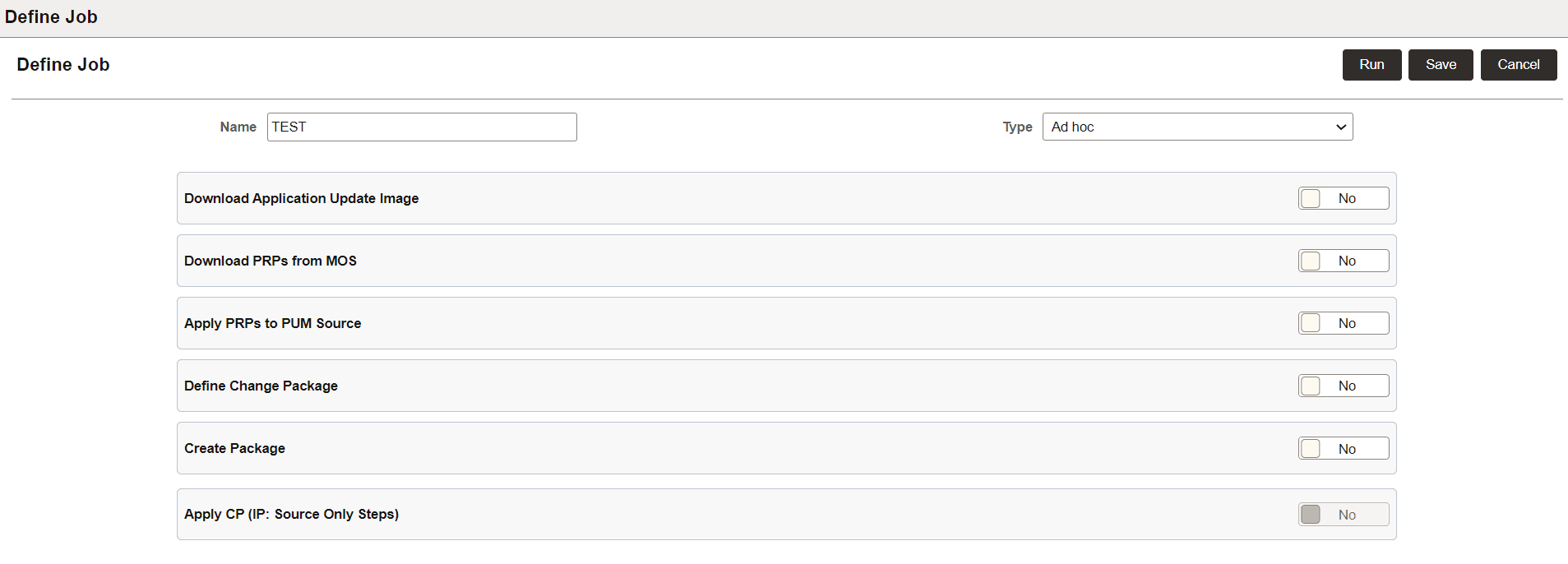
This example illustrates the fields and controls on the Define Job page. You can find definitions for the fields and controls later on this page.
| Field or Control | Description |
|---|---|
|
Name |
Enter a job name. |
|
Type |
Select the job type:
|
|
Download Application Update Image |
Select Yes to download Application Update Image DPKs. Starting with PeopleTools 8.60, customers can download an Application Update Image DPKs from the Update Manager (Define Job) page. Customer will be able to download Application Update Image DPK based on the application pillar environment in use. For example, you can schedule or download HCM Application Update Image DPKs from an HCM PUM source. Note: You can continue to download Application Update Image DPKs manually from My Oracle Support or Oracle Software Delivery Cloud as in previous releases. For more details, refer Downloading Application Update Image DPKs |
|
Download PRPs from MOS |
Select Yes to download PRPs from MOS. Note: The Download Manager validates each PRP before downloading and ignore PRPs that are incompatible with the currently installed PeopleSoft Image. |
|
Apply PRPs to PUM Source |
Select Yes to Apply PRPs to PUM Source. |
|
Define Change Package |
Select Yes to Define Change package using Previously Defined or Standard System search criteria. |
|
Create Package |
Select Yes to create the defined change package. |
|
Apply CP (IP: Source Only Steps) |
Select Yes to apply the source only steps. The Source Steps Only option runs the initial pass on the PUM source and creates all files that are contained in the change package. Once the initial pass has completed, a modified change package is created that contains all the files. The modified update change package can then applied to the target database using the Target Only option. |