Creating an Organization Chart
The PeopleCode used in this example creates the following organization chart:
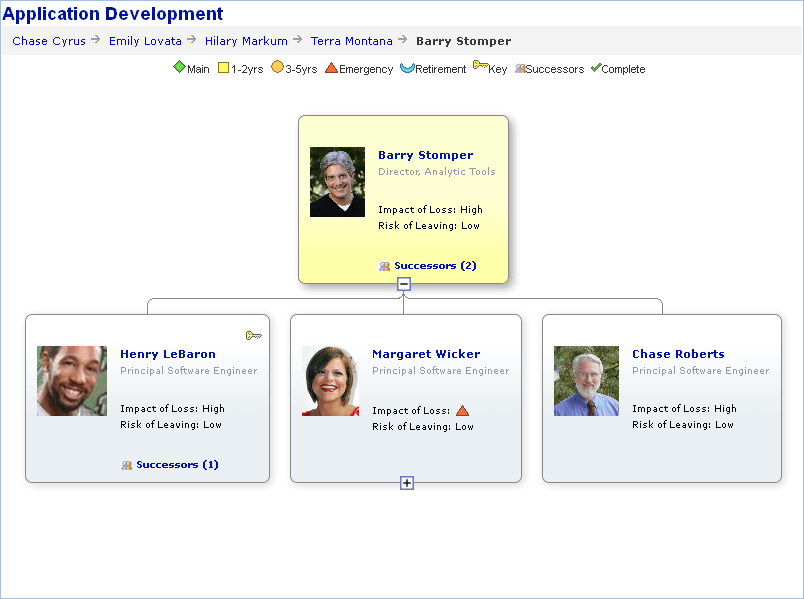
To create an organization chart:
-
Add a chart control to a page in Application Designer.
Associate the chart control with a record name and field name.
-
Add the organization node record and the pop-up node record to the component.
These records are derived/work records that contain clones of the subrecords PTORGNODE_SBR and PTPOPUPNODE_SBR. These records must be in the component buffer. You can add them to a hidden grid on the page, or you can place them on another page in the same component.
-
If the chart will have breadcrumbs, add the breadcrumb node record to the component.
This derived/work record contains a clone of the subrecord PTORGCRMB_SBR. The record must be in the component buffer.
-
Prepare the organization chart data.
In an event such as PreBuild, instantiate two rowset objects and populate them with the organization node data and the pop-up node data.
This example shows one possible way. How you do it depends on how your data is stored and how you intend to present it.
Component Rowset &rs, &rsP, &rsBC, &rsOrgNode, &rsOrgPopupND, &rsBreadCrumbs; Component OrgChart &ocOrgChart; Local Rowset &RSGridDR; Local Rowset &RSAGRID; /* The record QE_ORG_NODEDATA has the data for the org chart ** ** You will probably fill the rowset with some subset of the data** ** in the database. This example uses all the rows. */ &rs = CreateRowset(Record.QE_ORG_NODEDATA); &rs.Fill(); /* Get the grid on the page for the node data and initalize to nulls */ & rsOrgNode = GetLevel0()(1).GetRowset(Scroll.QE_ORG_NODE); & rsOrgNode.Flush(); /* Copy data from database table, QE_ORG_NODEDATA to the derived/work ** record QE_ORG_NODE_DR */ &rs.CopyTo(&rsOrgNode, Record.QE_ORG_NODEDATA, Record.QE_ORG_NODE_DR); /* The record QE_ORG_POPDATA has the data for the popup chart */ &rsP = CreateRowset(Record.QE_ORG_POPDATA); &rsP.Fill(); /* Get the grid on the page for the popup data and initalize to nulls */ & rsOrgPopupND = GetLevel0()(1).GetRowset(Scroll.QE_ORG_POPUP); & rsOrgPopupND.Flush(); /* Copy data from database table, QE_ORG_POPDATA to the derived/work ** record QE_ORG_POP_DR */ &rsP.CopyTo(&rsOrgPopupND, Record.QE_ORG_POPDATA, Record.QE_ORG_POP_DR); /* Fill in the breadcrumb information for this chart if the chart ** ** uses breadcrumbs. */ &rsBC = CreateRowset(Record.QE_ORG_CRMB); &rsBC.Fill(); /* Get the grid on the page for the pop data and initalize to nulls */ &rsBreadCrumbs = GetLevel0()(1).GetRowset(Scroll.QE_ORG_BCRMB); &rsBreadCrumbs.Flush(); /* Copy data from database table, QE_ORG_CRMB to the derived/work ** record QE_ORG_CRMB_DR */ &rsBC.CopyTo(&rsBreadCrumbs, Record.QE_ORG_CRMB, Record.QE_ORG_CRMB_DR); -
Instantiate an OrgChart object.
In an event such as Activate, add PeopleCode to instantiate and define your organization chart.
Get the chart using the GetOrgChart function. The argument for this function is the record name and field name specified on the Records tab of the Chart Properties dialog box in Application Designer.
Component Rowset & rsOrgNode, & rsOrgPopupND, &rsBreadCrumbs; Component OrgChart &ocOrgChart; &ocOrgChart= GetOrgChart(QE_CHART_DUMREC.QE_CHART_FIELD); -
Specify the organization node record and the pop-up node record.
These records contain the clones of the subrecords PTORGNODE_SBR and PTORGPOPUP_SBR, respectively.
&ocOrgChart.SetNodeRecord(Record.QE_ORG_NODE_DR); &ocOrgChart.SetPopUpNodeRecord(Record.QE_ORG_POP_DR); -
Specify the node data and pop-up node data rowset objects.
/*&RSORGND and &RSORGPOPUPND are level 1 component rowsets that contain the ** organization node data and pop-up node data respectively.*/ &ocOrgChart.SetNodeData(&rsOrgNode); &ocOrgChart.SetPopUpNodeData(&RSORGPOPUPND); -
(Optional) Specify values for the chart display properties.
&ocOrgChart.MainTitle = "Application Development"; &ocOrgChart.MainTitleStyle = "PT_ORGCHART_TITLE"; &ocOrgChart.Direction = 2; &ocOrgChart.Height = 380; &ocOrgChart.Width = 700; &ocOrgChart.VerticalSpace = 15; &ocOrgChart.ImageLocation = 1; &ocOrgChart.Style= "PTORGCHART"; &ocOrgChart.HasLegend = True; &ocOrgChart.NodeMaxDisplayDescLength =30; &ocOrgChart.CollapsedImage ="PT_COLLAPSED_NODE"; &ocOrgChart.ExpandedImage ="PT_EXPANDED_NODE"; &Expanded_Msg=MsgGetText(110, 100); &Collapsed_Msg=MsgGetText(110, 101); &ocOrgChart.Expanded_Msg =&Expanded_Msg &ocOrgChart.Collapsed_Msg =&Collapsed_Msg -
Specify values for the legend. This is required only if the chart has a legend.
&ocOrgChart.LegendStyle = PT_ORGCHART_LEGEND; &LegendArray = CreateArray("Main", "1-2yrs", "3-5yrs", "Emergency", "Retirement", "Key", "Successors"); &LegendImgArray = CreateArray("QE_NOWORGCHART", "QE_12ORGCHART", "QE_34ORGCHART", "QE_EMRORGCHART", "QE_RETIRORG", "QE_KPERSON", "QE_SUCCSORGCHART"); &ocOrgChart.SetLegend(&LegendArray); &ocOrgChart.SetLegendImg(&LegendImgArray); &ocOrgChart.LegendPosition = %ChartLegend_Top; &ocOrgChart.LegendStyle = "PT_ORGCHART_LEGEND"; -
(Optional) Specify image values.
&ocOrgChart.ImageLocation =1; &ocOrgChart.ImageHeight =150; &ocOrgChart.ImageMouseoverMagnificationFactor =150; &ocOrgChart.DefaultImage=PT_CHART_DEFAULTIMG; -
Specify the breadcrumb data and the rowset and display properties. These are required only if your chart uses breadcrumbs.
&ocOrgChart.SetCrumbRecord(Record.QE_ORG_CRMB_DR); &ocOrgChart.SetCrumbData(&rsBreadCrumbs); &ocOrgChart.CrumbMaxDisplayLength = 24; &ocOrgChart.CrumbSeparatorImage = "PT_ORG_BRCRM_SEP"; &ocOrgChart.CrumbDescrStyle = "PT_ORGCHART_BRDCRM"; -
(Optional) Specify the maximum number of nodes that will appear in the pop-up without a vertical scroll bar.
&ocOrgChart.MaxPopUpDisplayNode = 2; -
(Optional) Assign style class names to control the styles of each node descriptor.
If you do not specify a style class name, then the PeopleTools default style class is used.
This example uses the default style class names, so this segment of code could be omitted. It is shown for demonstration purposes only.
&ocOrgChart.NodeDescr1Style = "PT_ORGNODE_DESC1"; &ocOrgChart.NodeDescr2Style = "PT_ORGNODE_DESC2"; &ocOrgChart.NodeDescr3Style = "PT_ORGNODE_DESC3"; &ocOrgChart.NodeDescr4Style = "PT_ORGNODE_DESC4"; &ocOrgChart.NodeDescr5Style = "PT_ORGNODE_DESC5"; &ocOrgChart.NodeDescr6Style = "PT_ORGNODE_DESC6"; &ocOrgChart.NodeDescr7Style = "PT_ORGNODE_DESC7"; -
(Optional) Assign style class names to control the styles of each pop-up node descriptor.
If you do not specify a style class name, then the PeopleTools default style sheet is used.
This example uses the default style class names, so this segment of code could be omitted. It is shown for demonstration purposes only.
&ocOrgChart.PopupNodeDescr1Style = "PT_POPNODE_DESC1";
&ocOrgChart.PopupNodeDescr2Style = "PT_POPNODE_DESC2";
&ocOrgChart.PopupNodeDescr3Style = "PT_POPNODE_DESC3";
&ocOrgChart.PopupNodeDescr4Style = "PT_POPNODE_DESC4";
&ocOrgChart.PopupNodeDescr5Style = "PT_POPNODE_DESC5";
&ocOrgChart.PopupNodeDescr6Style = "PT_POPNODE_DESC6";
&ocOrgChart.PopupNodeDescr7Style = "PT_POPNODE_DESC7";
&ocOrgChart.PopupNodeDescr8Style = "PT_POPNODE_DESC8";
&ocOrgChart.PopupHeaderStyle = "PT_POPNODE_HEADER";