Step 4: Tile Layout Properties
Use the Tile Layout Properties page to specify the fluid attributes of the tile definition.
Navigation:
On the Target Page Information page, click the Next button.
This example illustrates the fields and controls on the Tile Layout Properties page. You can find definitions for the fields and controls later on this page.
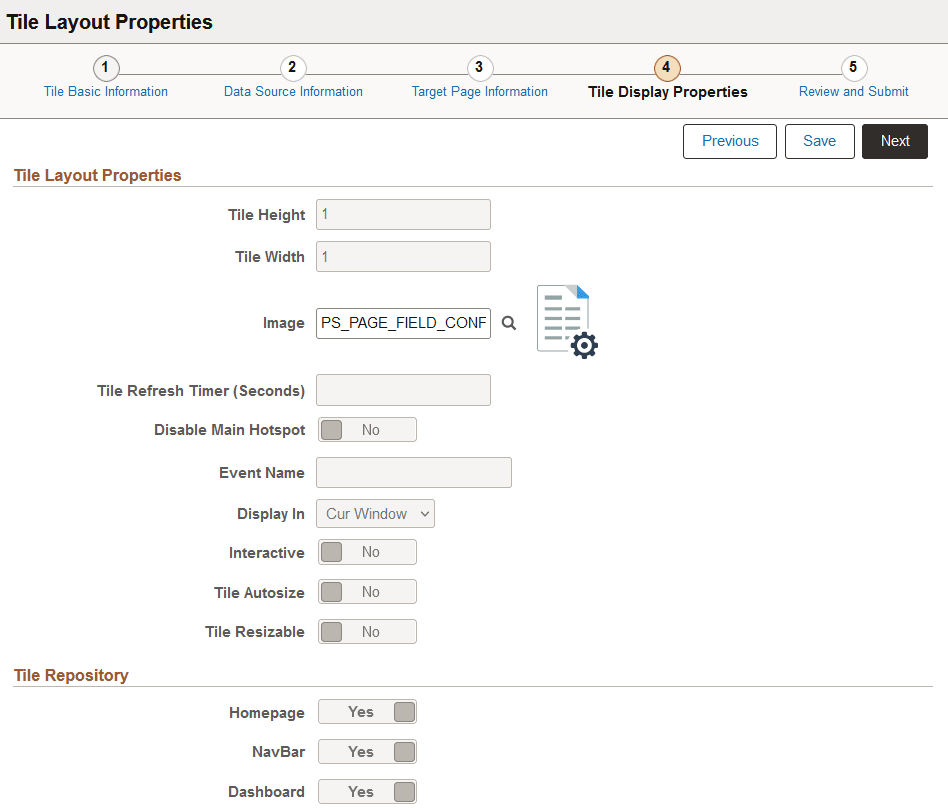
Tile Layout Properties
| Field or Control | Description |
|---|---|
|
Tile Height |
Set the height of the tile. The default dimensions of a tile are 1 tile unit by 1 tile unit. Tiles up to 8x8 are supported. Note the following conditions and limitations with respect to the height and width of a tile:
See the information on the Fluid Attribute page tab for more information including for a table of tile widths and heights from 1 to 8. |
|
Tile Width |
Set the width of the tile. |
|
Image |
Click the Image lookup button to display the Browse Image Catalog page, which allows you to select an image (in SVG format only) from the database to display a custom static image as the fluid content. Otherwise the default image is displayed. See the following section, "Using the Browse Image Catalog Page" for more information. Note: When dynamic content is also configured for a tile, this static image is displayed only until the dynamic content is loaded. |
|
Tile Refresh Timer (Seconds) |
Enter the time in seconds to set an automatic refresh period for dynamic content on a tile. When the timer limit has been reached, the system re-draws the tile so that it displays the current data, such as in the case with chart. The default value of 0 disables any automatic refresh. Note: The system enforces a 10 second minimum limit. Any value entered less than 10 seconds is ignored and is treated as 10 seconds. When setting this value, be sure to monitor performance of the page refreshes and adjust accordingly. Note: When an event name is selected, this field is disabled. |
|
Disable Main Hotspot |
Select this option to allow links that are displayed dynamically within the tile to be available and usable. Selecting this option disables clicking the tile to display the target content defined for the tile. |
|
Event Name |
Select the event name to subscribe to a push notification event defined on the server. Subscribing to an event allows the tile content to be updated by the event. See Fluid User Interface Developer’s Guide: Understanding the Push Notification Framework and Fluid User Interface Developer’s Guide: Defining Eventsfor more information on defining push notification events. |
|
Display In |
Control how the target transaction or content appears once a user taps the tile. Options are:
|
|
Modal Parameters |
Enter custom modal options. See Fluid User Interface Developer’s Guide: Modal Options for more information. |
|
Interactive |
Select this option to display the fluid content as interactive, which allows users to enter data or click buttons within the fluid content. Since interactive fluid content require more resources than non-interactive ones, select this option only as needed. Note: The Interactive option is disabled for pivot grid tiles and OBIEE tiles. |
|
Tile Autosize |
Select this option to allow the fluid content to dynamically resize itself based on the size of the content. Note the following conditions and limitations with respect to the autosize option:
|
|
Tile Resizable |
Select this option to allow the tile to be redisplayed at the specified alternate dimensions. Note the following conditions and limitations with respect to the resizable option:
|
|
Alternate Height |
Set the alternate height for a resizable tile. |
|
Alternate Width |
Set the alternate width for a resizable tile. |
Using the Browse Image Catalog Page
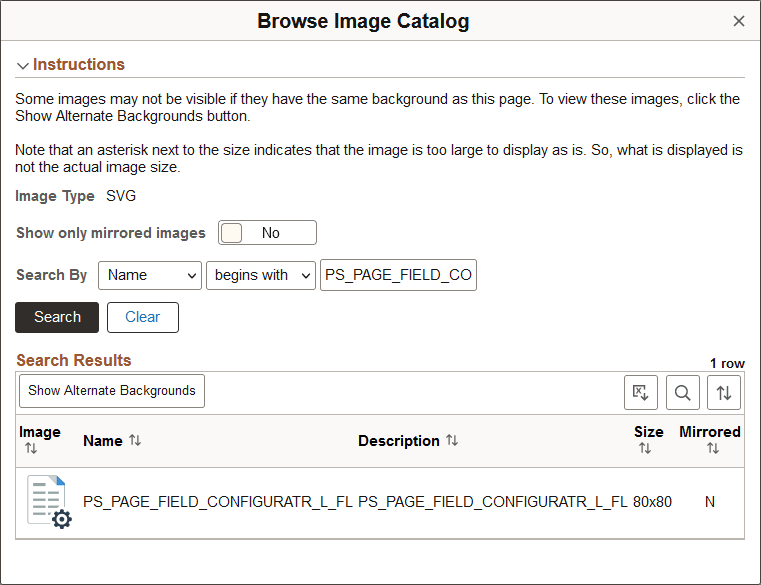
Use the Browse Image Catalog page to select an SVG from the database to display a custom static image as the fluid content.
This example illustrates the fields and controls on the Browse Image Catalog page.
| Field or Control | Description |
|---|---|
|
Image Type |
SVG is selected by default and cannot be changed. |
|
Show only mirrored images |
Select Yes to only retrieve images that are mirrored. Otherwise, both mirrored and unmirrored images are retrieved. |
|
Search By |
Select Name or Description and additional search criteria to limit the search results. |
|
Search |
Click the Search button to retrieve the images meeting the search criteria from the database. |
Select an image in the grid to use it as the custom static image.
Tile Repository
| Field or Control | Description |
|---|---|
|
Homepage |
Select this option to allow the definition to be listed when the Add Tile dialog box is accessed from fluid homepages. |
|
Dashboard |
Select this option to allow the definition to be listed when the Add Tile dialog box is accessed from fluid dashboards. |
|
NavBar |
Select this option to allow the definition to be listed when the Add Tile dialog box is accessed from the NavBar. |
Related Topics