Running Requests
The Run link will be available next to the bookmarked process if the user has permission to run the process from the Reporting Console. The submit request page will differ based on the bookmark type and whether or not the process requires prompts. All of the submit pages will have the same buttons.
The submit request page appears. If the selected process has run control parameters defined, the parameters appear.
This example illustrates the fields and controls on the Submit Request for application engine program PORTAL_CSS showing generic prompting parameters. You can find definitions for the fields and controls later on this page.
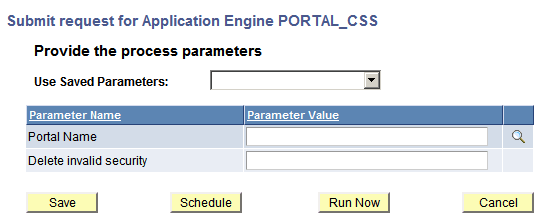
| Field or Control | Description |
|---|---|
|
Use Saved Parameters |
If you have previously run the process and saved parameters, you can select the saved parameters from the drop down list. When a user selects one of the run control IDs from the drop down list, the system retrieves and populates the parameters values from the run control record and fields according to the parameters registered on the process definition. Note: For non-unique prompting (PSQuery, Connected Query and BIP Query-based reports), keep in mind the saved run control may not apply to the report you are attempting to run and therefore will not display the appropriate prompts. |
|
Parameter Value |
Enter values for each parameter. |
|
Save |
Use this button to save the parameter values entered. You will be prompted to enter a name. You can save the parameter values without submitting the process to run. Note: All required parameter values must be completed in order to save the run control ID. Only values defined for run control records will be saved. |
|
Schedule |
Use this button to run the process through the Process Schedule. The Submit Process page will appear. |
|
Run Now |
Use this button to submit the process to run using the default process output type and format (the Submit Process page will not be displayed) Note: A real-time event notification (REN) server must be configured and running for this option. See Defining Event Notifications and Configuring a REN Server. Note: This option is not currently supported by BIP Reports. |
|
Cancel |
Use this button to cancel the request. |
Generic Prompting
The Reporting Console uses generic prompting to submit a process request. Users will enter parameters or retrieve saved parameters before submitting the request. The process or job must have Enable Generic Prompting enabled in the process or job definition for the Run link to be available from My Favorites.
Note:
The prompt button is disabled for the run control record field that do not have a matching prompt record.
Non-Unique Prompting
Runtime prompts for PSQuery, Connected Query and BIP Query-based reports are not registered on a process definition. All of these are query based, therefore, the runtime prompts are determined by the prompts created for the query.
When any of these types of processes are run from the Reporting Console, the user will be prompted for query parameters if they exist. If there are no query parameters, the query prompting dialog is skipped. The query prompting page will mimic the prompting associated with the specific process type selected.
| Process Type | Prompting page |
|---|---|
|
PSQuery |
similar to Schedule Query page |
|
Connected Query |
similar to Schedule Connected Query page |
|
BIP Query-based Report |
similar to BIP Query Report Scheduler page |
nVision Reports
All nVision reports can only be scheduled from the nVision Report Request page. When an nVision report is run from the Reporting Console, the nVision Report Request page is opened to submit the report.