Creating Search Instances
To define a search instance, access the Search Instance Properties page by selecting .
You can also define a search instance by using the SEARCH_TEMPLATE configuration template in Automated Configuration Manager (ACM). The steps to run the template are described later in this topic, see Creating a Search Instance in Automated Configuration Manager.
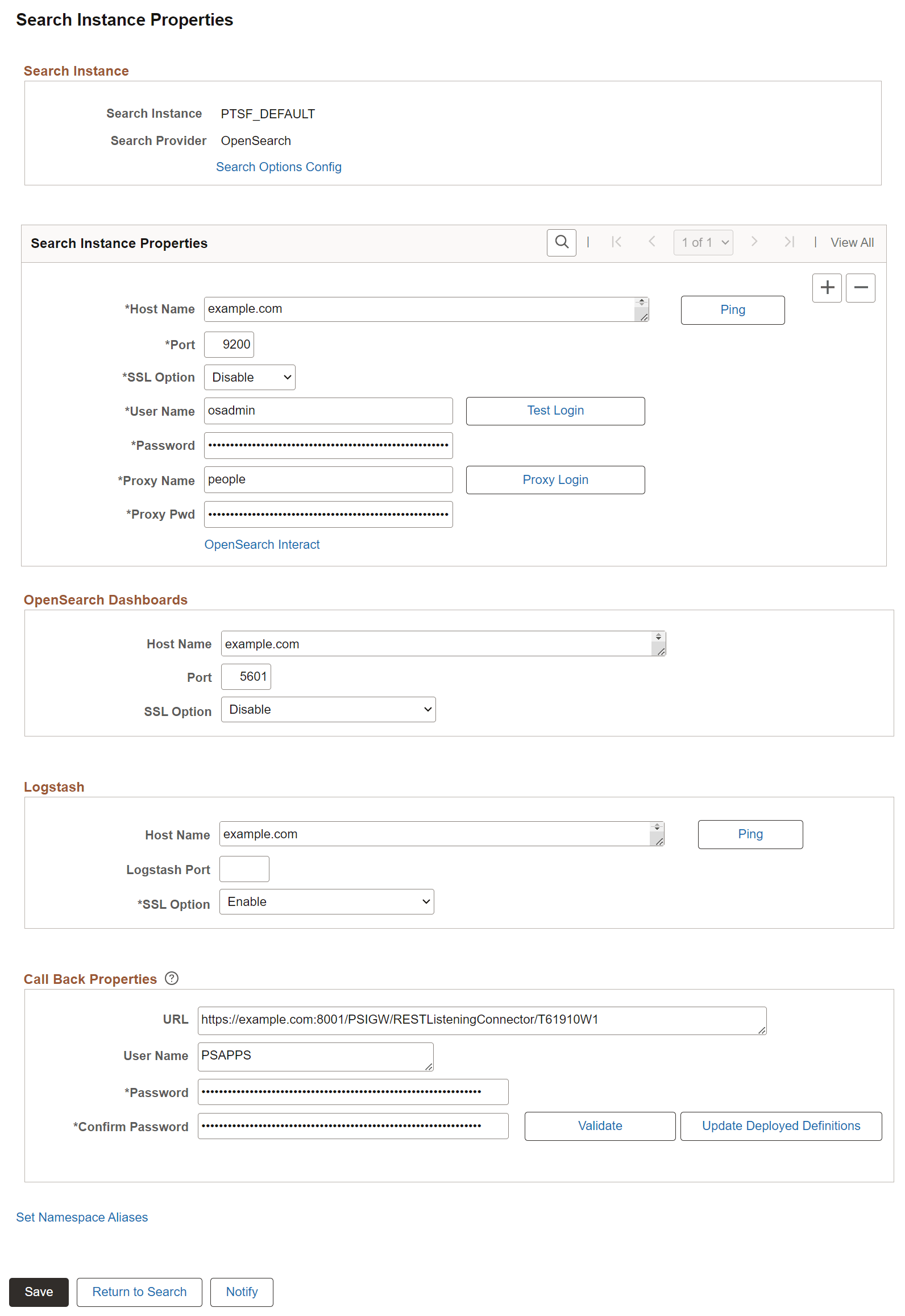
This example illustrates the fields and controls on the Search Instance Properties page. You can find definitions for the fields and controls later on this page.
Search Instance
To enable connectivity between your PeopleSoft system and the search engine, you need to provide these search instance values.
| Field or Control | Description |
|---|---|
|
Search Instance |
Enter a name for the search instance. Note: PeopleSoft Search Framework enables you to create multiple search instances for the purpose of fail-over mechanism. See Understanding High Availability Feature in PeopleSoft Search Framework and Implementing Fail-over Mechanism for more information. When you create multiple search instances, you can use the Search Instance Administration page to specify priority for each search instance. See Administering Search Instances. |
|
Search Provider |
OpenSearch is the default search provider. |
|
Search Options Config |
Search Instance Properties
This section contains details for the user name and password used to connect to the search engine. These credentials are part of the authentication mechanism from PeopleSoft to the search engine. During an incoming search request, the search engine matches these credentials with values stored in the configuration file to authenticate the incoming search request.
Note:
Use this section to add multiple nodes for an OpenSearch search instance by clicking the scroll bar plus button. Configuring multiple nodes enables you to use the fail-over mechanism when one of the nodes may go down for any reason. In a multi-node OpenSearch cluster, always ensure that the replica value is set to at least 1. For more information, see Implementing Fail-over Mechanism and Managing General Search Options.
Oracle PeopleSoft recommends setting up an OpenSearch cluster with three nodes on machines that are not on the same physical server.
For information on creating additional OpenSearch nodes, see Adding a New Node to an Existing Cluster.
| Field or Control | Description |
|---|---|
|
Host Name |
Enter the server name of the host where the search engine is running, including the domain. The host name value can be a DNS name or an IP address. For example: example.com |
|
Port |
Enter the port on which the search engine listens for requests. Note: The default port for OpenSearch is 9200. If a load balancer or reverse proxy is used between OpenSearch and PeopleSoft, the OpenSearch port number should be the same across all nodes in the cluster. |
|
SSL Option |
Select one of the options for SSL:
Note: The setup needs to be either all SSL or all non-SSL. A situation in which one component is in SSL and another is in non-SSL is not permissible. |
|
Ping |
Click to make sure your host name and port are correct and that the search engine is available. A positive result displays a success message. Ping Test Result: Success. opensearch version 3.2.0 (262,613) |
|
User Name |
Enter the user name to connect to the search engine. |
|
Password |
Enter the password associated with the user name. |
|
Test Login |
Click to test the credentials you have specified against the search engine. A positive result displays a success message. Login Success. (262, 615) |
|
Proxy User |
Enter a trusted entity. This enables the PeopleSoft system to log into the search engine using a proxy identity to run a query. This proxy account is a Trusted Entity. You may need to contact your administrator to obtain Trusted Entity credentials or to have those credentials created for the Search Framework query service. Important: Even though the Search Framework is authenticated by the search engine as the Trusted Entity, the search engine uses the identity of the currently signed on PeopleSoft user for query authorization. Note: Proxy User acts as an authentication user for every search request. |
|
Proxy Pwd |
Enter the password associated with the trusted entity. |
|
Proxy Login |
Click to test the credentials you have specified against the search engine. A positive result displays the success message. Login Success (262,615) |
|
+ (plus sign) |
Click the + (plus) sign in the grid to enter details of another node if you plan to implement fail-over mechanism. Note: Oracle PeopleSoft recommends a three-node cluster initially. Then, depending on the hardware, memory availability, and search performance, you may add nodes to the existing cluster. Note: From PeopleTools 8.63, search indexing supports high availability when two or more cluster nodes are configured for a search instance. The indexing process uses the first active node and fails only when all configured nodes are inactive or the search cluster is not available. |
|
OpenSearch Interact |
Click this link to open the OpenSearch Interact page that enables you to choose the cluster and index level options on which you want to obtain information from the search engine. See Administering OpenSearch Using the OpenSearch Interact Page. |
OpenSearch Dashboards
This section contains details of the server where OpenSearch Dashboards is installed.
| Field or Control | Description |
|---|---|
|
Host Name |
Enter the server name of the host where OpenSearch Dashboards is running, including the domain. The host name value can be a DNS name or an IP address. For example, example.com Note: OpenSearch Dashboards can be installed on the same server as OpenSearch or on a separate server. Oracle recommends that you install OpenSearch Dashboards on one of the OpenSearch nodes in the cluster to ensure better connectivity between OpenSearch and OpenSearch Dashboards. |
|
Port |
Enter the port on which OpenSearch Dashboards listens for requests. Note: The default port for OpenSearch Dashboards is 5601. Note: The application requires an open port to directly access Insights in the PeopleSoft. You can disable the firewall for the OpenSearch Dashboards port in which it is installed. |
|
SSL Option |
Select one of the options for SSL:
Note: The setup needs to be either all SSL or all non-SSL. A situation in which one component is in SSL and another is in non-SSL is not permissible. For more information, see Configuring SSL for OpenSearch Dashboards. |
Logstash
This section contains details of the server where Logstash is installed.
| Field or Control | Description |
|---|---|
|
Host Name |
Enter the server name of the host where Logstash is running, including the domain. The host name value can be a DNS name or an IP address. For example, example.com. |
|
Logstash Port |
Enter the port on which Logstash listens for requests. Note: The default port for Logstash is 9800. |
|
SSL Option |
Select one of the options for SSL:
Note: The setup needs to be either all SSL or all non-SSL. A situation in which one component is in SSL and another is in non-SSL is not permissible. |
|
Ping |
Click to make sure your host name and port are correct and that the search engine is available. A positive result displays a success message. Note: Use the Ping button only when External Data Integration for PeopleSoft is configured using Logstash. If External Data Integration is not configured, a Ping failure on the default Logstash port is expected. |
Call Back Properties
The callback properties are used to perform a callback to PeopleSoft to fill in data such as search attribute values, so you need to provide the URL and password for this access.
Note:
PeopleSoft Search Framework uses the REST ListeningConnector for callback.
| Field or Control | Description |
|---|---|
|
URL |
Enter the URL for the PeopleSoft system listening connector, using the following syntax. http://<server>:<port>/PSIGW/RESTListeningConnector/<node> Note: If the callback URL is https and if SSL is not configured on OpenSearch, then the PeopleSoft root CA needs to be installed in the OpenSearch truststore and the truststore path and password should be specified in the opensearch.yml configuration file. If OpenSearch is behind a load balancer and the setting is to terminate SSL at load balancer, the orclssl.callback property should be set to false in the opensearch.yml configuration file. |
|
User Name |
Enter the PeopleSoft user name granted the permission list PTPT3300. This user must have the Search Server and Search Query Administrator roles. Note: This user name must exist as an active user profile on the PeopleSoft system listed in the URL specified. This is generally a system user as opposed to an interactive user. In addition, if you have attachments on an FTP server that will be accessed by the search engine, this user must also be authorized to access the FTP site. |
|
Password\Confirm Password |
Enter and confirm the password associated with the PeopleSoft user name. |
|
Validate |
Click to validate the URL, service operations, and credentials you have entered. A positive result displays the following message on the Validation Report page: All validations are successful. The following service-operation validations are performed to confirm:
|
|
Update deployed definitions |
Click this link to invoke a bulk update for all definitions currently deployed to the search engine. If you have changed any of the callback properties (URL, user name, or password), all currently deployed search definitions need to be updated with the new callback values to continue successful interaction with the Search Framework. |
|
Set Namespace Aliases |
Click this link to set namespace aliases when you clone an environment. See Setting Namespace Aliases for more information. |
|
Save |
When you save a search instance, OpenSearch creates an orcl_es_auth index that stores the callback service URL for each PeopleSoft database. When a user accesses OpenSearch Dashboards in PeopleSoft, the user is authenticated using the callback service request to the orcl_es_auth index of a specific database. |