Selecting Facet Settings
Access the Facets page by selecting and selecting the Facets tab.
This example illustrates the fields and controls on the Facets page. You can find definitions for the fields and controls later on this page.
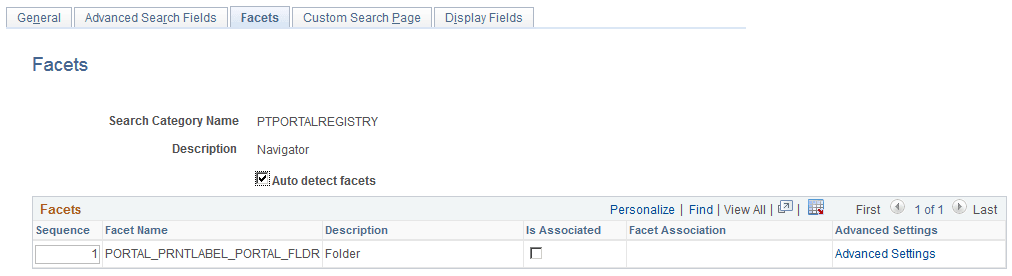
| Field or Control | Description |
|---|---|
|
Auto detect facets |
Select to detect common facets for all the search definitions belonging to the search category. When you save the search category, any facets that are common to all search definitions are displayed. This saves you from needing to discover which facets can be used to filter across all search definitions. Deselect this option if you wish to remove some facets or add ones that are not common to all search definitions (not recommended as this may distort facet counts). |
|
Sequence |
Control the sequence in which the faceted fields display for narrowing search results in an intuitive fashion for users. For example, perhaps you might want to ensure that these faceted fields display in this order: Country, State, County, City. |
|
Description |
Displays the value of the Attribute Display Name column in the grid on the Map Search Attributes page for the search definition. |
|
Is Associated |
Select if you intend to create a user-specific association with the facet. Note: Creating associated facets applies only to certain situations and expects additional requirements to be in place. For more information, refer to the topic below, “Creating Associated Facets.” |
|
Facet Association |
Select how the value to which the facet should be associated will be determined. Options are:
|
|
Advanced Settings |
Select to add further sorting and categorization of the facets depending on the data type of the facet. For example, you can create sort orders for string facets and ranges for number and date facets. See the following topics for more details on the options for each facet data type. By default, facet values are sorted by count, meaning that the system displays the facet value containing the most search results first, or at the top of the list. While this may be desirable in many situations, in some situations it may provide a better user experience if the facets are sorted based on criteria other than just the number of search results. For example, if the facet is a date field, it may make more sense to sort the facet values by the actual year, in a sequential order, (2013, 2012, 2011, and so on) as opposed to the number of search results with in each year. Likewise, in another situation, it may be more intuitive to sort a faceted Customer field alphabetically, regardless of search result count. Important: Setting facet ranges applies only to date and number data types. Values with data types of datetime cannot be used as facets. See Defining Advanced Settings for String Facets. |
Keep in mind that this configured list of facets can be programmatically retrieved using the GetFacetFilters method in the SearchCategory App Class in the PT_SEARCH Application Package. The result, which is an array of PT_SEARCH:FacetFilter, can be passed to the PT_SEARCH:SearchQuery class to get facet nodes in the search results.