AI Compute
This chapter covers the use of specialized computing resources for powering AI agents in Oracle AI Data Platform.
An AI compute cluster lets you host agents in AI Data Platform workspaces. AI computes can be attached to agents to run the playground experience and host deployed agents for production workloads.
Where to Find AI Compute
You manage AI compute from the Compute page, accessible from the left navigation pane in your AI Data Platform. Click the AI compute tab to see the AI compute clusters available in your workspace.
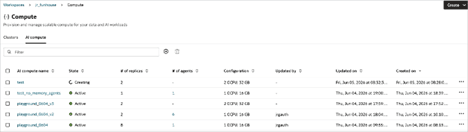
The AI compute tab is the main landing page for AI compute resources in the currently selected workspace. It provides table actions, filtering, sorting, and status information.
| Column or Control | Purpose |
|---|---|
| Filter | Search the table for a resource by name or visible text. |
| Add (+) | Start creation of a new AI compute. |
| Delete | Remove selected AI computes. |
| AI compute name | Name of the compute resource. Click on the AI compute name to open the resource details page. |
| State | Current lifecycle state, such as Creating, Active, or Updating. |
| # of replicas | Number of compute replicas associated with the AI compute. |
| # of agents | Number of agents hosted in the AI compute. The count is shown as a link when agents are present. |
| Configuration | Summary of the compute shape of the replicas in the AI Compute, such as 1 OCPU, 16 GB or 2 OCPU, 32 GB. |
| Updated by / Updated on / Created on | Audit information for the most recent update and creation time. |
| Action menu (...) | Open resource-specific actions for the selected row. |
Note:
A green check indicates an Active resource. A spinner indicates an in-progress operation such as Creating or Updating. Wait for a resource to be Active before relying on it for production work.Clicking the name of an AI compute in the AI compute tab allows you to view detailed information on that AI compute. The AI compute view has four tabs: Agents, Details, Compute utilization, and Permissions.
Agents Tab
The Agents tab lists agents that are hosted in the AI Compute resource. If an agent is not deployed, the AI compute is hosting the playground experience necessary for iterative development and testing. If the agent is deployed, the AI computed is hosting the agent deployment endpoint for production workloads.
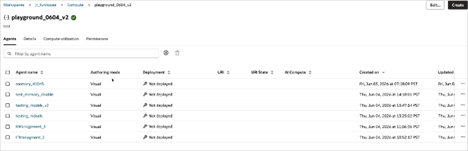
| Agents Tab Item | Description |
|---|---|
| Filter by agent name | Search the associated agent list. |
| Agent name | Name of the agent associated with the compute resource. |
| Authoring mode | How the agent was authored. Values of Visual or Code. |
| Deployment | Deployment state. Agents hosted in the AI compute can either be not deployed (playground is hosted in AI compute) or deployed (when the compute is hosting the deployment endpoint of the agent) |
| URI / URI State | Endpoint URI information when an agent is deployed and has a URI. |
| AI Compute | The compute associated with the production endpoint of the agent. |
| Created on / Updated on / Updated by | Creation and update metadata for the agent. |
Details Tab
The Details tab summarizes the configured shape and storage for each replica of the AI compute.
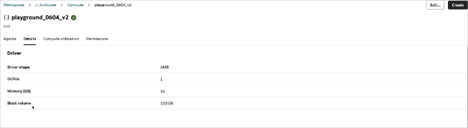
| Details Tab Item | Description |
|---|---|
| Driver shape | The GPU shape selected for the AI Compute. AMD is the driver shape for all AI Compute. |
| OCPUs | The selected number of OCPUs for the AI Compute. |
| Memory (GB) | The AI compute memory in GB. |
| Block volume | The block volume size of the AI compute in GB. |
Compute Utilization Tab
Use the Compute utilization tab to review CPU, memory, and network utilization over time. This is useful when deciding whether to scale replicas, OCPUs, or memory up or down. There is no downtime during a scale out/in AI compute operation.
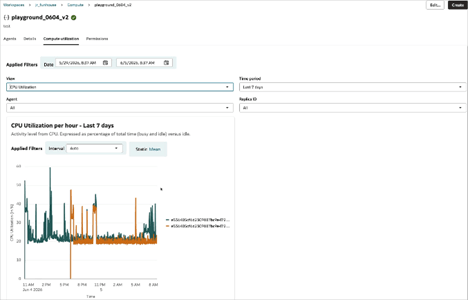
Note:
Each time series corresponds to a different replica. For example, if you create an AI compute with two replicas, two time series will be displayed just like the screenshot above shows.| Compute Utilization Tab Item | Description |
|---|---|
| Applied Filters | Choose the start and end date/time for the utilization view. |
| View | Choose the metric. Options are:
|
| Time period | Choose between a custom time period or the last 7 days. |
| Replica ID | Filter metrics to a specific replica ID, or show All compute replicas. |
| Interval | Choose the aggregation interval for the chart. Options are Auto, 1min, 5 min, 15min, 30min, and 60min. |
Permissions Tab
The permission tab provides a table of all the principals that have permission to this AI compute. Use this tab to add principals, change the permission level, or otherwise modify permissions.
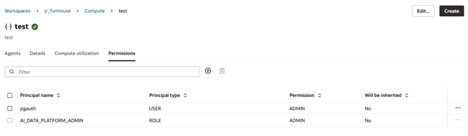
| Permissions Tab Item | Description |
|---|---|
| Principal name | Name of the principal or role. |
| Principal type | Principal type. USER or ROLE. |
| Permission | Permission level. |
| Will be inherited | If permissions granted for a parent object grant permissions to contained objects. |
Create an AI Cluster
You can create AI compute clusters to run AI agents in your Oracle AI Data Platform.
Create an AI Cluster for an Agent
You can create a new AI cluster directly from the agent interface and attach it immediately.
- On the Home page, navigate to your agent.
- Click Compute then click Create a new AI compute.
- Provide a name and description for your AI compute cluster.
- Select the number of OCPUs and memory size for your AI compute cluster.
- Click Create.
Attach an Existing AI Cluster to an Agent
You can attach an AI cluster you've previously created to an agent on which you have at least USE permissions.
Edit an AI Cluster
You can modify the configuration settings of an AI compute through the Edit operation.
- Next to the AI compute cluster you want to modify, click
 Actions then click Edit. You can also click the name of the AI compute then click Edit in the top-right.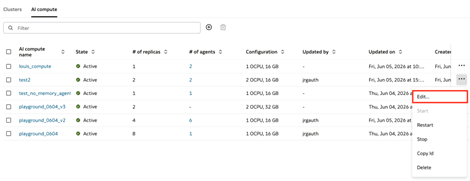

Detach an Agent from AI Compute
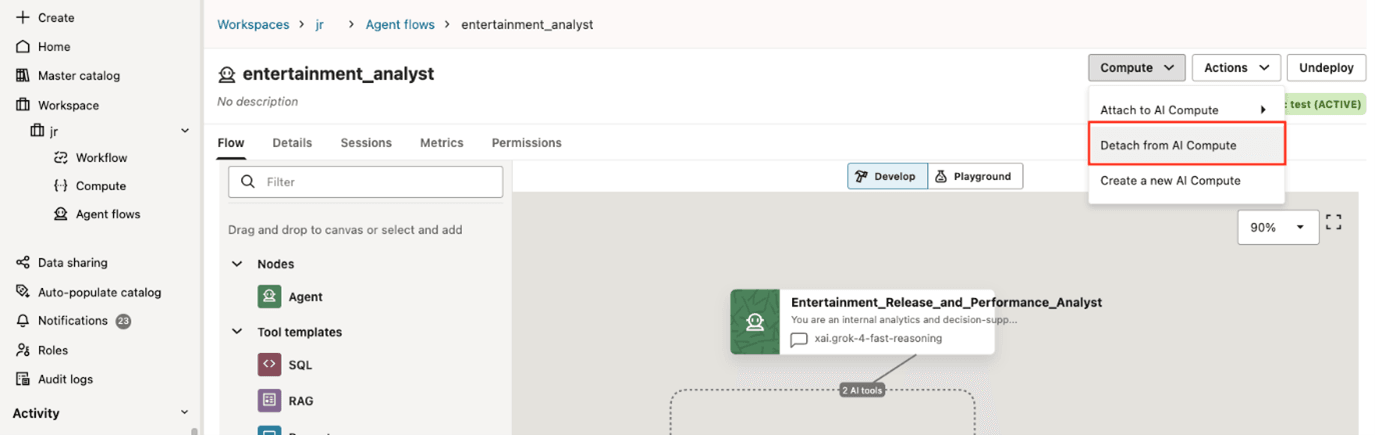
You can detach an agent from an AI compute. Detaching the AI compute removes the agent code running on the attached compute and prevents testing.
Note:
Detaching an agent from AI compute does not delete the agent. You can resume building and testing the agent by attaching it to the same or different AI compute.- Click Compute then click Detach from AI Compute.
Delete an AI Cluster
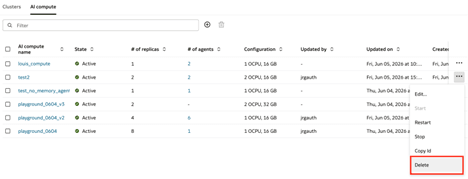
You can delete AI compute clusters that are unused or no longer needed.
- Next to the AI cluster you want to delete, click Actions and click Delete.
- Click Delete.
Stop an AI Cluster
You can stop an AI compute to stop all agents running on the AI compute. The compute is freed and the metering stops.
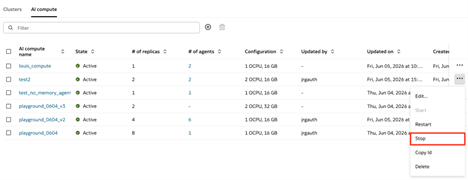
- Next to the AI cluster you want to stop, click Actions and click Stop.