Add Conditional Formatting to a Visualization
Add conditional formatting to highlight important events in your data. For example, you might want to show when occupancy rates for a rental property meet high, medium, and low thresholds.

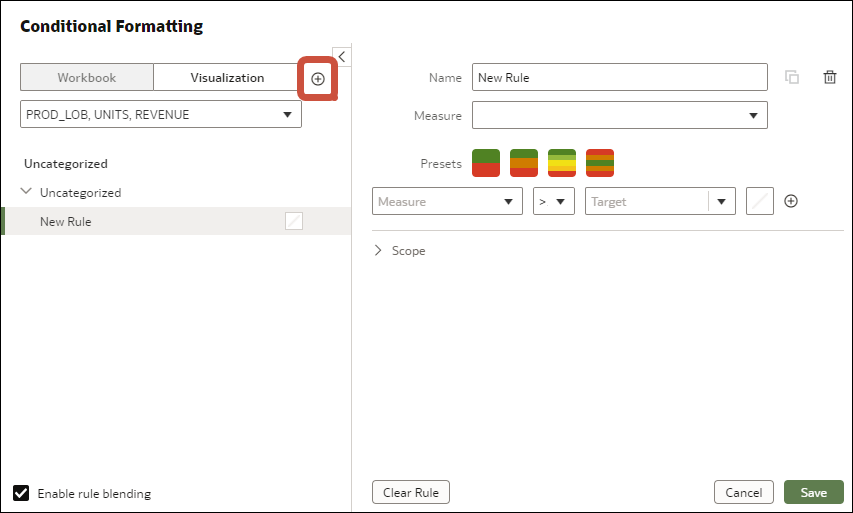
- Hover over a visualization and on the visualization toolbar, click Conditional Formatting
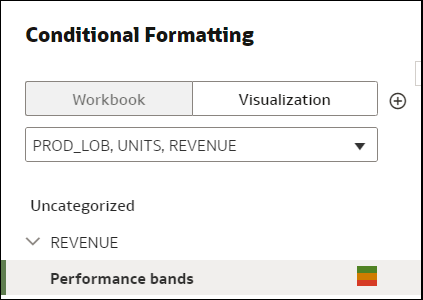
 .Existing rules are listed under their target measure. Rules are displayed as Uncategorized until their target measure is specified. For example, in this example, the rule "Performance bands" is listed under the measure REVENUE.
 - In Name, change the default name to something more user-friendly.
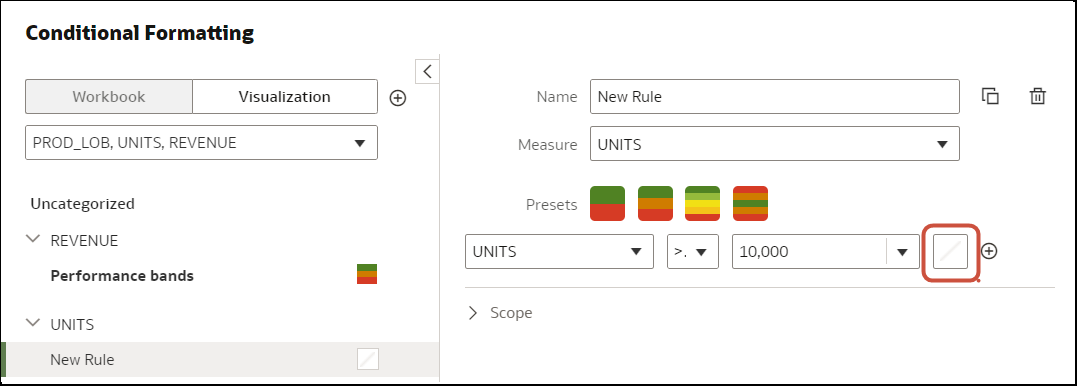
- Below the Presets, select the column on which the rule is evaluated, the operator field, and the threshold.For example, to highlight revenue rates greater than 1,000,000, select REVENUE in the evaluator column field, select the greater than symbol > in the operator field, and enter 1,000,000 in the value field.Tip: You can also create a rule using a template by clicking one of the Presets and defining a value for each threshold. For example, click 3 Steps Threshold to create a set of stoplight thresholds.
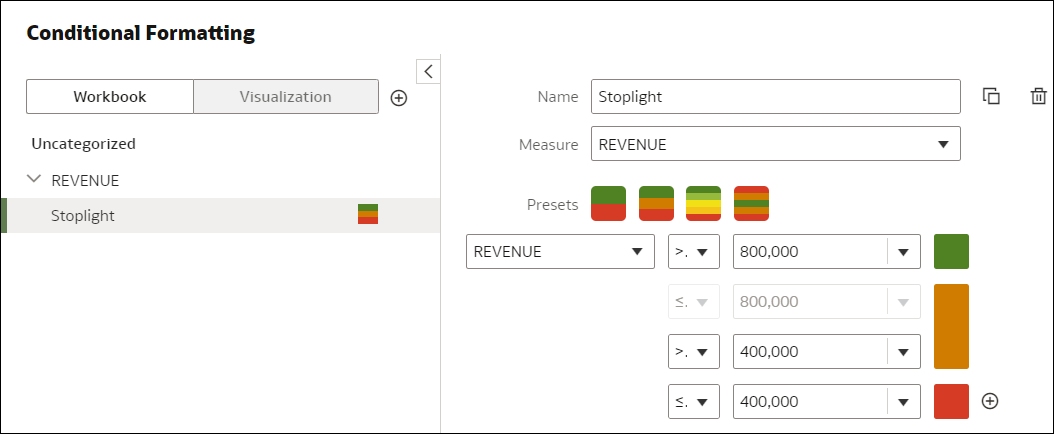
Description of the illustration conditional-format-example-threshold-configuration.png - Click Format to configure the fill color, font, icon or emoji (tabular data), note, and legend.