Create a Set Parameter Data Action to Pass Column Values
You can create a Set Parameter data action when you want to update one or more parameters with values from the selected data points on a canvas when the data action is invoked.
A consumer selects a data point in a visualization and invokes a data action from the tooltip toolbar or context menu. When they invoke a Set Parameter data action, values are passed to the mapped parameters wherever those parameters are used on the canvas.
For example, suppose you have a canvas with a stacked bar chart showing Sales by Customer Segment and Product Category and two line charts showing Sales by Ship Date (Year). One line chart has a visualization filter for Customer Segment and the other has a visualization filter for Product Category.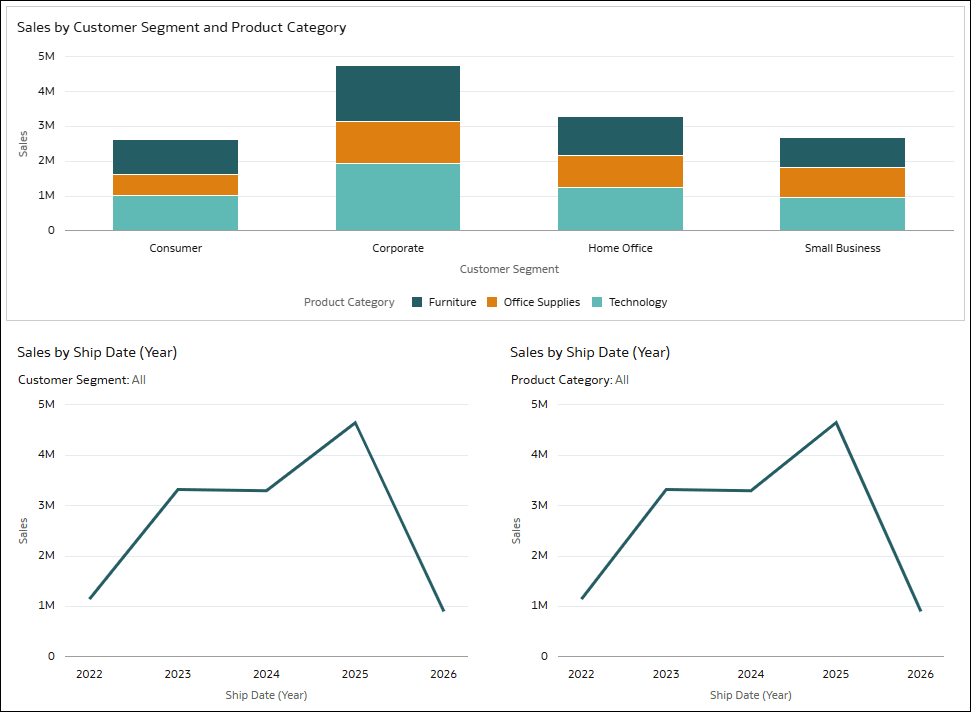
Description of the illustration data_actions_set_parameter_example1.png
You can create a Set Product Category parameter and a Set Customer Segment parameter and use both in a Set Parameter data action called Set Product and Segment.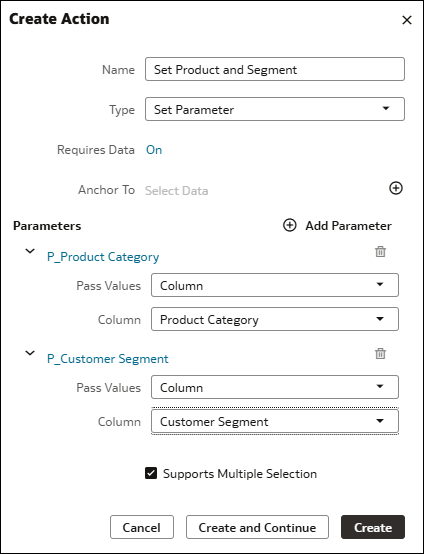
Description of the illustration data_actions_set_parameter_example2.png
Then, when a consumer selects a data point in the bar chart, such as one representing the Furniture category and Consumer segment, and invokes the data action, the line charts update to reflect the Furniture category and Consumer segment. For a consumer to invoke the data action this way, you need to enable the On click action property, see Configure the On Click Action Property for a Visualization.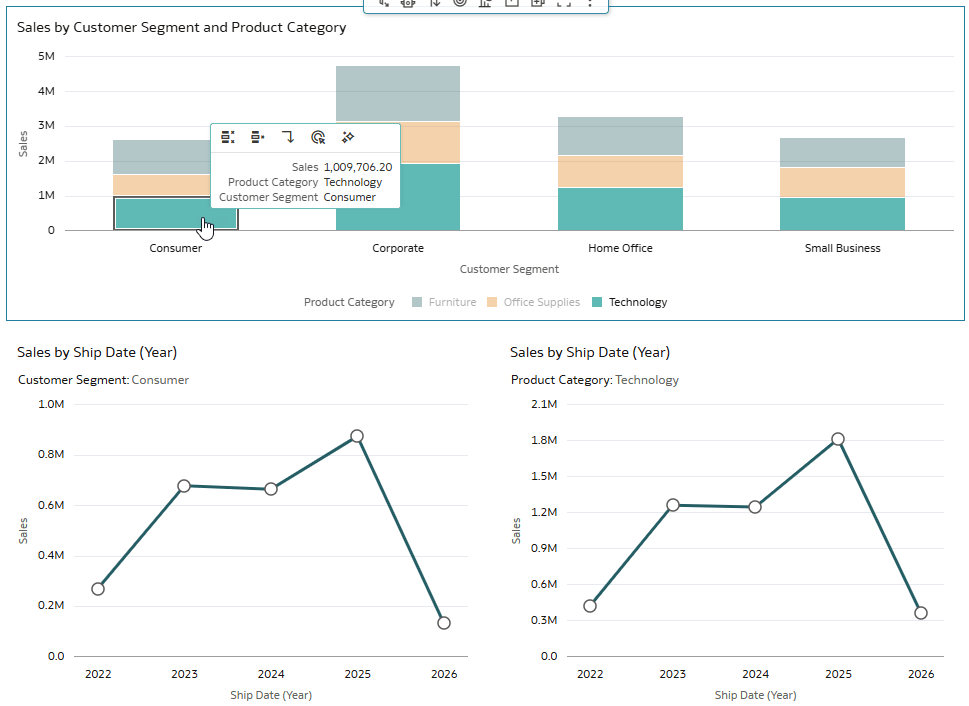
Description of the illustration data_actions_set_parameter_example3.png
To use a Set Parameter data action for this purpose, you need to set the Requires Data option to On. This means the data action requires data and you can anchor the data action to a column and specify the values to pass.
Before you begin, create the parameters that you want the data action to update. Follow the steps in Create a Parameter and don’t assign an initial value.
- On your home page, hover over a workbook, click Actions, and select Open.
- In the Data panel, click Actions
 .
. - In the Actions pane, click Create Action.
- In the Name field, give your data action a meaningful name.
- In the Type field, select Set Parameter.
- In the Requires Data field, make sure it's set to On.
- In the Anchor To row, select a column to associate with the data action.
- In the Parameters section, click None, then select your parameter.
- In the Pass Values row, select Column. Then in the Column row, select the corresponding column from your dataset.
- To add another parameter, click Add Parameter and configure it as required.
- Click Create.