Exclude Filter Values from AI Agent Responses
Configure a parameter to exclude workbook-selected values from AI-generated responses.
By default, AI Agents don't use the Exclude property configured on workbook filters. To exclude workbook-selected values from AI-generated responses, create an excludes parameter and map it to the AI Agent filter. When the workbook passes exclusion values to the AI Agent, the AI Assistant excludes the selected values from the generated response context.
Before performing this task, be sure to create an AI Agent with parameter-bound filters. See Configure an AI Agent to Use Workbook Filter Values.
Create a Parameter
- In the workbook, click Parameters and then click Menu and select Add Parameter.
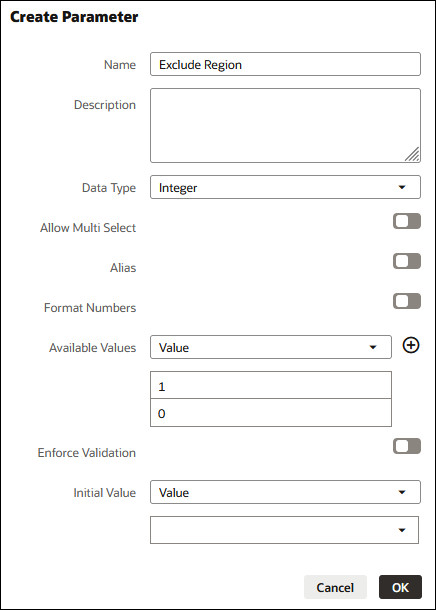
- In Create Parameter, add a name and specify only the following properties. Don't change any of the other default values.
- Data Type - Select Integer.
- Available Values - Select Value. Click Add value (+) and enter 1. Click Add value (+) again and enter 0.
- Click OK.
Add and Map the AI Agent
- In the workbook, from the Preview menu
 , select Configure Presentation.
- Confirm that the Workbook tab is displayed. Scroll to the Insights Panel section and confirm that it's displayed. Then scroll to the Workbook Assistant section.
- Locate Agents and click +.
- In Select an AI Agent, locate and click to select the agent you created to accept the workbook filter values. Click OK.
- In Agents, locate the agent you added and click Show Agent Options and click Show Filter Mappings.
- In Connect the agent to your workbook context, locate the Excludes required agent filter, click its drop down menu, and select Flag.
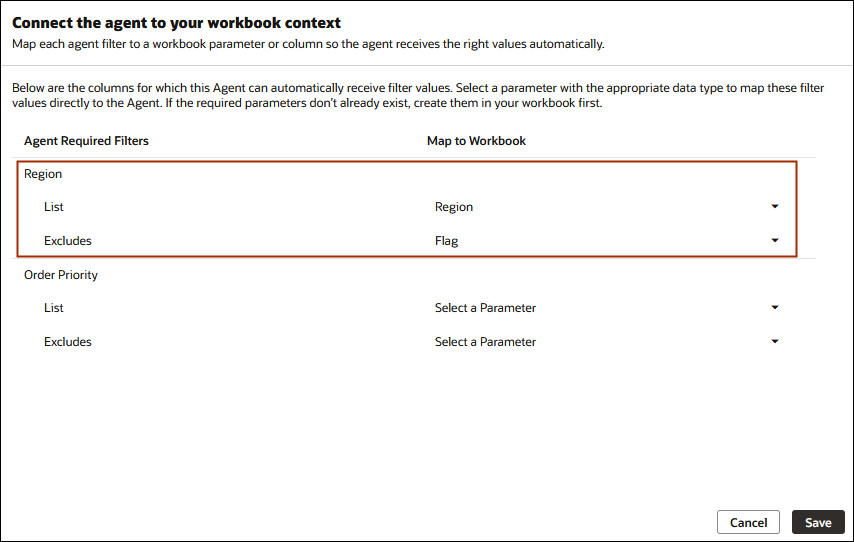
Description of the illustration agent_workbook_bind_param_mapping.jpg - Click Save.