How Do I Monitor Billing for an Instance?
Monitor the messages that an instance is using in the Oracle Cloud Console on the instance details page.
-
Find out how many message packs were selected for the instance. See How Do I View the Message Packs for an Instance?.
-
In the Oracle Cloud Console, open the instance to monitor. See View Instance Details.
-
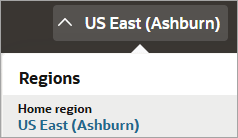
Make sure your home region is selected in the region drop-down.
-
Select the Monitoring tab.
-
Below Metrics, select the filter next to Applied filters, and update the date range for the data to view in each chart.
-
To understand your usage over time, start with a large time range, such as 30 or 90 days.
-
If you saw a spike for a specific day and want to understand what happened, narrow the time window to the day's 24-hour period.
-
- Leave the Interval filter for each chart at 1 hour. Message packs are billed hourly, so it's helpful to view this data hourly in each chart.
-
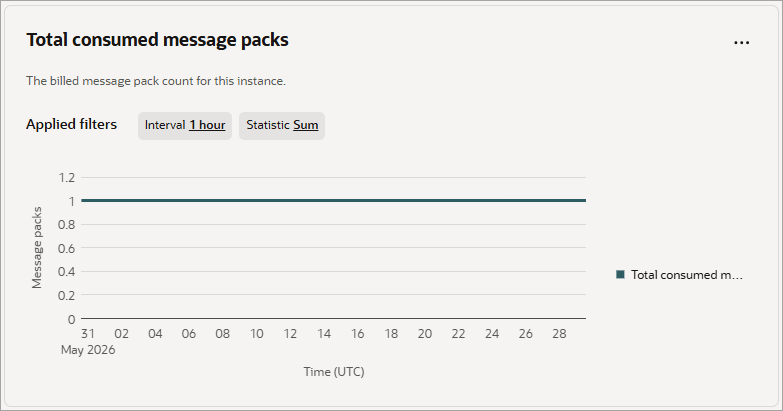
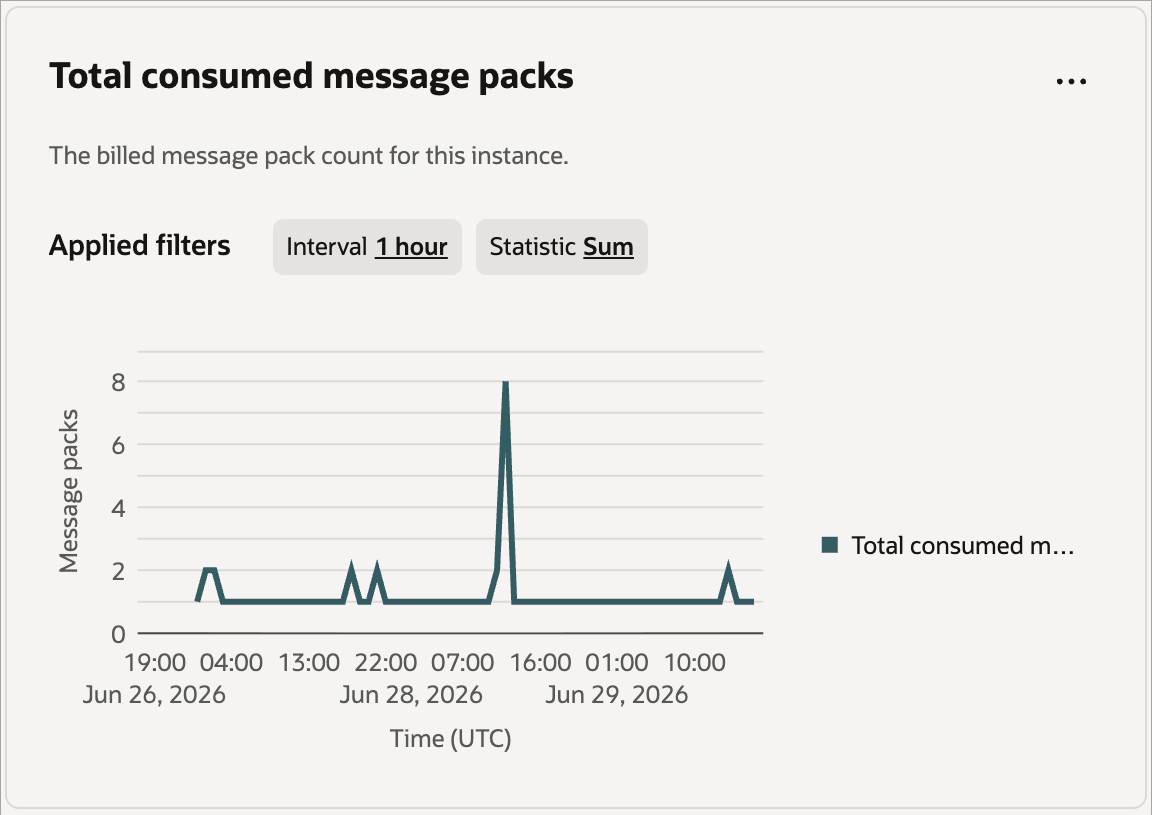
In the Total consumed message packs chart, review the number of message packs that the instance consumed.
-
If the line remains flat at your purchased message pack level, the instance has been billed for only the configured message packs.
-
If the line rises above your purchased message pack level, your usage exceeded the amount included in your subscription, resulting in additional billing.
-
-
To learn more about billing, see the other FAQs at FAQs for Billing.