Add a Scope
A Scope lets you logically group interactions and automation actions, and also define exceptions using a fault handler.
Use Case
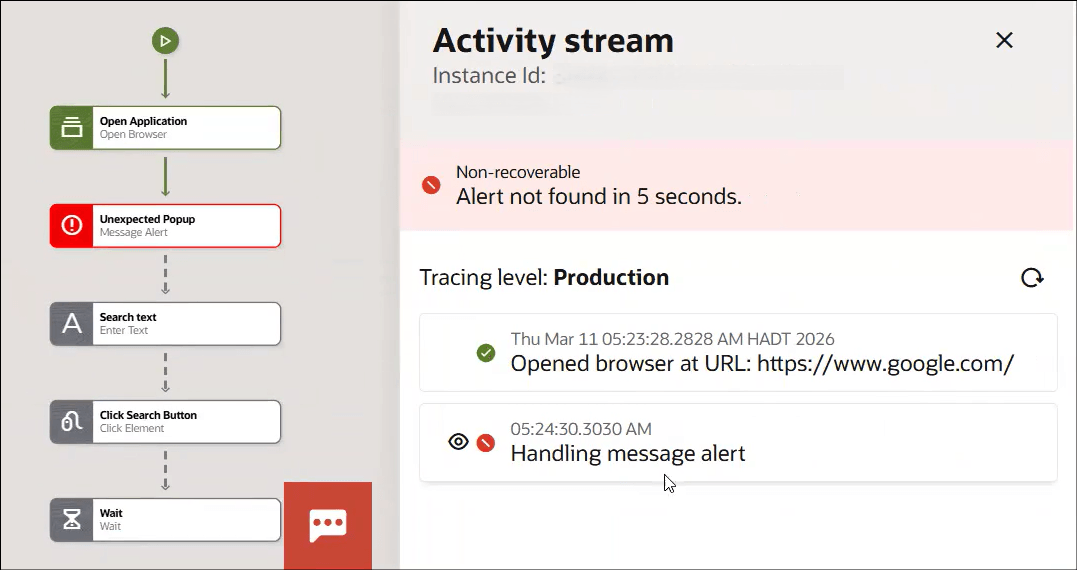
You want to open an application from a browser, enter search text, click Search and wait for the search results to be displayed. You have added an Alert action if there is an unexpected browser pop-up dialog box before the search text is entered.
However, if the browser pop-up dialog box does not display, then the robot will not be able to proceed and execute the further steps.
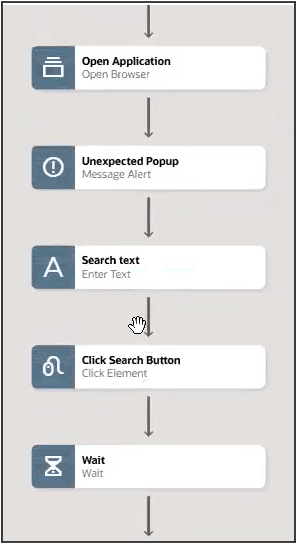
You can handle this error scenario by adding a Scope.
Add a Scope
Note:
You must use the low-code capabilities to add this logic to a robot. Keep reading for step-by-step instructions.- Add the logic to the robot.
- Select the Flow control tab.

- Select the Flow control tab.
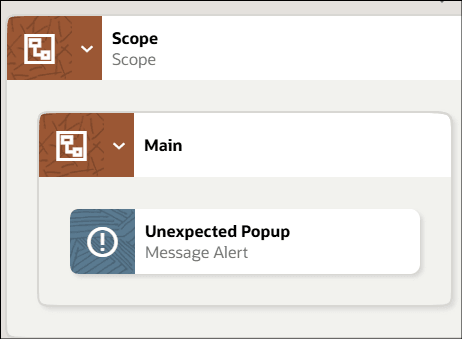
- Add one or more actions to the Scope.
- Define actions or logic that the robot takes if there is an exception. Add a message alert if the robot comes across an unexpected browser pop-up dialog box.
Note:
You can also add a Throw Fault action to pass an error from a fault handler back to the parent flow. See Add a Throw Fault Action. - Define actions or logic that the robot takes if there is an exception. Add a message alert if the robot comes across an unexpected browser pop-up dialog box.
- In scenarios where the unexpected browser pop-up dialog box is not displayed, the robot will fail and not be able to proceed further. To avoid this, add a fault handler to handle the exception and continue executing the next steps.
- Within the Scope box on the canvas, point to
 , select Fault handlers.
 - Select the exception value from the list. This list of exceptions is dynamically generated at runtime based on the actions included in the Scope.
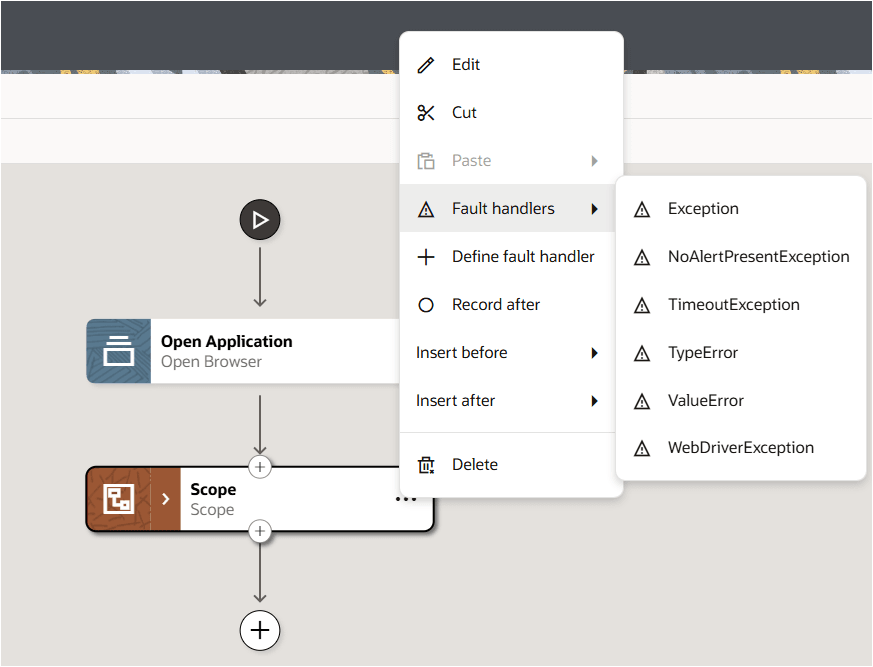
- You can also select + Define fault handler and create a new fault handler or create a default fault handler to handle exceptions.
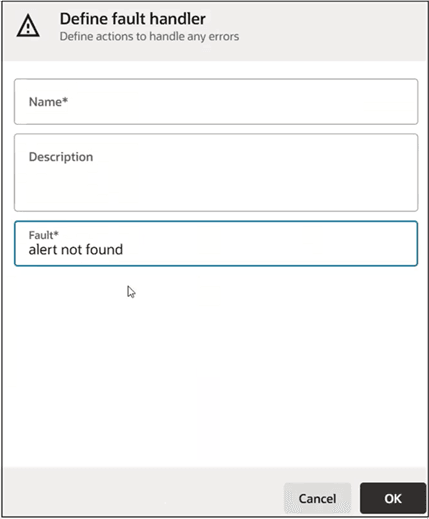
- Within the Scope box on the canvas, point to
See the following examples to understand how the robot with scope can handle exceptions.
Example: Robot with Scope for handling exceptions
When you run the robot, it will handle the exception locally and continue with the next steps.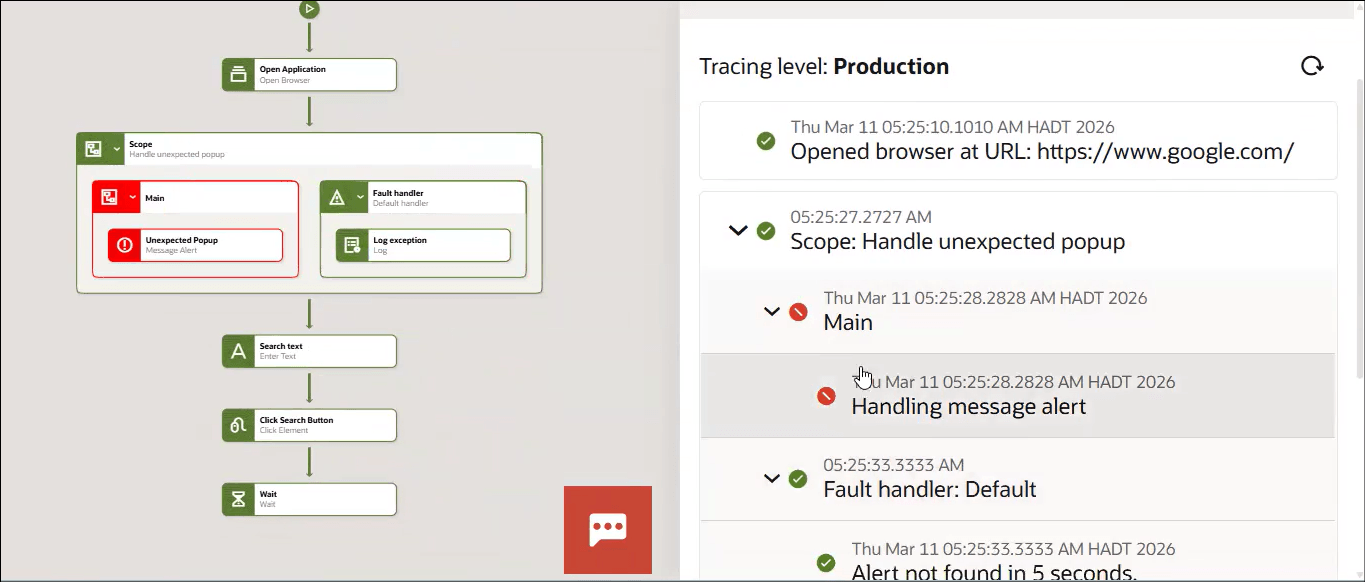
Example: Robot without Scope
If you have configured the robot without a Scope, it will stop when it encounters an error and not execute the next steps.