Add Custom Property Expressions

When creating a property graph, you can define custom properties based on a column name or using an expression in the Editor tab at the Define Graph step of the graph creation workflow.

See Create a Property Graph from Existing Relational Tables for instructions on getting started with the property graph wizard, to create a property graph.

Perform the following steps to add a custom property. The instructions assume that you are in the Editor tab at the Define Graph step of the property graph wizard.

  1. Select a vertex or an edge table in the top panel to which you wish to add a custom property.
    The source table details such as the source table key, default label, and label properties get displayed in the bottom panel.
  2. Click Add Property from the Actions drop-down menu for the selected element in the bottom panel.

    The Add Property slider opens as shown:
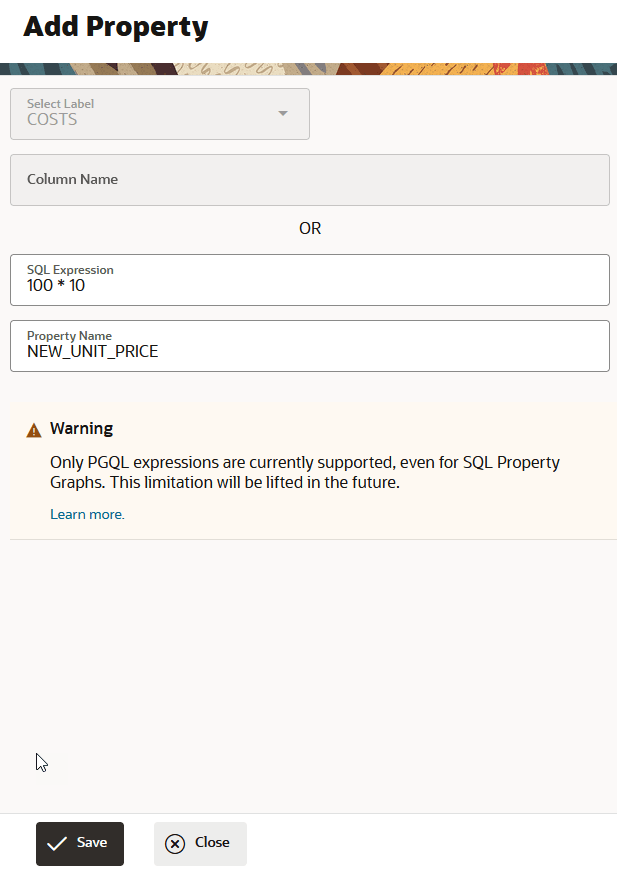

    Description of add_custom_property.png follows
    Description of the illustration add_custom_property.png

  3. Select a label from the Select Label drop-down.
    The drop-down is disabled if there is only one label assigned to the vertex or edge table.
  4. Enter either a Column Name or a SQL Expression.
    If you are entering a SQL Expression, note that only PGQL expressions as described in PGQL Specification are supported for all types of property graphs.
  5. Enter a Property Name.
  6. Click Save to add the new property.

    The newly added custom property appears in the list of properties for the source table in the Editor tab. It also gets reflected in the CREATE PROPERTY GRAPH statement in the Source tab and also under Vertices and Edges in the Designer tab.