Backup-Based Disaster Recovery Cross Region Operations
Describes cross region operations with Backup-Based Disaster Recovery.
Add a Cross Region Disaster Recovery Peer
In addition to a local Backup-Based Disaster Recovery peer, you can add one or more remote region (cross region) Backup-Based Disaster Recovery peers.
Perform the following prerequisite steps as necessary:
-
Open the Oracle Cloud Infrastructure Console by clicking the
 next to Cloud.
 -
From the Oracle Cloud Infrastructure left navigation menu click Oracle AI Database and then click Autonomous AI Database.
-
On the Autonomous AI Database page, select your Autonomous AI Database from the links under the Display name column.
To add a cross region Backup-Based Disaster Recovery peer, do the following:
-
On the Autonomous AI Database Details page, select the Disaster recovery tab.
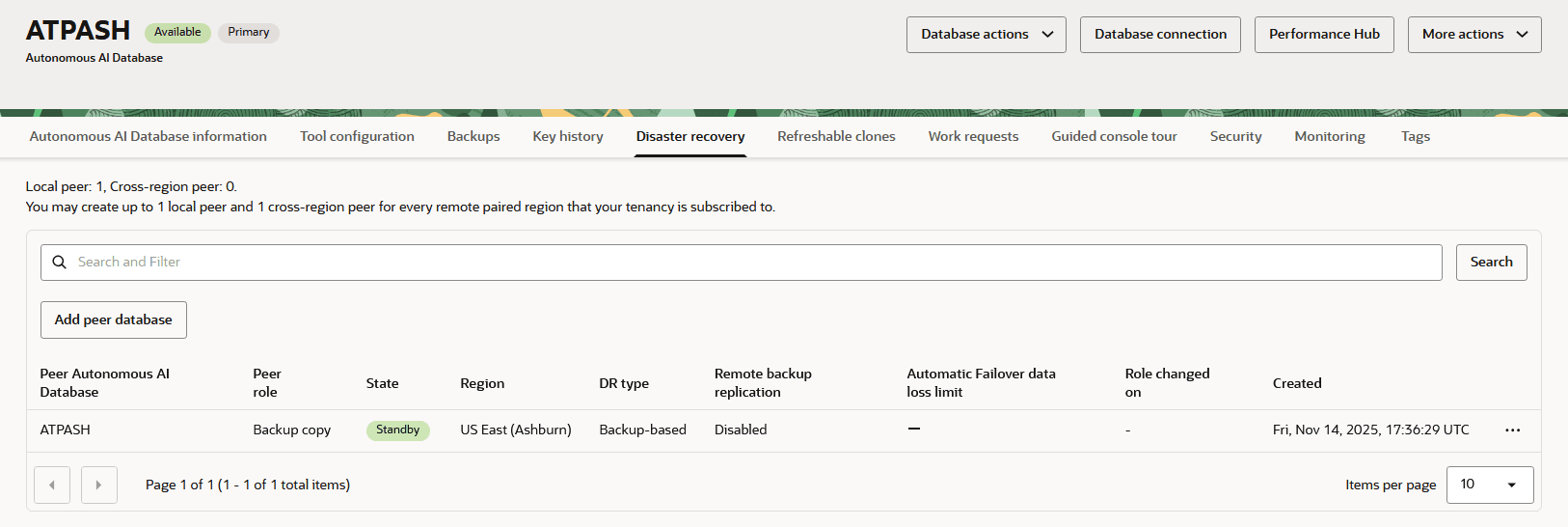
Description of the illustration adb_backup_copy_resources.png
-
Click Add peer database.
-
In the Region drop-down list, select a region.
The region list shows the available remote regions where you can create a cross region peer. When you add a peer database, the list of available regions only shows a remote region if your tenancy is subscribed to the remote region (you must be subscribed to the paired remote region). See Autonomous AI Database Cross Region Paired Regions for more information.
-
In the Select a compartment drop-down list, select a compartment.
-
Select the disaster recovery type. In addition, when the source database is configured with a private endpoint, enter the private endpoint information for the peer.
-
Select the disaster recovery type: Backup-based disaster recovery.
-
If you want to enable cross region Backup Replication select the Enable cross region backup replication to disaster recovery peer check-box. See Replicating Backups to a Cross Region Backup Based Disaster Recovery Peer for more information.
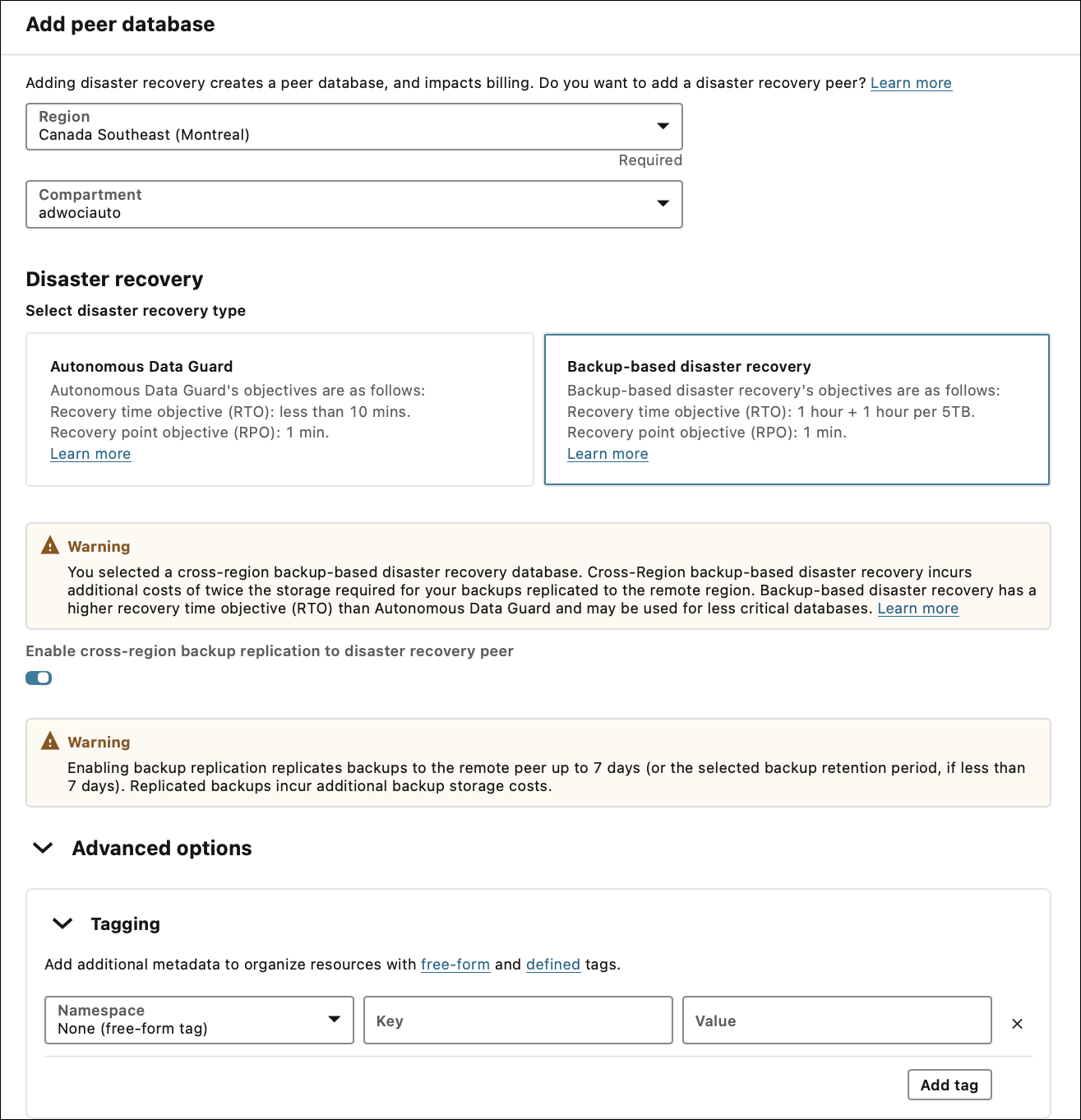
Description of the illustration adbs_bbdr_cross_region_replication.png
-
When the source database is configured with a private endpoint, in the Network access for standby area enter the Virtual cloud network and the Subnet.
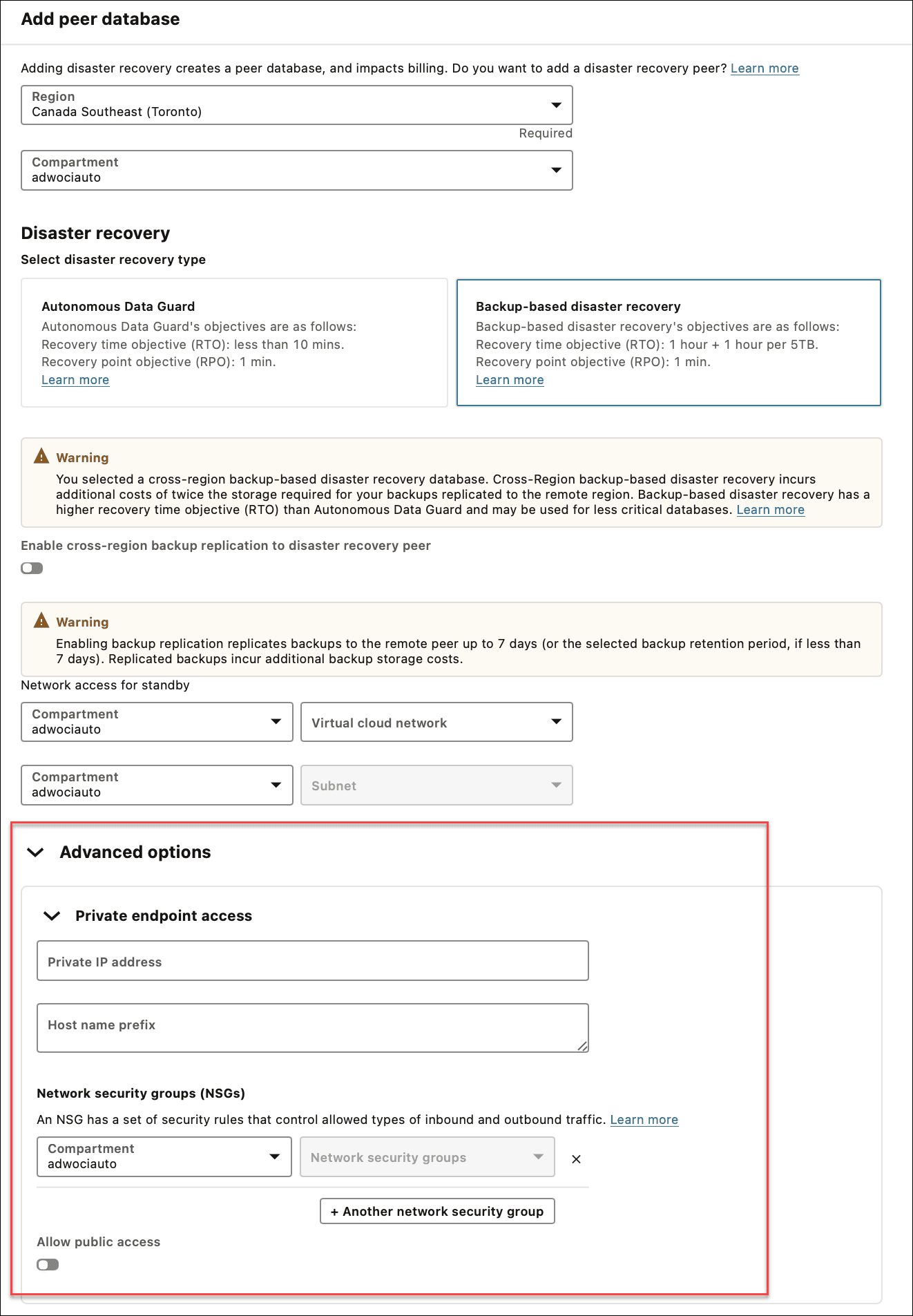
Description of the illustration adb_create_cross_region_peer_private_endpoint.png
In these Network access for standby fields you specify the private endpoint's VCN and Subnet on the remote region where the standby is created.Configure Private Endpoints.
Note: If you change your network access on the source database to enable a private endpoint after the standby is created, you must manually access the standby to enable a private endpoint on the peer.
-
-
Click Add peer database.
The Autonomous AI Database Lifecycle state changes to Updating. In the Resources area, the number next to Disaster recovery increments to show that you have another disaster recovery peer, and the State field shows Provisioning for the new cross region peer.
Note: While you add a new peer, the primary database is available for read/write operations. There is no downtime on the primary database.
Autonomous AI Database generates a work request when you add a cross region peer. To view the work request, select the **Work requests** tab.
See Notes for Cross Region Backup-Based Disaster Recovery Peer Operations for more information.
Enable or Disable Backup Replication for an Existing Cross Region Peer
You can enable or disable backup replication on a Backup-Based Disaster Recovery cross region peer.
To enable or disable backup replication for an existing cross region Autonomous Data Guard standby:
-
On the Autonomous AI Database Details page, select the Disaster recovery tab.
-
In a row that lists a cross region standby, click More actions at the end of the row and select Update disaster recovery.
This shows the Update disaster recovery page.
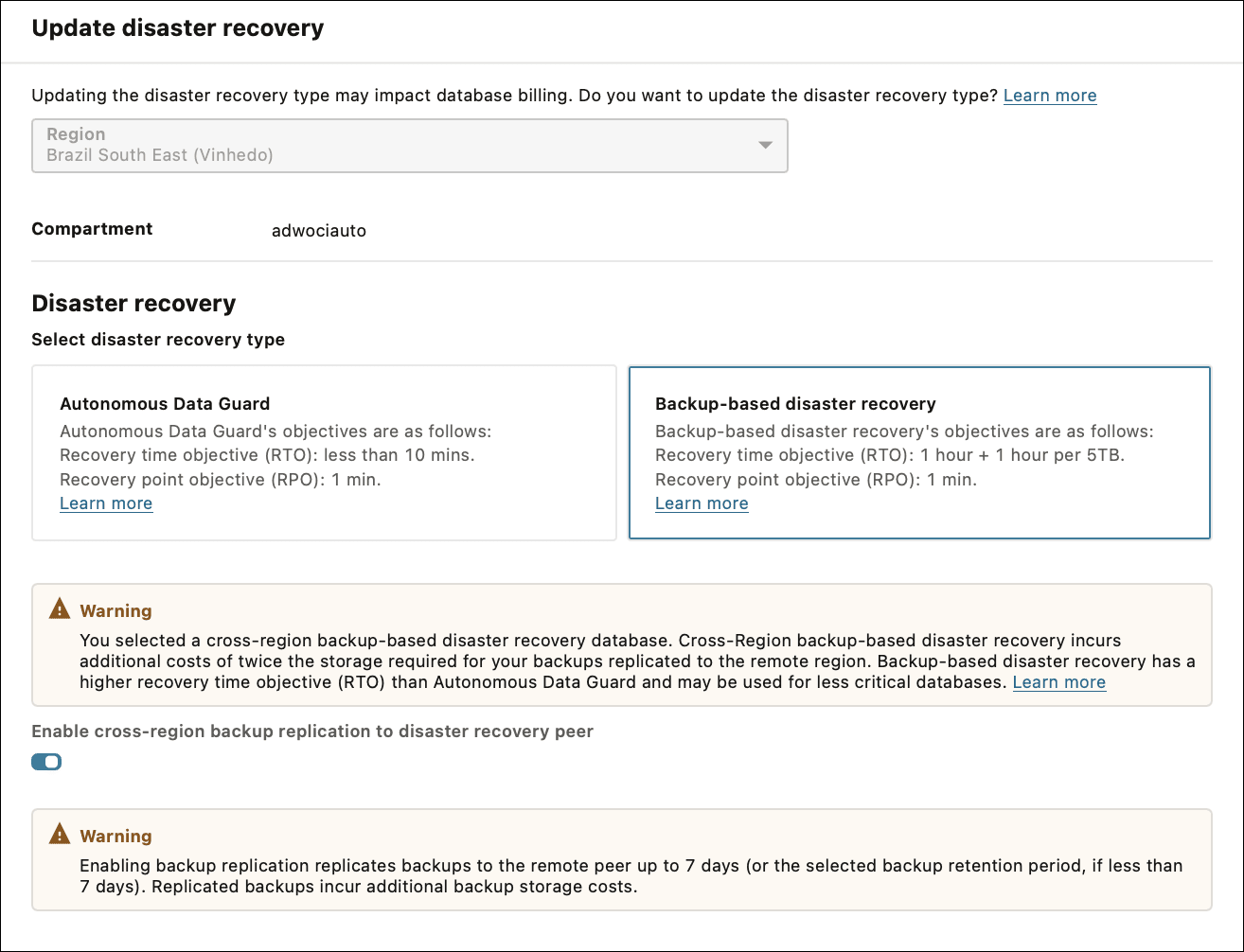
Description of the illustration adb_bbdr_update_backup_replication.png
-
Enable or disable backup replication.
a. If cross region backup replication is disabled, select Enable Cross Region backup replication to disaster recovery peer to enable the option.
b. If cross region backup replication is enabled, deselect Enable Cross Region backup replication to disaster recovery peer to disable the option.
-
Click Submit.
The Autonomous AI Database Lifecycle state changes to Updating.
If you select Enable cross region backup replication to disaster recovery peer, it can take between several minutes and several hours to replicate the backups to the remote region, depending on the size of the backups. After backups are replicated, when you select the Backups tab on the peer database’s Oracle Cloud Infrastructure Console Autonomous AI Database details page, you will see the list of replicated backups.
Convert Cross Region Backup-Based Disaster Recovery Peer to Snapshot Standby
A cross region Backup-Based Disaster Recovery peer can be converted to a snapshot standby. This converts the peer to a read-write database for up to two days (48 hours).
See Convert Cross Region Peer to Snapshot Standby for more information.
Disconnect a Cross Region Backup-Based Disaster Recovery Peer
Shows you the steps to disconnect a cross region Backup-Based Disaster Recovery peer from the Primary database.
Note: The disconnect operation for a cross region Backup-Based Disaster Recovery peer can only be performed on an Autonomous AI Database instance that uses the ECPU compute model.
When you disconnect a cross region peer, the peer database is disassociated from the primary database. This converts the database from a peer database to a standalone database. Following the disconnect operation you are not allowed to reconnect to the Primary.
The steps to disconnect a Backup-Based Disaster Recovery peer standby are the same as those to disconnect a standby database. See Disconnect a Peer Database for more information.
Notes for disconnecting a remote peer.
-
The disconnect operation for a remote peer can only be performed on an Autonomous AI Database instance that uses the ECPU compute model.
-
After the disconnect operation, the standalone database is no longer associated with the database that was the Primary database. To use the database as a standalone database, you must know the name of the database that was disconnected from the Primary database.
-
There is no reconnect operation. After you disconnect a snapshot standby you are not allowed to reconnect to the Primary.
-
After the disconnect operation, the standalone database is no longer associated with the database that was the Primary database. To use the database as a standalone database, you must know the name of the database that was disconnected from the Primary database.
-
After the disconnect operation, the standalone database starts taking new backups as a standalone database.
Disable a Cross Region (Remote) Peer
Describes the steps to terminate a cross region (remote) peer.
Perform the following prerequisite steps as necessary:
-
Open the Oracle Cloud Infrastructure Console by clicking the
next to Cloud. -
From the Oracle Cloud Infrastructure left navigation menu click Oracle AI Database and then click Autonomous AI Database.
-
On the Autonomous AI Database page, select your Autonomous AI Database from the links under the Display name column.
To terminate a cross region (remote) peer:
-
On the Primary database, on the Autonomous AI Database Details page select the Disaster recovery tab.
-
Access the Oracle Cloud Infrastructure Console for the remote region peer.
The Disaster recovery information area shows the Peer Autonomous AI Database. The remote peer has the same display name as the primary database, with an “
_region” extension. Where region is the region name, such asIADorBOM.If you created the cross region peer before the introduction of support for multiple cross region peers, the remote peer has the same display name as the primary database, with an
"_Remote” extension.Under Peer Autonomous AI Database, click the link for the remote peer to access the cross region peer.
-
On the Oracle Cloud Infrastructure Console for the remote peer, on the Details page, from the More actions drop-down list, select Terminate.
-
On the Terminate Autonomous AI Database Terminate Autonomous AI Database page, enter the database name to confirm that you want to terminate the cross region peer.
-
Click Terminate Autonomous AI Database.
While the peer is terminating, the Lifecycle state changes to Terminating.
There are limitations for disabling when an instance has a cross region Backup-Based Disaster Recovery peer, as follows:
-
A peer in the remote region cannot be disabled from the primary database.
-
When Backup-Based Disaster Recovery is enabled with a cross region peer, you must terminate all cross region disaster recovery peers before you terminate the primary role database. If you attempt to terminate the primary, the system gives you an error.
In this case, after you terminate all cross region (remote) peers, you can terminate the primary database.
Update Remote Peer Network ACLs for a Backup-Based Disaster Recovery Peer
You can independently modify network ACLs on a remote disaster recovery peer database.
By default the disaster recovery primary and remote peer databases use the same network Access Control Lists (ACLs). Optionally, you can configure ACLs independently on remote peer databases. This provides an option to use different ACLs on remote peer databases.
If you modify the ACLs on a remote peer, Autonomous AI Database no longer keeps the ACL configuration synchronized between the primary and the remote peer. After you modify the ACLs on a remote peer, Autonomous AI Database manages the ACLs on the remote peer independently.
To use different network ACLs on a remote Autonomous AI Database peer:
-
On the primary database, on the Autonomous AI Database Details page, select the Disaster recovery tab.
-
Access the remote peer.
The Disaster recovery information area shows the Peer Autonomous AI Database. The remote peer database by default has the same display name as the primary database, with an extension. For example,
DBNAME_remote.Under Peer Autonomous AI Database, click the link to access a cross region peer.
-
On the remote peer database, edit the access control list.
Before you change ACL the dialog shows a message indicating that ACLs on the peer database are syncing from the Primary database. For example:
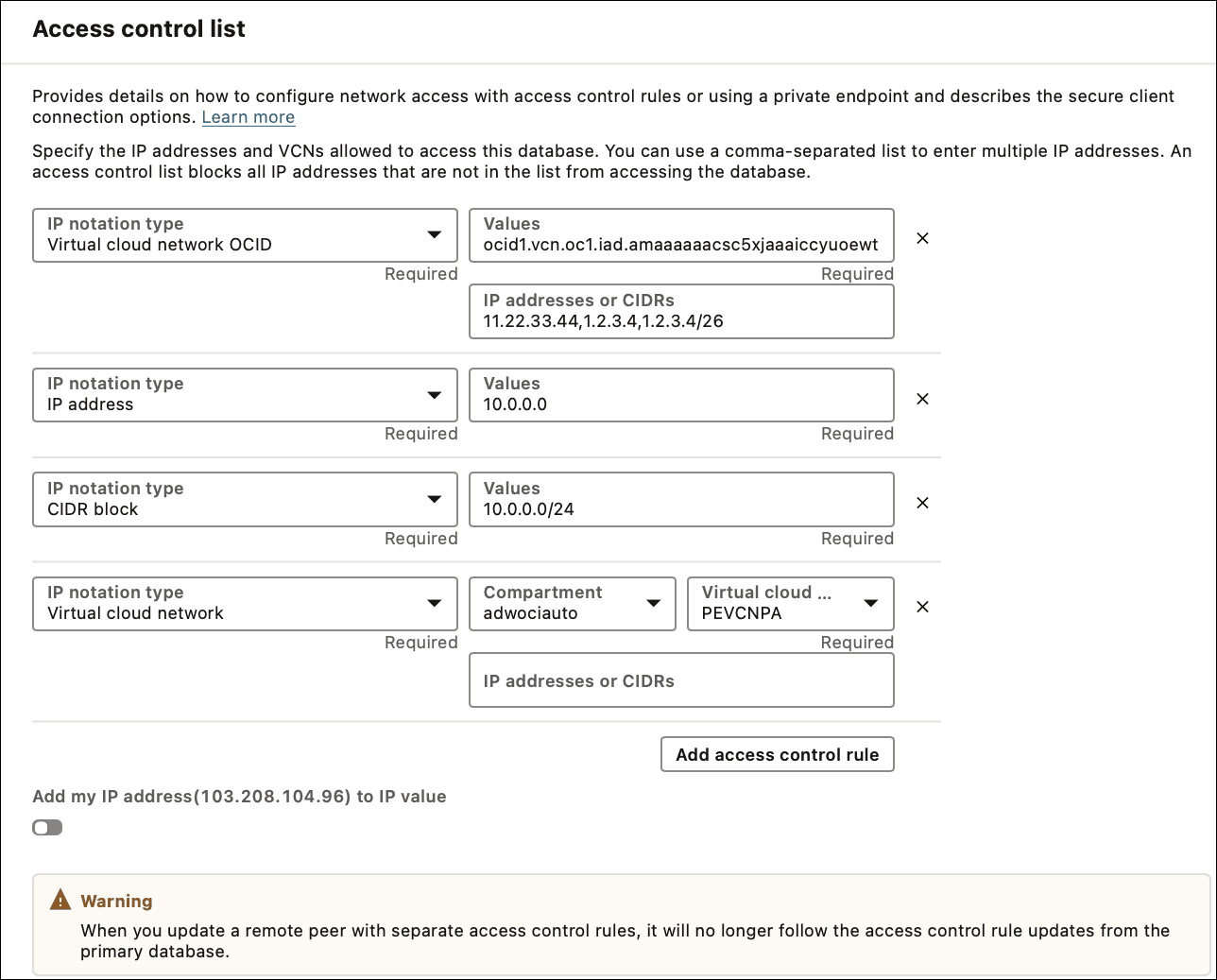
Description of the illustration adb_remote_peer_sync_acls.png
See Configure Access Control Lists for an Existing Autonomous AI Database Instance for more information.
-
Add, remove, or modify one or more ACLs.
-
Click Save.
After you modify ACLs, the ACLs on the primary and on the remote peer are managed separately.
If you want to restart the synchronization of ACLs between the primary and the remote peer, you have two options:
-
Terminate the peer Autonomous AI Database and create a new cross region disaster recovery peer database.
See Disable a Cross Region (Remote) Peer for details on terminating a remote peer database.
-
Contact Oracle Cloud Support and file a service request or contact your support representative.
Cross Region Backup-Based Disaster Recovery with Customer-Managed Encryption Keys
When you use Backup Based Disaster Recovery for cross region failover or switchover with customer-managed encryption keys, there are special considerations if the primary database backup was encrypted with customer-managed keys, or if you want to switch to using customer-managed encryption keys on the primary database.
The customer-managed encryption key used to encrypt the backup must remain available in the target region during failover or switchover, which requires replicating the customer-managed key to the remote region using Virtual Private Vault (VPV).
Notes for Cross Region Backup-Based Disaster Recovery Peer Operations
Lists notes and restrictions for adding and managing a cross region Backup-Based Disaster Recovery peer.
-
After you add a cross region (remote) peer, the wallet and connection string from the primary database will contain only the hostname of the primary database, and the wallet and connection string from the remote database will contain only the hostname of the remote database. This applies to both instance and regional wallets.
See Cross Region Disaster Recovery Connection Strings and Wallets for more information.
-
If you switch on the Enable Cross Region backup replication to disaster recovery peer toggle, replicating the backups to the remote region can take between several minutes and several hours, depending on the size of the backups. After backups are replicated, on the peer's Autonomous AI Database details page select the Backups tab to show a list of the replicated backups.
See Enable or Disable Backup Replication for an Existing Cross Region Peer for more information.
-
When you add a cross region peer there are special considerations when the primary instance is using customer-managed keys, or if you want to switch to use customer-managed keys. See Cross Region Autonomous Data Guard with Customer-Managed Encryption Keys for more information.
-
When you add a Backup-Based Disaster Recovery peer, while the Lifecycle state field shows Updating, the following actions are disabled on the Primary database:
-
Move Resource. See Move an Autonomous AI Database to a Different Compartment for information on moving an instance.
-
Stop. See Stop Autonomous AI Database for information on stopping an instance.
-
Restart. See Restart Autonomous AI Database for information on restarting an instance.
-
Restore. See Restore and Recover your Autonomous AI Database for information on restoring.
-