Create a Dataset by Loading Raster Images into Oracle Spatial GeoRaster
You can upload raster data files, such as remote sensing images and digital elevation models, into Oracle Spatial GeoRaster on Autonomous AI Database. You can then create a GeoRaster dataset from the uploaded data.
See Spatial GeoRaster Developer’s Guide for more information on Oracle GeoRaster feature.
Spatial Studio provides a wizard that follows an Extract, Transform, and Load (ETL) process for creating Oracle GeoRaster objects from raster imagery. The wizard also allows you to replace a raster image in an existing GeoRaster table.
Prerequisites for Uploading Raster File
Learn the prerequisite tasks required for uploading raster data in your Autonomous AI Database.
-
Obtain the georeference information of the raster data to be uploaded.
A raster data file’s georeference information may fall into one of the following scenarios:
-
The georeference information is self-contained in the raster data file itself, and its spatial reference system (or SRID) is recognized and supported by Oracle database.
-
The raster data file has a companion world-file containing the required parameters, and SRID is known. You can then provide this SRID and the world-file’s content.
-
The raster image is georectified, and the SRID and bounding box values are known. You can then provide the SRID, and the data file’s upper-right and lower-left corners’ coordinates.
-
-
Copy the raster files to Oracle Cloud Infrastructure Object Storage.
See Putting Data into Object Storage in Oracle Cloud Infrastructure documentation for more information.
-
Obtain the pre-authenticated request (PAR) URL for the bucket or to a specific file in the bucket.
See Creating a Pre-Authenticated Request in Object Storage in Oracle Cloud Infrastructure documentation for more information.
-
Ensure to add the PAR URL to the list of entries in the Safe Domains list.
A PAR URL can be added to the Safe Domains list only by a Spatial Studio administrator. See Manage Safe Domains for more information.
-
Create a compute environment in Spatial Studio. See Create a Compute Environment for more information.
Use the GeoRaster Dataset Creation Wizard
You can upload raster images into Oracle Spatial GeoRaster database using the GeoRaster dataset creation wizard.
Before uploading a raster file, ensure you meet the prerequisites described in Prerequisites for Uploading Raster File.
Perform the following steps to access and use the GeoRaster dataset creation wizard:
-
Navigate to the Datasets page.
-
Click Create Dataset.
The Create Dataset window opens.
-
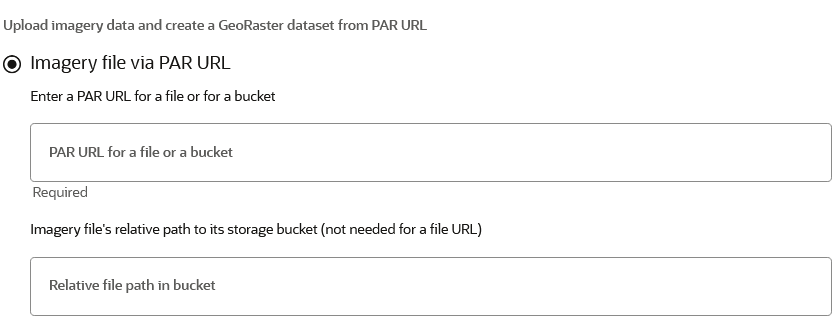
Select the Imagery file via PAR URL option.
-
Enter the PAR URL for a file or for a bucket in your Object store.
-
Enter the Relative file path in bucket.
Note that this step is not required if you entered the file URL in the preceding step.
-
Click Create.
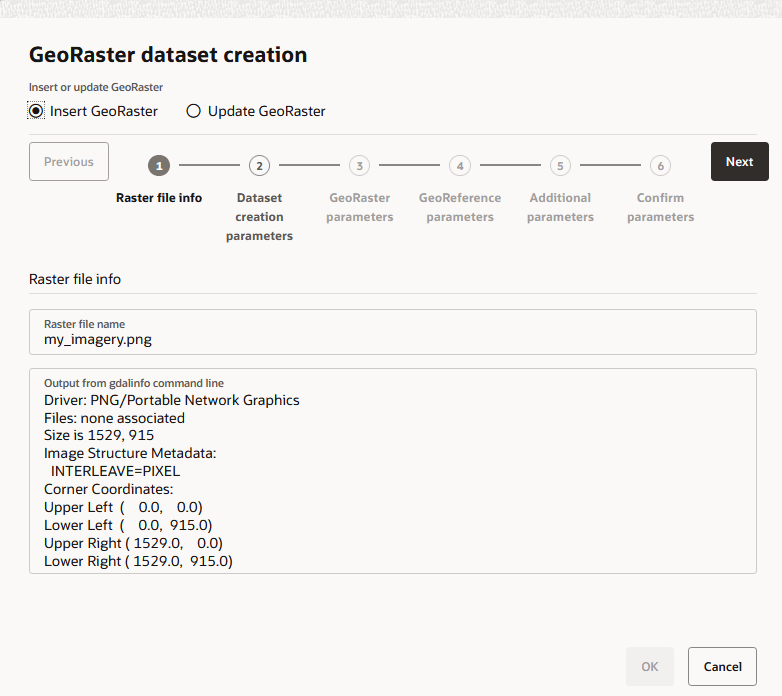
The GeoRaster dataset creation workflow opens and the Raster file info step is displayed as shown:
Description of the illustration georaster_wf_1.png
Spatial Studio runs the gdalinfo command (from GDAL package) at the backend and the command output is displayed in Output from gdalinfo command line. The command retrieves the basic metadata about the raster data file. You can check and view the imagery information at this step. This includes details such as the imagery dimensions, number of bands, image pixel storage structure, georeference information if applicable, and so on.
If errors are reported in Output from gdalinfo command line, then you need to exit the current uploading process and first resolve the reported issues. Issues are commonly related to improper configuration of GDAL SDK and Oracle Instant Client packages due to which Spatial Studio cannot find them from the expected file system folders.
-
Select Insert GeoRaster.
-
Click Next only if no errors are reported in the gdalinfo command output.
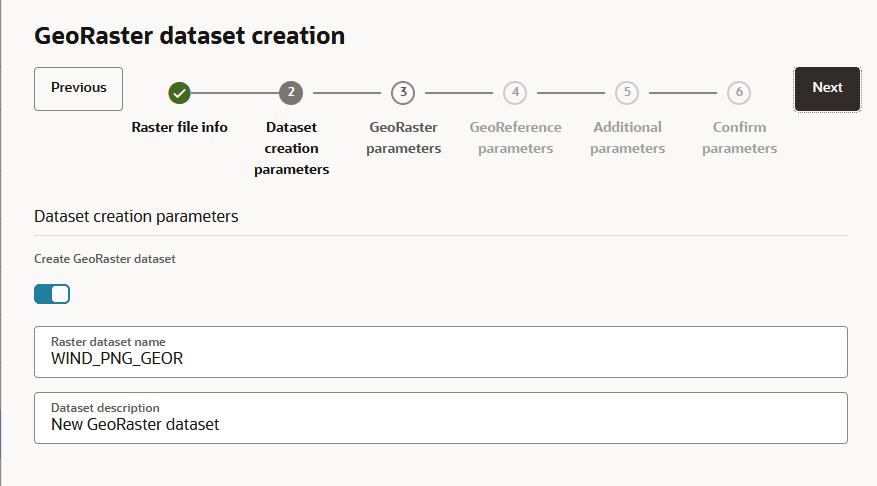
The Dataset creation parameters step is displayed as shown:
-
Optionally, switch ON the Create GeoRaster dataset toggle.
When this option is switched OFF, only the raster file will be uploaded to the database, and the GeoRaster dataset will not be created in Spatial Studio. You can then later create the GeoRaster dataset from the database as more options are available for a database-based GeoRaster dataset. See Create a GeoRaster Dataset for more information.
-
Enter the Raster dataset name and Dataset description.
-
Click Next.
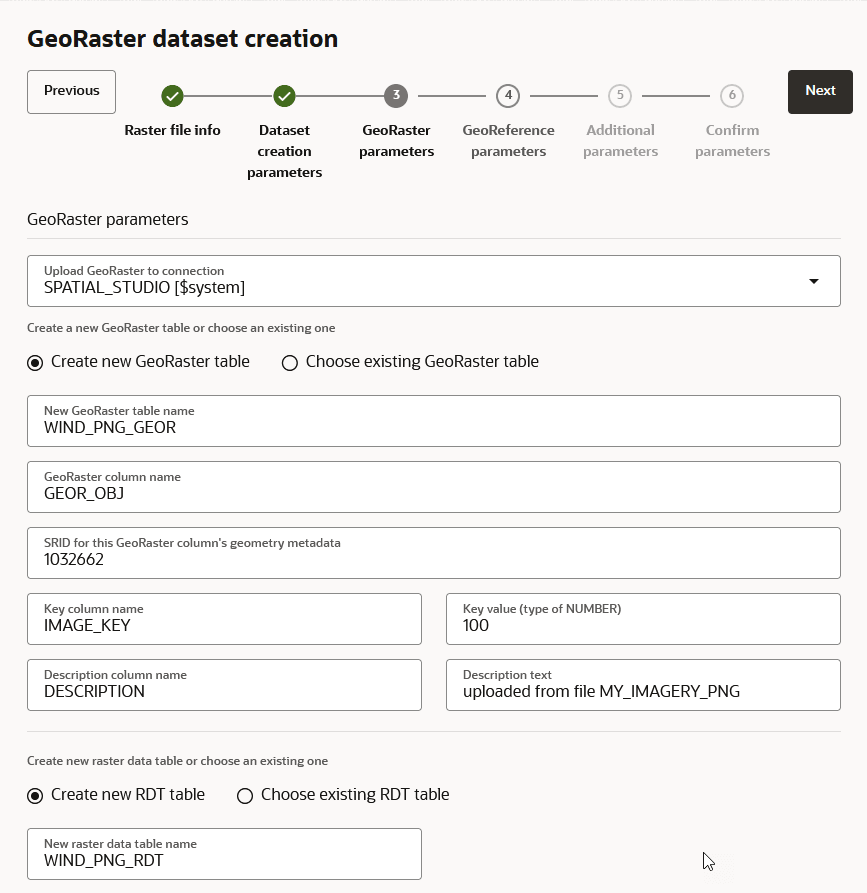
The GeoRaster parameters step is displayed as shown:
-
Select a connection object using the Upload GeoRaster to connection drop-down to store the raster data.
-
Choose to upload the raster file to a new GeoRaster table or append the file to an existing GeoRaster table.
- Upload the raster file to a new GeoRaster table
-
Select Create new GeoRaster table.
The GeoRaster table has the following hard-coded values:
-
GEOR_OBJ: The GeoRaster column name of type
SDO_GEORASTER. -
<SRID>: The SRID for the GeoRaster column’s geometry metadata.
-
DESCRIPTION: The Description column name of type
VARCHAR2. -
IMAGE_KEY: The Key column name of type
NUMBER.
-
-
- Append the raster file to an existing GeoRaster table
-
Select Choose existing GeoRaster table.
-
Select the values for the following drop-down lists:
-
Choose a GeoRaster table name
-
Choose a GeoRaster column name
-
Choose the key column name
-
Choose the description column name
-
-
- Upload the raster file to a new GeoRaster table
-
Enter Key value and Description text for the GeoRaster table.
-
Choose Create a new RDT table or Choose existing RDT table as it applies.
-
Enter New raster data table name or Choose an RDT table name depending on your choice in the previous step.
-
Click Next.
The GeoReference parameters step is displayed.
The uploaded raster must have known georeference information in order to be stored in Oracle database and then be displayed in Spatial Studio.
-
Select a value from the Select a geo-reference option drop-down.
The options for this drop-down can vary depending on the spatial reference system (SRS) detected by Spatial Studio in the metadata of the raster file. The supported scenarios are:
-
Scenario 1: Self-contained Georeference information in the Raster Image File
If the raster image has self-contained georeference information (such as a geo-tiff image that contains the georeference details), then the Use from raster file option is automatically applied.
You may directly accept and utilize this self-contained georeference information, and no other user inputs are needed as shown.
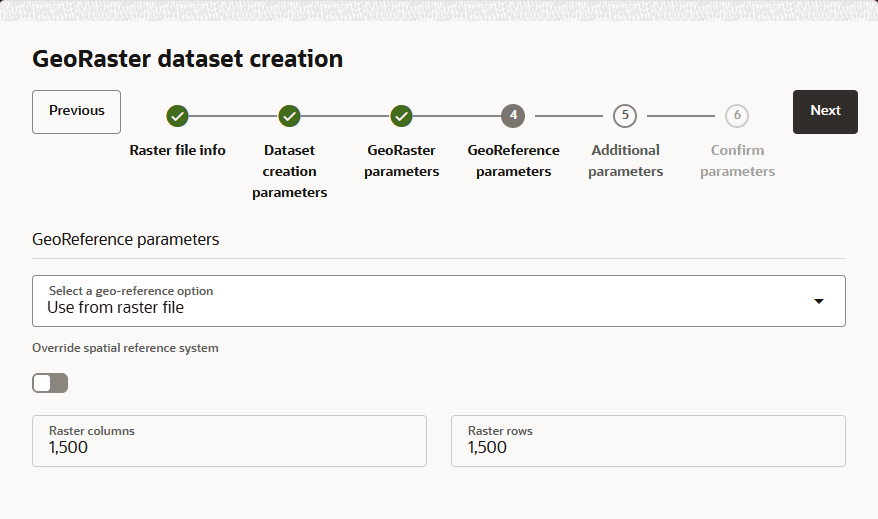
Description of the illustration geo_raster_workflow_4_scenario_1.png
It is also possible that a valid self-contained georeference information in the raster image happens to be a user-defined coordinate reference system and therefore not supported by Oracle Spatial. In such a case, the GDAL package may import the image into Oracle database but will assign it with an unsupported SRID (for example, a value of 999999 or 0). Although
gdal_translatecan upload it into Oracle database, Spatial Studio will not be able to generate the required metadata due to the absence of the required georeference information. As a result, this upload process will eventually fail for such a kind of data file.If you observe such an error (in the server logs) while uploading, then you must perform the following steps:
-
Get a valid spatial reference identifier (SRID) that corresponds to the spatial reference system found in the imagery data.
For this, you can raise a service request with My Oracle Support or refer to Oracle Spatial Developer’s Guide for the steps to create a custom SRID.
-
Repeat all the previous steps (step 1 to step 16) to upload the raster image.
-
Enable the Override spatial reference system switch in the preceding figure for the GeoReference parameters step.
The raster data file is then treated as not containing georeference information and thus requires you to provide the details.
-
Follow the steps for Scenario 2 or Scenario 3 as it applies to you.
-
-
Scenario 2: Georeference information Provided in a World-File
If the raster image has a companion world-file (for example, raster file
sf1.jpshas a companionsf1.wldfile), and both are stored in the same folder, then select the Enter World-File content georeference option as shown.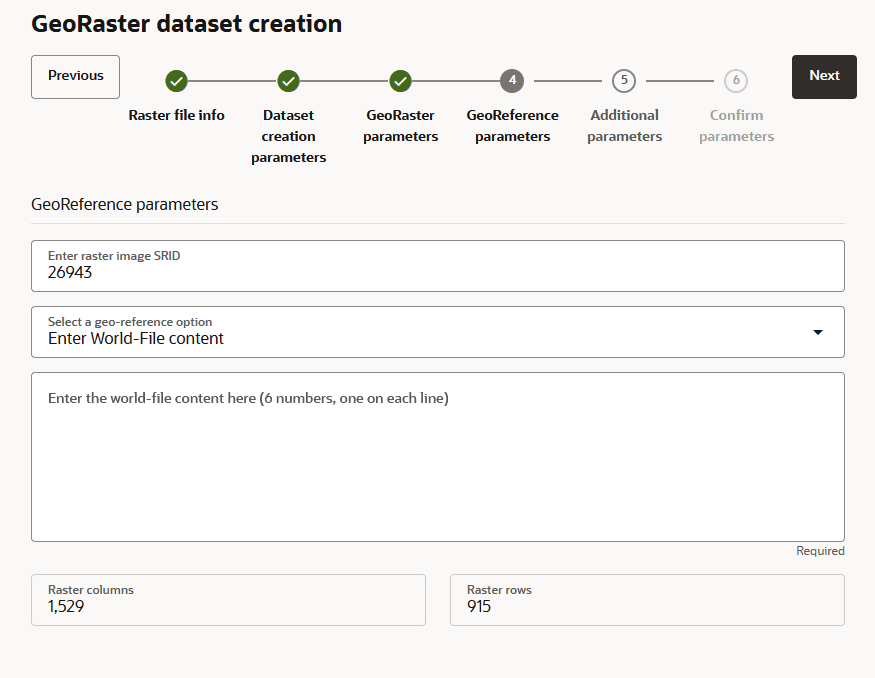
Description of the illustration geo_raster_workflow_4_scenario_2.png
-
Enter raster image SRID: Enter the SRID for the spatial reference system.
-
Enter the world-file content here: Enter the world file’s contents. Note that each parameter takes one line and six parameters occupy six consecutive lines.
-
-
Scenario 3: Georectified Raster Image with Known Bounding Box Values
If the raster image is already georectified and you know its SRID and bounding box values, then select the Enter Imagery bounding box coordinates for a Valid SRID georeference option as shown.
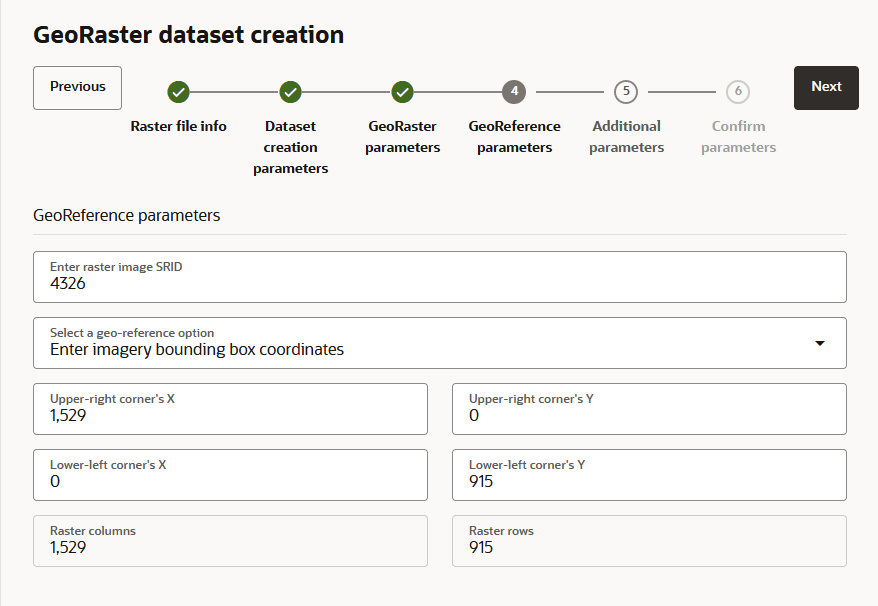
Description of the illustration geo_raster_workflow_4_scenario_3.png
-
Enter raster image SRID: Enter the SRID for the spatial reference system.
-
Upper-right corner’s X, Upper-right corner’s Y: Enter the upper-right corner’s coordinates.
-
Lower-left corner’s X, Lower-left corner’s Y: Enter the lower-left corner’s coordinates.
-
-
-
Click Next to provide additional GeoRaster parameters.
The Additional parameters step is displayed as shown:
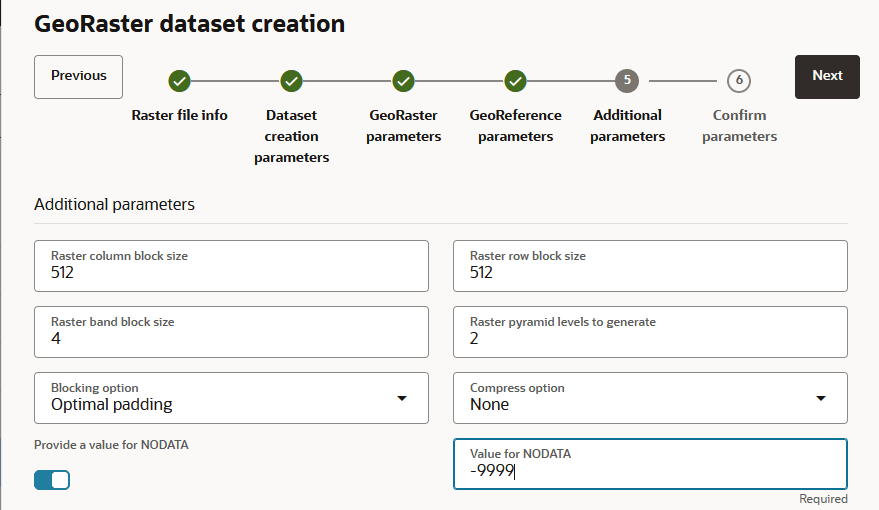
-
Optionally, modify the default parameters (if required) to fine tune the GeoRaster storage related parameters.
If you are aware that there is a special value for raster cells indicating NODATA, then turn on the Provide a value for NODATA switch and provide its value.
-
Click Next to confirm the inputs.
You may scroll down the text area and view all the parameters entered or selected in the previous steps. You may choose to go to any earlier steps to modify inputs.
-
Click OK.
The server will initiate a backend process to upload the raster data files into the database, and then optionally create a dataset in Spatial Studio. The application displays a task completion notification and you can also verify the same in the Jobs page.
Replace a Raster Image in a GeoRaster Table
You can replace a raster image in a GeoRaster table using the GeoRaster dataset creation wizard.
Before you begin, ensure you meet the prerequisites described in Prerequisites for Uploading Raster File.
Perform the following steps to replace the GeoRaster imagery file:
-
Follow step-1 to step-6 in Use the GeoRaster Dataset Creation Wizard.
-
Click Create.
The GeoRaster dataset creation workflow opens and the Raster file info step is displayed as shown:
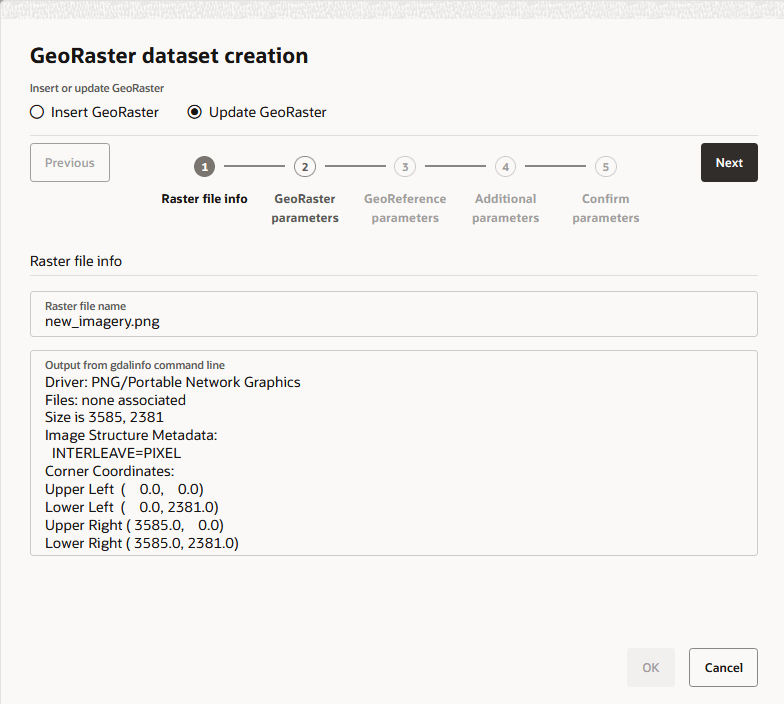
Description of the illustration update_georaster_wf_1.png
Spatial Studio runs the gdalinfo command (from GDAL package) at the backend and the command output is displayed in Output from gdalinfo command line. The command retrieves the basic metadata about the raster data file. You can check and view the imagery information at this step. This includes details such as the imagery dimensions, number of bands, image pixel storage structure, georeference information if applicable, and so on.
If errors are reported in Output from gdalinfo command line, then you need to exit the current uploading process and first resolve the reported issues. Issues are commonly related to improper configuration of GDAL SDK and Oracle Instant Client packages due to which Spatial Studio cannot find them from the expected file system folders.
-
Select the Update GeoRaster option.
-
Click Next only if no errors are reported in the gdalinfo command output.
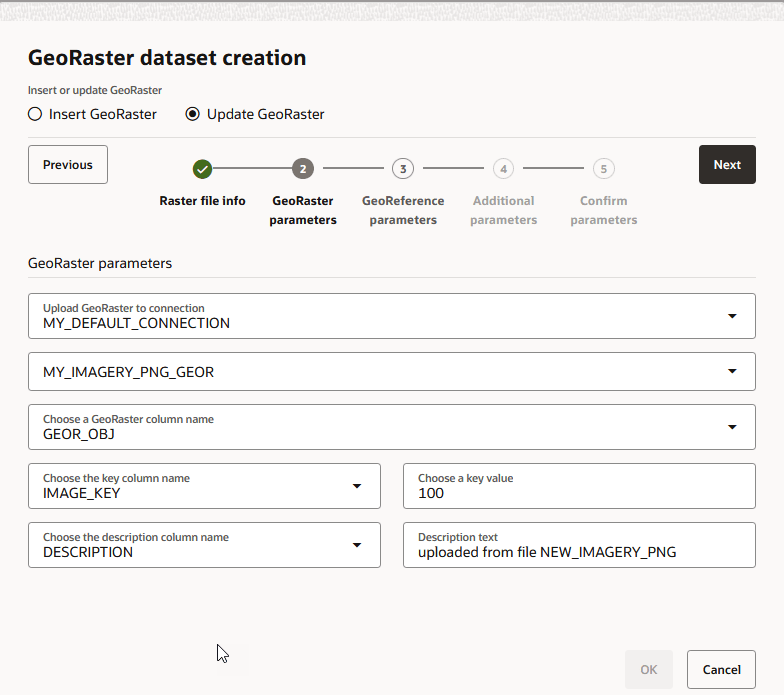
The GeoRaster parameters step is displayed as shown:
-
Select a connection object using the Upload GeoRaster to connection drop-down to store the raster data.
-
Select the GeoRaster table in which you wish to replace the GeoRaster image.
Provide the following values for the GeoRaster table:
-
GEOR_OBJ: The GeoRaster column name of type
SDO_GEORASTER. -
IMAGE_KEY: The Key column name of type
NUMBER. -
DESCRIPTION: The Description column name of type
VARCHAR2.
-
-
Enter the key value that identifies the image to be replaced.
The key value you enter must already exist in the GeoRaster table.
-
Enter Description text for the GeoRaster table.
-
Click Next.
The GeoReference parameters step is displayed.
The newly uploaded raster must have known georeference information in order to be stored in Oracle database and then be displayed in Spatial Studio.
-
Follow step-18 to step-21 in Use the GeoRaster Dataset Creation Wizard.
-
Click OK.
The server will initiate a backend process to replace the raster image in the GeoRaster table.