Create Labels with Auto-Label
Spatial Studio allows you to automatically generate labels from existing data instead of drawing them manually.
Auto-labeling provides an initial set of annotations for geospatial raster chips that can then be reviewed and refined manually.
Note: Auto-labeling is supported for georeferenced projects of type Object Detection, Semantic Segmentation, and Instance Segmentation only.
Topics:
Auto-Label with Oracle-Managed Feature Data
You can label chips within an AI Labeling project using Oracle-managed geometry data to automatically detect physical features in geospatial raster chips.
Category pairing is applied by pairing each project label category (for example, building, road, water) with a corresponding Oracle-managed feature type.
To auto-label chips, ensure that the project uses geo-referenced spatial data either in a geo format (for example, GeoTIFF) or with the corresponding world file.
The following instructions assume that an AI Labeling project created using a dataset containing multiple image chips exists in Spatial Studio.
-
Navigate to the AI Labeling page.
The page displays all the AI Labeling projects created in your Spatial Studio instance.
-
Click to open the project you wish to start labeling.
Alternatively, click
 against the desired project and select Go to labeling.
The project opens displaying the first chip in the dataset.
-
Click View all images (at the bottom of the page) to review the chips in the dataset.
Note that you can logically delete or restore the chips within the project.
-
Select the chip for labeling and go back to the labeling page.
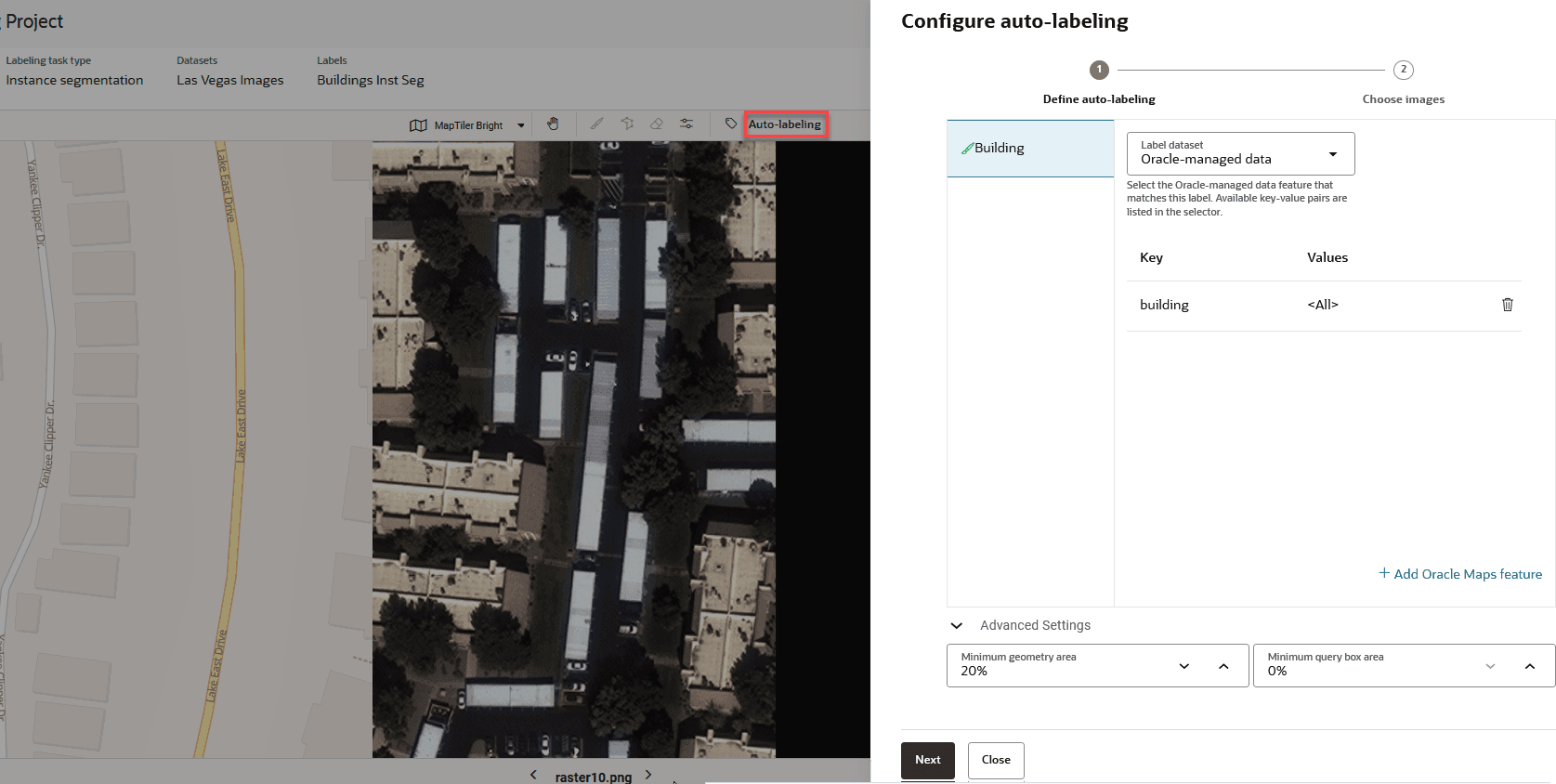
The Auto-labeling tag gets enabled at the top of the chip (shown highlighted in the following figure).
-
Click Auto-labeling.
The Configure auto-labeling workflow opens and displays the Define auto-labeling step as shown:
-
Select Oracle-managed data from the Label dataset drop-down.
-
Click Add Oracle Maps feature.
-
Select the Key and Values from the drop-downs.
You can repeat this step to add as many labels.
-
Optionally, configure the Minimum geometry area and Minimum query box area under Advanced Settings.
Note the following:
-
Minimum Geometry Area: For geometries partially outside the chip bounding box, the system calculates the percentage of the geometry’s area that remains inside. If the percentage is less than the specified value, the geometry is ignored.
-
Minimum Query Box Area: For each geometry, the system calculates the percentage of the chip bounding box covered by the geometry. If the percentage is less than the specified value, the geometry is ignored.
-
-
Click Next.
The Choose images step opens and displays all the chips in the project along with their labeling status.
-
Select one or more chips which you wish to label.
-
Click Start auto-labeling.
Once the process completes the labeling status will get displayed as Finished.
-
Click Close.
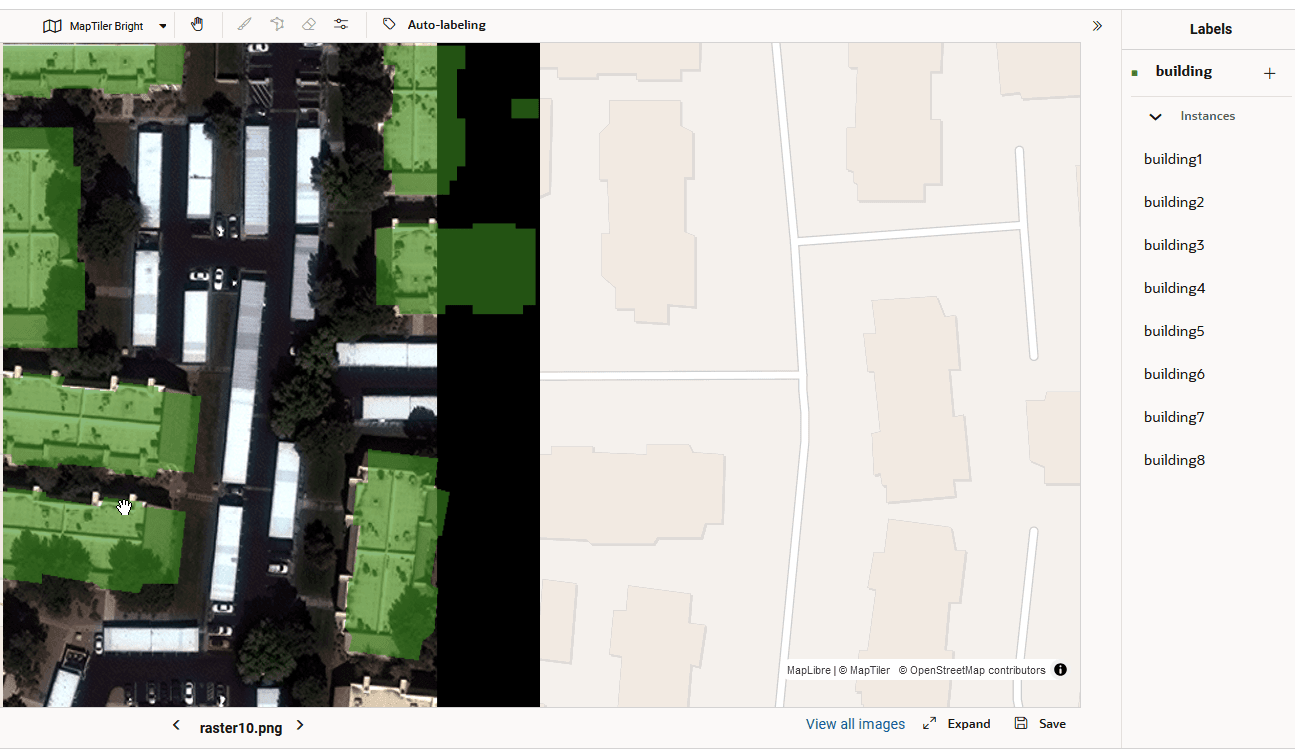
The chip(s) get auto-labeled as shown:
Auto-Label with User-Managed Geometry Data
You can label chips within an AI Labeling project with user-managed datasets containing SDO_GEOMETRY objects in the Oracle Spatial database.
Geometries are matched against geospatial raster chips, and labels are created where geometries overlap chips.
-
Category pairing is applied by pairing each project label category (for example, building) with a dataset column that stores
SDO_GEOMETRYobjects of that type. -
If you have GeoJSON or Shapefiles, these must first be uploaded into a Spatial Studio dataset; once imported, they can then be used for geometry-based auto-labeling.
To auto-label chips, ensure that the project uses geo-referenced spatial data either in a geo format (for example, GeoTIFF) or with the corresponding world file.
The following instructions assume that an AI Labeling project created using a dataset containing multiple image chips exists in Spatial Studio.
-
Navigate to the AI Labeling page.
The page displays all the AI Labeling projects created in your Spatial Studio instance.
-
Click to open the project you wish to start labeling.
Alternatively, click
against the desired project and select Go to labeling.The project opens displaying the first chip in the dataset.
-
Click View all images (at the bottom of the page) to review the chips in the dataset.
Note that you can logically delete or restore the chips within the project.
-
Select the chip for labeling and go back to the labeling page.
The Auto-labeling tag gets enabled at the top of the chip.
-
Click Auto-labeling.
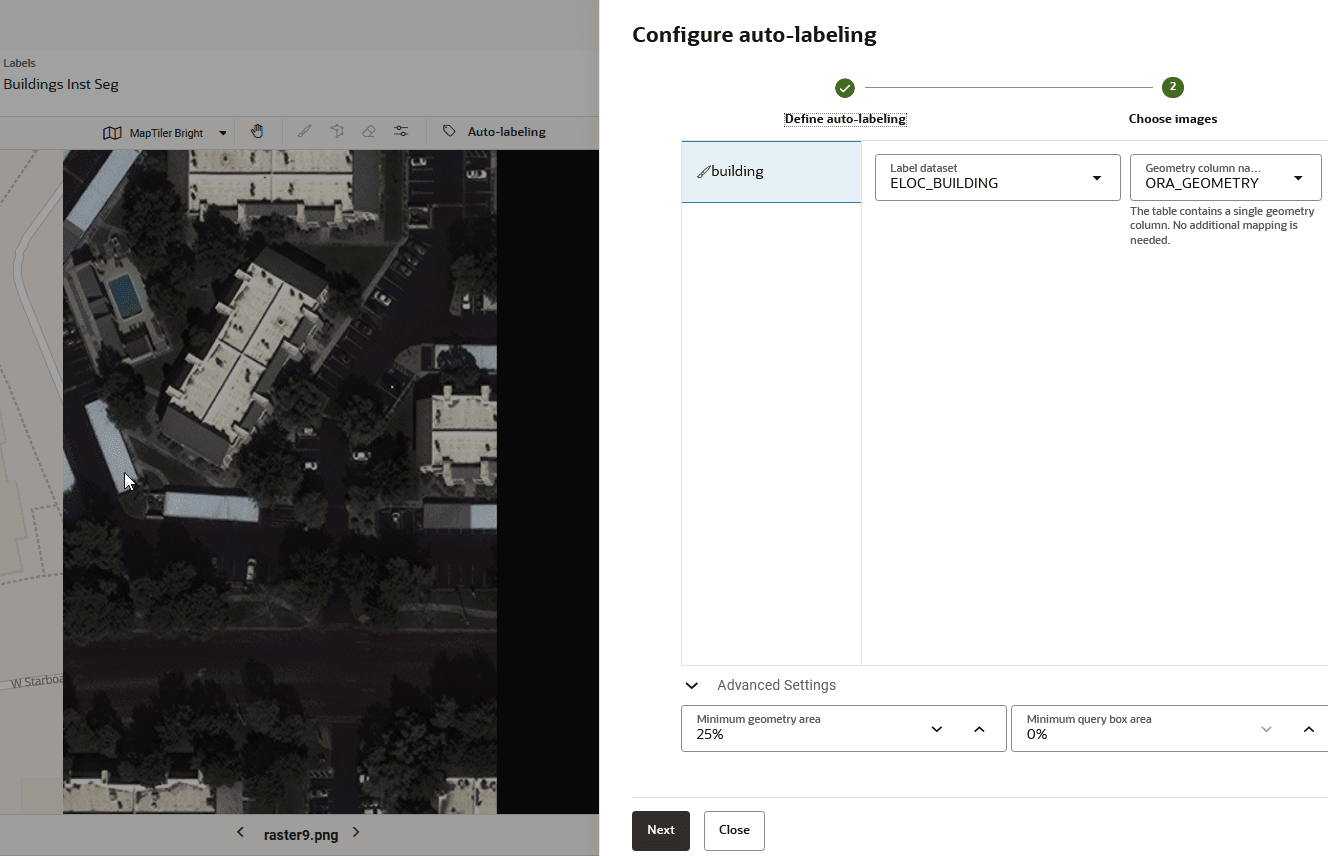
The Configure auto-labeling workflow opens and displays the Define auto-labeling step:
-
Select the dataset from the Label dataset drop-down.
-
Select the Geometry column name.
-
Optionally, configure the Minimum geometry area and Minimum query box area under Advanced Settings.
Note the following:
-
Minimum Geometry Area: For geometries partially outside the chip bounding box, the system calculates the percentage of the geometry’s area that remains inside. If the percentage is less than the specified value, the geometry is ignored.
-
Minimum Query Box Area: For each geometry, the system calculates the percentage of the chip bounding box covered by the geometry. If the percentage is less than the specified value, the geometry is ignored.
-
-
Click Next.
The Choose images step opens and displays all the chips in the project along with their labeling status.
-
Select one or more chips which you wish to label.
-
Click Start auto-labeling.
Once the process completes the labeling status gets displayed as Finished.
-
Click Close.
The chip(s) get auto-labeled as shown:
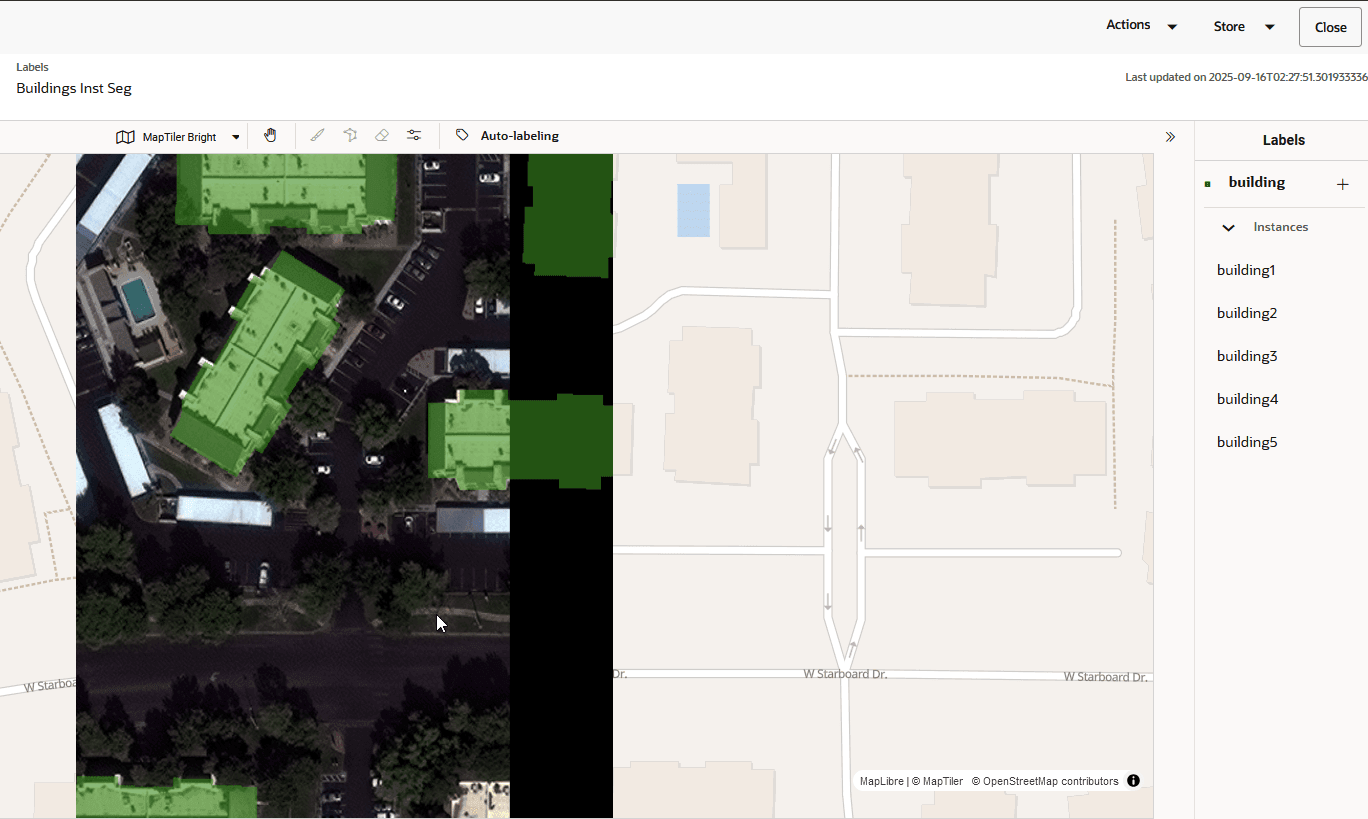
Description of the illustration auto_labeled_user_geom_data.png