Copy Selected Row to Another Table in Form
Learn About the Copy Row Sample
For some business processes, you might want to copy rows from one table to another, and then submit only the entries in the new table for additional processing. For example, during the hiring process, your managers copy data from a table of job applicants to a table of potential candidates. Then, the next step in the process, such as scheduling interviews, uses the entries from the new table.
Import the Sample and Preview Copy Row
Import the sample form, and then select a row in the table and copy the row from one table to another.
- In the Integration Cloud navigation pane, click Processes.
- In the Processes navigation pane, click Applications.
- On the Process Applications page, click Create, click Import, and then click Application.
- Browse and locate the AddSelectedRowToTable.exp file you downloaded and click Import.
- Open the AddSelectedRowToTable application.
- In the Application navigation pane, click Forms, and then open the WebForm1 form.
- Click Preview to test that you can copy a row from one table to another.
- Add 3 entries to the Potential Participants table. Enter the name, email, and phone for each participant.
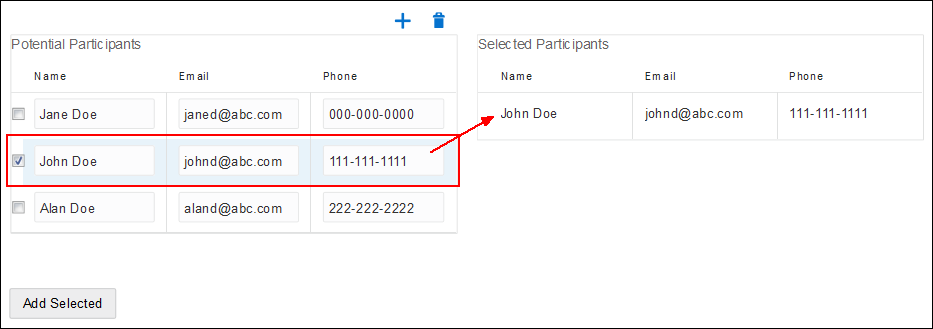
- Select one row in the Potential Participants table and click Add Selected to copy the row to the Selected Participants table.
Configure Tables for Copy Row
To configure a form so that your users can copy a selected row from one table to another:
- Add and configure the tables.
- Drag two Table
 controls from the Advanced Palette to the form.
 - Select a table control. In the Properties pane, define the name, label, and columns for the table. The tables must have the same number of columns and column types.
- For the first table, be sure to select the Users can Add/Remove Rows and the Hide Labels check boxes. For the second table, be sure to select the Read Only and the Hide Labels check boxes.
- Drag the appropriate element, such as email and phone, from the palette to the appropriate column in each table.
- Drag two Table
- Add the On Click event.
- Drag a Button
 control from the Basic Palette to the form.
 - Select the Button control.
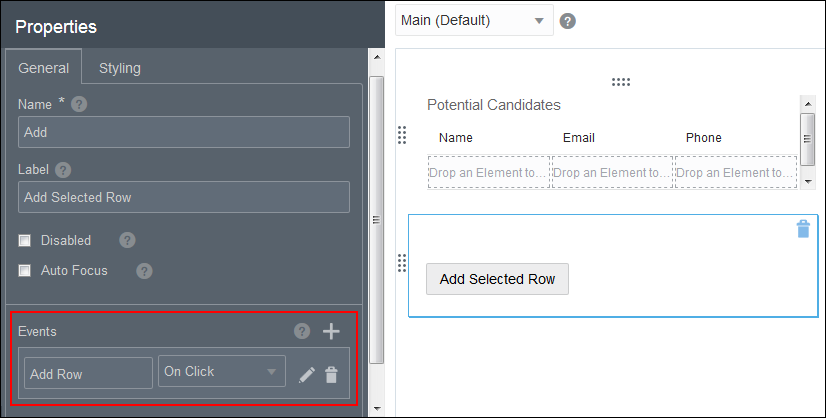
- On the General tab in the Properties pane, scroll to the Events section. Add an On Click event.
- Drag a Button
- Configure the On Click event.
- Click Edit
 next to the On Click event you just added.
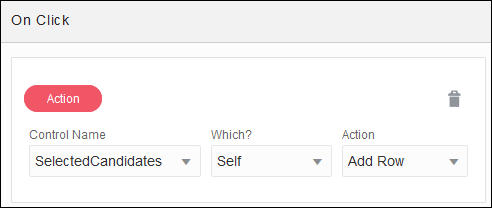
 - Add an action that defines adding a row to the second table.
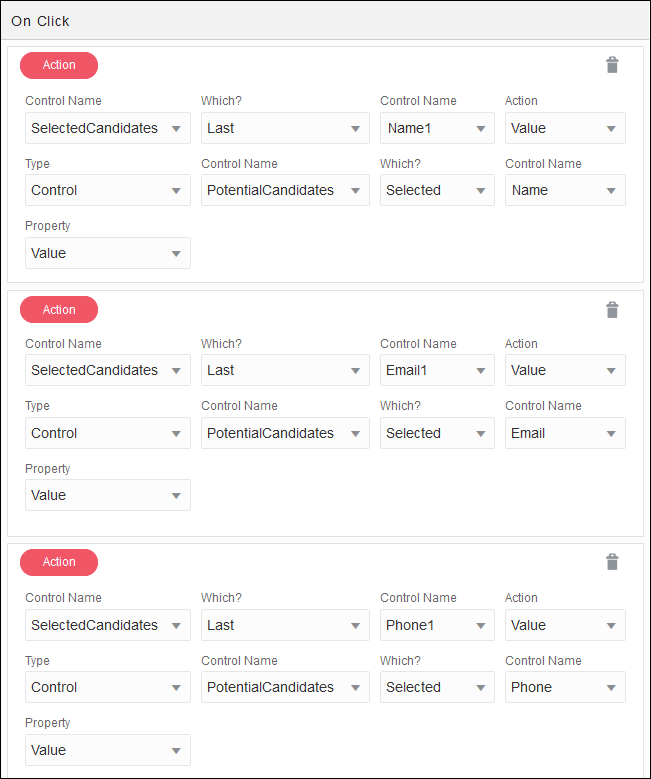
- Add an action to copy each column over to the other table. For example, if your tables have 3 columns each, then the On Click event will have a total of 4 actions.
- Click Edit