Create a Wizard to Help Users Complete a Form
Learn how to create a wizard that will help your users complete and submit a form in your process application. To get started, look at the sample volunteer form for an overview. Download and try out the sample application, and then follow the steps to create your own wizard.
Learn About the Sample Wizard
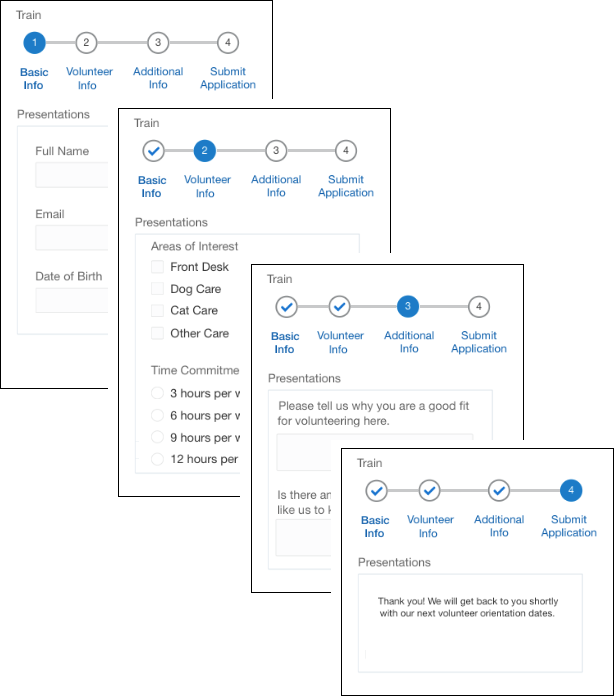
Let’s review the sample form that people complete when registering for volunteer positions.
In the first step, the wizard prompts the user for basic information, such as name and email. Next, it asks about areas of interest and time commitment. Then, it requests some additional information. In the final step, the user submits the application. The wizard acknowledges the form was received and sends information about what happens next.
Import the Sample Forms and Preview the Wizard
Import the sample forms and try out the wizard.
- In the Integration Cloud navigation pane, click Processes.
- In the Processes navigation pane, click Applications.
- On the Process Applications page, click Create, then Import.
- Browse and locate the TrainSample.exp file you downloaded and click Import.
- In the Application navigation pane, click Forms, and then open the Wizard form.
- Click Preview. Select each step in the wizard and enter sample values, and then submit the form.
Build a Wizard Yourself
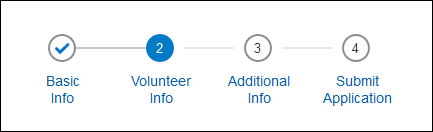
Add a Train control to any form to create a wizard that helps users complete the form. The train—or wizard—has several stops along the way. Each stop displays a different portion, also called a presentation, of the form. Users can see the steps they have completed, their current step, and how many more steps to go.
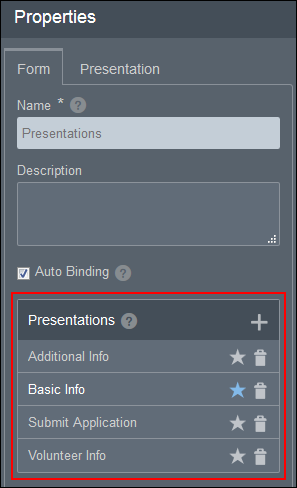
- In the Presentations form, create one presentation for each step of the wizard.
- In the Wizard form, drag and drop a Train control
 from the Advanced Palette. Add the Presentations form
  from the Forms Palette.
 - In the Wizard form, define the four stops for the Train control.
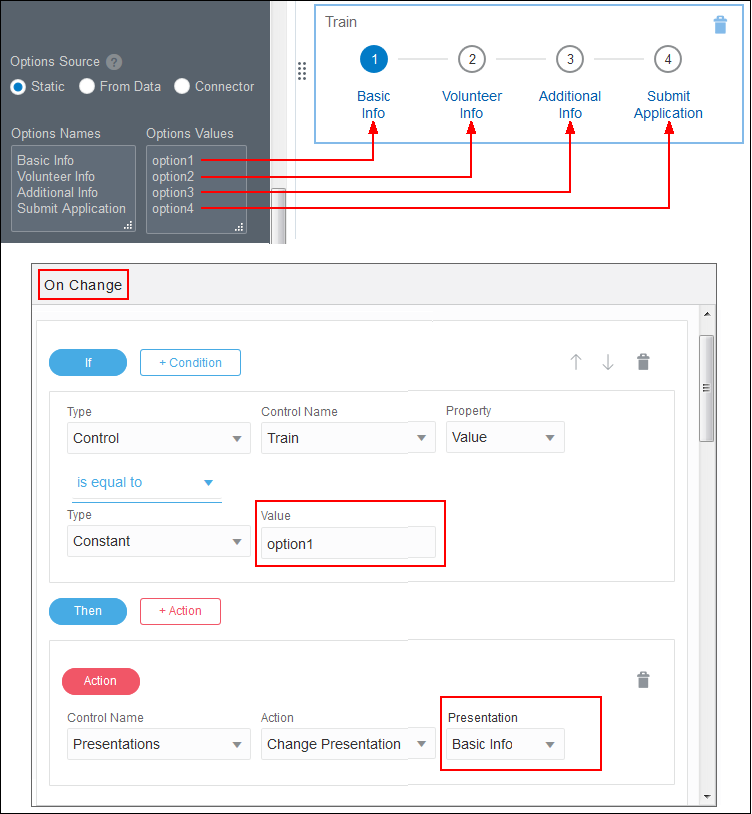
Select the Train control. On the General tab in the Properties pane, enter the Options Names and Options Values for the four train stops (which are the four steps your users will complete):
-
Basic Info –> option1
-
Volunteer Info –> option2
-
Additional Info –> option3
-
Submit Application –> option4
-
- In the Wizard form, add events for the Train control.
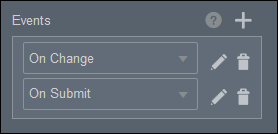
Select the Train control again. On the General tab in the Properties pane, add an On Change event and an On Submit event.
- Configure the On Change event.
Add a series of If/Then/Else If condition and action expressions to control which presentation displays when the user clicks a train step. If the train value is equal to the train step value, then display the presentation corresponding to that value. For example:
-
Option1 is the value of the first train step, so when the user clicks the first train step, then the corresponding presentation Basic Info is shown.
-
Option2 is the value of the second train step, so when the user clicks the second train step, then the corresponding presentation Volunteer Info is shown.
-
- In the Wizard form, configure the On Submit event.
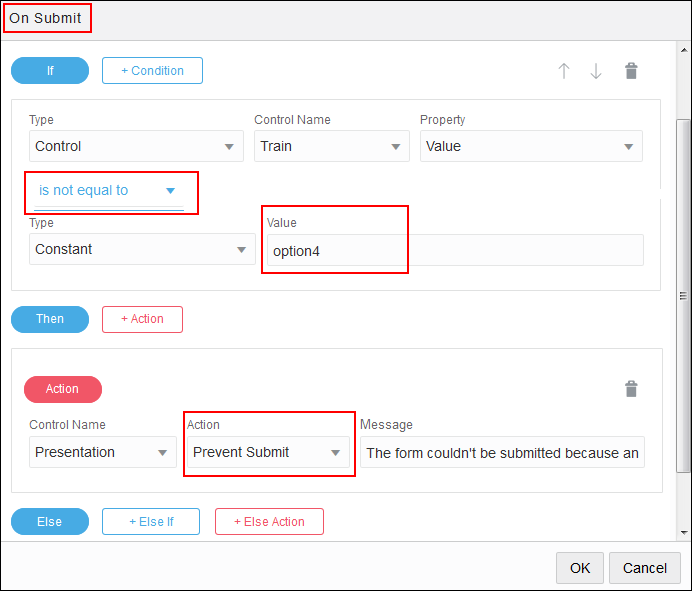
In this example, option4 is the last step. The user should be able to submit the form only while visiting the last step.
Configure the On Submit event to prevent form submission if the user isn’t on the last step.