Insert Rows in a Dynamic Table
You can configure a dynamic table to insert a child row beneath a selected parent row.
Building on the employee table setup in Add a Dynamic Table to a Page, this example uses Public Workers to display each employee’s phone contacts as child rows. You’ll arrange the service data into a hierarchy, with employees as parent rows, and add fields to the layout to display their contact details. Users select an employee, click Add Phone Contact, and enter the phone type and number.
Use a Buffering Tree Data Provider to hold pending insertions and an underlying tree data provider to supply the hierarchical data. The table displays buffered changes alongside existing rows. This example retrieves employees and their phones from the same Public Workers resource used by the publicWorkersListSDP example in Create Variables to Temporarily Store Data in a Buffer, then uses a Mutable Array Tree Data Provider to present them as a tree. An Array Tree Data Provider can also be used with a Buffering Tree Data Provider; preserve its key and data-update conventions when adapting the example.
Note: Adding a row to the buffer does not save it to the HR service. This example demonstrates local child-row insertion only. Public Workers is read-only. Persisting a new phone contact requires a separate writable service and the necessary permissions; it is outside the scope of this example.
Before you begin:
- Use an application version that offers Buffering Tree Data Provider and Mutable Array Tree Data Provider in the variable’s Type list, with compatible Oracle JET and Dynamic UI libraries. Buffering Tree Data Provider is available in Oracle JET 19.0.0 and later.
- Have access to the Public Workers service connection with a Get Many operation that can return the
phoneschild collection. See Work With Services. - Configure a dynamic table and a rule set using the Public Workers endpoint. Include
DisplayNameandPersonNumber, and create two string custom fields,contactTypeandcontactValue, for the contact rows. Add these fields to this table’s layout with the labels Phone Type and Phone Number. These are fields in the layout, not new attributes in the HR service. See Add a Dynamic Table to a Page.
Retrieve and Arrange the HR Data
-
Create a page variable named
employees, of typeobject[], with an empty array as its default value. -
Create a JavaScript action chain for the page’s
vbEnterevent. Use a Call REST action to retrieve worker identities and their phone contacts. Map the response into a common row shape, with each employee’s contacts inchildren:const { $variables } = context; const response = await Actions.callRest(context, { endpoint: 'oracle_hcm_centralcomponentspublicUI:publicWorkers/getall_publicWorkers', uriParams: { limit: 2, expand: 'phones', onlyData: true, fields: 'PersonId,PersonNumber,DisplayName;phones:PhoneId,PhoneType,PhoneTypeMeaning,PhoneNumber', }, }); if (!response.ok) { return; // Handle the failed request in your application's normal error flow. } $variables.employees = response.body.items.map(worker => ({ id: worker.PersonId, DisplayName: worker.DisplayName, PersonNumber: worker.PersonNumber, children: (worker.phones?.items || []).map(phone => ({ id: phone.PhoneId, DisplayName: 'Phone', contactType: phone.PhoneTypeMeaning || phone.PhoneType, contactValue: phone.PhoneNumber, })), }));Use the endpoint identifier generated for your Public Workers connection; the identifier above is the one used by this example. The request is limited to two workers for the demonstration. Adapt the query and paging to your application’s requirements. Use translation resources for display text such as
Phone.This extends the flat employee list with phone child rows; the REST response is mapped into an array for the tree provider rather than bound directly through
publicWorkersListSDP. Preserve the service identifiers as returned, including stringPersonIdvalues.Keep an empty
childrenarray for employees with no contacts. If the table’s Quick Start created a Service Data Provider, the table will be rebound to the buffering provider below; avoid fetching the same data through both paths.
Configure the Tree Data Providers
For an overview of the available tree types and their constructor parameters, see Create Variables for Tree Data Providers. The steps below configure the mutable provider and buffering wrapper for this employee/contact example.
-
Create a variable named
employeeTreeand select Mutable Array Tree Data Provider as its type. In the Properties pane, click Assign under Constructor Parameters and map the parameters as follows:Parameter Value data$variables.employeeskeyAttributeThe string idoptionsThe object { "useKeyPaths": "on" }With key paths enabled, each key identifies a row in the hierarchy. For an employee with ID
1001, the parent key is[1001]; a contact with ID101beneath that employee has key[1001, 101]. Keep keys as arrays rather than converting them to strings. See MutableArrayTreeDataProvider. -
Create a variable named
employeeBufferand select Buffering Tree Data Provider as its type. Map itsdataProviderConstructor Parameter to$variables.employeeTree.instance. Leave the optionaloptionsparameter unmapped. -
In the Page Designer, select the dynamic table. In its Data tab, bind
datato$variables.employeeBuffer.instance.Keep the table’s Public Workers metadata and rule-set bindings. The table now displays the hierarchical data and pending insertions through the buffering provider.
Identify the Selected Employee
-
Create an object type named
employeeSelectionwith the fieldsrowKey(any[]) androwData(object). Create the following page variables:Variable Type Initial value selectedEmployeeemployeeSelection{ "rowKey": [], "rowData": {} }contactDraftobject{ "contactType": "Work phone", "contactValue": "" }newContactCounternumber0 -
Configure the table for single row selection (
selection-mode.row="single"). Add a listener forfirstSelectedRowChangedand create an action chain with the parametersrowKey(an array of any type) androwData(an object).Map the event values to the parameters:
Chain parameter Expression rowKey$event.detail.value ? $event.detail.value.key : nullrowData$event.detail.value ? $event.detail.value.data : null -
Store only a parent selection. In a JavaScript chain, declare both parameters explicitly, including their JSDoc entries:
/**
 * Store a selected employee, or clear the selection for a child row.
 * @param {Object} context Page context.
 * @param {Object} params Selected row.
 * @param {any[]} params.rowKey Selected tree key path.
 * @param {Object} params.rowData Selected row data.
 */
async run(context, { rowKey, rowData }) {
  context.$variables.selectedEmployee =
    Array.isArray(rowKey) && rowKey.length === 1
      ? { rowKey, rowData }
      : { rowKey: [], rowData: {} };
}
This example has two levels: employees have one-part keys and contacts have two-part keys. Use that key structure to identify the parent. The selection event’s row data contains the displayed fields, so do not depend on a discriminator that is absent from the layout. Clearing the selection or selecting a child clears
rowKey. Do not bind the table’scurrent-rowproperty toselectedEmployee.
Add the Phone Contact
-
Add a button labeled Add Phone Contact. Bind its
disabledproperty to[[ !$variables.selectedEmployee.rowKey.length ]]. -
Add a dialog with ID
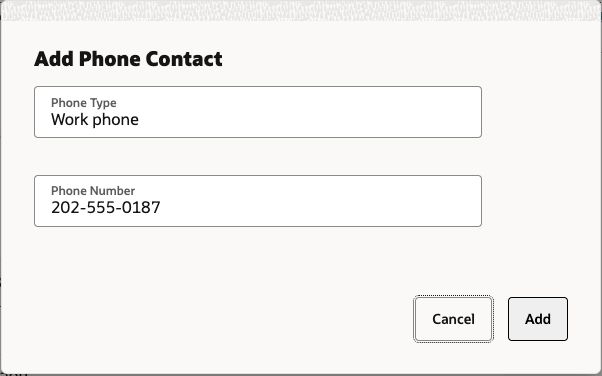
add-contact-dialog, titled Add Phone Contact, and setcancel-behaviortoescape. Place two required Input Text components in anoj-validation-groupwith IDcontact-validation:Input Two-way value binding Phone Type `` Phone Number `` Add Cancel and Add buttons to the footer. Use translation resources for labels and other display text.
-
Create an action chain for Add Phone Contact. Return if
selectedEmployee.rowKey.lengthis not1. Otherwise, resetcontactDraftto{ contactType: 'Work phone', contactValue: '' }, then use a Call Component action to callopenon#add-contact-dialog. -
For Cancel, use a Call Component action to call
closeon#add-contact-dialog, without adding a row. Cancel and Escape leave the buffer unchanged. Resetting the draft whenever the dialog opens prevents canceled values from carrying over. -
For Add, create a JavaScript action chain. Use the following code in its
run(context)method. The chain uses the standardActionsimport (vb/action/actions).const { $variables } = context; const selected = $variables.selectedEmployee; if (selected.rowKey.length !== 1) { return; } const selector = '#contact-validation'; const valid = await Actions.callComponentMethod(context, { selector, method: 'getProperty', params: ['valid'], }); if (valid !== 'valid') { await Actions.callComponentMethod(context, { selector, method: 'showMessages' }); await Actions.callComponentMethod(context, { selector, method: 'focusOn', params: ['@firstInvalidShown'], }); return; } const id = -(++$variables.newContactCounter); const draft = $variables.contactDraft; $variables.employeeBuffer.instance.addItem({ metadata: { key: [...selected.rowKey, id] }, data: { id, DisplayName: draft.contactType, contactType: draft.contactType, contactValue: draft.contactValue, }, }); await Actions.callComponentMethod(context, { selector: '#add-contact-dialog', method: 'close', });The key extends the selected employee’s key path; for example,
[1001, -1]. Negative IDs are temporary identifiers for this local example. Use a key scheme that cannot collide with existing rows.Add the row through the buffer. Do not also append it to
employees, which would duplicate the insertion. See BufferingTreeDataProvider.
Verify the Result and Implement Saving
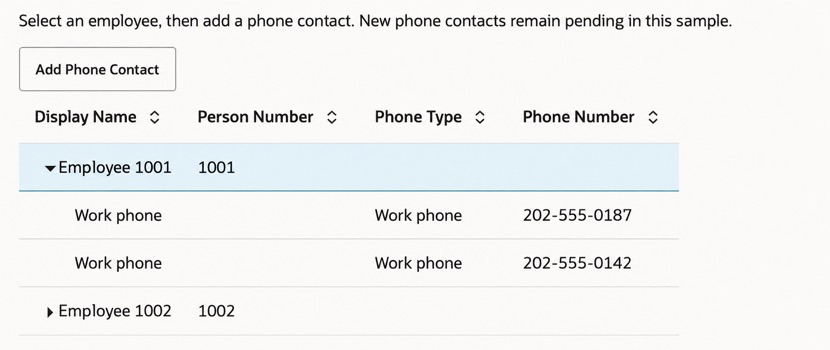
Preview the page, select an employee, and click Add Phone Contact. Enter Work phone and a demonstration value such as 202-555-0187, then click Add. Expand the employee row if necessary. The new phone contact should appear beneath the selected employee, alongside any existing phone contacts, while the other employee’s contacts remain unchanged.
Also check the following:
- Add a contact beneath an employee with no children and verify that it appears beneath that employee.
- Add several contacts and verify that each appears once and earlier contacts retain their values.
- Select a child contact or clear the selection and verify that Add Phone Contact is disabled.
- Cancel the dialog or press Escape, reopen it, and verify that the draft is reset and no row was added.
- Leave a required input empty and click Add. Correct the error and verify that only the valid submission adds a row.
- Reload the page and verify that local pending insertions disappear while the Public Workers data loads again.
Public Workers and its phone child collection are read-only; do not send create requests to this resource. If your application must save new contacts, use a separate writable service for which the user has the required permissions, and implement a save action that handles success and failure. getSubmittableItems and setItemStatus support that workflow; see BufferingTreeDataProvider. The tree’s common display shape is not an HR create-request payload: map each item to the correct child endpoint, parent identity, and service attributes. Do not report a contact as saved merely because it appears in the table; verify saving by reloading data from the backend.