Understanding Match Results for Mapping
The Match Results screen displays the match candidates for mapping and enables you to accept, reject, or skip them.
After you run a match, the screen displays the match candidates:
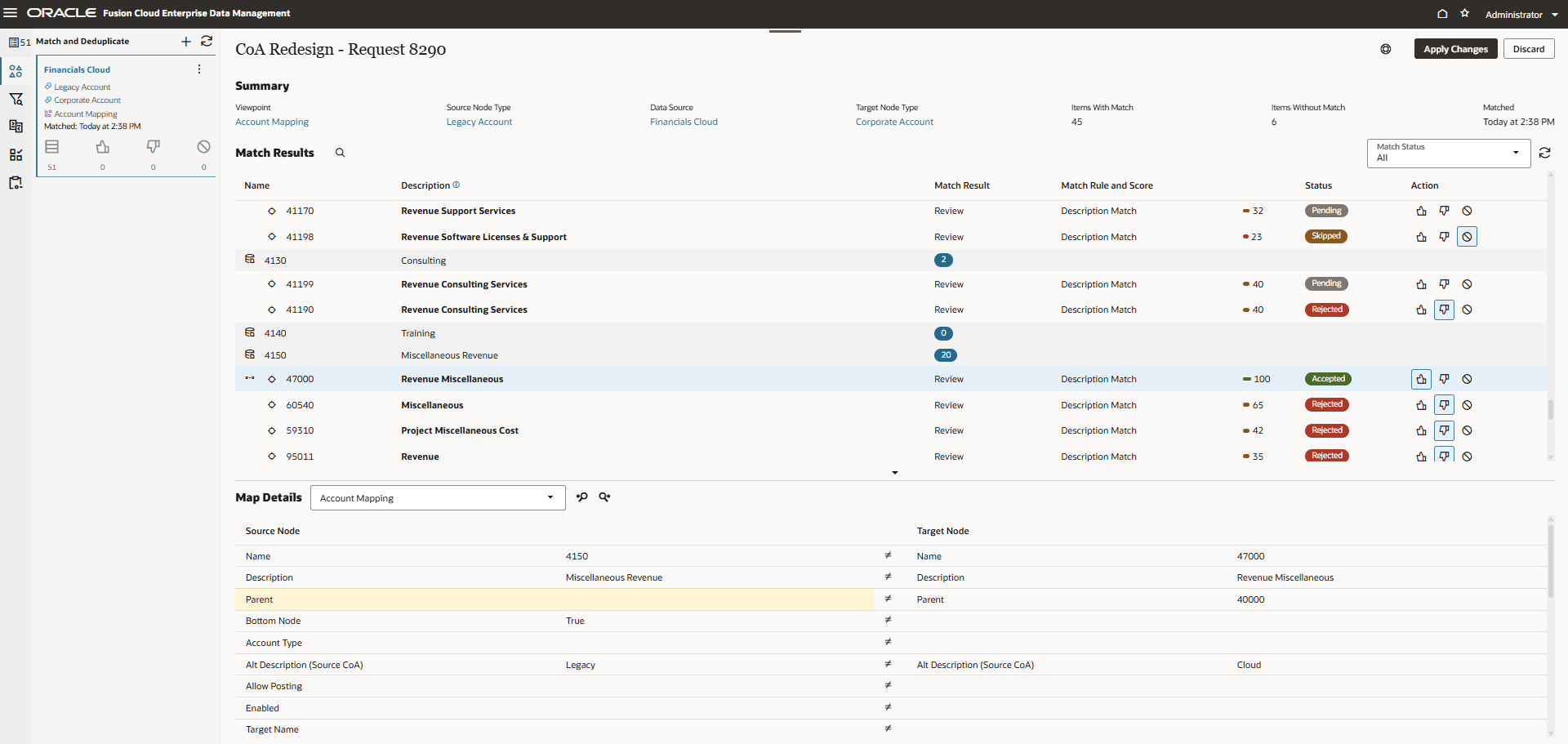
The screen contains the following sections:
Match and Deduplicate Panel
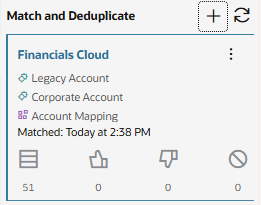
The Match and Deduplicate panel displays the match result sets for the matches that you have run for this request by data source. If your request contains request items with different data sources, you can run matches for each data source and the results are displayed in the panel. Click a match result set to switch your view to the matches from that data source.
Note:
Match results sets persist if you navigate away from the matching workbench (for example, by returning to the request view or closing the viewpoint).Each match result set displays the total number of request items that have match candidates, as well as the number of request items with match candidates that were accepted, rejected, and skipped.
From this panel, you can perform the following actions:
- Create and run a new match. See Running Matches for Mapping.
- Rerun matching for an existing result set. See Rerunning Matches.
- Apply the changes from a match result set. See Applying Changes from Match Results.
- Discard the match results from a match. See Discarding Match Results.
Summary Section

The Summary section displays the mapping viewpoint, source and target node types, and data source that were used for the match, the number of request items with and without a match, and the time the match was run. You can click the viewpoint, either node type, or data source to inspect that object.
Note:
Each match result set is specific to a viewpoint, source and target node type, and data source. So, if your request contains request items from multiple data sources, you must run separate matches for each data source in order to see the match candidates for each source.
Match Results Section
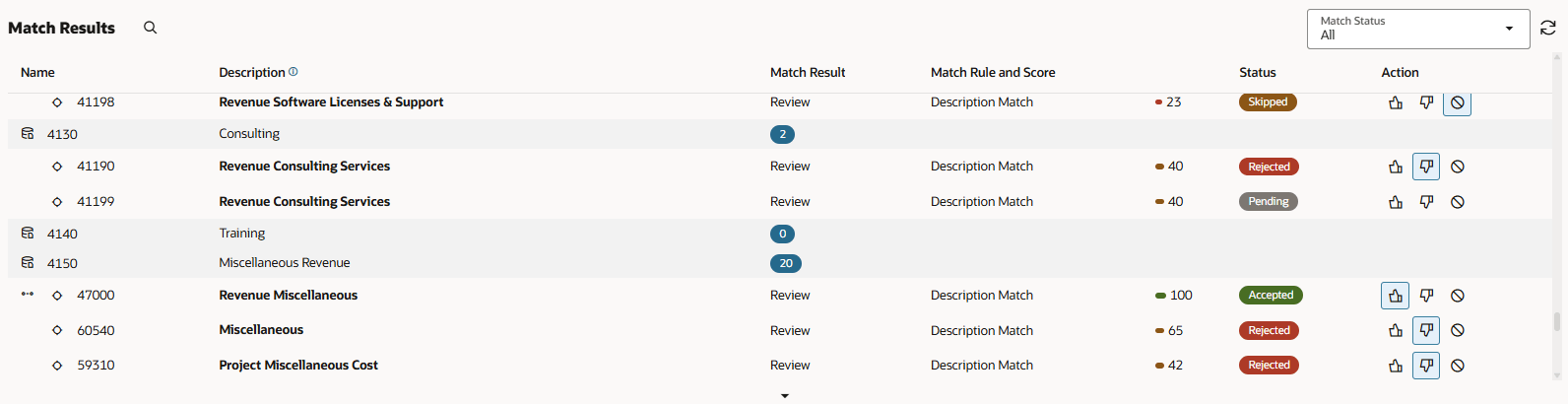
The Match Results section displays the match candidates in the selected match result set, and enables you to accept, reject, or skip matches. The property values that were used in the match rule that resulted in a match are highlighted in bold.
If a candidate meets the criteria for multiple matching rules, a single result is returned for that candidate with the associated matching rules displayed. The matching score for each rule is also displayed.
Note:
If a matching rule meets or exceeds the Auto Accept Threshold (see Creating, Editing, and Deleting Matching Rules), the candidate is automatically marked as Accepted and the other candidates are marked as Rejected. You can review the match candidate to modify this status before applying your changes.
If multiple matching rules meet or exceed the Auto Accept Threshold, the rule with the highest matching score is accepted. If the rules have the same matching score, then the rule with the highest priority (that is, the lowest Rule Order) is accepted. See Creating, Editing, and Deleting Matching Rules.
If a matching rule meets or falls below the Auto Exclude Threshold, the match candidate is not displayed in the match results.
The Match Results section contains the following information:
- Request Items: The result set is grouped by the incoming request items.
Request items are displayed with a data source
 icon, and highlighted with a grey background. The Match Result column
for each request item displays the number of match results that were found.
icon, and highlighted with a grey background. The Match Result column
for each request item displays the number of match results that were found.
In the above example, the rows with "4130", "4140", and "4150" are the incoming request items.
- Match Candidates: Indented under each request item are the match
candidates. The match candidates are existing nodes there were determined to be
match candidates based on the matching rules, and they are displayed with a node
 icon. The following details about each candidate are displayed. (The
Example column shows the corresponding values from the example screen
shot, above.)
icon. The following details about each candidate are displayed. (The
Example column shows the corresponding values from the example screen
shot, above.)
Column Description Example Name The Name property of the match candidate. Note:
If the Name property was used for matching, an information icon is displayed in the column header.For the 4130 request item, the match candidates are the two existing nodes with a description of Revenue Consulting Services.
The 4140 request item does not have any match candidates.
For the 4150 request item, the match candidates include Revenue Miscellaneous, Miscellaneous, and Project Miscellaneous Cost.
Additional properties used for matching If other properties besides Name are used in the match rules, they are displayed as columns with an information icon in the column header. The property that was used in the match rules in the above example is Description. Match Result For incoming request items, displays the number of matches.
For match candidates, displays Review, indicating that a node in the node type was identified as a possible match for the request item.
For match candidates that were automatically accepted, displays Match.
The request item rows display the number of matches (2, 0, and 20), and the match candidate rows all display Review in the Match Result column, indicating that they have been identified as possible match candidates. Match Rule and Score Displays the following information: - The name of the match rule for the node type and data source
- The confidence level of the match candidate, as indicated by a numerical score and a colored meter bar.
For more information about the match scoring, see the FAQ How are match scores calculated and how do I use them?
For the 4150 request items, the Description Match rule is displayed with 100 confidence level, indicating that the match candidate matches the matching rules criteria completely. The other candidates display lower numbers for the Description Match rule, indicating a lower level of confidence for those candidates because they match only some of the matching rules criteria.
Status Displays the following information: - Pending: The match candidate has not yet had an action performed on it.
- Accepted: The match candidate was accepted as
a match.
Note:
Accepting a match candidate automatically updates all other Pending match candidates for that request item to Rejected. - Rejected: The match candidate was rejected, either because you accepted another match candidate or because you rejected it.
- Skipped: The match candidate was reviewed and marked as skipped. When you mark a candidate as Skipped, the next time you run matching for this node type and data source it will be presented again for your review so that you can take action on it.
The 41199 match candidate has a status of Pending, indicating that it hasn't been accepted or rejected yet, while the 41198 match candidate was Skipped.
For the 4150 request item, the first candidate has a status of Accepted. This automatically updated the status of all other Pending match candidates to Rejected.
Action Enables you to accept, reject, or skip a match candidate. See Reviewing Match Results and Applying Changes. The Accept, Reject, and Skip buttons are displayed for each match candidate.
Match Details

The Match Details section displays the properties for both the request item and the match candidate in a side-by-side layout so that you can compare them.
- The Source Node section displays the properties and values for the incoming request item instance, including the parent and relationship properties.
- The Target Node section displays the properties and values of the existing match candidate in the viewpoint.
Properties that are being updated in the request item are highlighted in yellow, and differences in property values between the incoming request item and the existing target node are indicated with a Not Equal (≠) sign.
Note:
Unlike a merging or deduplication operation, because the source and target nodes are not merged you do not pick the properties from each to keep.Click Locate Source Node
 and Locate Target Node
 to view the source or target nodes in their viewpoints. You can access
additional information by viewing the node in the viewpoint, such as its hierarchy
location and transaction history. Click the Match and
Deduplicate
to view the source or target nodes in their viewpoints. You can access
additional information by viewing the node in the viewpoint, such as its hierarchy
location and transaction history. Click the Match and
Deduplicate
 tab on the left side of the viewpoint window to return to the matching
workbench.
tab on the left side of the viewpoint window to return to the matching
workbench.