Comparing Doclet Versions
Doclet compare in Oracle Smart View for Office enables you to analyze two versions of the same Word-based doclet so that you can identify and highlight differences between them.
Related Topics:
About Comparing Doclet Versions
Doclet compare in Smart View enables you to analyze two versions of a Microsoft Word doclet so that you can identify and highlight differences between them. Depending on context, you can access doclet compare by using the Compare button in the Narrative Reporting ribbon, or by using the Compare button in the Version tab of the Properties dialog.
Available for Word doclets only, compare allows users to detect changes made between two versions; for example:
- Textual changes, such as inserted, deleted, or modified text, formatting changes, and moved content.
- Added or removed embedded content and variables, including changes in embedded content and variables
When you select Compare, either from the ribbon or the dialog, Smart View produces a comparison document where differences are visually highlighted for easy review, similar to document compare in Word. You then use Word features to navigate and review the summary pane, the original doclet, and the revised doclet.
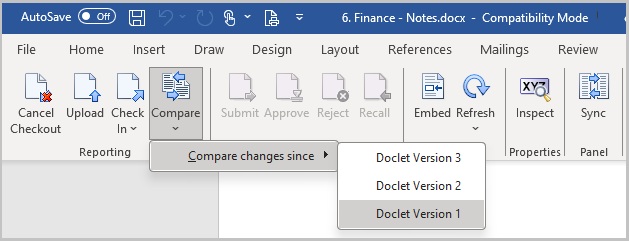
From the checked-out and uploaded state, you perform a doclet compare by selecting the arrow on the Compare button in the Narrative Reporting ribbon, then select Compare changes since to view a list of doclet versions. You can select any of the doclet versions in the list. In Figure 24-63, we've select Doclet Version 1.
Figure 24-63 Compare Accessed from the Narrative Reporting ribbon
Once checked in, you perform a doclet compare by accessing the
Version tab of the Properties
dialog from either the Inspect button in the Narrative Reporting ribbon or the Properties link for the current doclet in the
report package panel, then select the Versions tab. Use your
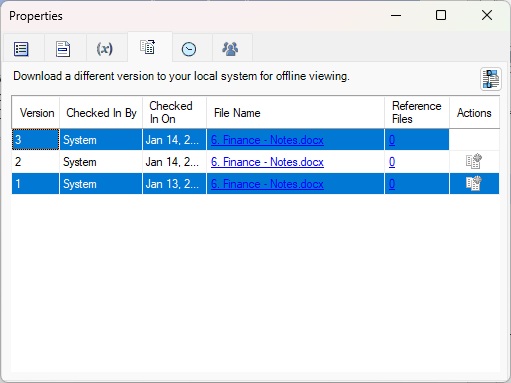
Control key to select two versions to compare. In Figure 24-64, we selected versions 1 and 3. Then
click the Compare button,  .
.
Figure 24-64 Compare Accessed from the Compare Button in the Properties Dialog, Version Tab
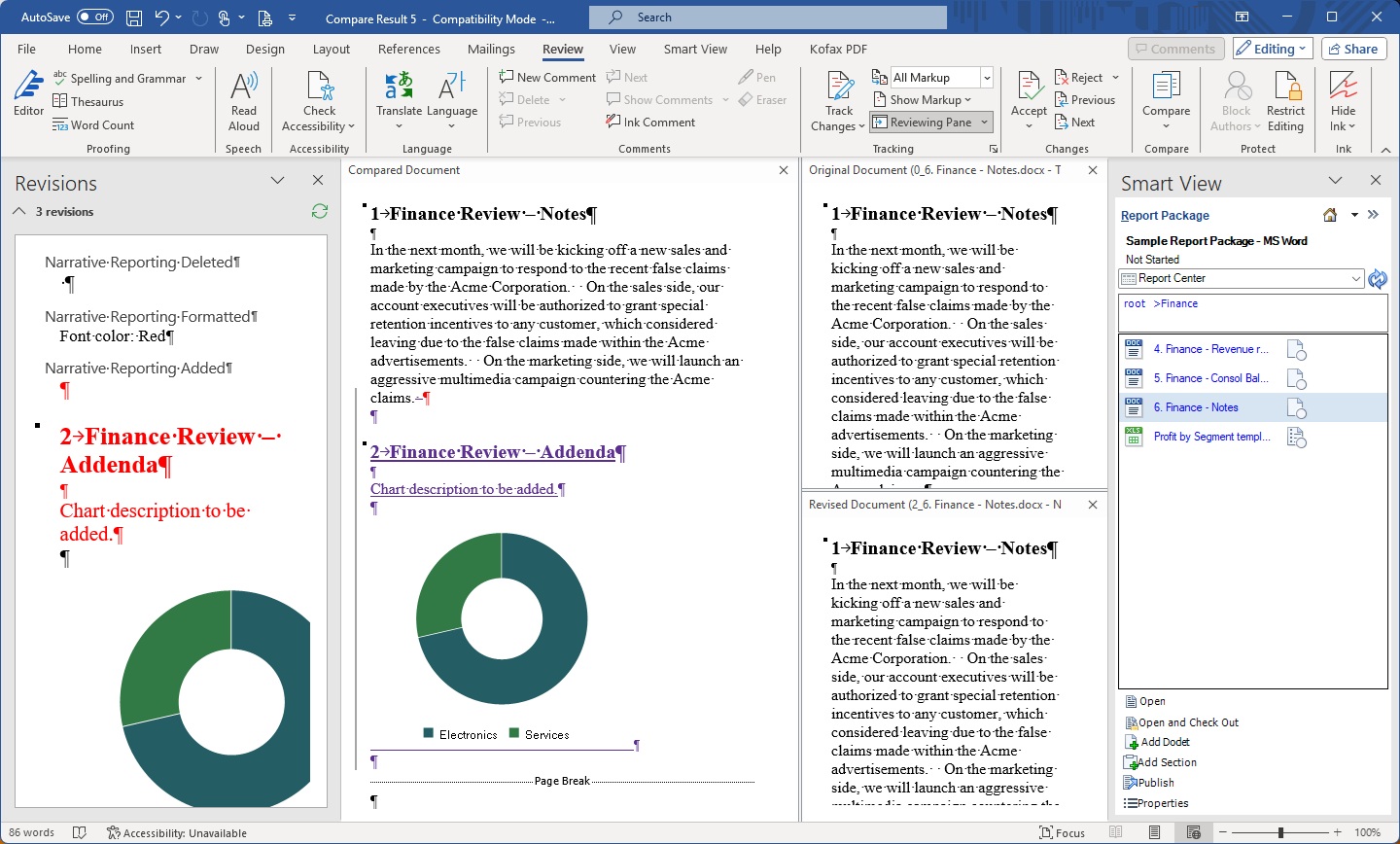
The comparison result of the two doclet versions is presented in the familiar Word format with these panes:
- Summary of changes
- Compared doclet
- Original version of the doclet - think of this as the base version
- The revised version of the doclet - the version you are comparing to the original version
The example shown in Figure 24-65 shows the results of comparing the original version of a doclet with the latest version:
Figure 24-65 Doclet Comparison Results
Comparing Doclet Versions
-
For a checked-in or checked-out doclet:
-
Use one of the following methods to access the
Properties dialog,
Version tab for the doclet:
- In the Narrative Reporting ribbon, click Inspect to launch the
Properties dialog, and then select
the Version tab,
 .
.
- In the Report Center, select a doclet (it does not need to be
open), and in the Action Panel, select Properties, and then select
the Version tab, .
An example of the Properties dialog, Version tab is shown in Figure 24-64.
- In the Narrative Reporting ribbon, click Inspect to launch the
Properties dialog, and then select
the Version tab,
-
In the Properties dialog,
Version tab, use the
Ctrl key to select two doclet versions, then
click the Compare button,
The comparison document is presented, as shown in Figure 24-65.
-
Use one of the following methods to access the
Properties dialog,
Version tab for the doclet: