Managing Financial Analysis Configurations
The Financial Analysis Configurations page provides a central place to manage the configurations that you create for various types of financial analysis. You can view a list of existing configurations, configure new analysis types, edit, duplicate, and run a configuration at any time to view the results.
You can create these types of configurations:
-
Financial Statements: Use out-of-the-box hierarchies and ratios across Balance Sheet, Income Statement, and Cash Flow financial statements. Create custom hierarchies, such as product-specific revenue rollups or business-unit-specific aggregations. See Configuring Financial Statement Analysis.
-
Ratios: Define custom ratios using any mathematical expression (for example, X/Y), enabling tailored financial Key Performance Indicators. See Configuring Financial Analysis Ratios.
-
Detailed Analysis: Define custom expressions based on your business requirements. See Configuring Detailed Analysis in Financial Consolidation and Close.
-
Validations: Select and customize validations. Choose from out-of-the-box validations such as Out of Balance or Acquisitions/Disposals Offset validations, create Inter Module validations to validate status across modules, or create custom validation rules based on business-specific requirements. See Configuring Financial Consolidation and Close Validations.
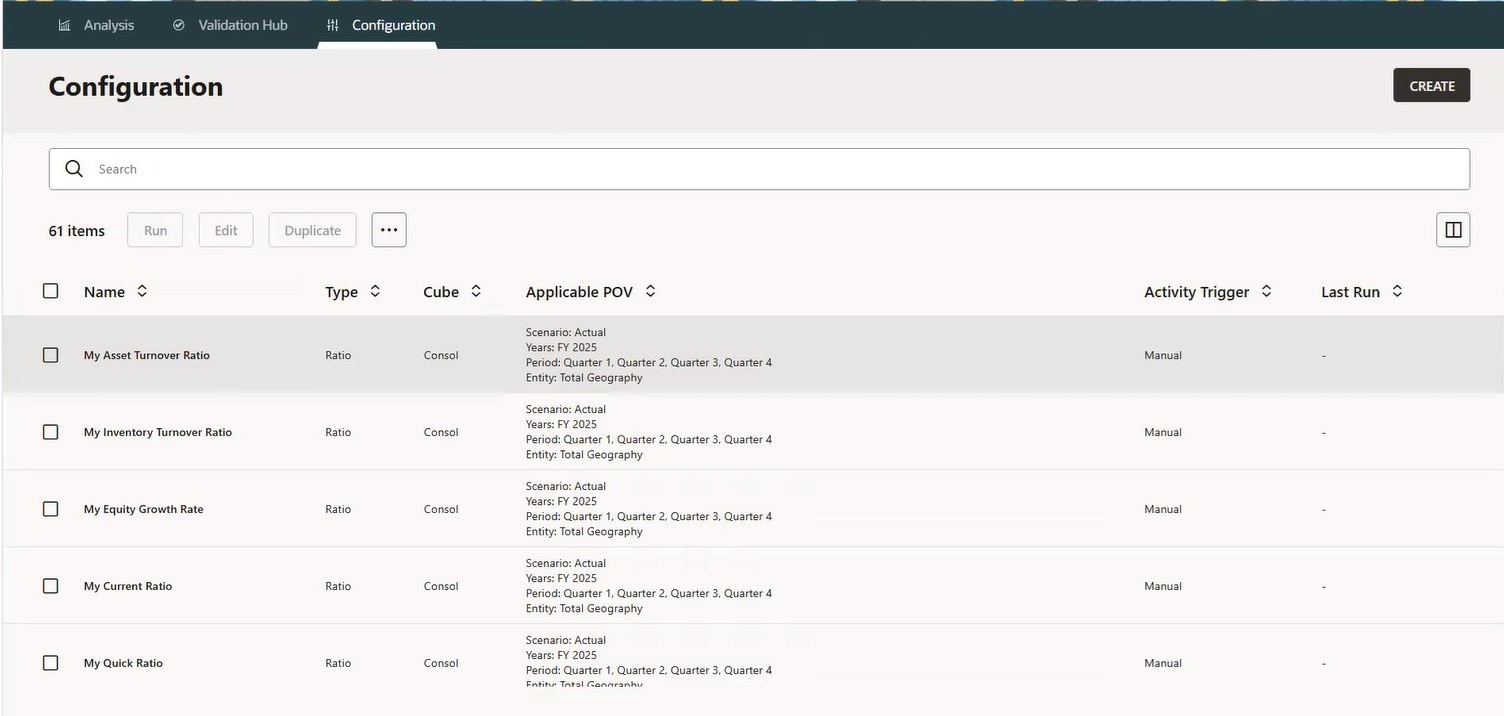
To manage configurations:
-
On the Home page, click Financial Analysis Hub, then select Configuration.
The Configuration page is displayed with a list of available configurations.
-
To select Columns to display on the list, click the Columns
 button, then select columns, for example, Name, Description, Type,
Applicable POV, Activity Trigger, Cube, Fixed Dimensions, Last Modified, Last
Run, Last Run Details.
button, then select columns, for example, Name, Description, Type,
Applicable POV, Activity Trigger, Cube, Fixed Dimensions, Last Modified, Last
Run, Last Run Details.
You can also sort the columns by ascending or descending order.
-
To search for a configuration, in the Search field, enter the text on which to search.
-
To edit a saved configuration, click Edit. You can update the POV member selections, expressions, ratio attachments, or other configuration details.
When you edit and save an existing configuration that was previously executed, the corresponding analysis or validation will be removed.
-
To run a saved configuration, click Run, then select the required POV for the configuration.
-
To create a copy of a saved configuration, click Duplicate.
-
To remove the existing configuration output from the Analysis page, click Dismiss. The configuration remains available on the Configuration page to run at any time in the future.
-
To permanently delete a configuration, click Delete.